Connect: How to Export Excel File in Responses

Exporting a file allows the user to convert data from one file type to another format. Once the file is exported to the desired format (as indicated by its file name suffix), it can be opened and worked on in any application that recognizes and supports that format.


1. After logging in, you will be directed to the Dashboard Landing page. 


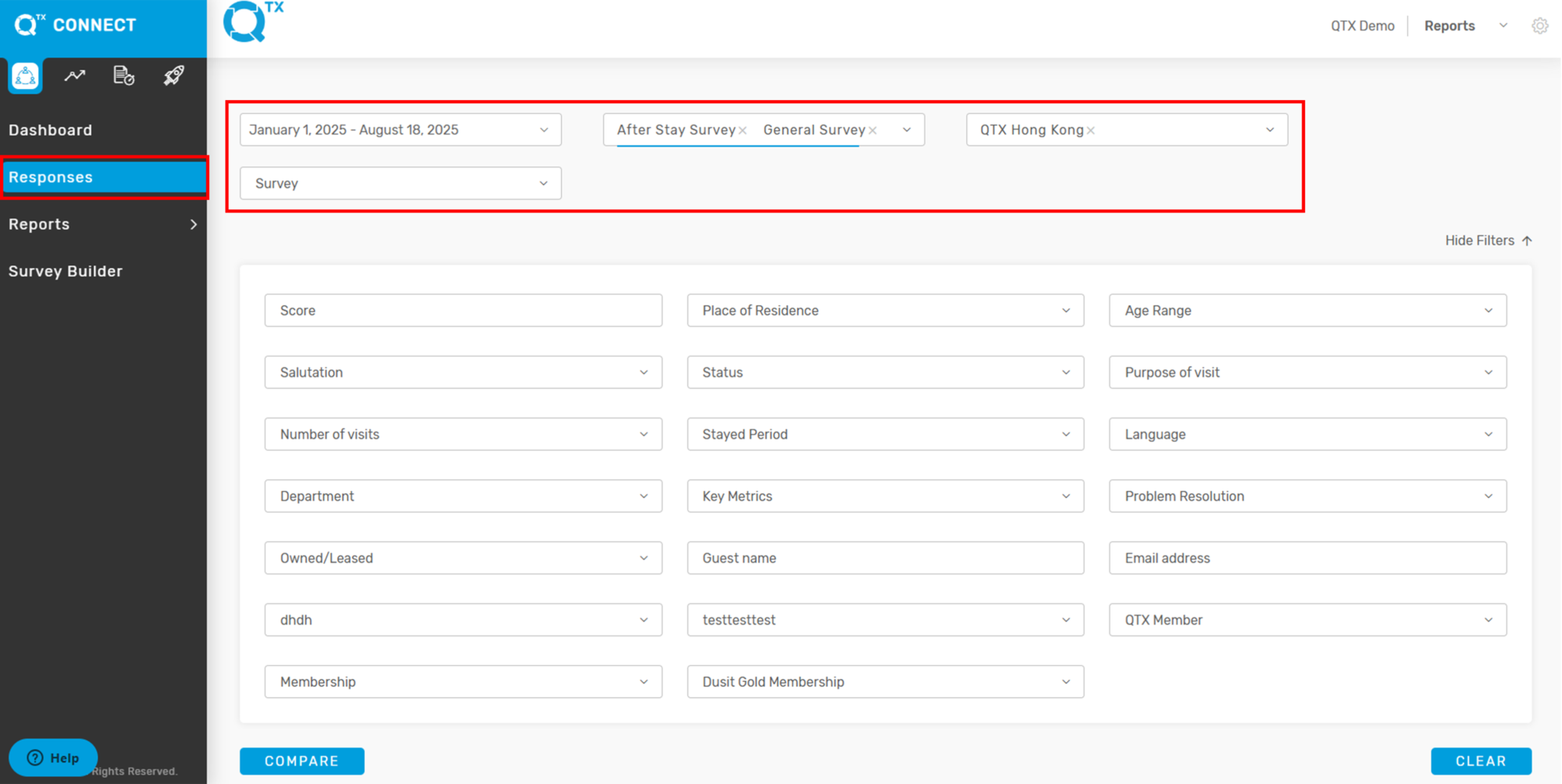
2. First, click on Responses, then fill in the filter criteria you want to view.


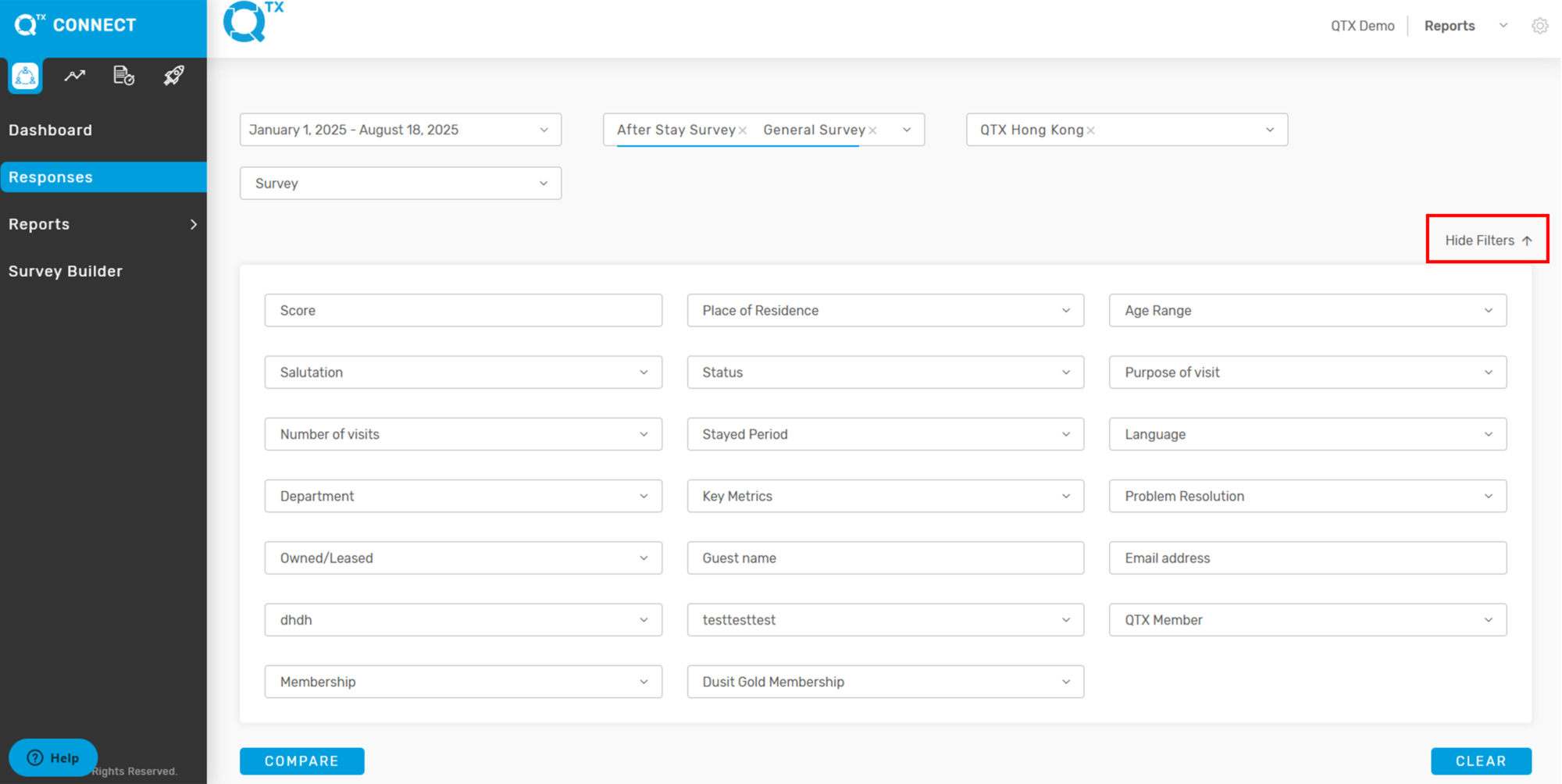
There is also a Hide Filter option on the right side, which allows for easier viewing of the data.


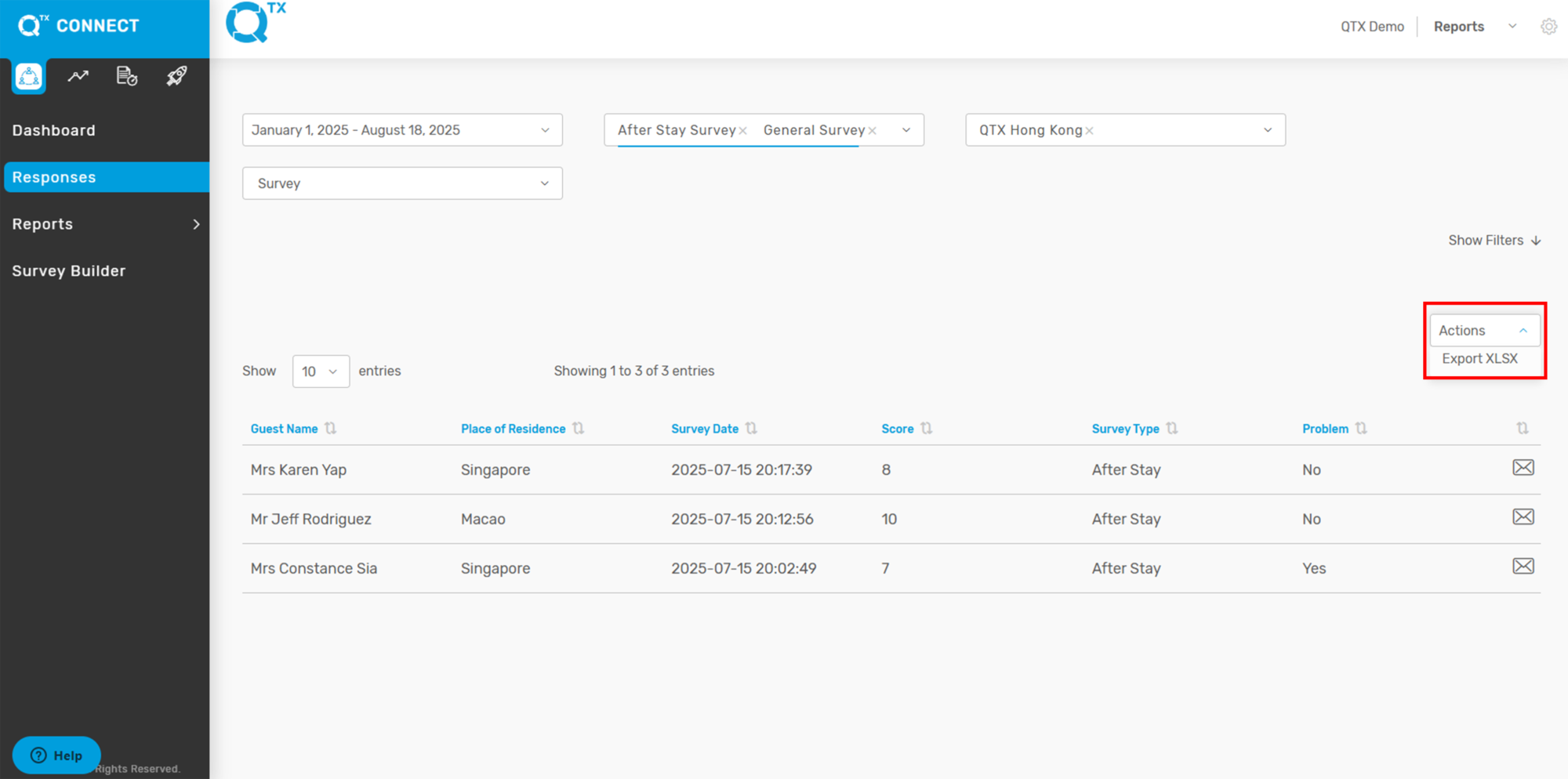
3. From here, select the ACTIONS button. A drop-down menu will appear, where you can choose EXPORT XLSX.


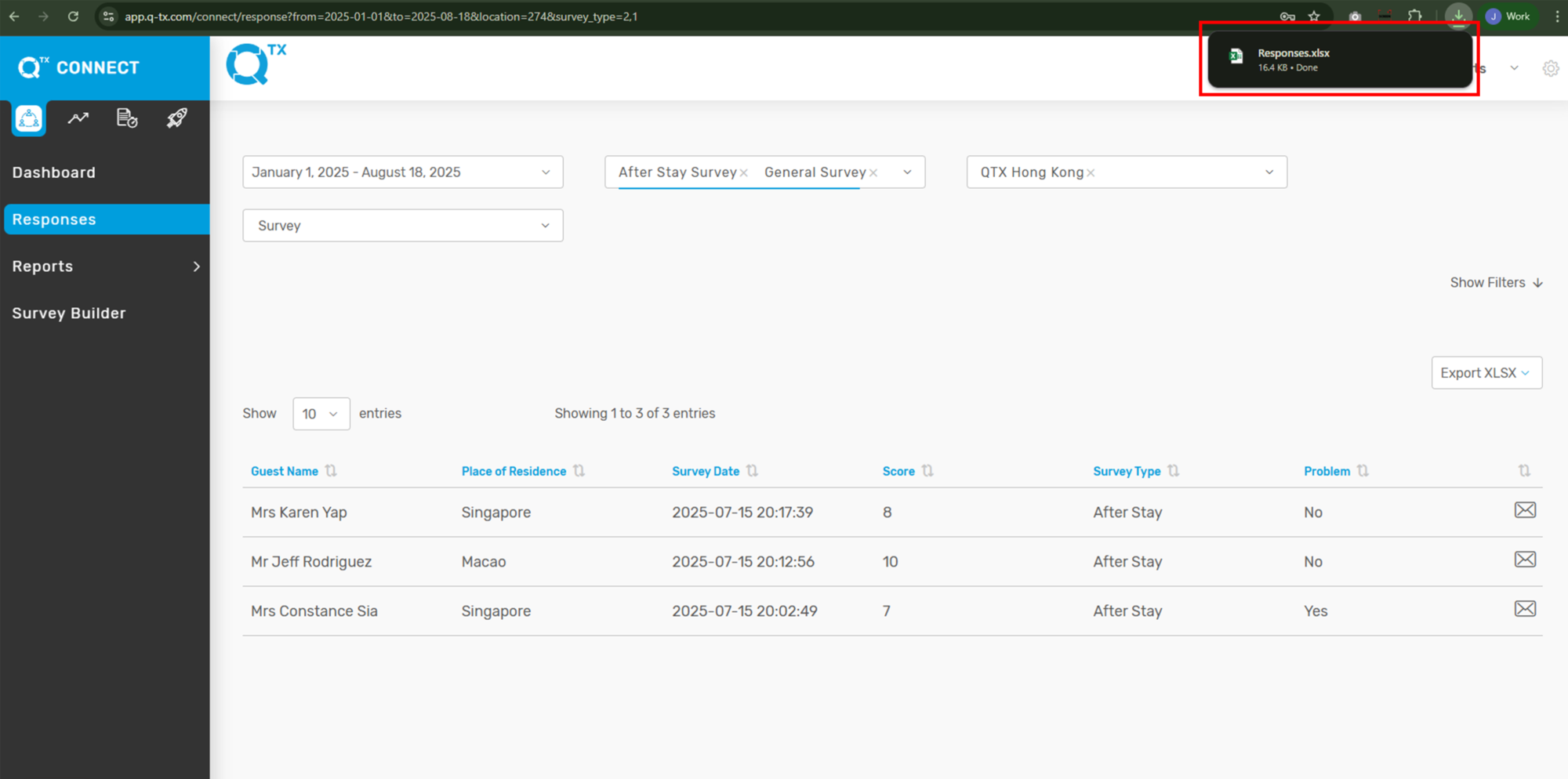
 4. The exported file will appear on your screen. Click on it to open, and you can then view and edit the file in Microsoft Excel.


If you need further assistance, please send an email to helpdesk@q-tx.com

Connect: How to View Guest Name Lists for After Stay, General, and Outlet Surveys in Responses

The Hotel Satisfaction Survey (also referred to as a customer satisfaction survey or guest questionnaire) is a set of questions sent to guests after their stay. It enables hotels to gather valuable feedback, respond quickly to issues or needs, and enhance customer engagement.


1. On the “CONNECT” dashboard landing page, click on Responses.


2. The filters will appear. Click on Survey Type and select After Stay Survey. (Follow the same procedure to view After Stay + General Survey and General Survey.)


3. The available guest name list will be displayed. To view a guest’s responses, click on the guest’s name, and you will be directed to the Guest Response landing page.


On the Guest Response page, you can use the options highlighted at the top right. The envelope icon allows you to send an email, while the Actions button opens a drop-down menu with additional options to Export file.


4. Click on Survey Type. A drop-down list will appear; from there, select Outlet Survey.


5. This will take you to the available guest name list. To view the guest responses for each outlet, click on the guest’s name, and you will be directed to the Guest Response landing page.


Here, you can view the guest’s name, score, place of residence, location, and language.


If you need further assistance, please send an email to helpdesk@q-tx.com

How to Change Password

The ‘Manage Profile’ section provides access to your complete account details, enabling you to modify your password, username, first name, last name, and email address. The ‘Password Change’ function specifically facilitates updating your account’s authentication credentials.


1. On the Dashboard landing page, click the “SETTINGS” button in the upper right corner.


2. In the dropdown menu, select “Manage Profile.”


3. On the “Manage Profile” screen, locate the password section.
Enter your Current Password.
Enter your New Password.
Confirm your new password by entering it again.
Click “Save” to apply the changes.


If you need further assistance, please send an email to helpdesk@q-tx.com

Connect: How to Reply Guest Response as a Group User

This functionality allows you to view each guest’s response and communicate with them either automatically or manually through the QTX Connect platform.


1. From the dashboard landing page, click on Reports under the CONNECT platform.


2. Click on Response Analyses under Reports, then select the Problem Resolution tab. Next, fill out the required information in the filters.


3. This section displays resolution details and guest responses in a table format. Additional entries can be viewed by adjusting the number of entries shown or by clicking the page numbers at the bottom of the screen. To view a guest’s response, click anywhere on the guest’s row.


4. The system will display the full details of the guest’s response along with their stay information. To respond via email, click the envelope icon. (This action will redirect you to the Responses page.)


5. The guest’s email address is generated automatically. A default message will appear in the email body, which you can edit as needed. Use the scroll bar to view the full message. When you are ready to send, click the SUBMIT button.


If you need further assistance, please send an email to helpdesk@q-tx.com

Connect: How to Choose to Show the Number of Decimal Points in Reports

This setting allows users to define the number of decimal points displayed in reports. Adjusting the decimal precision ensures numerical data is presented with the required accuracy, whether rounded for simplicity or shown in full detail for analytical purposes.


1. On the Dashboard landing page, click the “SETTINGS” button located in the upper-right corner.


2. Then, choose “Manage Profile” from the drop-down menu.


3. Here, you will see the account owner’s profile details along with the option to change the password.


4. At the bottom of the page, you can configure how numbers are displayed in the reports (e.g., number of decimal points) and also change the language.


If you need further assistance, please send an email to helpdesk@q-tx.com

Connect: How to Find / View the Key metrics as a Group User

Key Performance Indicators (KPIs) are essential metrics for a business. They provide measurable statistics that reflect the performance of an organization or department. All organizations, from nonprofits to multinational corporations, need to track these metrics to gain an accurate picture of their operations. By reviewing key metrics, organizations can obtain insights that would otherwise require a complex analysis of large amounts of data.


1. On the Dashboard landing page, click the “SETTINGS” button located in the upper-right corner.


2. Then, choose “Manage Locations” from the drop-down menu.


3. The system will take you to the default view. Click on the “KEY METRICS” tab. From here, you can add new key metrics based on the aligned business requirements.


If you need further assistance, please send an email to helpdesk@q-tx.com

Connect: How to View Monthly Report

The Monthly Report compiles feedback and insights from guest experiences at the hotel. It serves as a key tool in evaluating service standards, identifying trends, and ensuring consistency in the quality of hospitality provided to guests. This report supports continuous improvement by highlighting strengths and addressing areas that require attention.


1. On the Dashboard landing page, ensure you are in the Connect Platform. Then, click on REPORTS – MONTHLY REPORT. Use the FILTER option to fill in and complete all the required information.


After applying the filter, scroll down to view the Overall Satisfaction, Global Score, and Response Rates.


List of Key Metrics, including the Number of Responses


The Top 5 Areas represent the departments or outlets with the highest satisfaction rates, while the Bottom 5 Areas represent those with the lowest satisfaction rates.


2. Here, you can view the data related to Problem Resolution.


Guest Demographics refers to the statistical characteristics of hotel guests, such as age, gender, nationality, place of origin, purpose of stay (business or leisure), and other background information. These details help the hotel understand its guest profile, identify trends, and tailor services to meet guest needs more effectively.


This data shows the Commentary Statistics Report for each department or outlet, along with the total number of comments.


If you need further assistance, please send an email to helpdesk@q-tx.com

Connect: How to View Survey Templates

On this platform, you can view the list of available survey templates, including After Stay Surveys, General Surveys, and Outlet Surveys. These templates are designed to gather valuable feedback from guests at different touchpoints of their experience. The After Stay Survey helps capture insights on overall satisfaction after a guest’s visit, the General Survey provides feedback on broad service areas, and the Outlet Survey focuses on specific departments or facilities such as restaurants, spa, or other outlets. Using these templates ensures consistency in data collection and allows the hotel to monitor guest experiences across various service areas.


1. When you are on the Dashboard landing page, ensure you are in the Connect Platform and click on the SURVEY BUILDER tab. This section allows you to create, customize, and manage survey templates tailored to different guest experiences. You can design questions, adjust formats, and select specific survey types (After Stay, General, or Outlet) to gather the most relevant feedback for your needs.


After Stay Survey – This survey is conducted after the guest has departed. It is designed to gather feedback on the overall experience, including satisfaction with services, facilities, and staff interactions, helping the hotel identify strengths and areas for improvement.


General Survey – This survey is sent to guests who have recently stayed at the hotel. It captures feedback on their stay experience, covering key aspects such as service quality, amenities, and overall satisfaction, providing valuable insights for continuous improvement.


Outlet Survey – This survey is designed to gather feedback on a guest’s experience in specific hotel outlets, such as restaurants, bars, or spas. It evaluates elements like food and beverage quality, service, ambiance, décor, and overall atmosphere, providing insights into how each outlet meets guest expectations.


If you need further assistance, please send an email to helpdesk@q-tx.com

Connect: How to View the list of Available Location as a Group User

The Location section in the Connect Platform Settings provides an overview of all the properties registered within the system. You will also be able to see the department associated with each location.


 1. From the Dashboard landing page, click on the “SETTINGS” button located in the upper right corner of the screen.


2. After clicking the Settings icon, choose “Manage Locations.


3. The system will take you to the Connect Platform Settings. Click on the “LOCATION” tab, then scroll down until you reach the list of available locations.


If you need further assistance, please send an email to helpdesk@q-tx.com
Connect: How to View Satisfaction Rate and Global Score of Owned vs. Leased Outlet

The QTX system provides a detailed Satisfaction Rate and Global Score for both Company-owned and Leased outlets, displayed separately in graph and table formats. It also includes a performance indicator that helps departments and management evaluate success in achieving specific targets.

  • Satisfaction Rate measures the percentage of positive responses from guests or users based on their direct feedback. This reflects how well the service, product, or experience met or exceeded expectations. A high Satisfaction Rate indicates strong performance in guest engagement, service quality, and operational consistency, while a lower rate highlights areas that require improvement.

  • Global Score is a comprehensive performance index that combines multiple evaluation criteria—including service standards, compliance checks, and overall guest experience—into a single score. Unlike the Satisfaction Rate, which is primarily guest-driven, the Global Score provides a broader, balanced perspective by integrating both guest feedback and operational standards. This allows management to identify trends, benchmark results across different outlets, and track progress against strategic goals.

By comparing both indicators, organizations gain deeper insights: the Satisfaction Rate highlights customer sentiment, while the Global Score reflects the overall operational and service excellence.


1. On the Dashboard landing page, click Reports under the CONNECT platform, then select Response Analyses.


2. Fill in the required filter details, then generate and view the report.


3. You will be directed to the Performance tab. Click Performance, then select Owned vs Leased Outlet, and choose Satisfaction Rate or Global Score.


4. The Overall Satisfaction Rate graph will be displayed. Hover your cursor over any bar in the graph to view the exact percentage score.


5. Next, the system will display the Overall Owned Outlets graph. Hover your cursor over any bar to view the exact percentage score for each outlet.
Click the VIEW MORE button to display the table view of each outlet.


6. The next section displays the Owned Outlet report with Key Metrics Scores by Department in a table format. This indicates if each department performance has increased or decreased.


8. Next, you can view the Leased Outlets report in a graph format, similar to the Owned Outlets display for your reference. Click VIEW MORE at the bottom to see additional details. (Image needs to be updated).


If you need further assistance, please send an email to helpdesk@q-tx.com
Connect: How to View Problem Resolution Report

This report tracks problems encountered during a guest’s stay and the team’s resolution rate. It provides users with complete information on guest responses related to problem handling and resolution.


1. On the Dashboard landing page, click Reports under the CONNECT platform, then select Response Analyses from the Reports menu.


2. Click the Problem Resolution tab, then complete the required filter information.


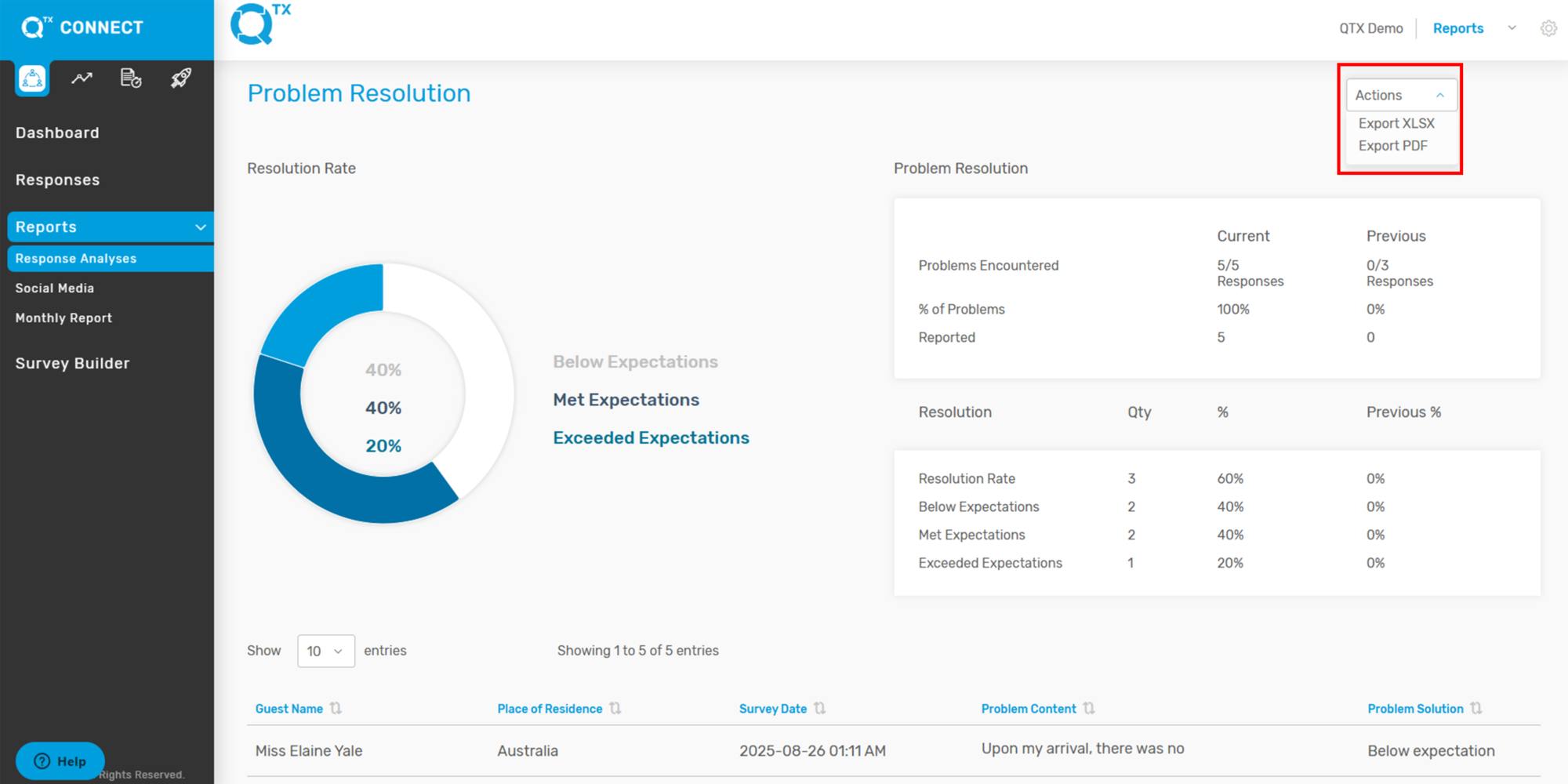
3. Problem Resolution measures the problems encountered during a stay and the corresponding resolution rate, shown in both numbers and percentages. You can also export the report by clicking the Action button and selecting either Export XLSX or Export PDF.


4. Guest names are displayed in a table format. The user can click on any entry to view the corresponding guest response.


6. The system will display the guest’s complete details as shown below. To respond to the guest by email, click the envelope icon.


7. The guest’s email address is automatically generated by the system. Simply enter the Subject and Message, then click SUBMIT when ready to send.


If you need further assistance, please send an email to helpdesk@q-tx.com
Connect: How to View/Select Distribution and Key Metrics on Response Analyses

In the Distribution and Key Metrics section, you can view important insights that summarize guest feedback and performance results. This feature allows you to see the overall satisfaction scores and the percentage ratings for each property.


1. After logging in, you will arrive at the Dashboard landing page. From here, click on the “REPORTS and RESPONSE ANALYSES” button. Next, select “DISTRIBUTION” to open the section where you can view response data and key metrics.


2. Scroll down to view all the available data under “Distribution Scores” and the “Distribution Graph.” If needed, you can also export the data by clicking on the Action button.


3. Scroll down further to find the “Key Metrics Score” section. This area displays the overall performance results based on specific metrics, such as satisfaction, service quality, or other defined indicators. The scores provide a quick overview of how each property is performing, making it easier to compare results and identify areas that may need attention.


If you need further assistance, please send an email to helpdesk@qtx.com

Connect: How to View Demographics Details on Response Analyses

On the Demographics page within Response Analyses, you can view detailed insights into guest feedback based on their Place of Residence. This section displays the number of responses, the corresponding satisfaction rates, and the global score for each location.


1. After logging in, you will arrive at the Dashboard landing page. On the left-hand side, click “REPORTS” and then select the “RESPONSE ANALYSES” button. Next, click on “DEMOGRAPHICS.”

Make sure to apply all the relevant details in the Filters to view accurate demographic data. Once the filters are set, scroll down to access and review all the data you need.


2. If you want to export data from the system, simply click on the “ACTIONS” button and select “Export XLSX.


3. Below the Guest Demographics section, you will find a table displaying the following details: Place of Residence, Surveys Sent, Responses Received, Response Rate, Satisfaction Rate, and Global Score.


If you need further assistance, please send an email to helpdesk@qtx.com

Connect: How to View/Select Commentary on Response Analyses

In the Commentary section, you can view the complete series of comments, explanations, and annotations provided by the guest. This feature allows you to review detailed feedback directly associated with their responses, giving deeper insights into the guest’s experience and sentiments.


1. After you log in, you will be taken to the Dashboard landing page. From the left-hand menu, click on “REPORTS”, then select “RESPONSE ANALYSES.” Next, click on “COMMENTARY” to view the full series of guest comments, explanations, and annotations linked to their responses.


2. Scroll down to view all guest comments along with the corresponding survey scores. You can also export the file by clicking on the Action button.


3. If you would like to view the Key Metrics and Problem Resolution, simply click on Comment. This will redirect you to the Guest Responses page.


If you need further assistance, please send an email to helpdesk@q-tx.com
Connect: How to View/Find Guest Name on Responses using Filters

To get the necessary details in the Connect, users must enter all important information accurately. This ensures the system can provide the correct guest responses.


1. Login and Go to Responses: After logging in, you will land on the Dashboard. Click the “Responses” tab to start accessing guest survey information.


2. Apply Filters: Enter all required information in the Filters section to narrow down your search and quickly find the most relevant guest details. You can also click the Hide button to hide any additional filters you don’t need.


3. Scroll down to see the Guest Name list. Click the name of the guest you want to view. This will open their Guest Responses, where you can review their feedback and details.


If you need further assistance, please send an email to helpdesk@qtx.com

Connect: How to View Performance Report

This report provides a detailed measurement of staff performance based on satisfaction levels and scores. It highlights the performance outcomes of a specific group or department, enabling management to identify areas of growth, monitor progress, and assess the overall performance of the organization.


1. When you are on the Dashboard landing page, click on “Reports” under the CONNECT platform.


2. Click on “Response Analyses” under Reports. Next, fill in the required details in the Filters section. Make sure you are on the “Performance” tab to proceed.


3. The system will first display the overall performance report, showing both the Satisfaction Rate and the Global Score.


4. The table below displays the scores for the key metrics, highlighting whether performance has improved or declined.


5. The information can be viewed by the selected number of entries. Hover your cursor over the “Response Ratio” box to display additional details in a pop-up box below.


6. Below, a table summarizes departmental performance, showing the Department, the corresponding Survey Question, and the most recent scores. It also compares results against previous data (Vs Prev.), indicates performance improvement or decline (P.I.), and shows the number of responses collected (# of R.).

This layout allows management to quickly assess guest satisfaction levels across key service areas such as Check-In Experience, Concierge Services, and Guest Room/Suite, while tracking performance trends over time.


If you need further assistance, please send an email to helpdesk@q-tx.com
Connect: How to Use Filters on Responses

This function helps users organize and structure valuable information in a clear and understandable way. By entering all required details in the Filters section, users can narrow down search results to find the most relevant guest information quickly. Filters allow you to sort by specific criteria such as date, guest type, or feedback category, making it easier to focus on the data you need.

1. On the Dashboard landing page, click the “Responses” button in the CONNECT platform to view guest information.


2. Click the drop down arrow to view and choose from the selection list. You can click the “x” to remove the chosen item or simply unchecked.


3. There are 3 types of survey: After Survey (AS), General Survey (GS) and Outlet Survey (OS).
Users can choose more than one survey.


4. Guest Response by Score: You can find guest responses using the scoring system, which ranges from 1 to 10.


5. Multiple Selections: Users can select more than one option, such as Department, Problem Resolution, etc. The system will instantly display a list based on the selected criteria.


6. This section provides important measurements and data points that help users track performance, monitor trends, and analyze guest responses effectively. Key metrics may include scores, feedback counts, department performance, and resolution rates, giving a quick overview of overall performance.


7. This section categorizes guest responses and data based on whether the department is owned by the property or leased. It helps users analyze performance, track issues, and compare feedback between different types of departments efficiently.


8. Guest Responses by Residence: You can also view guest responses based on their place of residence, allowing you to analyze feedback from different locations.


If you need further assistance, please send an email to helpdesk@q-tx.com

Connect: How to Export XLSX Or PDF File

Exporting a file allows the user to convert data from one file type into another format. Once the file is exported to the desired format (as indicated by its file name suffix), it can be opened and worked on in any application that recognizes and supports that format. A PDF format provides an electronic image of text, or text combined with graphics, that resembles a printed document and can be viewed, printed, and electronically transmitted.


1. After logging in, go to the Dashboard landing page. First, click Reports, and under Response Analyses, select the Problem Resolution tab.


2. Make sure to complete all the required information in the Filters section.


3. You can now click Actions to export the file in XLSX or PDF format. The exported file will then be displayed on your screen.


If you need further assistance, please send an email to helpdesk@qtx.com

Connect: How to do Comparison by Filters

Comparing data helps to highlight the advantages and disadvantages and to examine strengths and weaknesses. It enables users to identify patterns, track performance over time, and make informed decisions. By analyzing similarities and differences, data comparison supports better problem-solving, strategic planning, and continuous improvement.


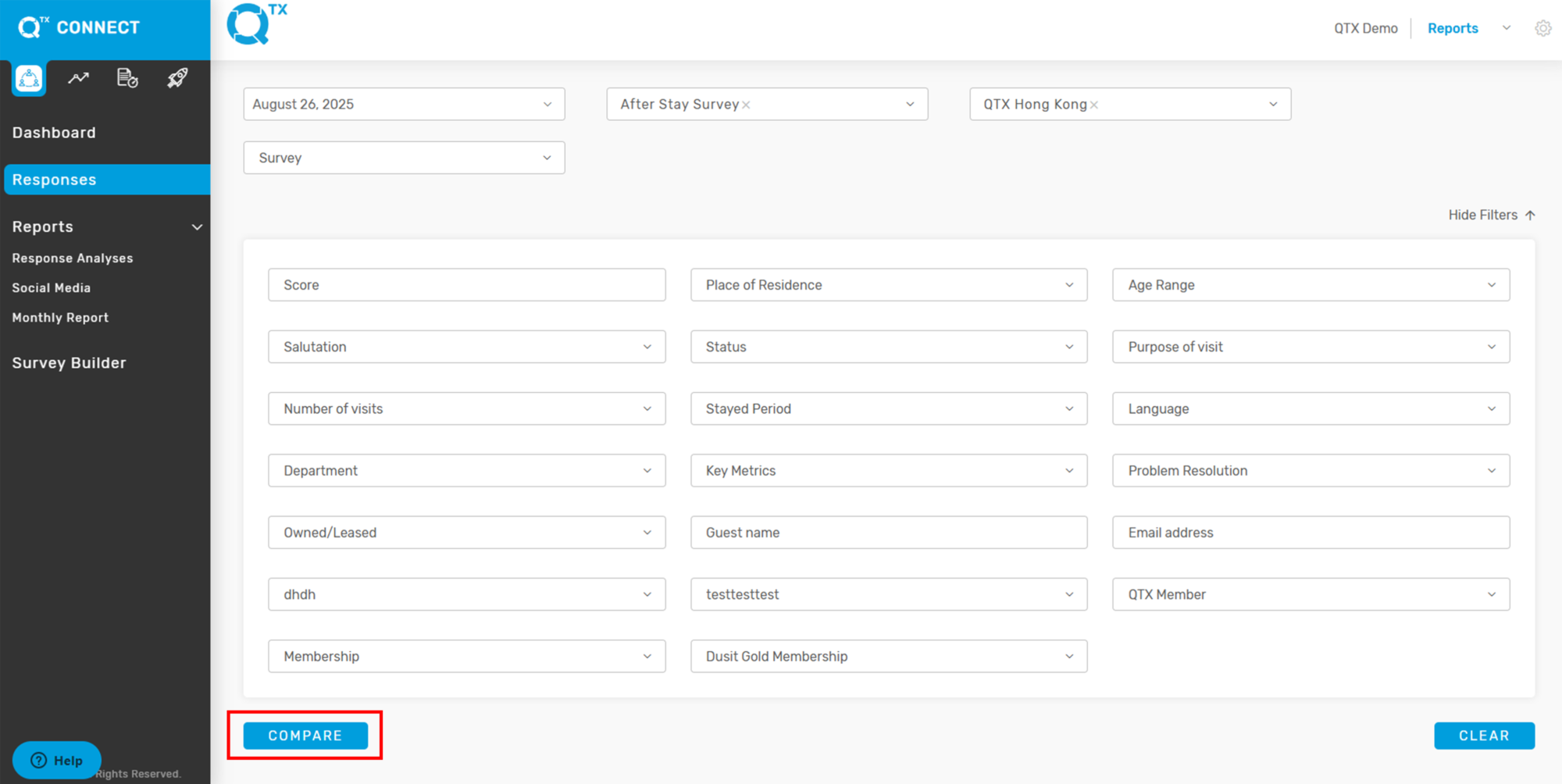
1. From the Dashboard landing page, select your preferred Dashboard under any platform. Then, click Compare to enter the required details.


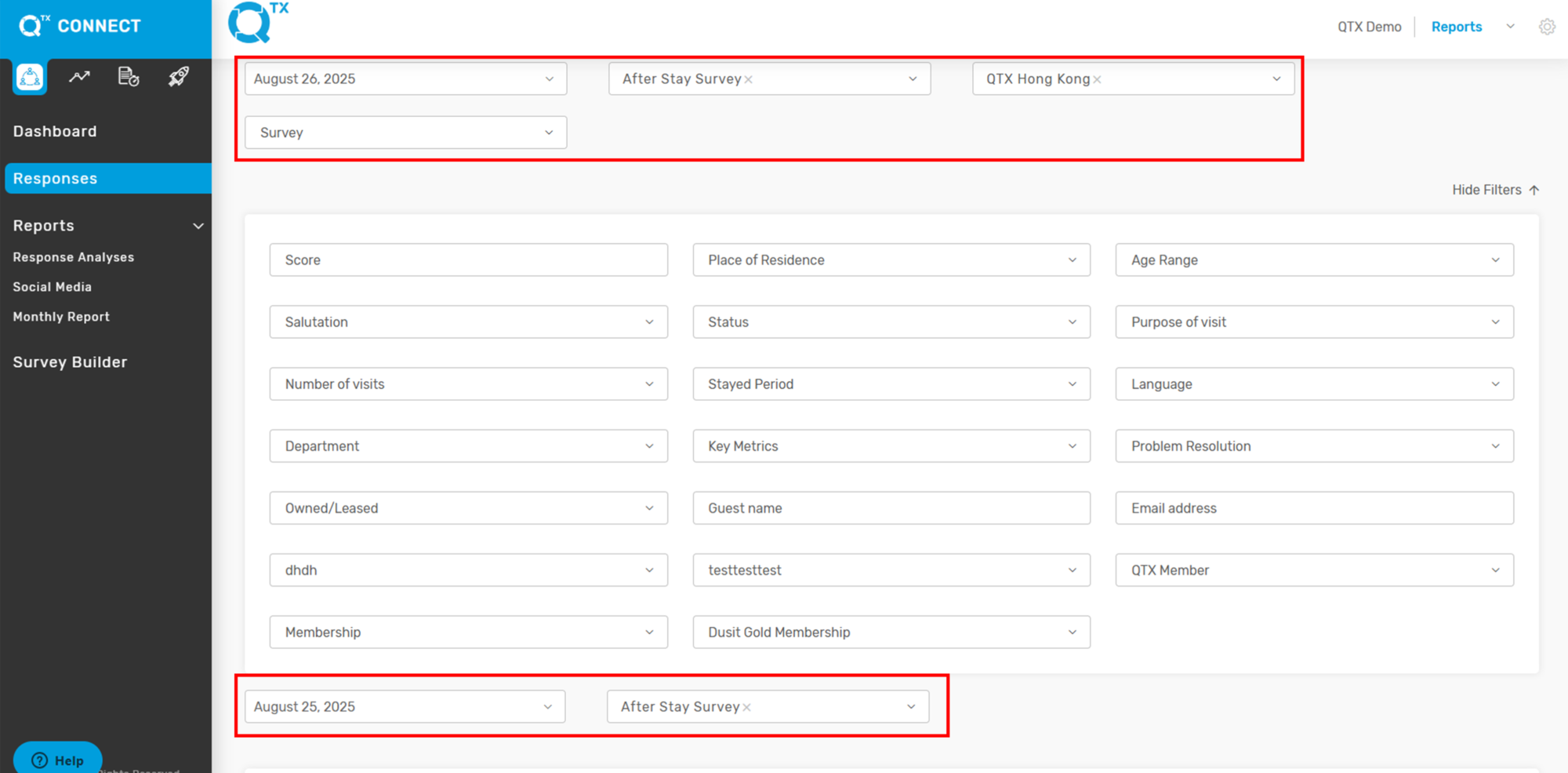
2. Fill in the details for Filter One by selecting the appropriate information from the list. Repeat the same steps to complete the data for Filter Two.


3. The system will generate and display the reports based on the applied filters


If you need further assistance, please send an email to helpdesk@q-tx.com

Connect: How to Create an Inspector Account

A user with an Inspector account is qualified to review and evaluate a variety of services and amenities at hotels. Inspectors visit selected locations or departments as typical guests and assess both the services and facilities they experience. Their evaluations are guided by a predefined assessment, which is accessible and responsive across all devices.


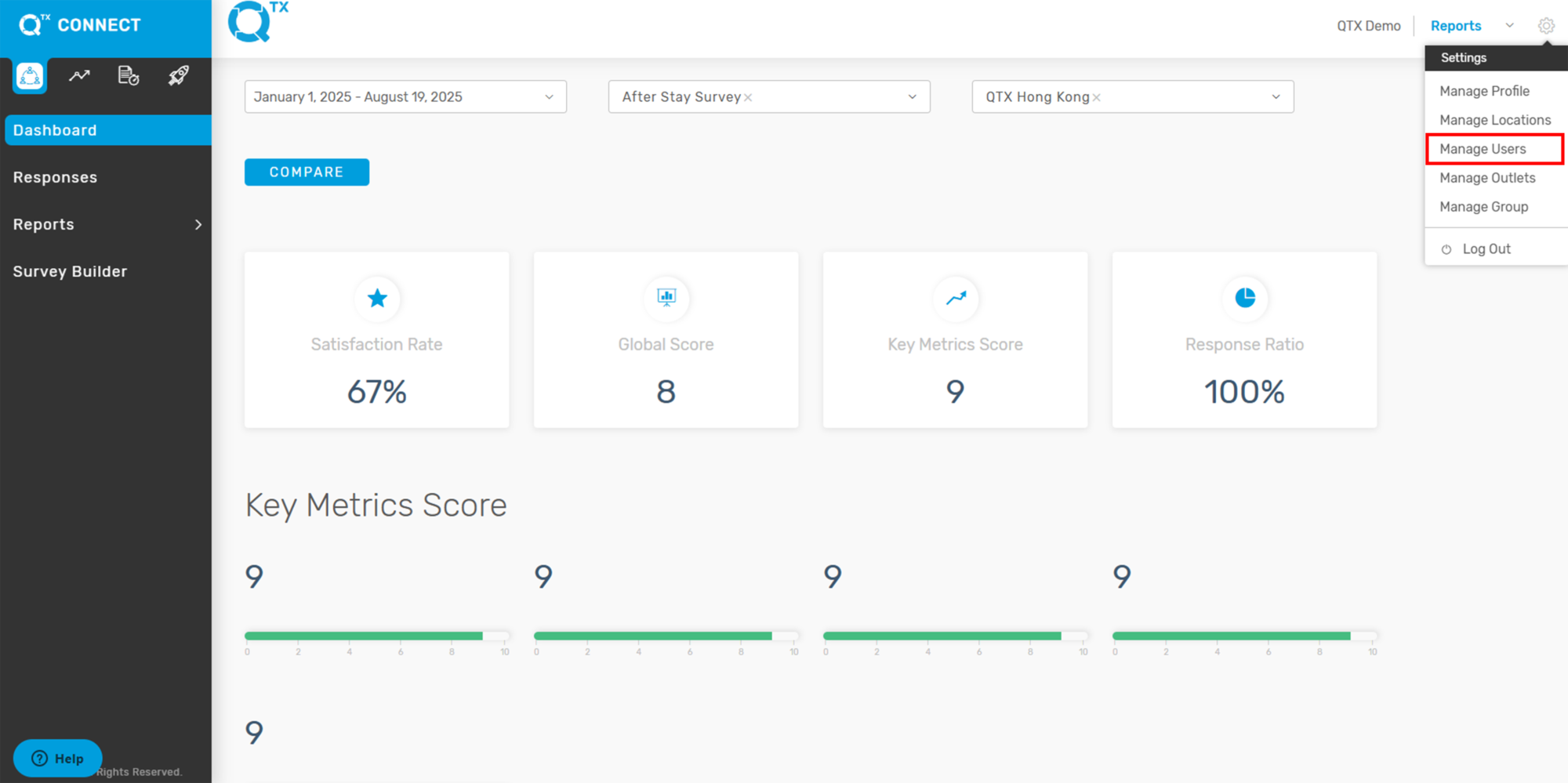
1. On the Dashboard landing page, click the Settings icon in the upper right top corner.


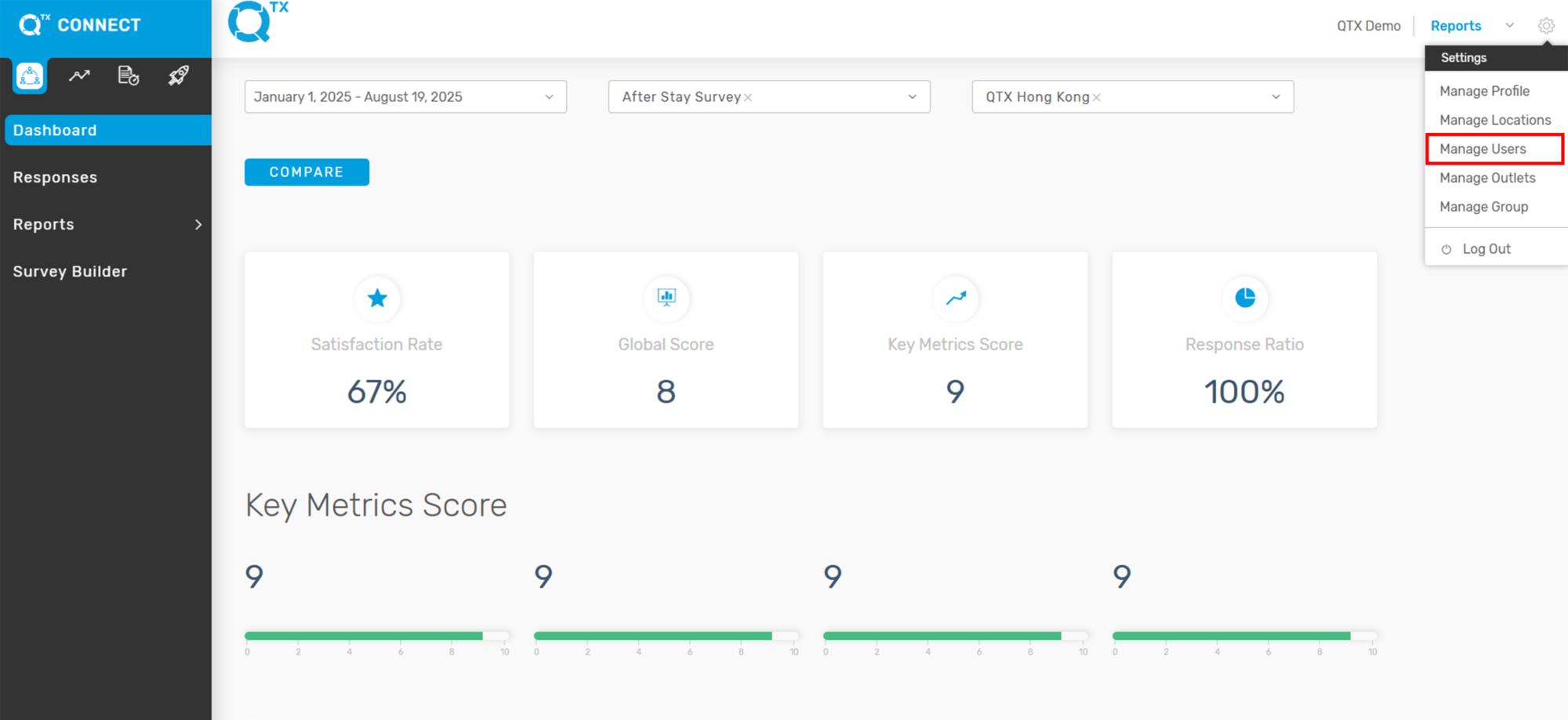
2. Select Manage Users.


3. Click “Create a User”.


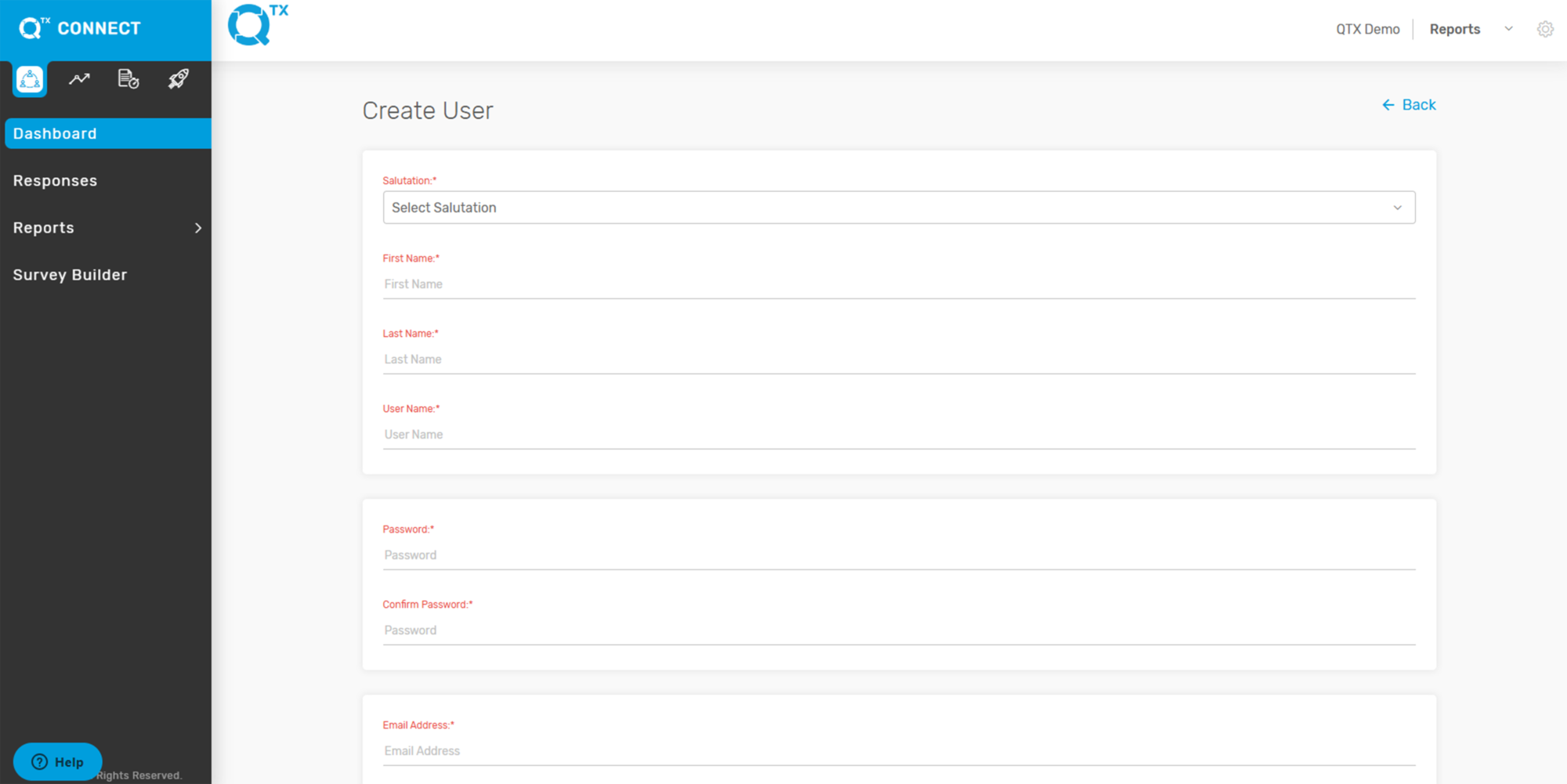
4. Fill in the necessary information by clicking on the empty boxes.


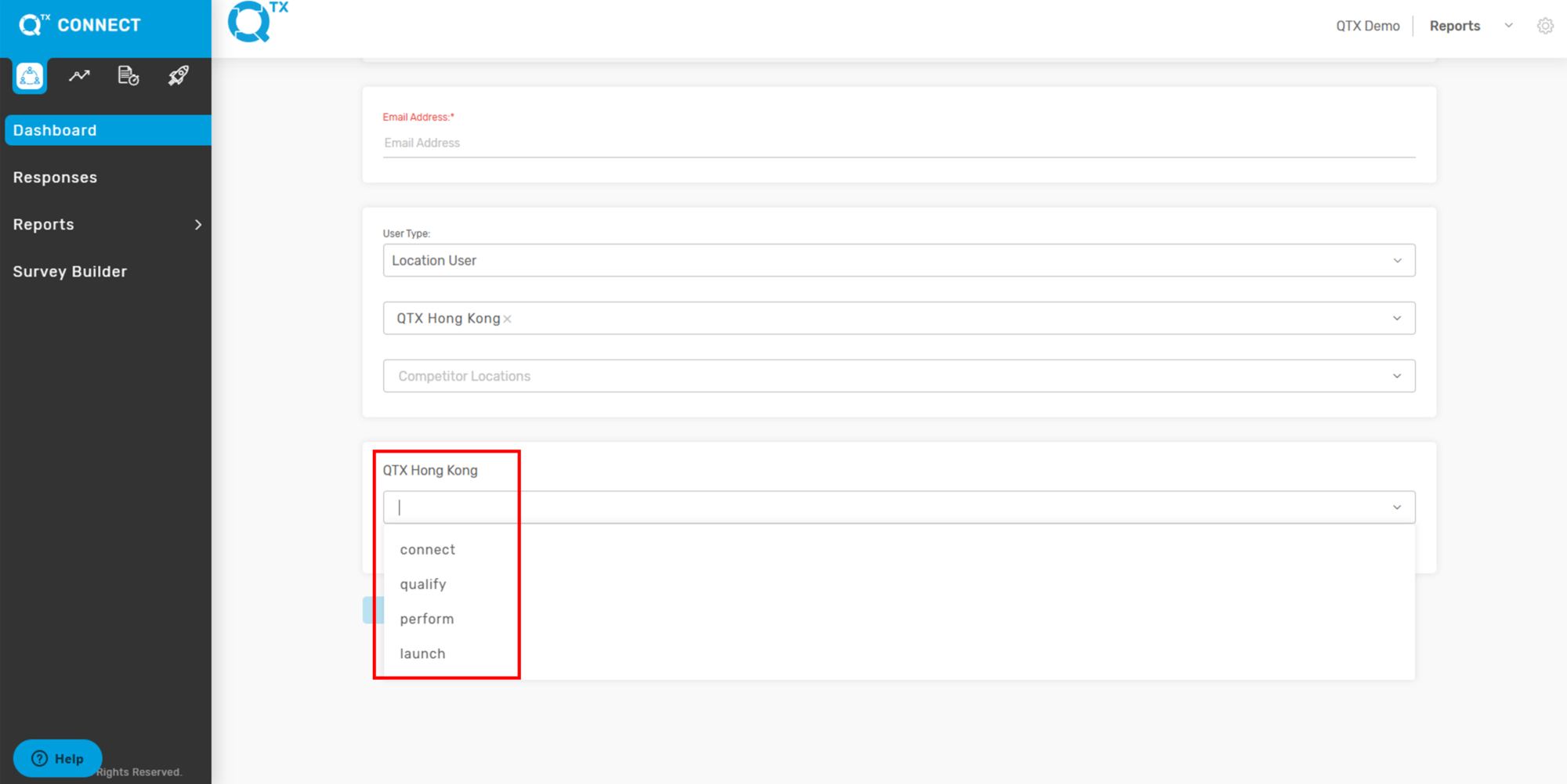
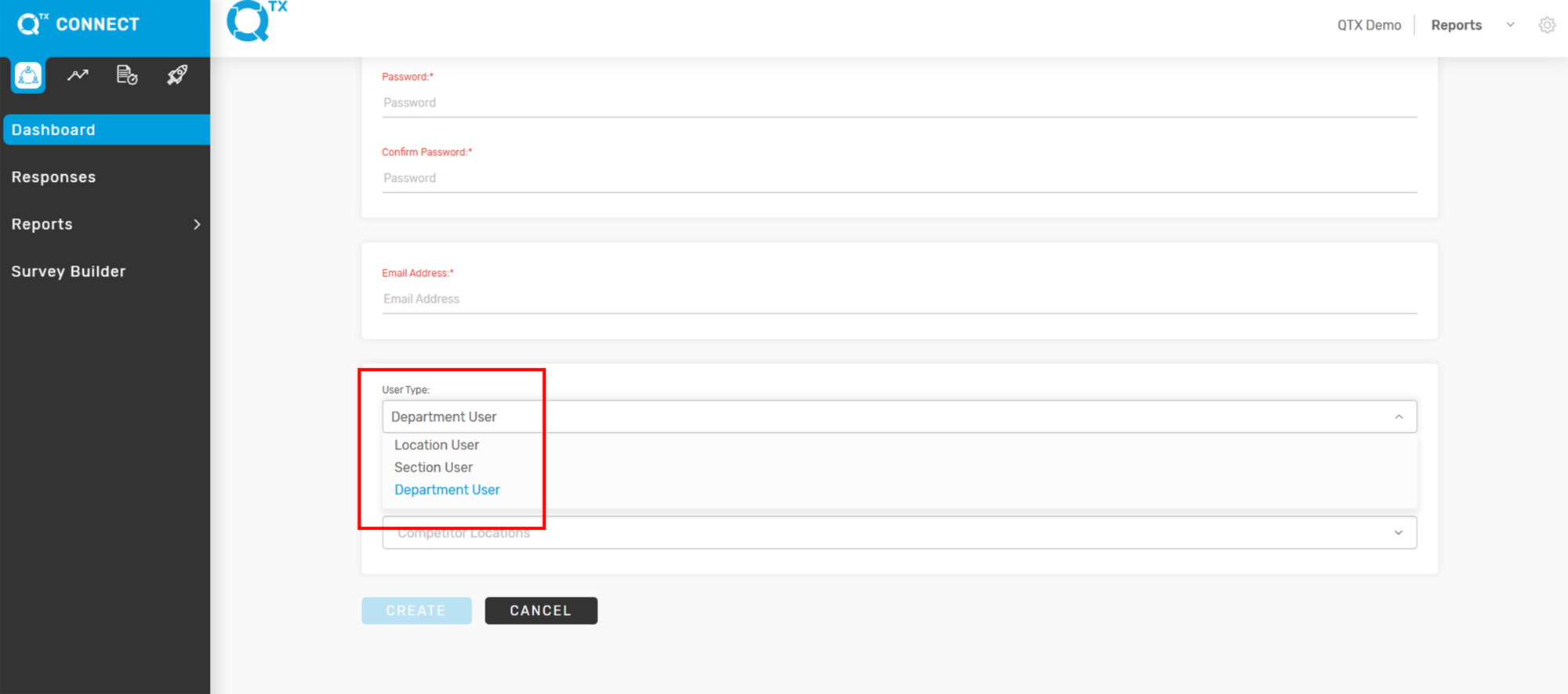
5. Select User Type and Location/Section/Department from the list by clicking the checkbox or using the drop-down arrow.


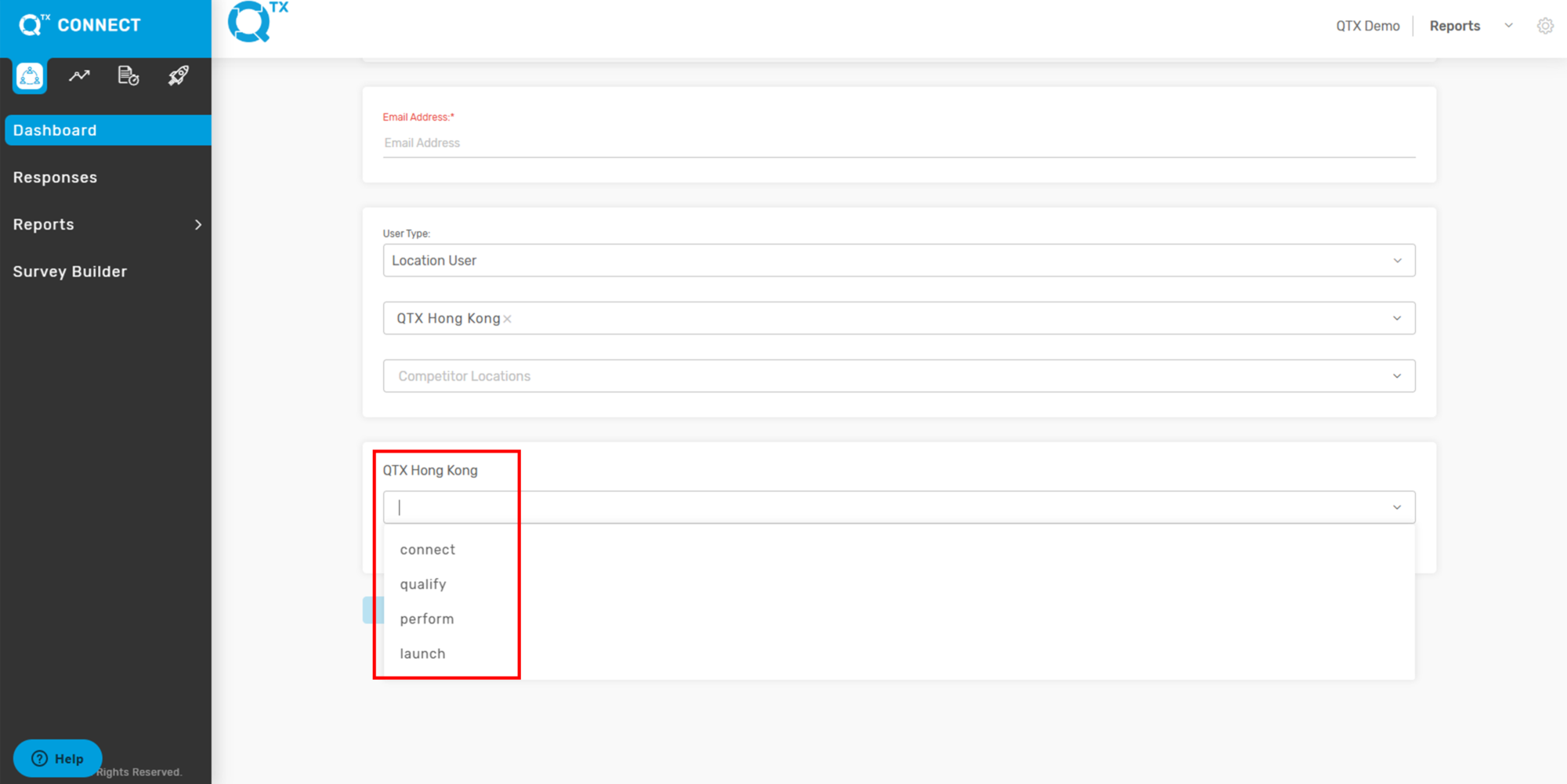
6. Once “User Type” and “Locations” buttons are filled in, another box will appear. The user has to select which Platform should apply in the selected Location.
Example: Macao as the Location


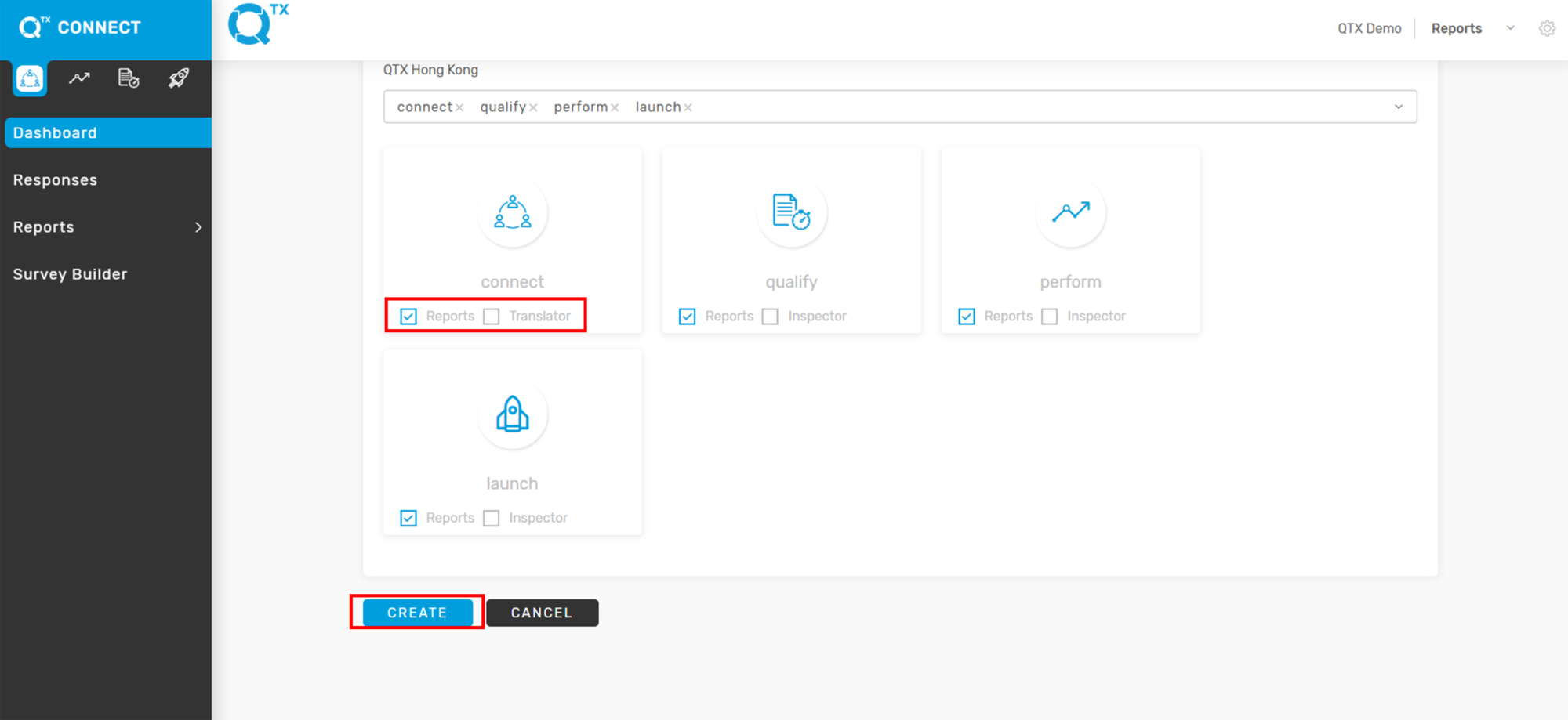
7. The user can select one or more Platforms.


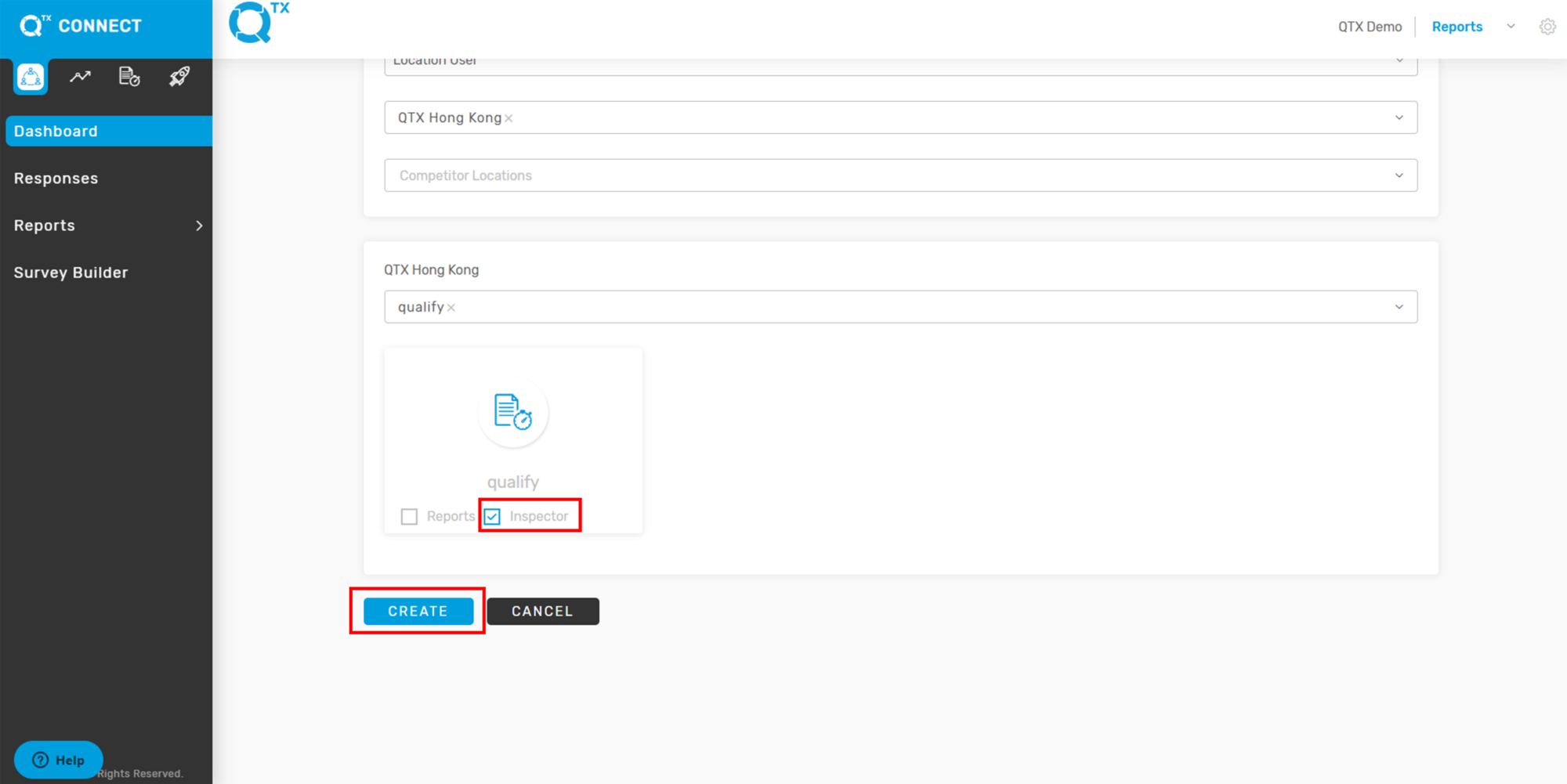
8. Click the box next to the word “Inspector” to provide access. Then click on the “Create” button to save and finish.


If you need further assistance, please send an email to helpdesk@q-tx.com

Connect: How to View Dashboard Reports

Dashboard Reports provide a comprehensive overview of a Group’s or Location’s performance indicators in real time. These reports not only allow management to monitor progress but also help ensure that service standards are consistently met. By capturing and presenting key performance data, Dashboard Reports enhance the quality of feedback collected from guests. This feedback can then be transformed into relevant, meaningful, and actionable insights—empowering frontline staff to improve service delivery, address issues promptly, and continuously elevate the guest experience.


1. On the Dashboard, enter the required information using the Filters function.


2. On the same page, hovering the cursor over the Response Ratio Rate will display details such as Surveys Sent and Responses Received from the assessment.


3. For the Key Metrics Score, hover the cursor over the line to view the standard associated with the score.


4. Satisfaction Rate – Hovering the cursor over the graph bar will display the outlet’s satisfaction rate along with the number of responses received.


5. Click “SHOW MORE” to display the complete details.


6. The Name, Satisfaction Rate (%), and Number of Responses will be displayed.


7. The Top 5 and Bottom 5 Areas, along with their corresponding scores, are displayed for easy reference. By reviewing this information, management can quickly identify the best-performing and lowest-performing departments based on the set standards. Scores below 80% are highlighted in yellow for visibility.


8. You will also see the Responses and Problem Resolution sections below the Top 5 and Bottom 5 areas. By hovering over the arrow, you can view additional responses provided by the system.


9. Response Ratio – Hovering the cursor over the graph line will display the number of surveys sent and the number of responses received. The graph can be customized to show either Surveys Sent or Responses Received by selecting the relevant checkbox.


If you need further assistance, please send an email to helpdesk@q-tx.com

Connect: How to Create a Reporting User

A user assigned with a Reporting role can generate reports only for the information they have access to within the Q-tx System. In other words, reporting capabilities are limited to the data and sections the user is permitted to view.

This User Guide provides a clear, step-by-step process for creating a Reporting User Account.


1. On the Dashboard landing page, click the Settings icon located in the upper-right corner of the screen.


2. From the drop-down menu, select Manage Users.


3. On this page, click the CREATE A USER button to begin creating a new account.


4. Make sure to select a salutation, then fill out the First Name and Last Name fields. Next, create a username (for example: firstname.lastname), set a password, and enter the user’s email address.


5. Select the appropriate User Type.


6. Select the assigned Location or Property for the user.


7.. Select the platform and click CONNECT, PERFORM, QUALIFY or LAUNCH.


8. Check the REPORTS box for all selected platforms. Once all required details are completed, click CREATE to save and finish.


If you need further assistance, please send an email to helpdesk@q-tx.com