How to View Details from Attachment Image Popup as a Inspector Role

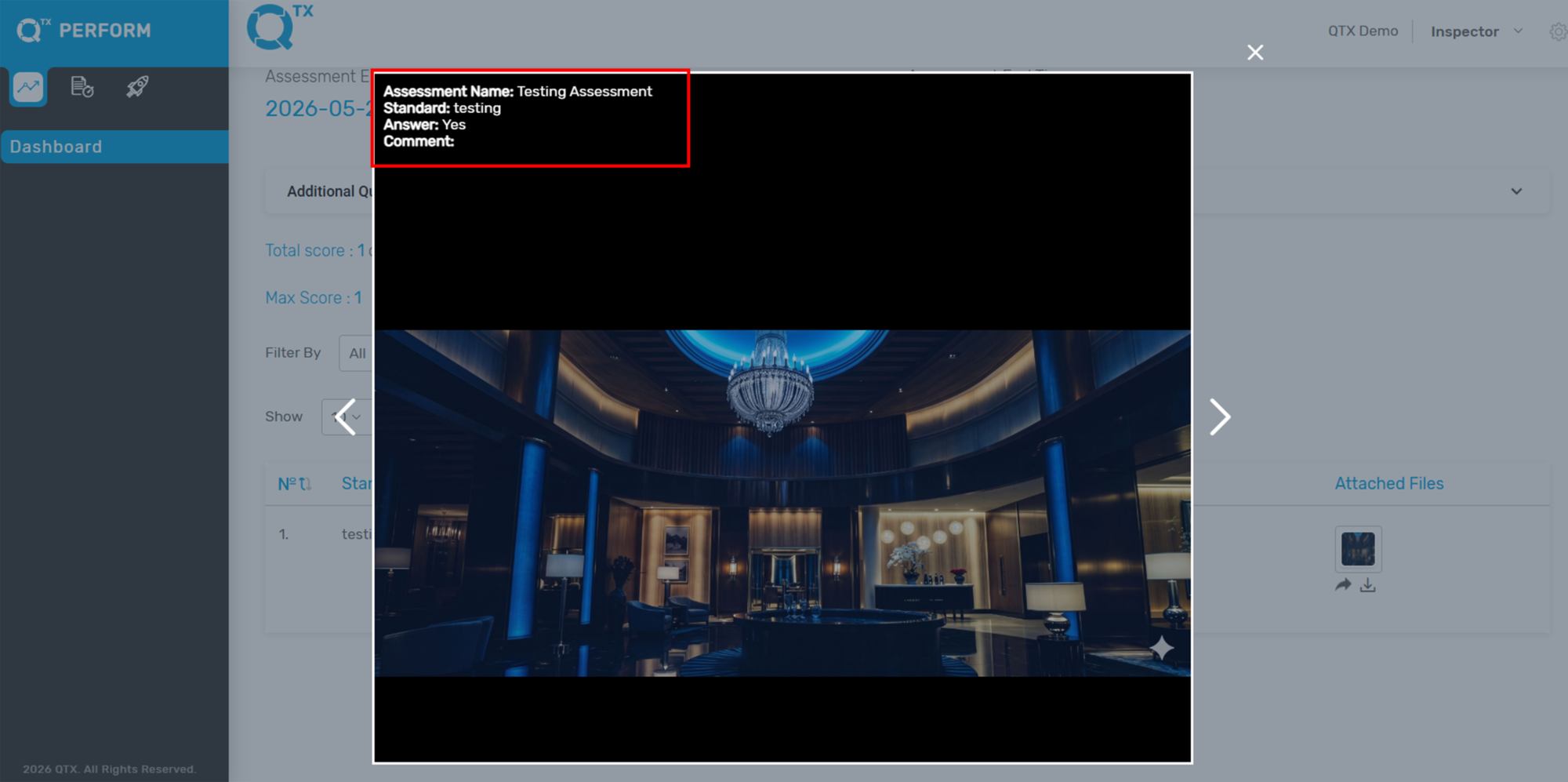
The Attachment Image Popup feature allows Inspector Role users to quickly view detailed information related to uploaded image attachments within the Encounter Report. Clicking an image attachment opens a pop-up displaying the associated assessment details and comments.


1. Log in to your QTX account using your Inspector Role credentials. On the dashboard, you will see all assessments assigned to you. Click View on the selected assessment section.
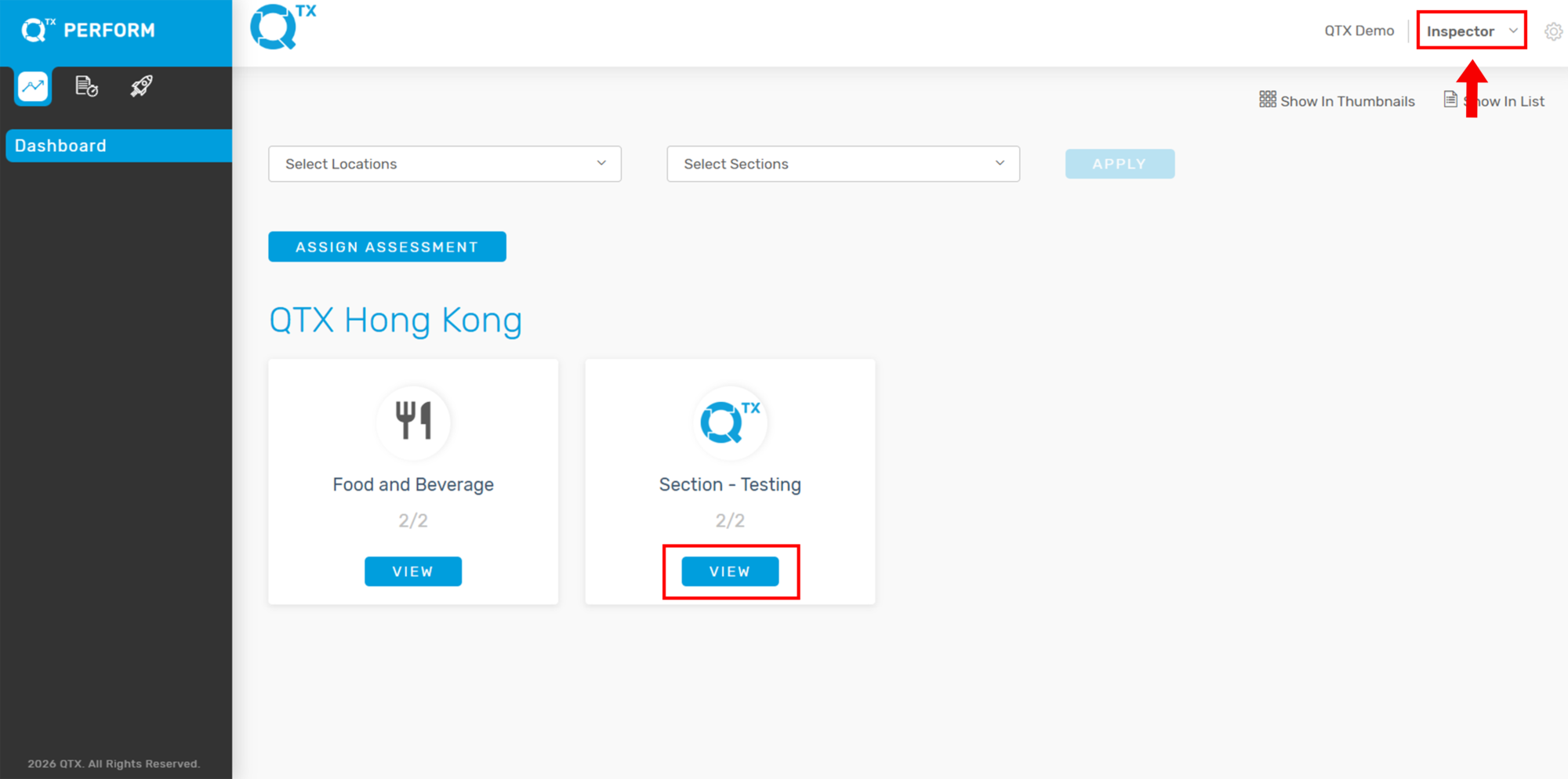
 

2. Click the assessment to open and view the uploaded images and encounter details.
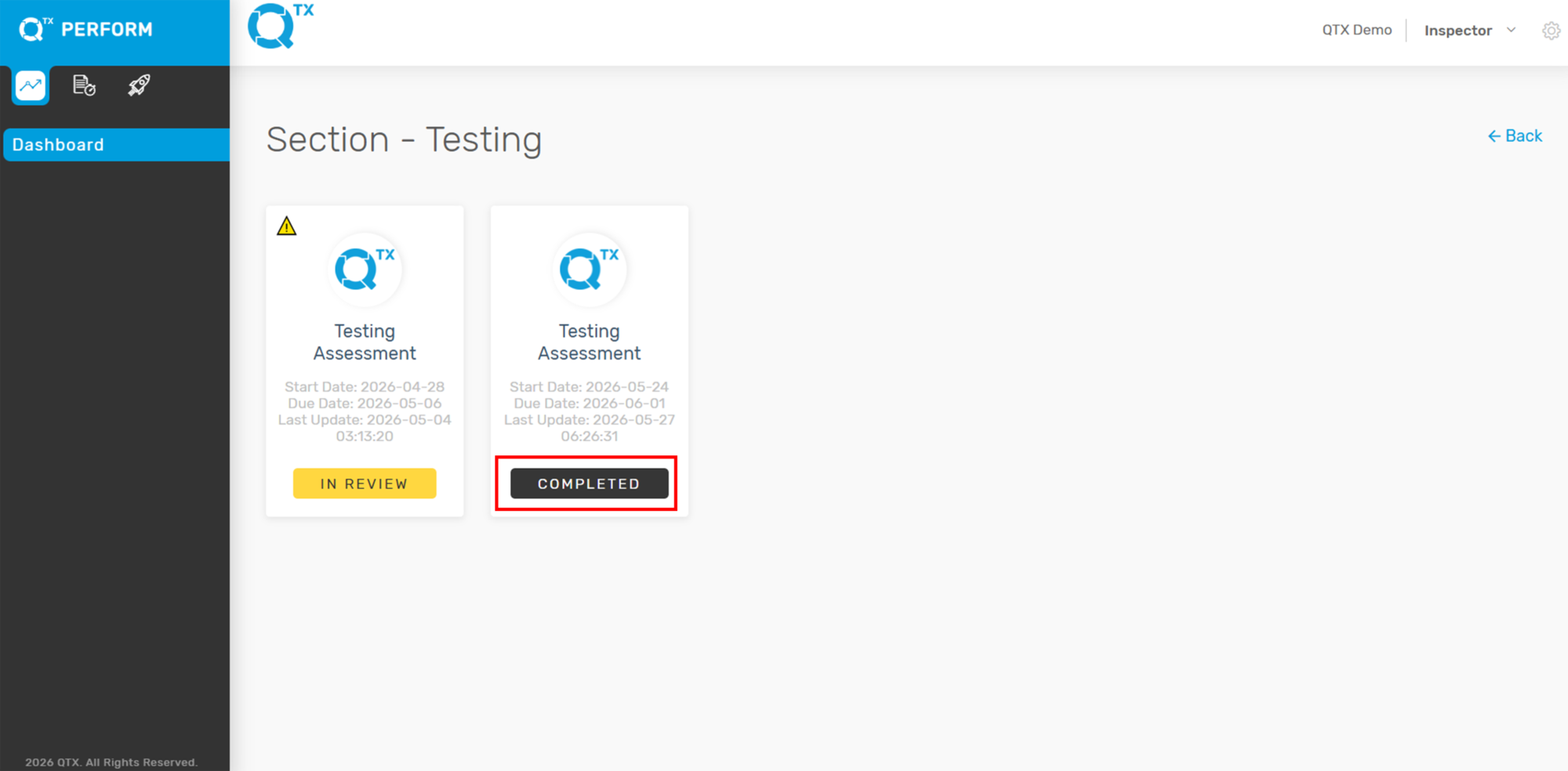
 

3. In the Encounter Report, locate the image attachment under the Overall Comment section and click the image.
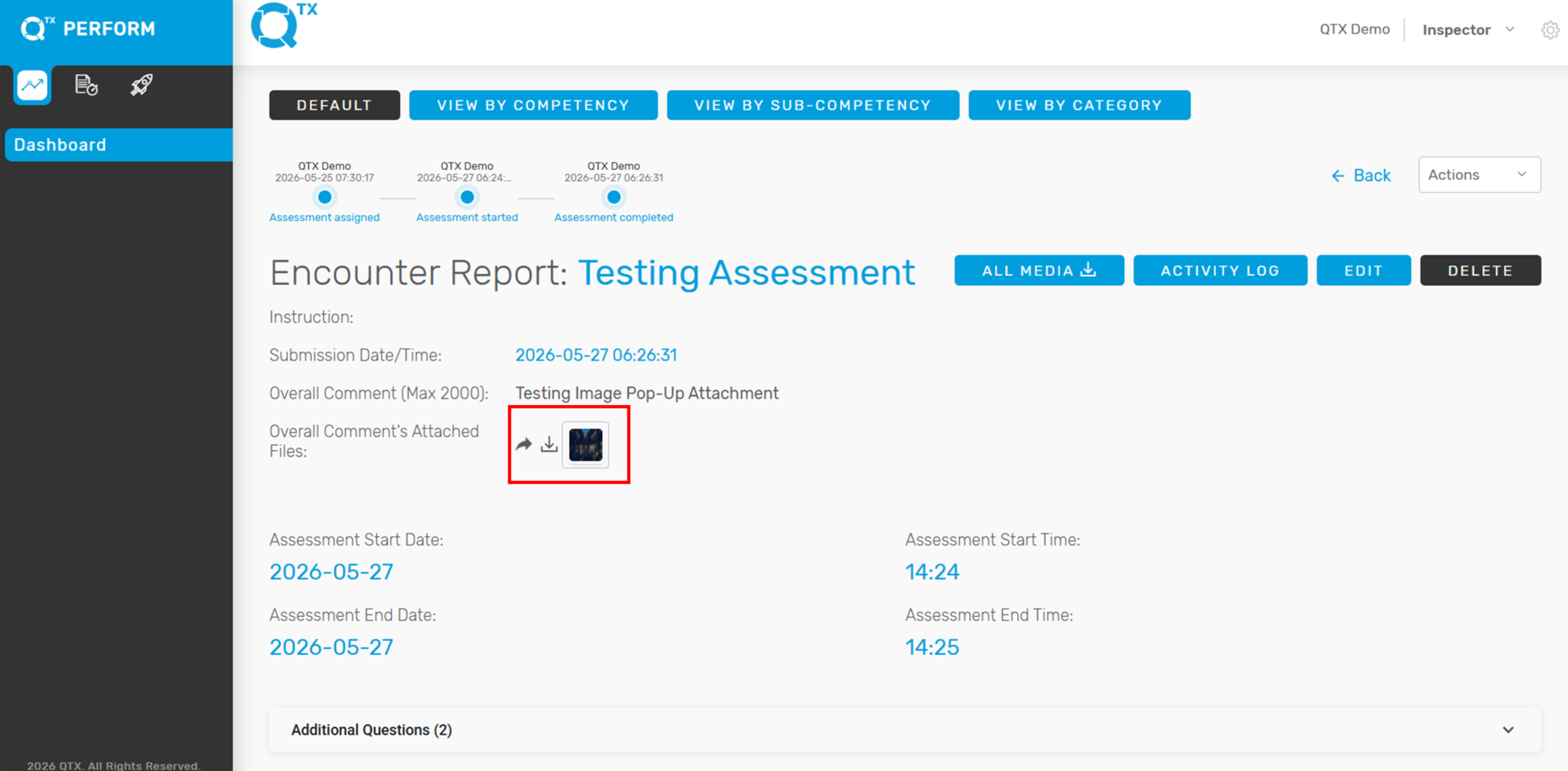
 

4. A pop-up window will appear displaying the following details:
– Assessment Name
– Overall Comment
This feature allows users to review attachment-related information quickly without leaving the Encounter Report page.
 

Same if you click the image attachment associated with the standard. The pop-up window will display the following information:
– Assessment Name
– Standard
– Answer
– Comment


If you need further assistance, please send an email to helpdesk@q-tx.com

Perform: How to View Inspector Reports

Inspector Reports are used to evaluate a range of hotel services and amenities, including room service, dining, and public areas like pools. These reports are based solely on visual inspections and reflect what the inspector directly observed.


1. From the Dashboard landing page, ensure you are on the PERFORM platform.
Click the “REPORTS – INSPECTOR REPORTS” tab.


2. Use the FILTERS provided to fill in all the necessary details, such as date range, location, and inspector name, to generate the correct report view.


3. Once filters are applied, a list of User Names (inspectors) will appear at the bottom of the page.


4. To view the Completed Assessment Ratio, simply click on an inspector’s name.
This will bring up details including:

List of Assessment Names
Completion Dates
Score Percentages
Department Names
Section Names
Location Names


5. To view the detailed Encounter Report, click on any “Room Inspection” listed under the assessment names.


6. Scroll down the report to view the Standard Names, Segments, and Inspector Commentary.
You’ll also have the option to View, Send, or Download any attached files.


If you need further assistance, please send an email to helpdesk@q-tx.com