Connect: How to Export Excel File in Responses

Exporting a file allows the user to convert data from one file type to another format. Once the file is exported to the desired format (as indicated by its file name suffix), it can be opened and worked on in any application that recognizes and supports that format.


1. After logging in, you will be directed to the Dashboard Landing page. 
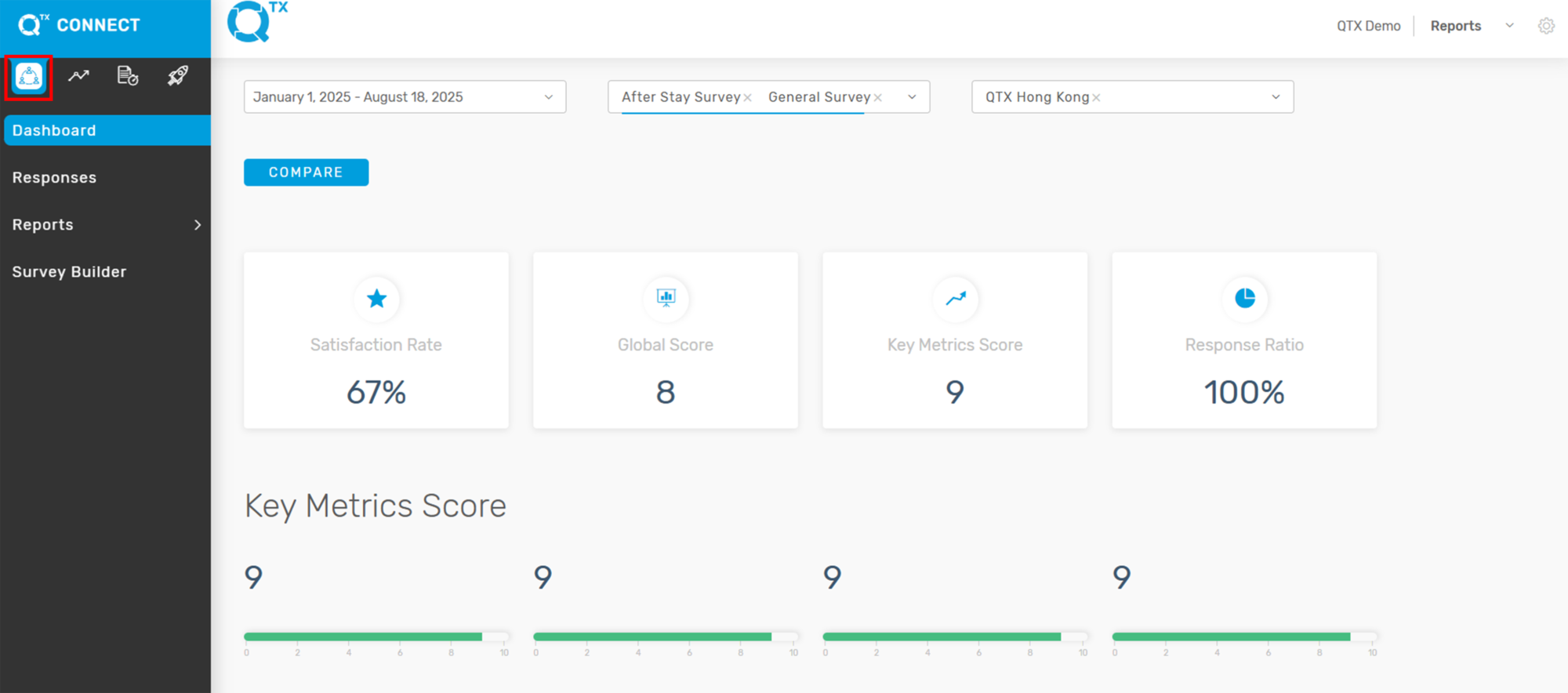


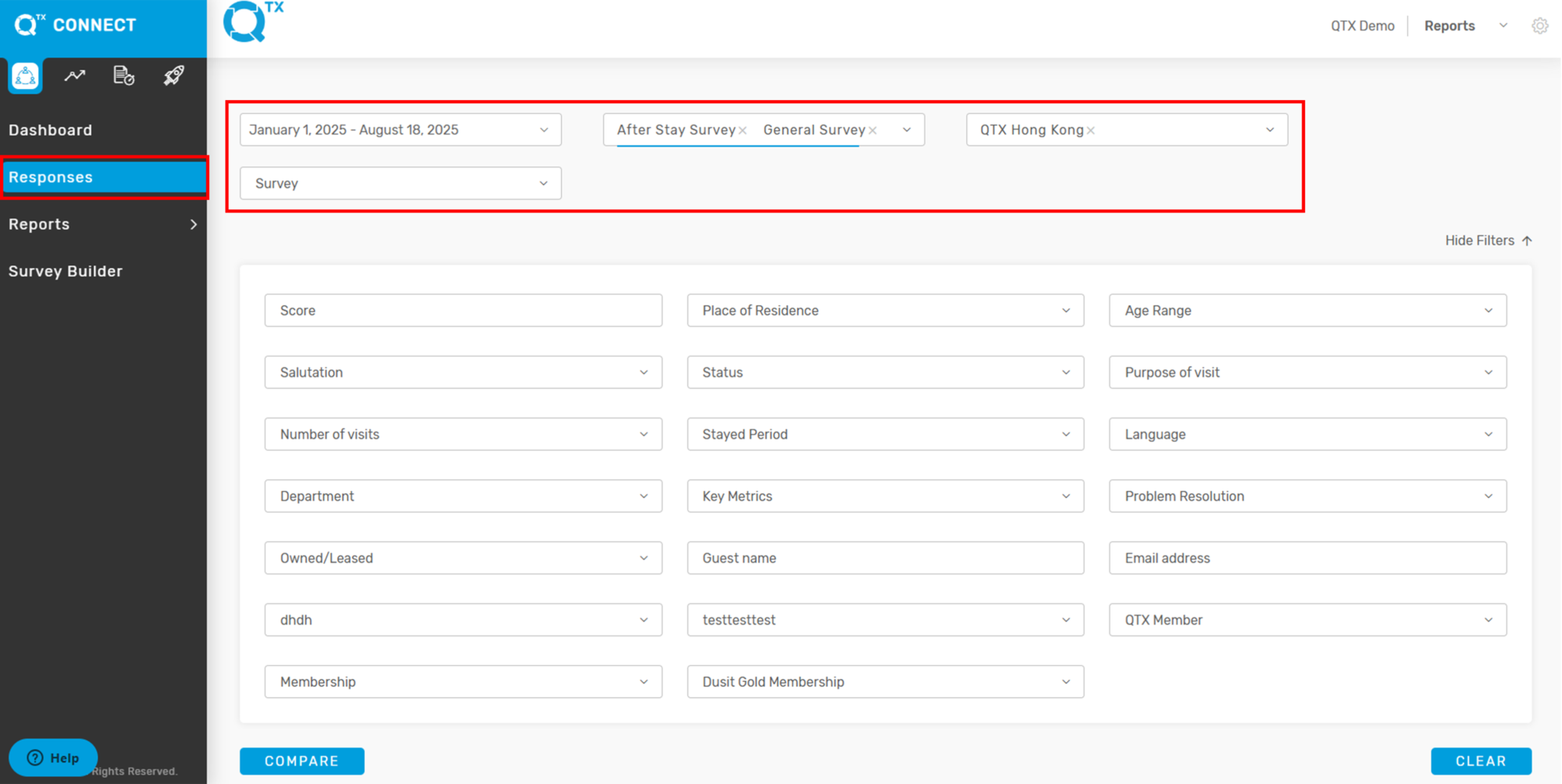
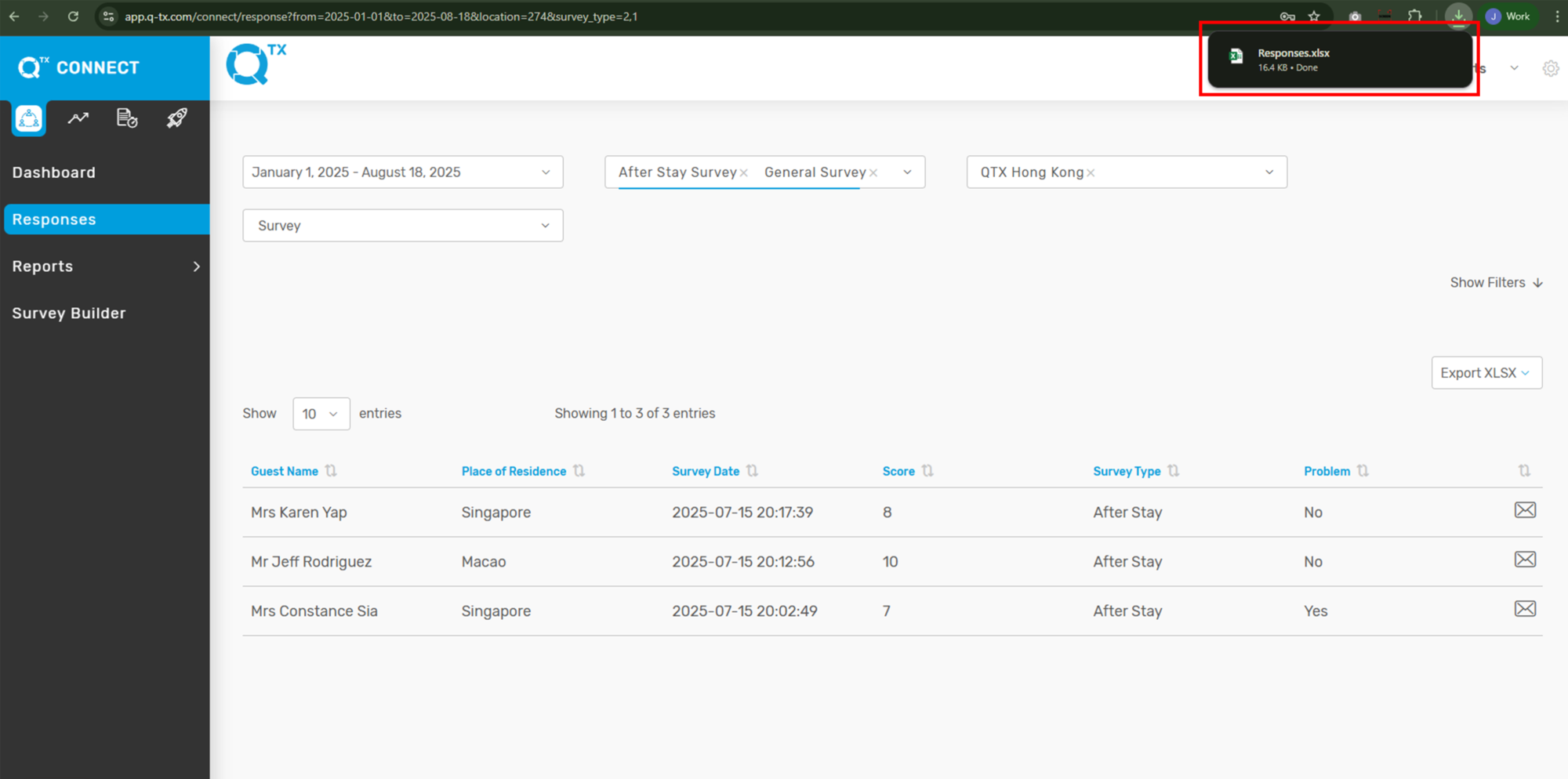
2. First, click on Responses, then fill in the filter criteria you want to view.
 

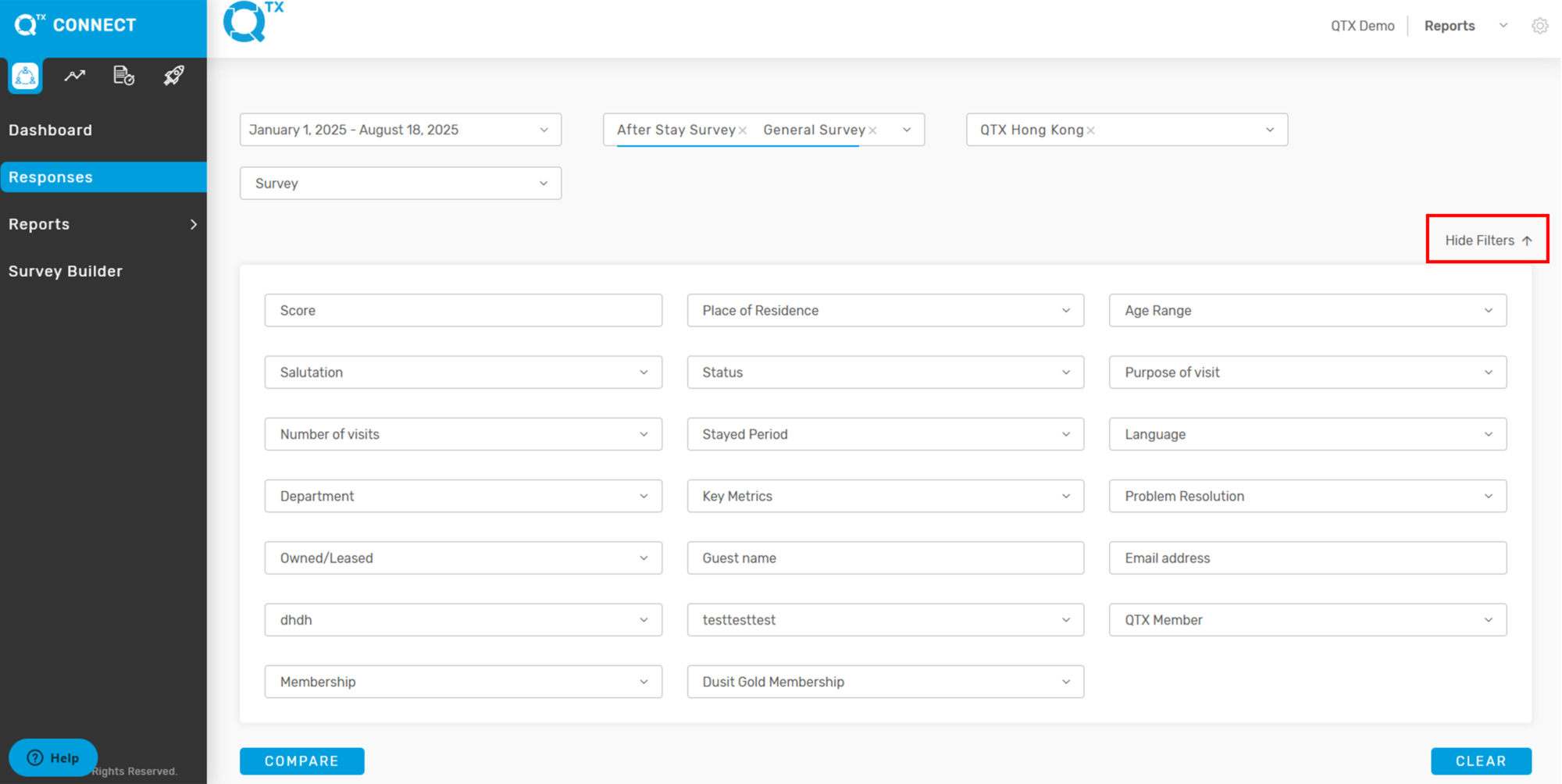
There is also a Hide Filter option on the right side, which allows for easier viewing of the data.


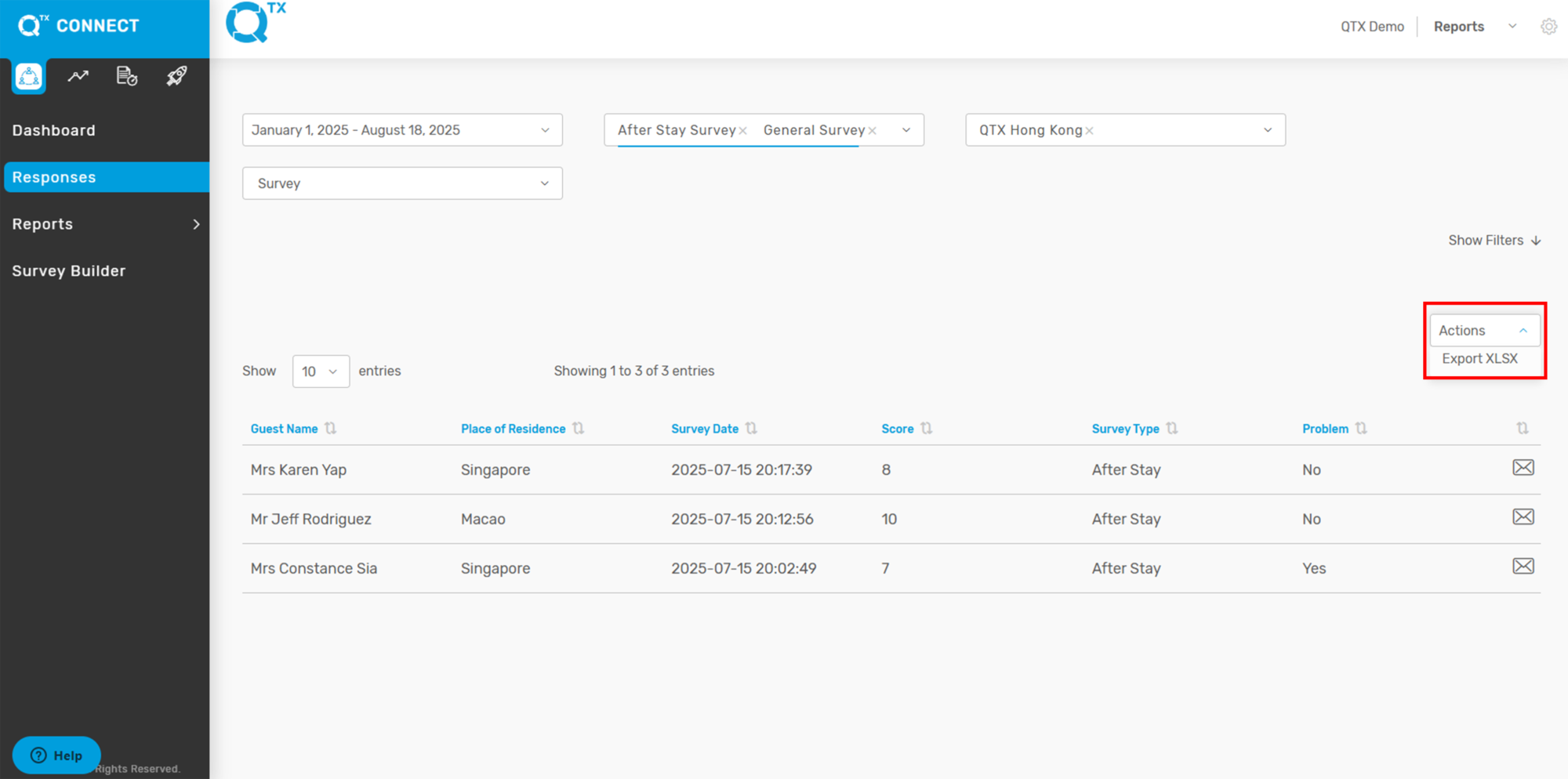
3. From here, select the ACTIONS button. A drop-down menu will appear, where you can choose EXPORT XLSX.


 4. The exported file will appear on your screen. Click on it to open, and you can then view and edit the file in Microsoft Excel.


If you need further assistance, please send an email to helpdesk@q-tx.com

Connect: How to View Guest Name Lists for After Stay, General, and Outlet Surveys in Responses

The Hotel Satisfaction Survey (also referred to as a customer satisfaction survey or guest questionnaire) is a set of questions sent to guests after their stay. It enables hotels to gather valuable feedback, respond quickly to issues or needs, and enhance customer engagement.


1. On the “CONNECT” dashboard landing page, click on Responses.


2. The filters will appear. Click on Survey Type and select After Stay Survey. (Follow the same procedure to view After Stay + General Survey and General Survey.)


3. The available guest name list will be displayed. To view a guest’s responses, click on the guest’s name, and you will be directed to the Guest Response landing page.


On the Guest Response page, you can use the options highlighted at the top right. The envelope icon allows you to send an email, while the Actions button opens a drop-down menu with additional options to Export file.


4. Click on Survey Type. A drop-down list will appear; from there, select Outlet Survey.


5. This will take you to the available guest name list. To view the guest responses for each outlet, click on the guest’s name, and you will be directed to the Guest Response landing page.


Here, you can view the guest’s name, score, place of residence, location, and language.


If you need further assistance, please send an email to helpdesk@q-tx.com

Connect: How to View/Find Guest Name on Responses using Filters

To get the necessary details in the Connect, users must enter all important information accurately. This ensures the system can provide the correct guest responses.


1. Login and Go to Responses: After logging in, you will land on the Dashboard. Click the “Responses” tab to start accessing guest survey information.


2. Apply Filters: Enter all required information in the Filters section to narrow down your search and quickly find the most relevant guest details. You can also click the Hide button to hide any additional filters you don’t need.


3. Scroll down to see the Guest Name list. Click the name of the guest you want to view. This will open their Guest Responses, where you can review their feedback and details.


If you need further assistance, please send an email to helpdesk@qtx.com