How to View Introduction Questions and Additional Questions in Encounter Report

This guide explains how to view the Introduction Questions and Additional Questions within the Encounter Report in QTX. Using the filter and search features, users can quickly locate a specific assessment or inspector and review the responses provided during the assessment. This helps users better analyze assessment details and gain additional insights beyond the standard scoring.


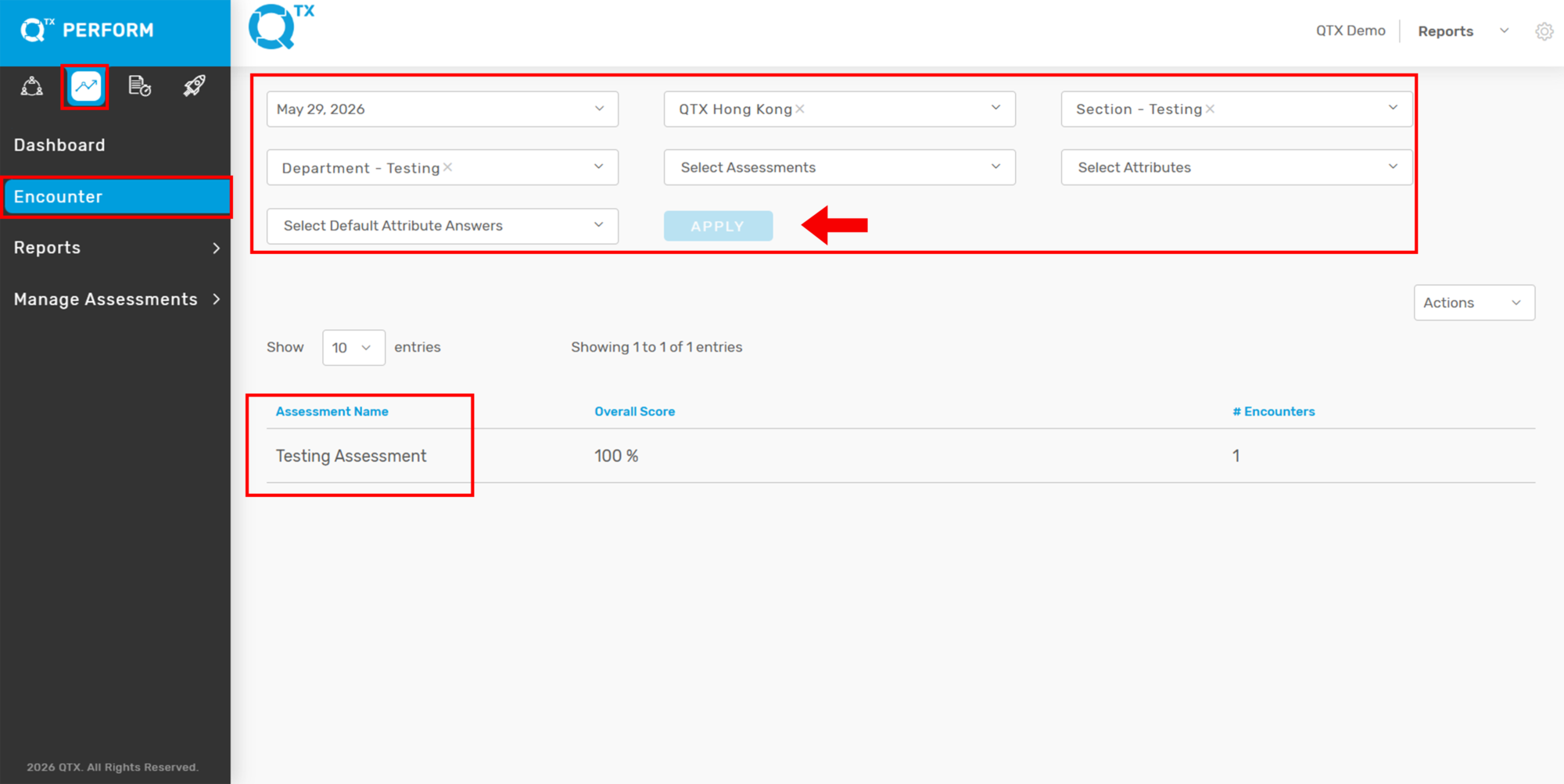
1. On the QTX Encounter landing page, use the available filters if you are looking for a specific assessment.

Select the necessary filter details
Click Apply
Then click the Assessment Name to open the report


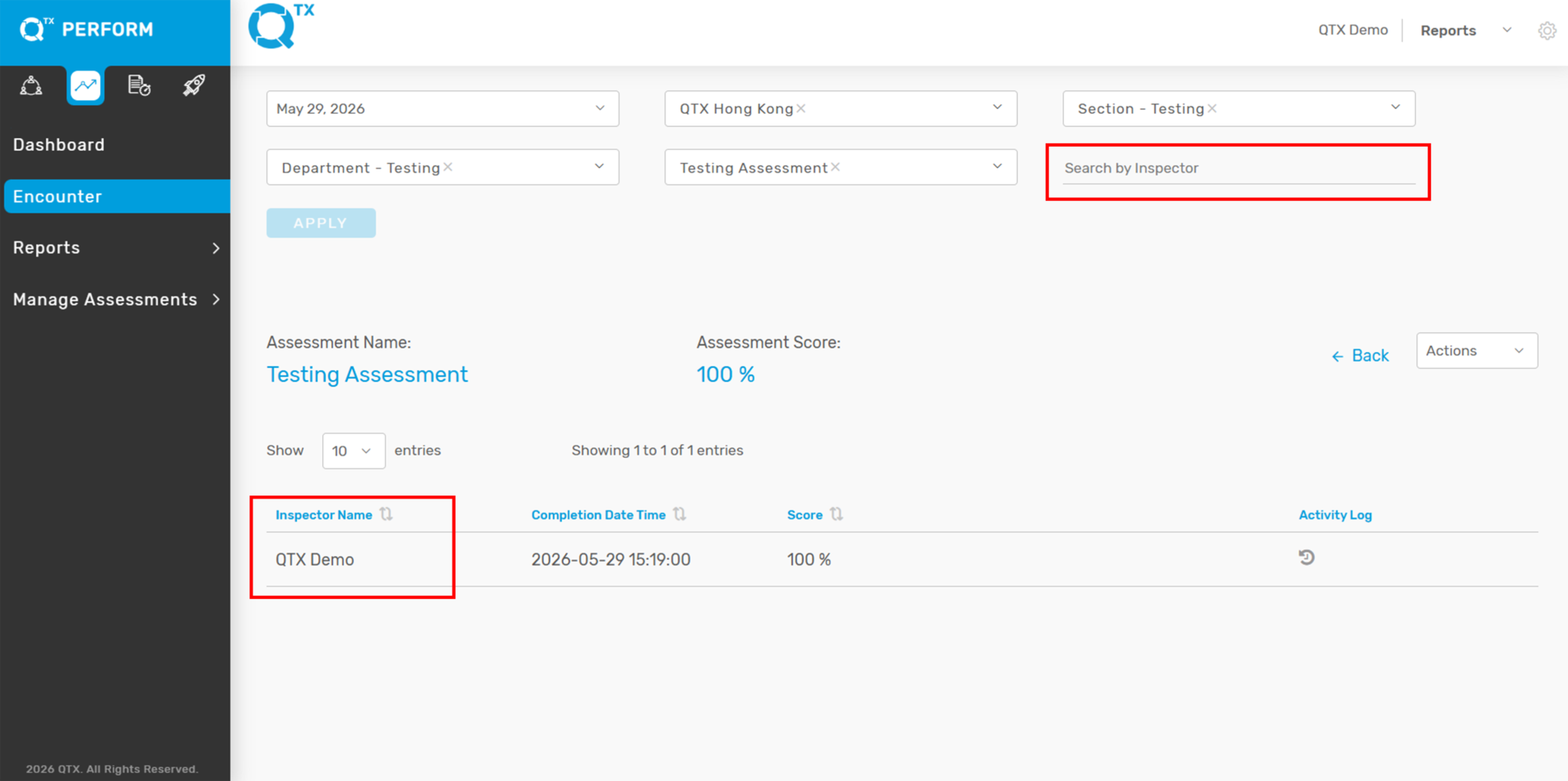
2. After opening the assessment, you may also use the Search by Inspector feature if you are looking for a specific assessment completed by a particular inspector.
Enter or select the Inspector’s name
Click the tab under the Inspector Name

This will display the related assessment records for that inspector.


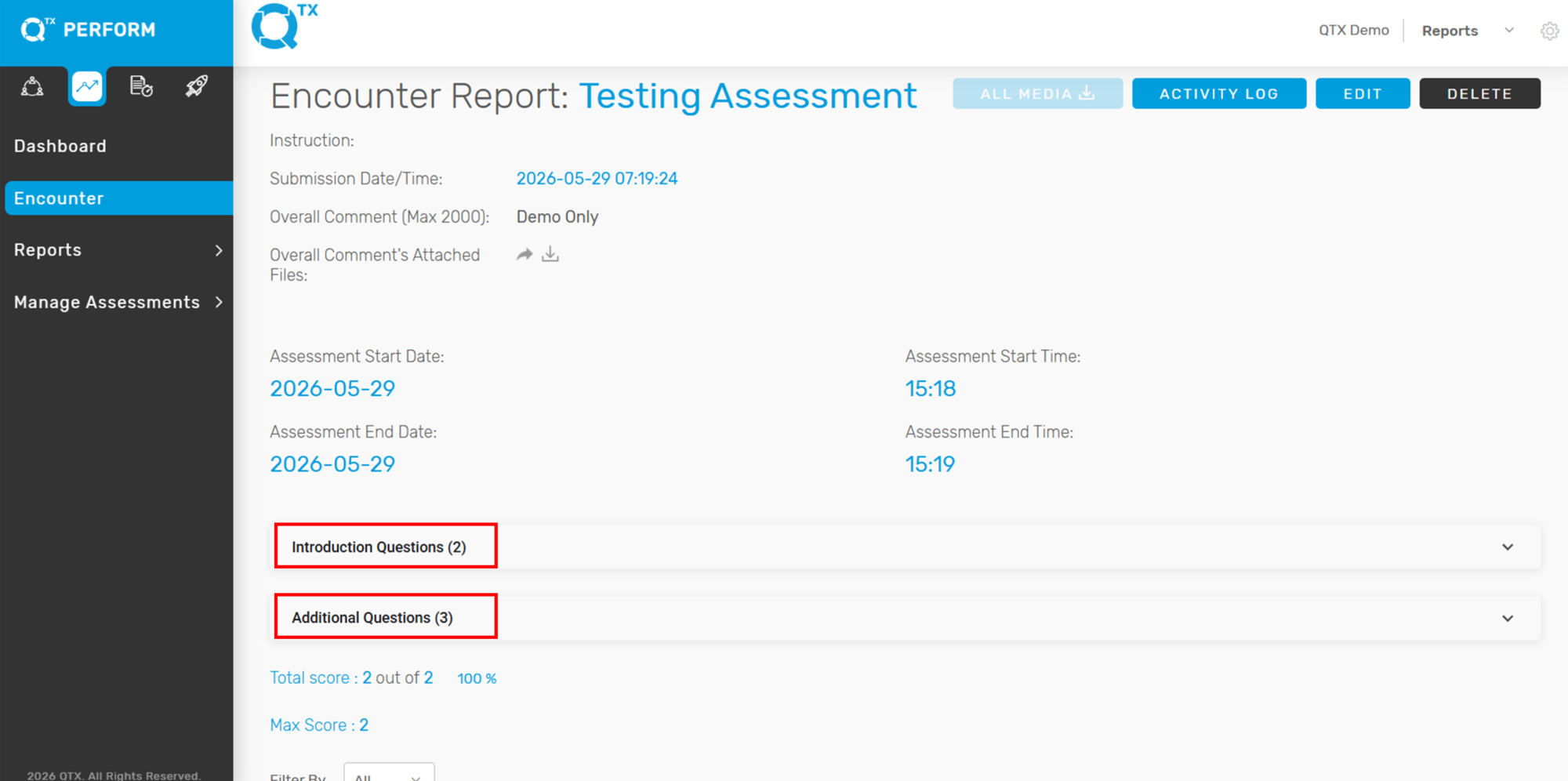
3. Scroll down slightly to the middle section of the Encounter Report.
From there, you will see the following dropdown sections:

Introduction Questions
Additional Questions


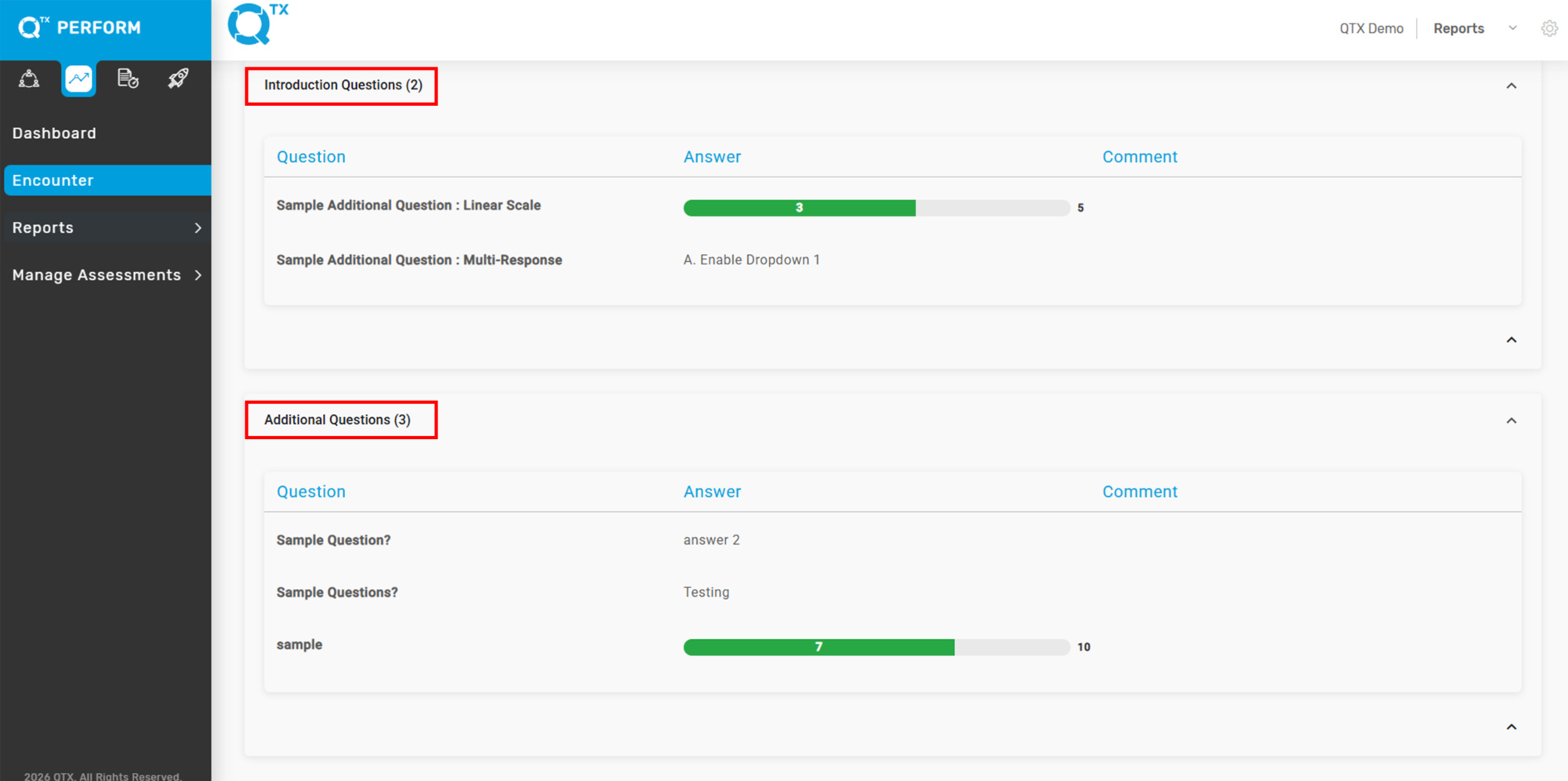
4. Click to expand each section.
You will then be able to view the responses and answers for each Introduction Question and Additional Question included in the assessment.


If you need further assistance, please send an email to helpdesk@q-tx.com

Launch: How to View the Encounter Report by Competency, Sub-Competency, and Category

The Encounter Report provides a detailed evaluation of the department’s service performance, as assessed by the Inspector using standardized criteria. Users can view the report from different perspectives—by Competency, Sub-Competency, or Category—to gain deeper insights into specific areas of strength and opportunities for improvement. This helps teams better understand performance from the customer’s point of view and take action to enhance overall service quality.


1. On the Dashboard landing page, click the “LAUNCH” button to proceed.


2. Click the “Encounter” button, then complete the required details in the Filters section.


3. Fill in the required details in the Filters section. The Overall Score will then be displayed in percentage format based on the selected Assessment Period.


4. Click on any Assessment Period to view the list of completed assessments submitted by Inspectors.


5. Click on the Inspector’s name to view the Encounter Report. The report will be displayed in its default view.


6. After clicking the Inspector’s name, the Encounter Report will open in its default view.


7. To view the Encounter Report by competency, click “VIEW BY COMPETENCY.” The report will then be displayed and organized according to each Competency.


8. To view the Encounter Report by sub-competency, click “VIEW BY SUB-COMPETENCY.” The report will then be displayed and organized according to each Sub-Competency.


9. Users can also view the Encounter Report by category. Simply click “VIEW BY CATEGORY” to display the report organized under each relevant category.
Note: Currently, only the default category is available.


If you need further assistance, please send an email to helpdesk@q-tx.com

Launch: How to View the Overall Score of Assessment Period in Encounter

Viewing the Overall Score as a percentage helps users understand the department’s performance during a specific assessment period. The Inspector evaluates service delivery based on defined standard scales, providing a clear measure of achievement.


1.  On the Dashboard landing page, click the “LAUNCH” button to proceed.


2. Click the “Encounter” button, then use the available filters to select and refine the information you wish to view.


3. The Overall Score will be displayed as a percentage based on the selected Assessment Period.


If you need further assistance, please send an email to helpdesk@q-tx.com