How to View Details from Attachment Image Popup as a Reporting Role

The Attachment Image Popup feature allows Reporting Role users to quickly view detailed information related to image attachments within the Encounter Report. Clicking an image attachment opens a pop-up displaying the associated assessment details and comments.


1. Log in to your QTX account using your Reporting Role credentials, then navigate to the Encounter Report page from the main menu.
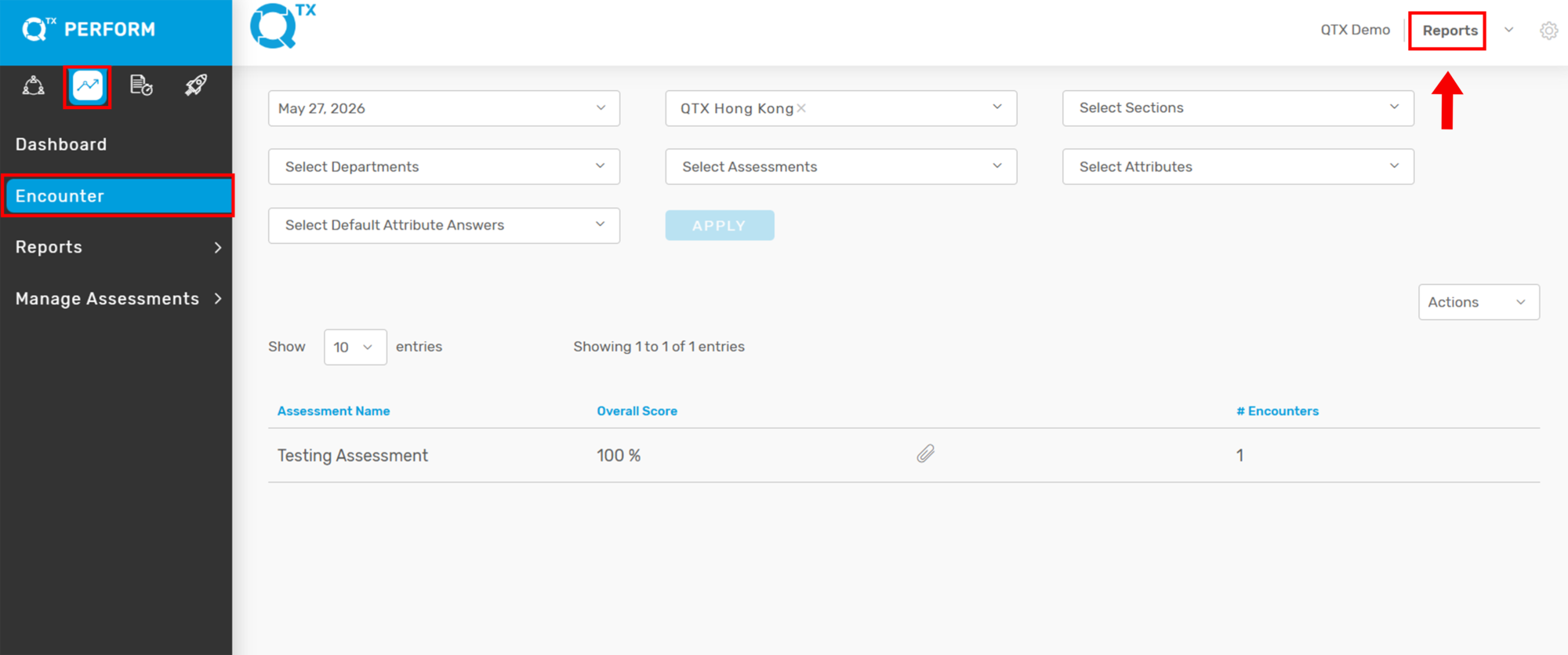
 

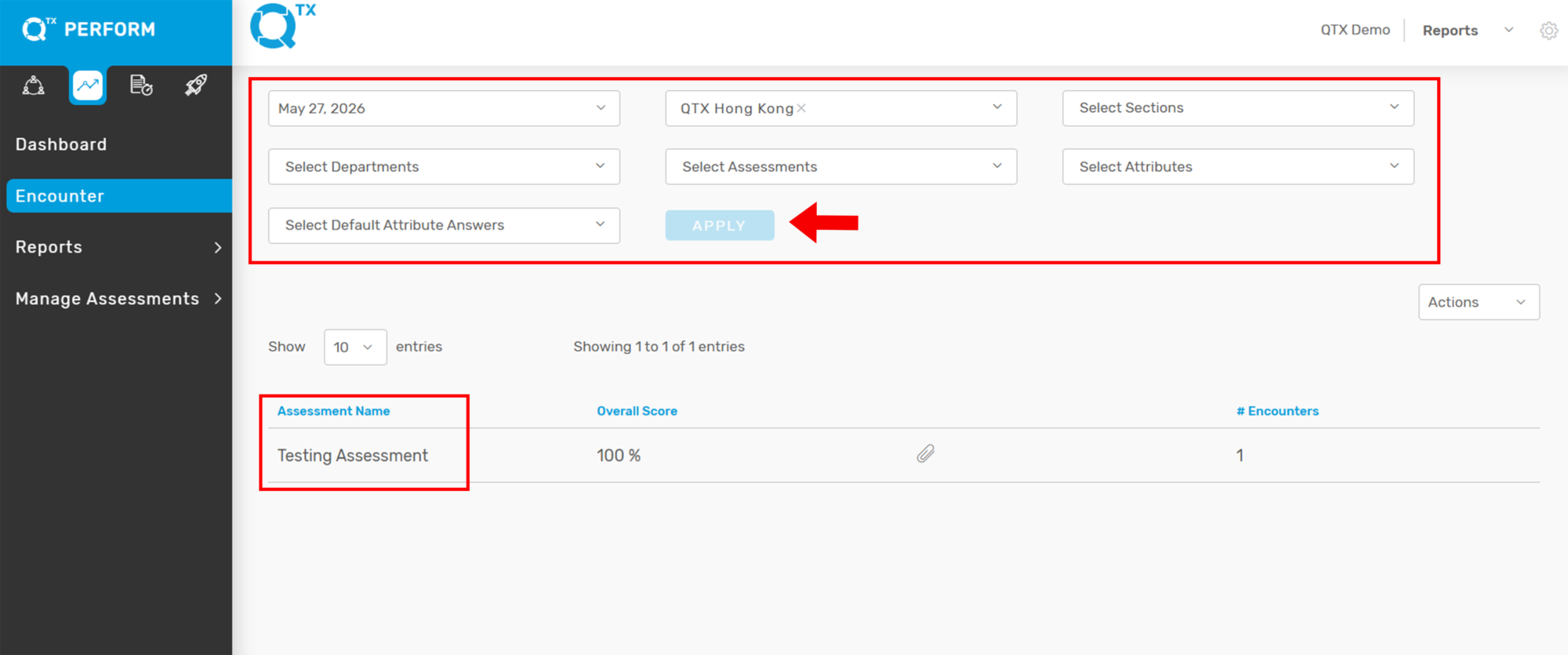
2. Use the filters to select the specific Location, Section, and Department. Click the Assessment Name displayed.
 

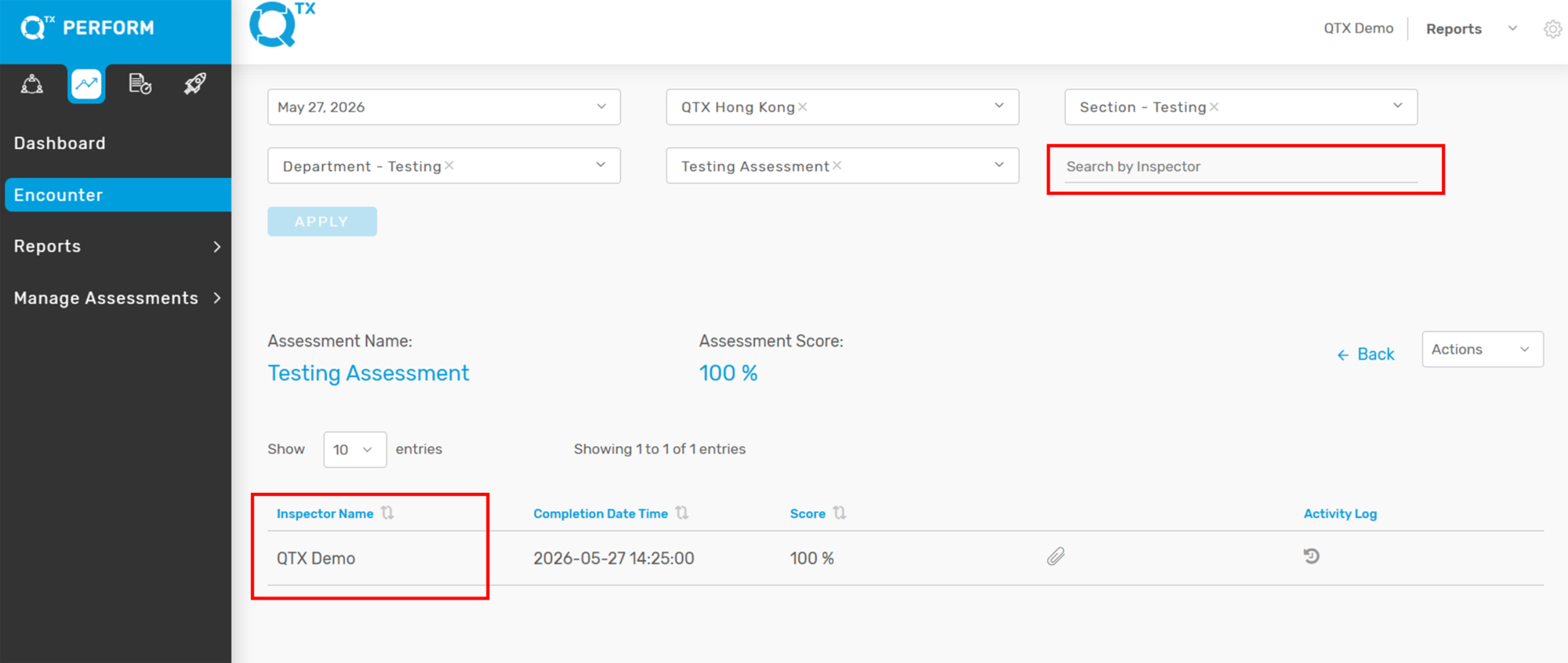
3. Locate the specific inspector by entering details in the Search by Inspector filter, then click the inspector’s name to open the Encounter Report.
 

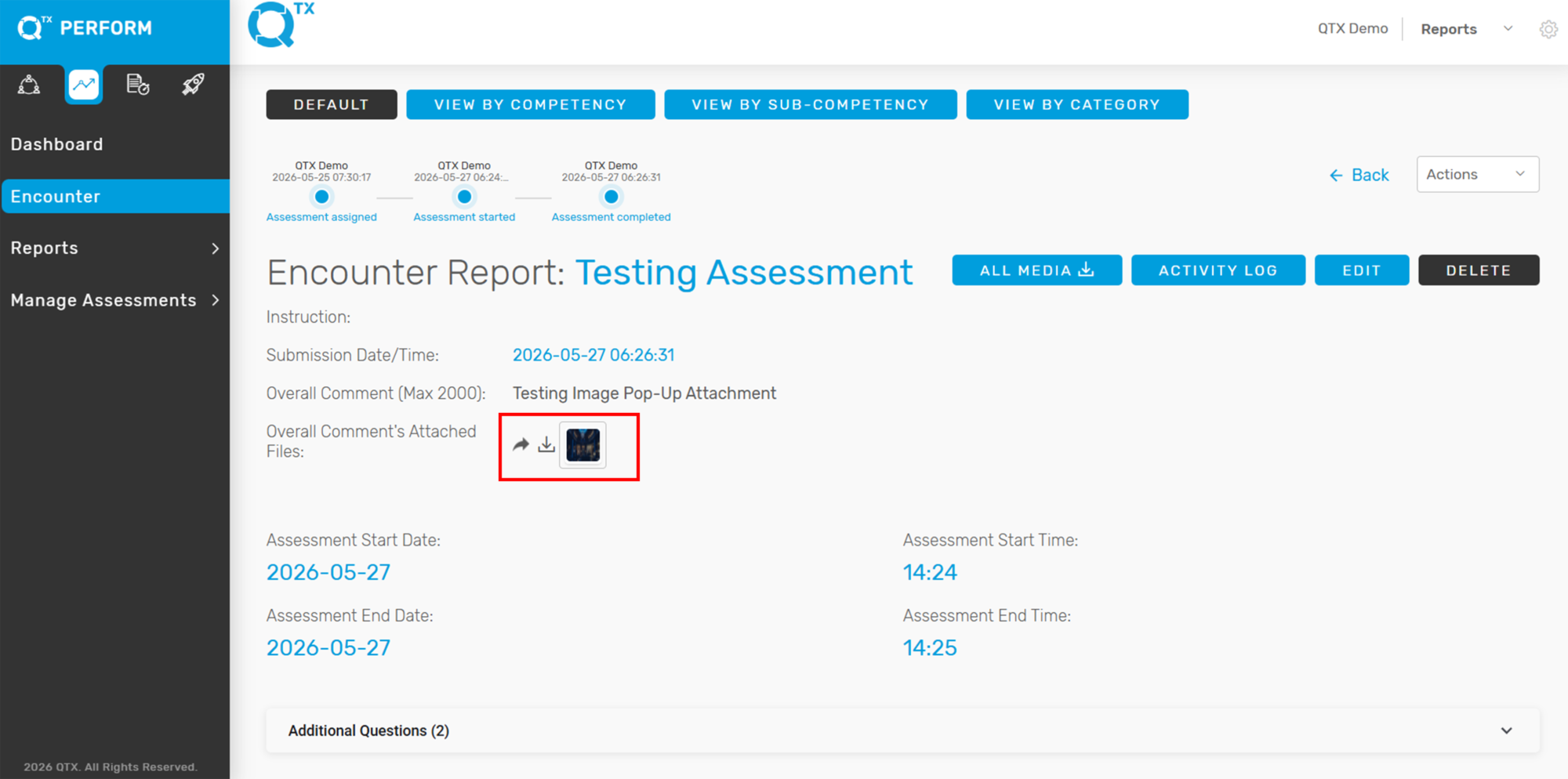
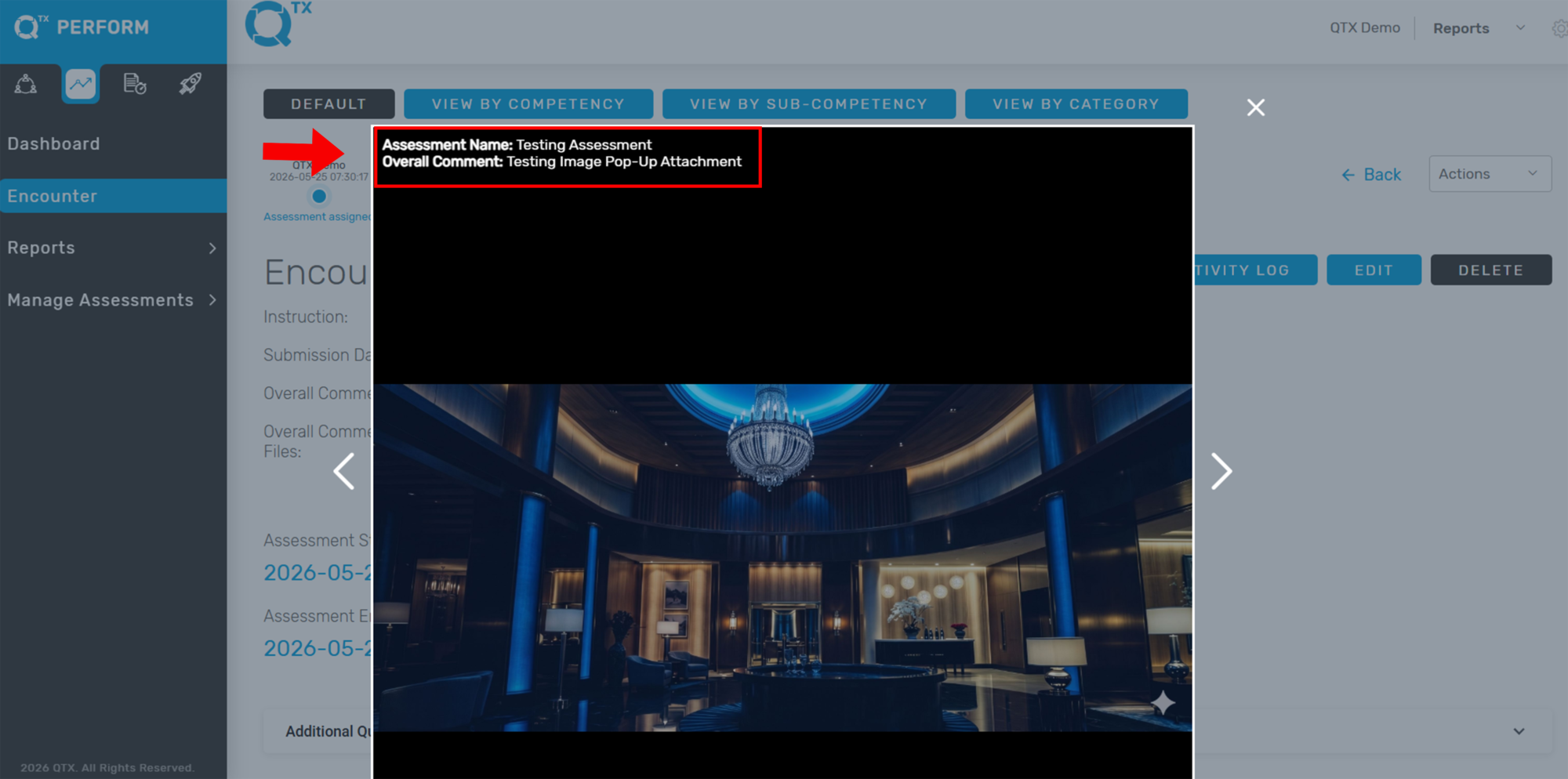
4. In the Encounter Report, locate the image attachment under the Overall Comment section and click the image.
 

5 . A pop-up window will appear displaying the following details:
– Assessment Name
– Overall Comment
This feature allows users to review attachment-related information quickly without leaving the Encounter Report page.
 

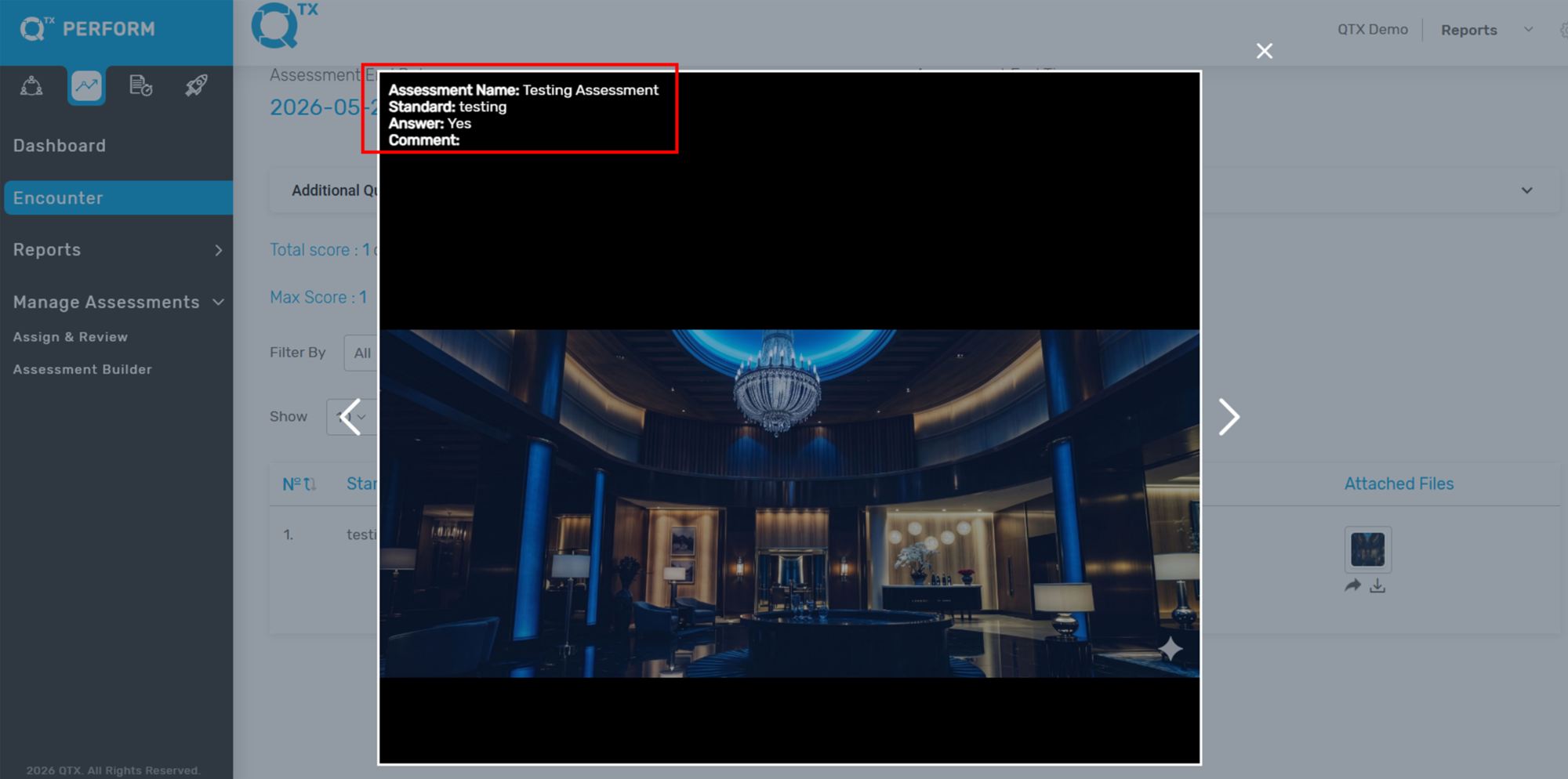
Same if you click the image attachment associated with the standard. The pop-up window will display the following information:
– Assessment Name
– Standard
– Answer
– Comment


If you need further assistance, please send an email to helpdesk@q-tx.com

Perform: How to View the Summary of Question Assessed

This displays a summary of the scores for questions achieved and not achieved, categorized by department. The percentage scores are presented in both pie chart and table formats.


1. When you are on the Dashboard landing page, click on the PERFORM platform, then go to “Reports – Question Assessed” tab..


2. Ensure that filters are applied and all required information is completed.


3. The summary of assessed questions will be presented in both pie chart and table formats, showing Achieved, Not Achieved, and N/A scores.


If you need further assistance, please send an email to helpdesk@q-tx.com

Perform: How to View Performance Missed Standard Reports

This report highlights the standards missed during the audit, including the total number and percentage of missed standards.


1. When you are on the Dashboard landing page, make sure that you click on the PERFORM platform, then go to “Reports – Performance” and select the “Missed Standards” tab.


2. Ensure that filters are applied and all required information is completed.


3. All assessment names with missed standards will be displayed, along with the total number of missed standards.


4. Click any Assessment name to view the missed standards, including the number of times each was missed and the corresponding standard code.


5. Click any Standard name to view the details of the missed standard (i.e Inspector Name, Comment, Attribute, Assessment Date).


If you need further assistance, please send an email to helpdesk@q-tx.com

Perform: How to View Overall Performance

Performance reports allow management to provide both positive feedback and identify areas that may need improvement. Departments can review results together and use them to create development plans that support skill-building and better performance.


1. From the Dashboard landing page, click on the PERFORM Platform, then go to “REPORTS – PERFORMANCE.”


2. Use the FILTERS section to fill in all the required information — such as date range, department, and other relevant criteria — to ensure you’re viewing the correct data.


3. After applying the filters, the Performance Summary or Overall Performance report will be displayed. This gives you a clear overview of how individuals or teams are performing, highlighting strengths and areas that may need further development.


If you need further assistance, please send an email to helpdesk@q-tx.com

Perform: How to View Overall Competency Report

Each standard in the report reflects a category of the guest experience known as a Competency, which may also include Subcompetency or Segment details. This report helps you review performance by Location, Section, and Department.


1. From the Dashboard landing page, click on the “PERFORM” button.


2. Click the “Reports” button, then select “Competency” from the list.


3. Make sure you’re on the “Overall” tab. Use the FILTERS to enter all necessary information (such as date range, location, department, etc.) to generate accurate results.


4. The Overall Competency Report will display as a graph. You can hover your cursor over each bar to view the percentage score for that Competency.


5. Click the arrow button to show or hide the Competency list. To view Sub – competency or Segment details, click the color-coded boxes on the right side of the graph.


6. For a deeper breakdown, click on “VIEW SCORE” and “SHOW MORE” buttons to see scores based on each Competency and its corresponding Segment name.


If you need further assistance, please send an email to helpdesk@q-tx.com

Perform: How to View Monthly Reports

Monthly reports provide valuable insights gathered from Hotel Guest Experiences. This information helps monitor the consistency and quality of the service we deliver to our guests.


1. From the Dashboard landing page, ensure you are on the “PERFORM” platform. Then, click on the “REPORTS – MONTHLY REPORT” tab.


2. Use the FILTERS to fill in all the required details — such as date range, location, and department — to generate the correct report data.


Once the filters are applied, several key insights will be available:
A Property Graph Report Per Department will be shown at the top, offering a visual overview of departmental performance.


The Section Performance report displays each section’s name, score, and number of assessments completed.


3. You’ll also see a list of the Most Improved and Least Improved Departments, which helps highlight areas of growth and those needing attention.


4. Below that, a breakdown of Competency Names is displayed along with their Scores and Percentage Increase, showing where progress has occurred.


5. At the bottom, the report includes the Overall Competency Report, Competency Segment scores, and a list of the Top Missed Questions, offering deeper insights into service consistency and training opportunities.


If you need further assistance, please send an email to helpdesk@q-tx.com

Perform: How to View Inspector Reports

Inspector Reports are used to evaluate a range of hotel services and amenities, including room service, dining, and public areas like pools. These reports are based solely on visual inspections and reflect what the inspector directly observed.


1. From the Dashboard landing page, ensure you are on the PERFORM platform.
Click the “REPORTS – INSPECTOR REPORTS” tab.


2. Use the FILTERS provided to fill in all the necessary details, such as date range, location, and inspector name, to generate the correct report view.


3. Once filters are applied, a list of User Names (inspectors) will appear at the bottom of the page.


4. To view the Completed Assessment Ratio, simply click on an inspector’s name.
This will bring up details including:

List of Assessment Names
Completion Dates
Score Percentages
Department Names
Section Names
Location Names


5. To view the detailed Encounter Report, click on any “Room Inspection” listed under the assessment names.


6. Scroll down the report to view the Standard Names, Segments, and Inspector Commentary.
You’ll also have the option to View, Send, or Download any attached files.


If you need further assistance, please send an email to helpdesk@q-tx.com

Perform: How to View Competency Missed Standard Reports

This report highlights the number and percentage of missed standards categorized by Competency, helping teams identify common gaps and areas needing improvement.


1. From the Dashboard landing page, click on the “PERFORM” tab.


2. Click the “Reports” button, then select “Competency” from the dropdown menu.


3. Make sure you are on the “MISSED STANDARDS” tab.


4. The report will display a breakdown of missed standards by number and percentage, organized by each Competency.


If you need further assistance, please send an email to helpdesk@q-tx.com