Perform: How to View List of Completed Assessments and How to Edit Assessment in Encounter Report

The Encounter Report feature in QTX Perform allows team leaders, inspectors, and champions to track and review employee evaluations. These assessments are essential for monitoring job performance, recognizing achievements, and identifying areas for improvement.

Each submitted assessment provides a detailed breakdown of standards, inspector comments, and timestamps. In cases where an update or correction is needed, authorized users (e.g., Champions) can edit the report to ensure accuracy and data integrity.

This guide walks you through the steps to view completed assessments and edit existing records in the Encounter Report section.


1. Click on the PERFORM module and select the ENCOUNTER tab.


2. Use the filter options to search for specific assessments (e.g., by date, location, section and department, or assessment name).


3. You’ll see a list of assessments with their names and overall scores. Click an Assessment Name (like “Check In Test”) to view its full report.


📎 Clip Icon Meaning: A paperclip icon next to an assessment means there are files attached. Click it to see or download them.


4. On the Encounter page, after choosing your filters (like date and location), you’ll see a list of assessments.

The Assessment Name & Score (e.g., “Check In (test)”) and its overall score are at the top, giving you a quick summary of how that assessment performed.

Below this, the table shows individual results by Inspector Name (pointed out by the red arrow). Each line tells you who finished the assessment, when they did it, their score, and if there are any attached files. You can click on an inspector’s name to see their detailed results.

This setup helps you easily track and compare how individuals and groups are performing.

Activity Log Feature

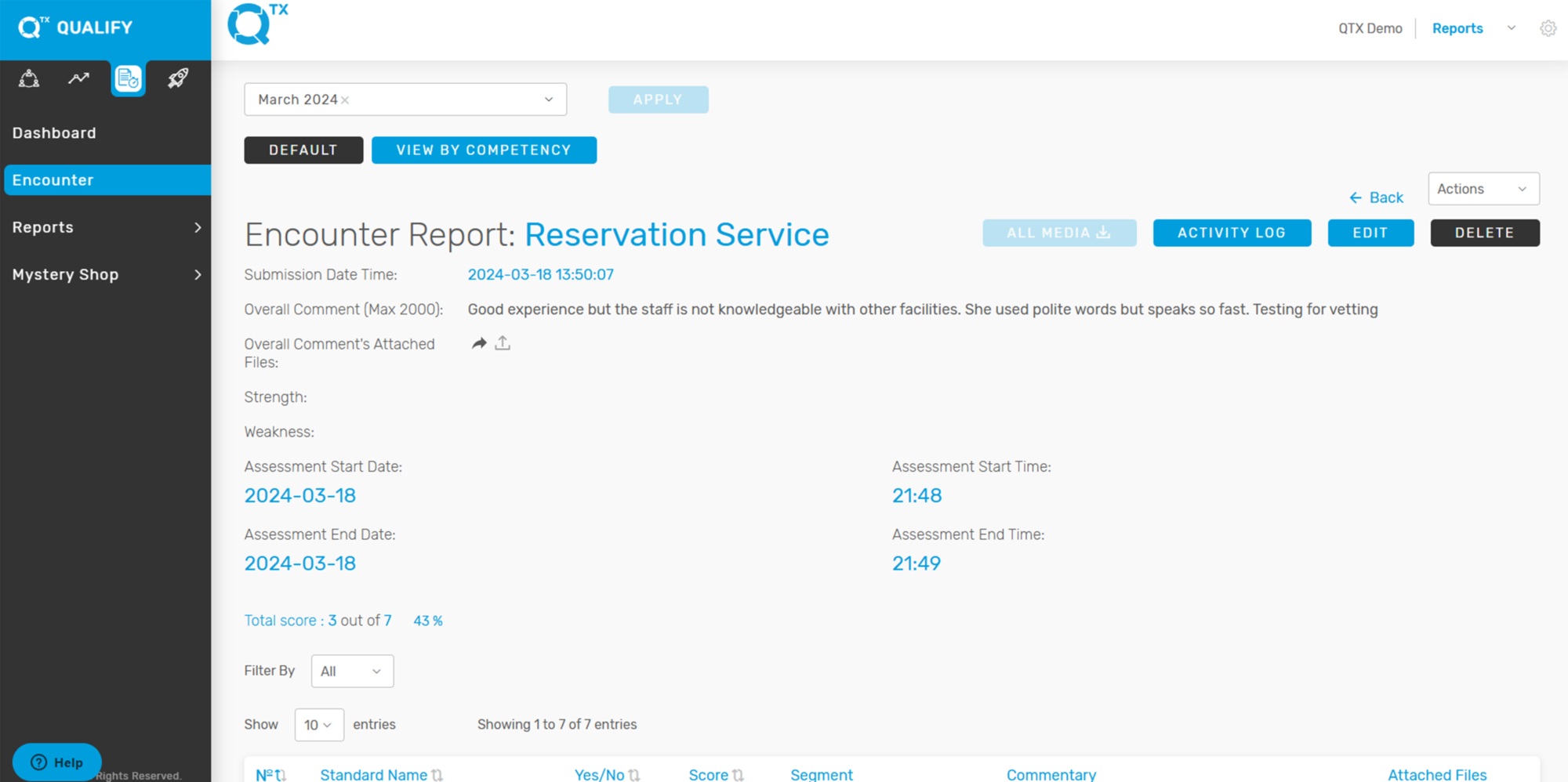
5. When you open an Encounter Report, you’ll see a summary:
Report Title: The name of the assessment (like “Check In”).
Instructions: Special tasks for the audit.
Submitted: When the report was sent.
Overall Comment: A general note on performance.
Attached Files (red arrow): Pictures or videos linked to the comment.
This section quickly shows the report’s key details and any attached files.


6. This section provides users with a quick overview of the assessment’s timing, person assessed, and session details.
Assessment Date & Time: Shows the start and end dates (e.g., June 17, 2025) and times (e.g., 12:07 PM to 12:08 PM), helping to track duration.
Attributes: Includes the Team Member Name (Auditee) (e.g., Jeralyn) and Room Number (e.g., 2046) associated with the assessment.
Shift / Period: Indicates the time of day the assessment occurred (e.g., Afternoon).
Tip: Make sure the shift period matches the actual time of the assessment for reporting accuracy.


7. The image displays a detailed assessment report, highlighted by a red box at the top, showing columns for “â„–”, “Standard Name”, “Yes/No”, “Score”, “Segment”, “Commentary”, and “Attached Files”. An arrow specifically points to a “No” in the “Yes/No” column and a “0” in the “Score” column for a particular standard, indicating that this specific standard was not met during the assessment. The “Commentary” section next to it provides an explanation for the missed standard.


8. If you need to update or revise details in an existing Encounter Report, follow these steps:
On the top right section of the report page, find the “EDIT” button.
It is highlighted in blue and located beside the “VIEW HISTORY” button.
Click on the “EDIT” button (see red box and arrow in the image) to enter the editing mode.


9. Once in edit mode, you can modify fields such as:
Overall Comments
Overall Attached files
Assessment Date and Time details
Attributes ( Team Member Name (Auditee), Shift/Period, Room Number)

Yes/No Selection
Commentary
Attach File per Standard


10. Save Your Changes: After editing, make sure to save the report by clicking the Finish button to apply your changes.


If you need further assistance, please send an email to helpdesk@q-tx.com

Launch: How to View the Encounter Report by Competency, Sub-Competency, and Category

The Encounter Report provides a detailed evaluation of the department’s service performance, as assessed by the Inspector using standardized criteria. Users can view the report from different perspectives—by Competency, Sub-Competency, or Category—to gain deeper insights into specific areas of strength and opportunities for improvement. This helps teams better understand performance from the customer’s point of view and take action to enhance overall service quality.


1. On the Dashboard landing page, click the “LAUNCH” button to proceed.


2. Click the “Encounter” button, then complete the required details in the Filters section.


3. Fill in the required details in the Filters section. The Overall Score will then be displayed in percentage format based on the selected Assessment Period.


4. Click on any Assessment Period to view the list of completed assessments submitted by Inspectors.


5. Click on the Inspector’s name to view the Encounter Report. The report will be displayed in its default view.


6. After clicking the Inspector’s name, the Encounter Report will open in its default view.


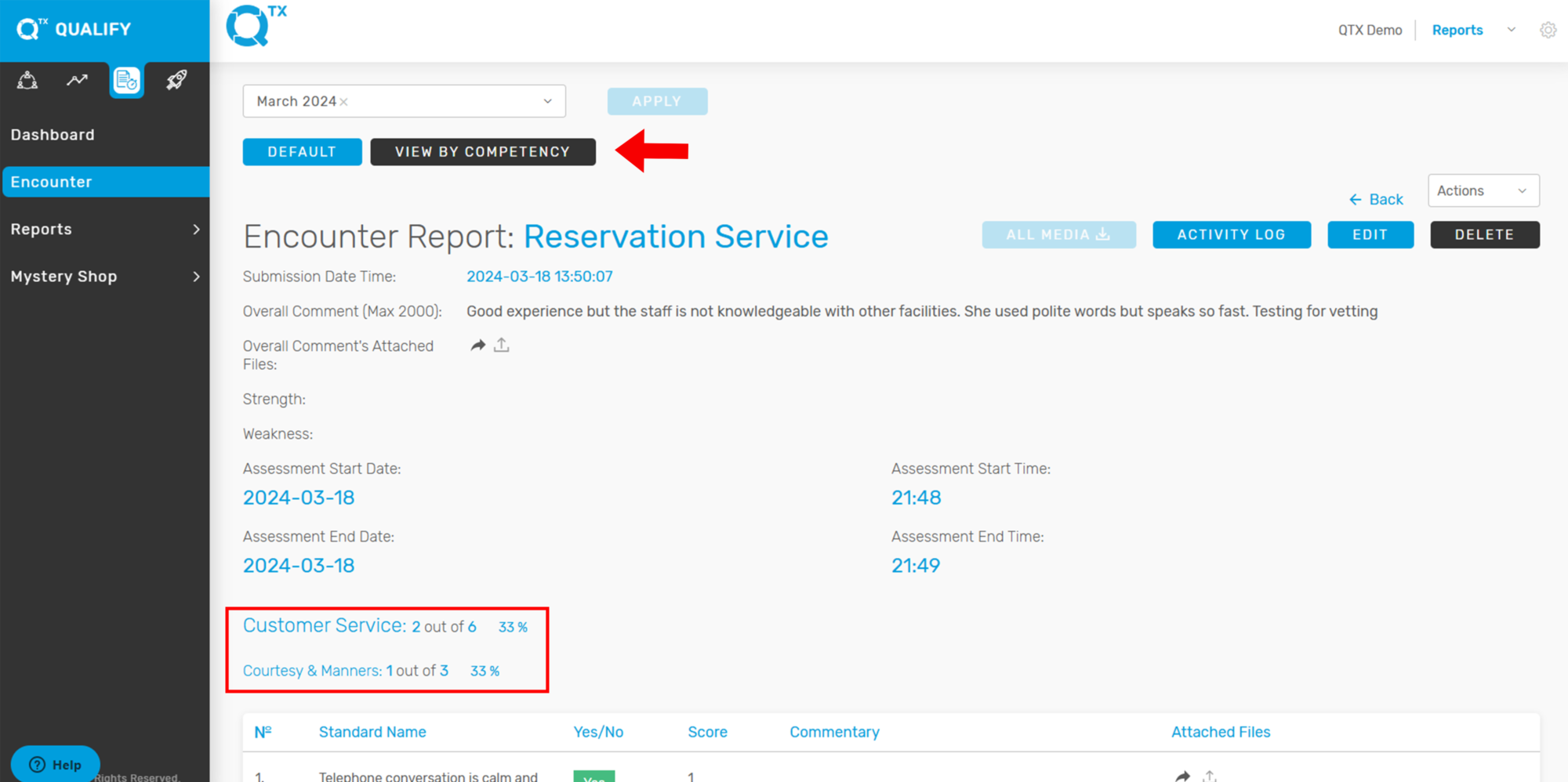
7. To view the Encounter Report by competency, click “VIEW BY COMPETENCY.” The report will then be displayed and organized according to each Competency.


8. To view the Encounter Report by sub-competency, click “VIEW BY SUB-COMPETENCY.” The report will then be displayed and organized according to each Sub-Competency.


9. Users can also view the Encounter Report by category. Simply click “VIEW BY CATEGORY” to display the report organized under each relevant category.
Note: Currently, only the default category is available.


If you need further assistance, please send an email to helpdesk@q-tx.com

Qualify: How to View Executive Summary Report

This report provides a summary of key features related to the department’s performance, offering management a concise overview without the need to review each individual report in detail.


1. On the Dashboard landing page, click the “QUALIFY” button to proceed


2. Click on the ‘Executive Summary’ button under the ‘Reports’ section, then complete the required details using the available filters.


3. This Image displays key competency metrics such as Customer Service and Professionalism, along with a Performance Summary chart that visually compares overall performance scores, such as Hotel Services. This section provides a quick and clear overview of team and department performance.


4. The chart indicates how many percentages are achieved, not achieved, and N/A. This summary helps users quickly assess performance outcomes. Below the chart, there’s a section labeled Summary Comments where detailed observations or feedback can be added.


If you need further assistance, please send an email to helpdesk@q-tx.com

Qualify: How to View the Encounter Report

Mystery Shoppers assess the department’s service performance based on standard criteria. Their feedback helps identify areas for improvement by providing insight into how customers perceive the company.


1. On the Dashboard landing page, click the “QUALIFY” button to proceed.


2. Click on the “Encounter” button located on the left-side menu. Once the page opens, fill in the required details in the Filters section to narrow down and view specific assessment results or encounter records.


3. The Overall Score will be displayed as a percentage based on the selected Assessment Period, providing a clear summary of performance during that specific timeframe.


4. Click on Assessment Period to display the available “Assessment Names” associated with that period, as shown in the example below.


5. Click on the Assessment Name to open and view the Encounter Report. The report will be displayed in its Default view, showing key details such as inspector comments, scores, and assessment criteria.


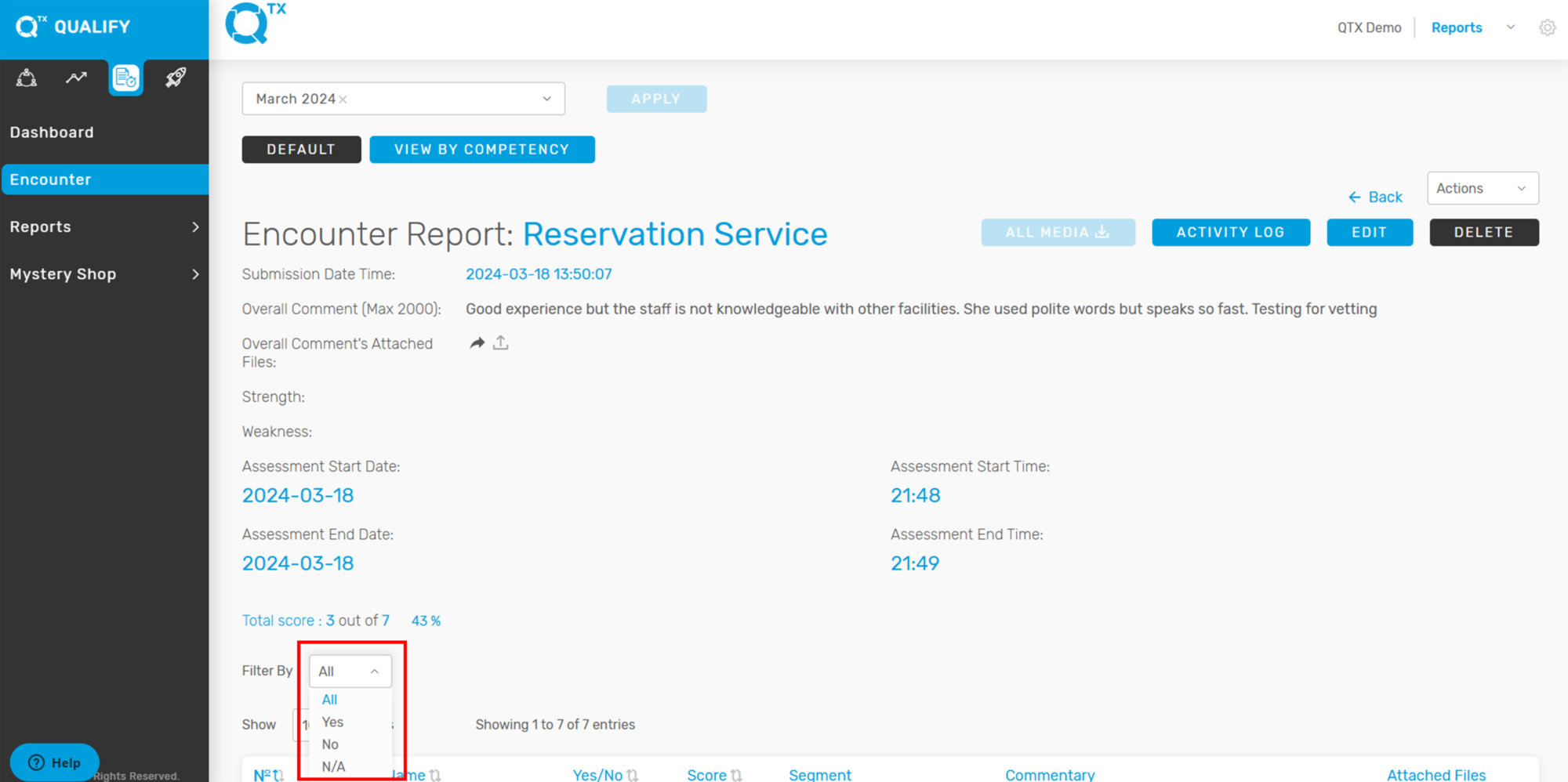
6. The user can view this filter in the Default view, which allows them to display all Yes, No, or N/A responses on a single encounter page.


7. Users can view the Encounter Report organized by Competency for a more structured analysis. Simply click on “VIEW BY COMPETENCY”, and the report will automatically display the results grouped under each specific competency category.


If you need further assistance, please send an email to helpdesk@q-tx.com

Qualify: How to View Top 10 Missed Standards and Top 10 Achieved Standards

Viewing the Top 10 Missed or Achieved Standards provides valuable insights for management, highlighting which departments consistently meet expectations and which require improvement. This allows for targeted performance optimization, ultimately contributing to better operational outcomes. Understanding when to strictly enforce standards and when flexibility is appropriate is essential to maintaining both efficiency and guest satisfaction.


1. On the Dashboard landing page, click the “QUALIFY” button to proceed.


2. Fill out the required details in the Filters section, such as Location, Department, Section, and Assessment, to generate a focused and accurate report based on your selection criteria.


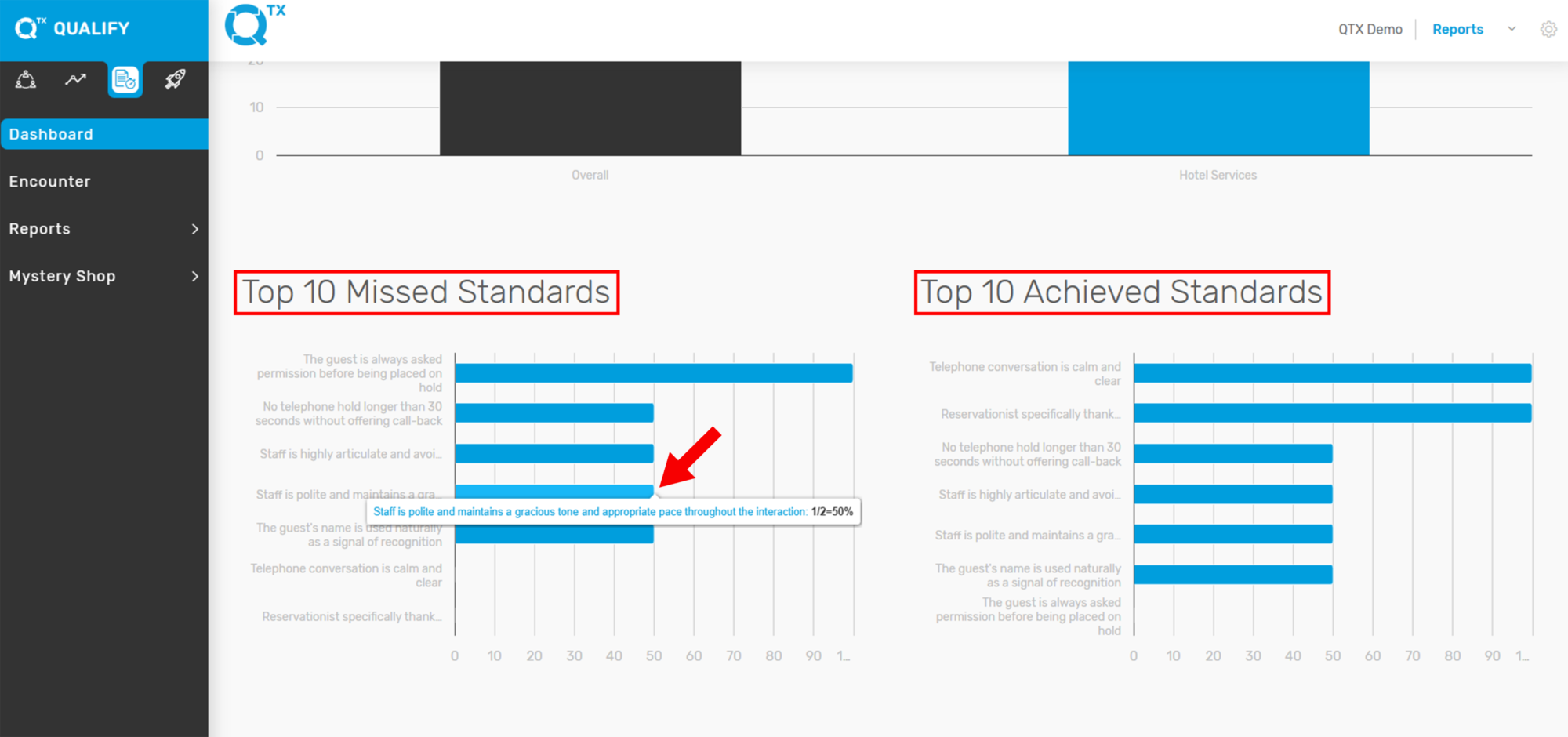
3. On the same page, scroll down to view the Top 10 Missed Standards and Top 10 Achieved Standards. Hover your cursor over any line on the graph to see detailed information, including the specific standard and its corresponding score.


If you need further assistance, please send an email to helpdesk@q-tx.com

Qualify: How to View Dashboard Reports

The QTX Platform is tailored for hotels to create cost-effective, results-driven mystery shopping programs that align with their specific operational needs. Each report is purpose-built for hotel environments, enabling teams to quickly identify and address recurring issues to enhance service quality and operational efficiency.


1. On the Dashboard landing page, click the “QUALIFY” button to proceed.


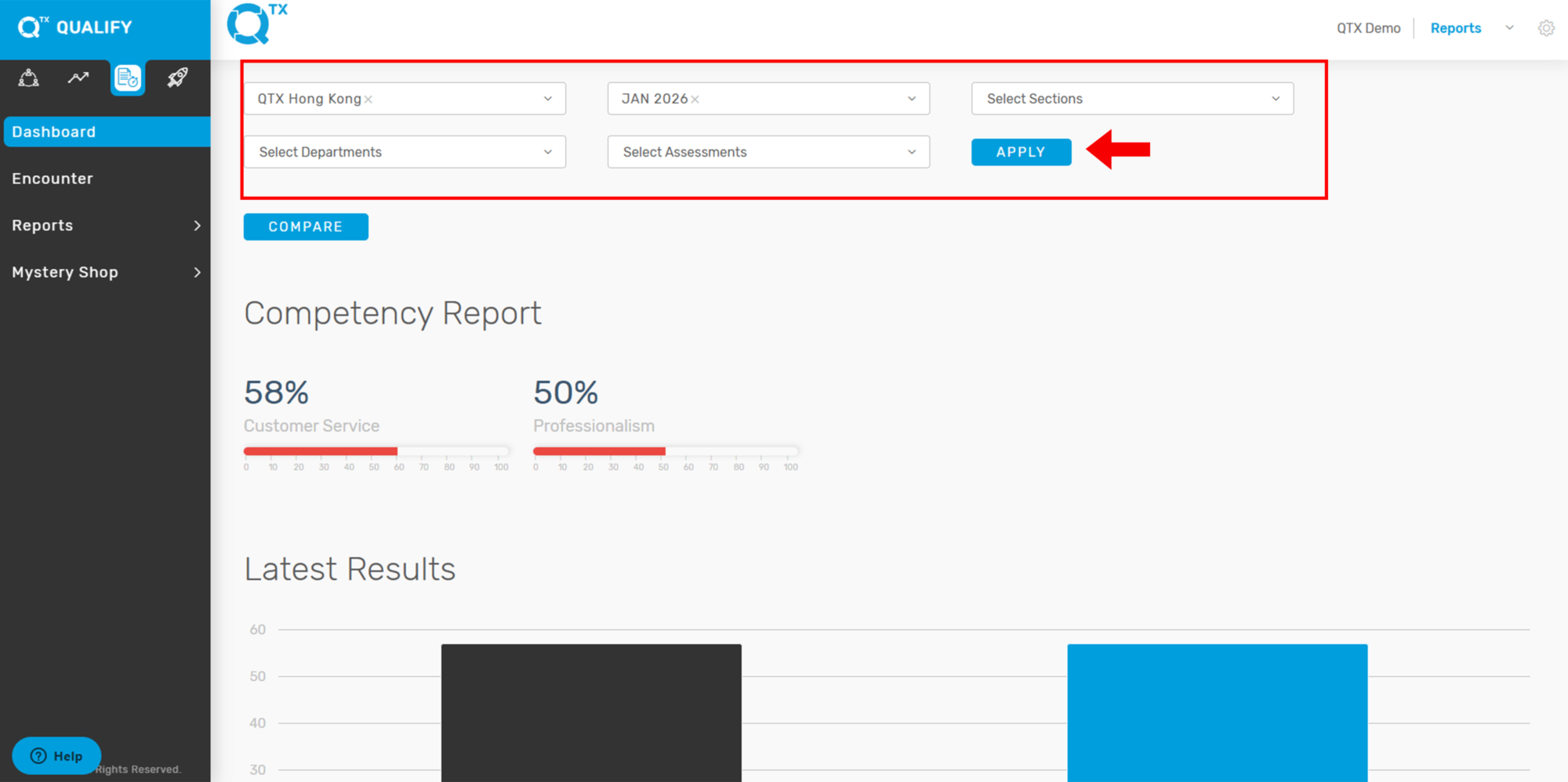
2. Fill out the required details in the Filters section, such as Location, Department, Section, and Assessment, to generate a focused and accurate report based on your selection criteria.


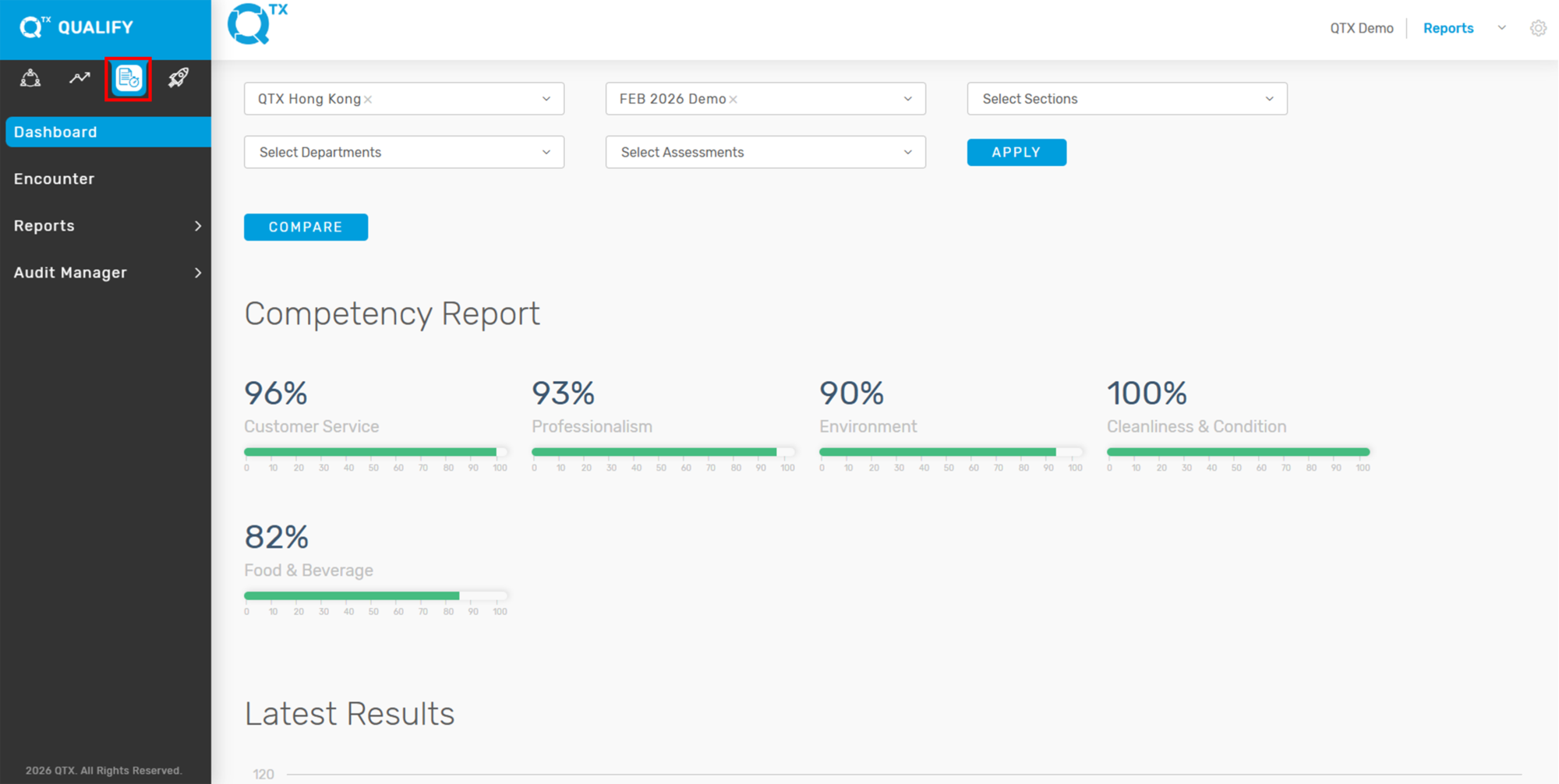
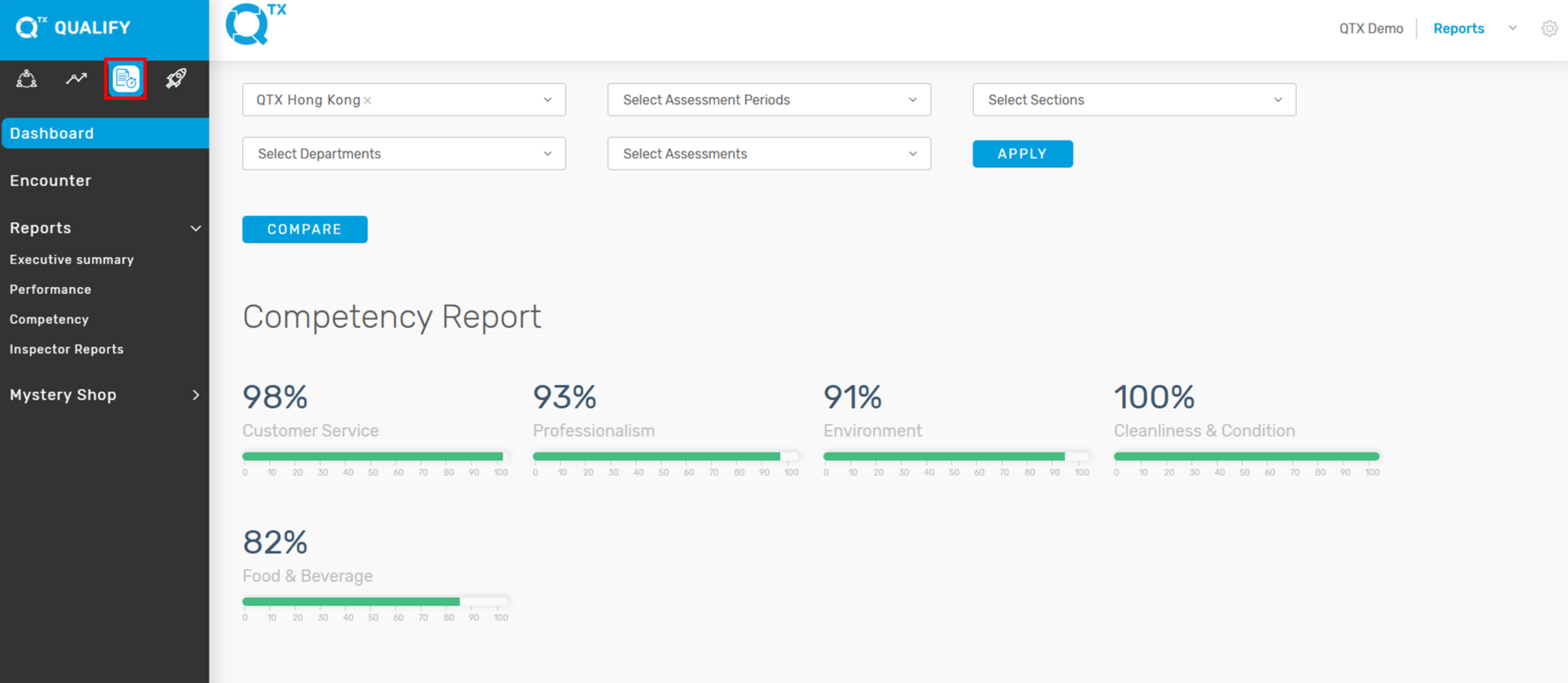
3. On the same page, scroll down to view the reports. The Competency Report displays percentage scores categorized by Competency. Any score below 80% will appear as a yellow graph line, making it easy to identify areas needing improvement.


4. The Latest Results section displays the most recent score for the selected Location. Hover your cursor over the bars on the graph to view the exact percentage score.


5. You can view the Top 10 Missed Standards and Top 10 Achieved Standards, each displayed with its corresponding scores to help identify areas of improvement and success. You can also view the standard by hovering the cursor.


If you need further assistance, please send an email to helpdesk@q-tx.com

Perform: How to View the Overall Score of Assessment Period in Encounter

Displaying the overall score as a percentage provides a clear measure of the department’s performance during a specific assessment period. The inspector evaluates service delivery based on established standards, allowing for an objective and consistent assessment of achievement.


1. From the Dashboard landing page, navigate to the PERFORM platform and select the “ENCOUNTER” tab to proceed.


2. Please ensure all required information is completed by using the available filters.


3. The Assessment Name and corresponding Overall Score will be displayed.


If you need further assistance, please send an email to helpdesk@q-tx.com

Perform: How to View Competency Missed Standard Reports

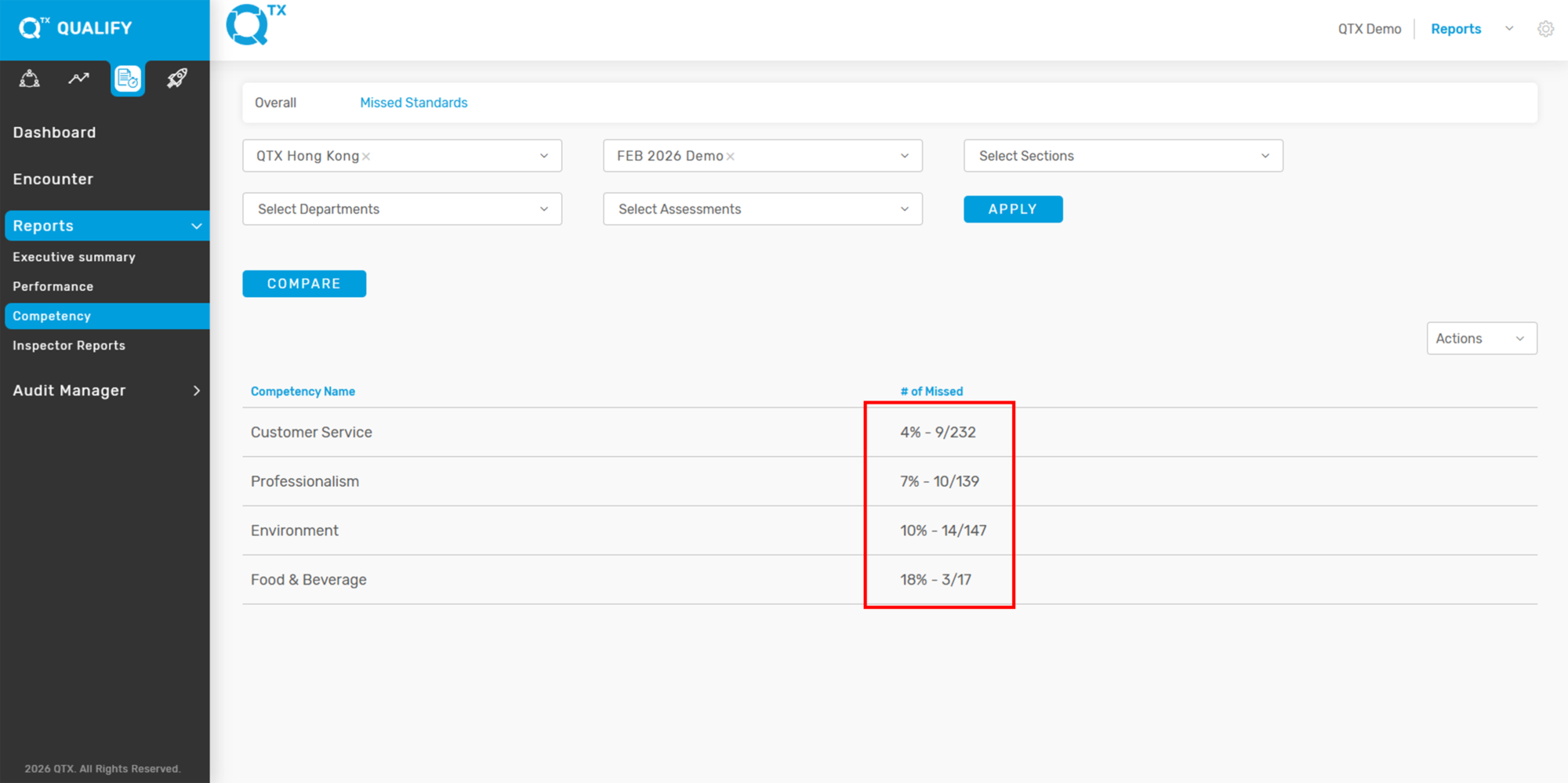
This report highlights the number and percentage of missed standards categorized by Competency, helping teams identify common gaps and areas needing improvement.


1. From the Dashboard landing page, click on the “PERFORM” tab.


2. Click the “Reports” button, then select “Competency” from the dropdown menu.


3. Make sure you are on the “MISSED STANDARDS” tab.


4. The report will display a breakdown of missed standards by number and percentage, organized by each Competency.


If you need further assistance, please send an email to helpdesk@q-tx.com

Qualify: How to View Number of Missed Standards Report by Competency

This displays the total number and percentage of missed standards, categorized by Competency, helping to identify areas needing improvement.


1. On the Dashboard landing page, click the “QUALIFY” button to proceed.


2. Click the “Reports” button from the navigation menu, then select “Competency” to view performance data.


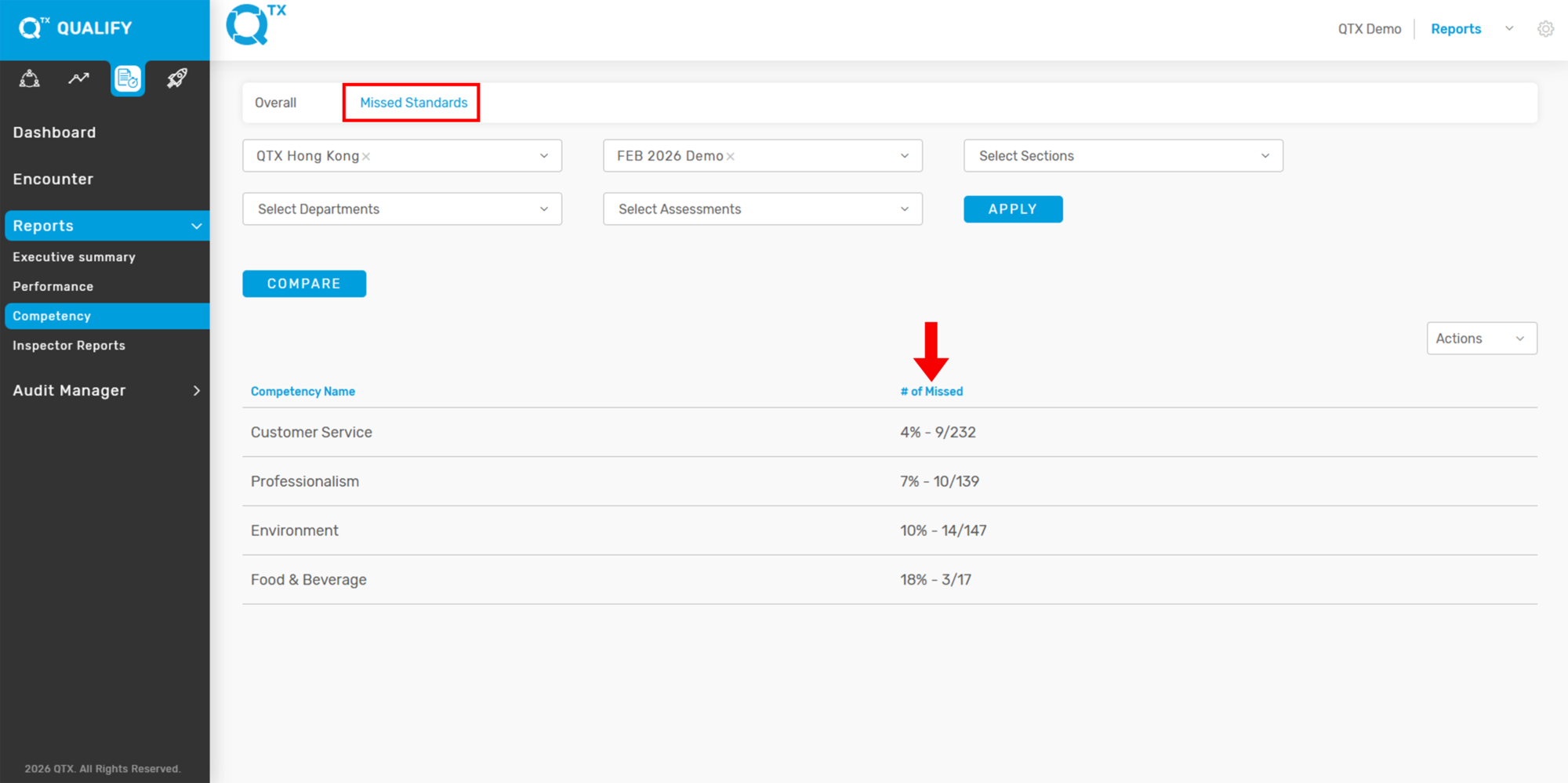
3. Click on the “Missed Standards” tab, then select the relevant filters from the available options. From here, you will be able to see the number of Missed Standards based on the selected criteria.


4. The report will display the missed standards categorized by Competency, showing both the number of missed items and their corresponding percentage. This helps identify specific areas needing improvement.


5. Click any of the Competency Names to display a detailed list of the missed standards under that specific competency, as shown in the example below. This allows users to pinpoint which standards were not met.


If you need further assistance, please send an email to helpdesk@q-tx.com

Qualify: How to View Overall Competency Report

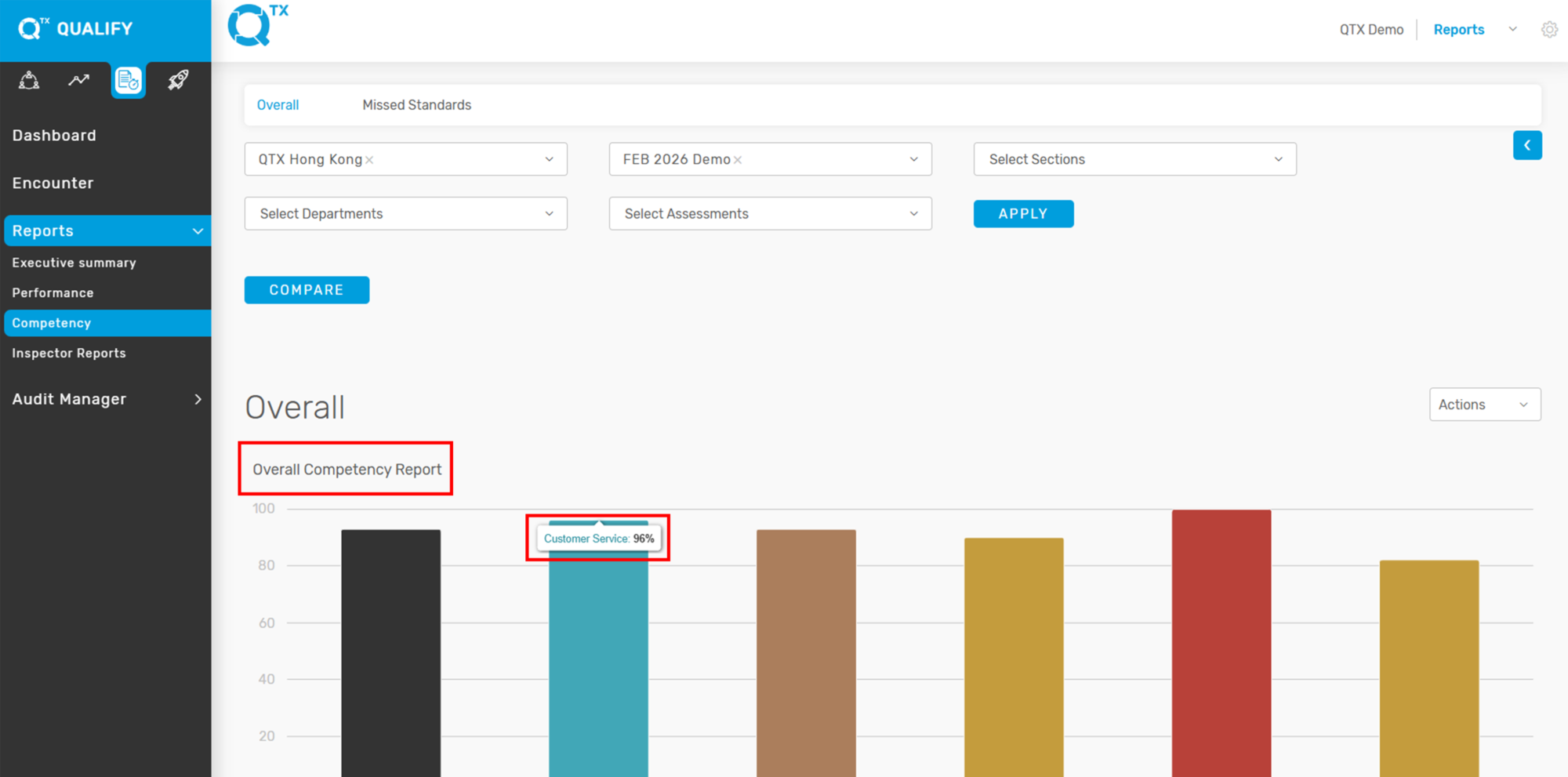
Each standard reflects a category of inspector feedback/experience, known as a Competency and Subcompetency/Segment. This report presents the details of the Competency Report by location, section, and department. Classifying the information accordingly will make it easier for the user to understand overall performance.


1. On the Dashboard landing page, click the “QUALIFY” button to proceed.


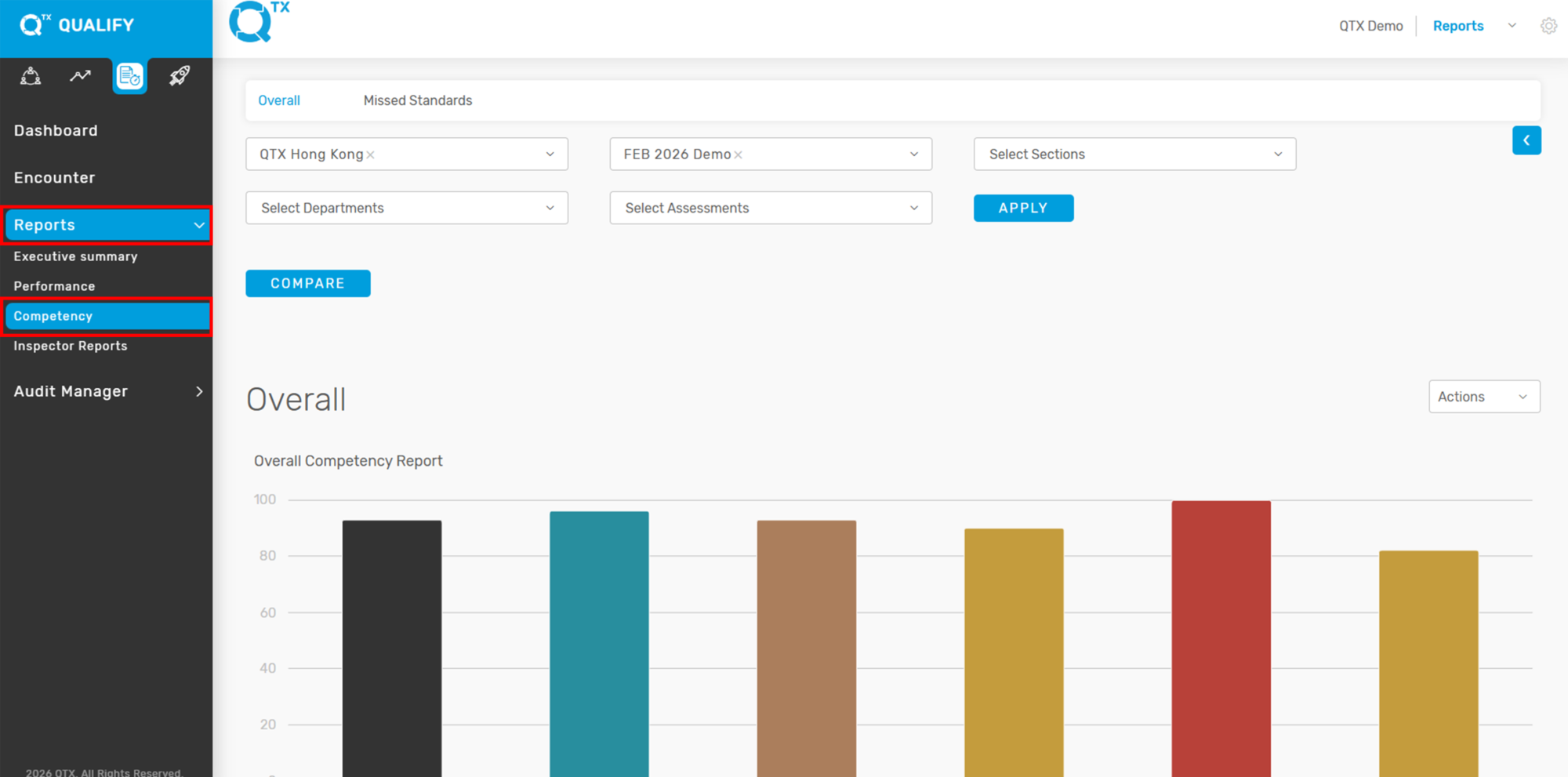
2. To access the Competency Report, start by clicking the “Reports” button located on the main navigation menu. From the dropdown options that appear, select “Competency” to view the detailed report related to inspector feedback and performance metrics.


3. Ensure that you are on the “Overall” tab before proceeding. From there, use the selection list to filter and choose the relevant information you wish to view, and clickthe  “Apply” button.


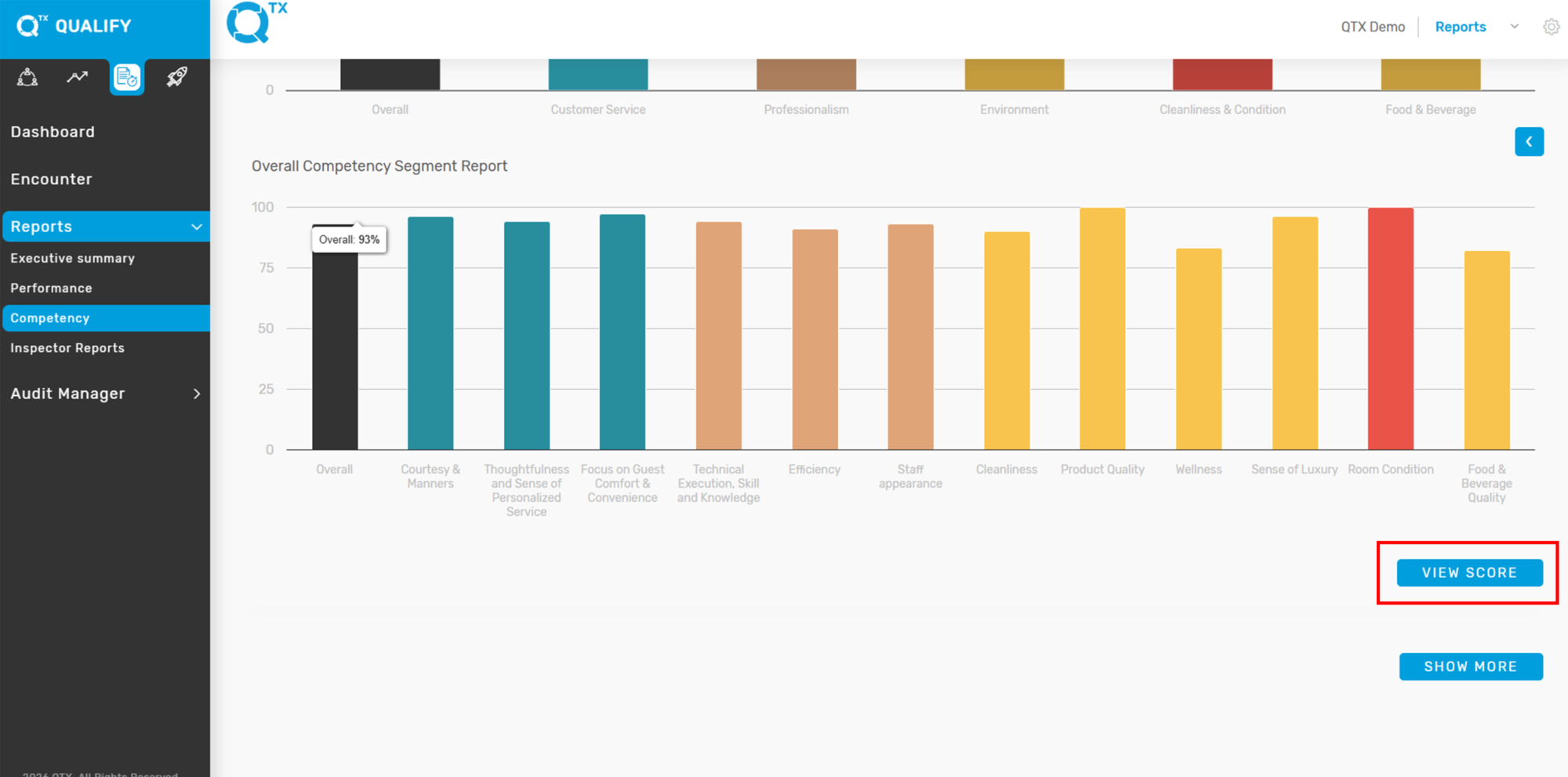
4. The Overall Competency Report will be displayed as a graph. To view the percentage score for each category, simply point your cursor at the specific graph bars.


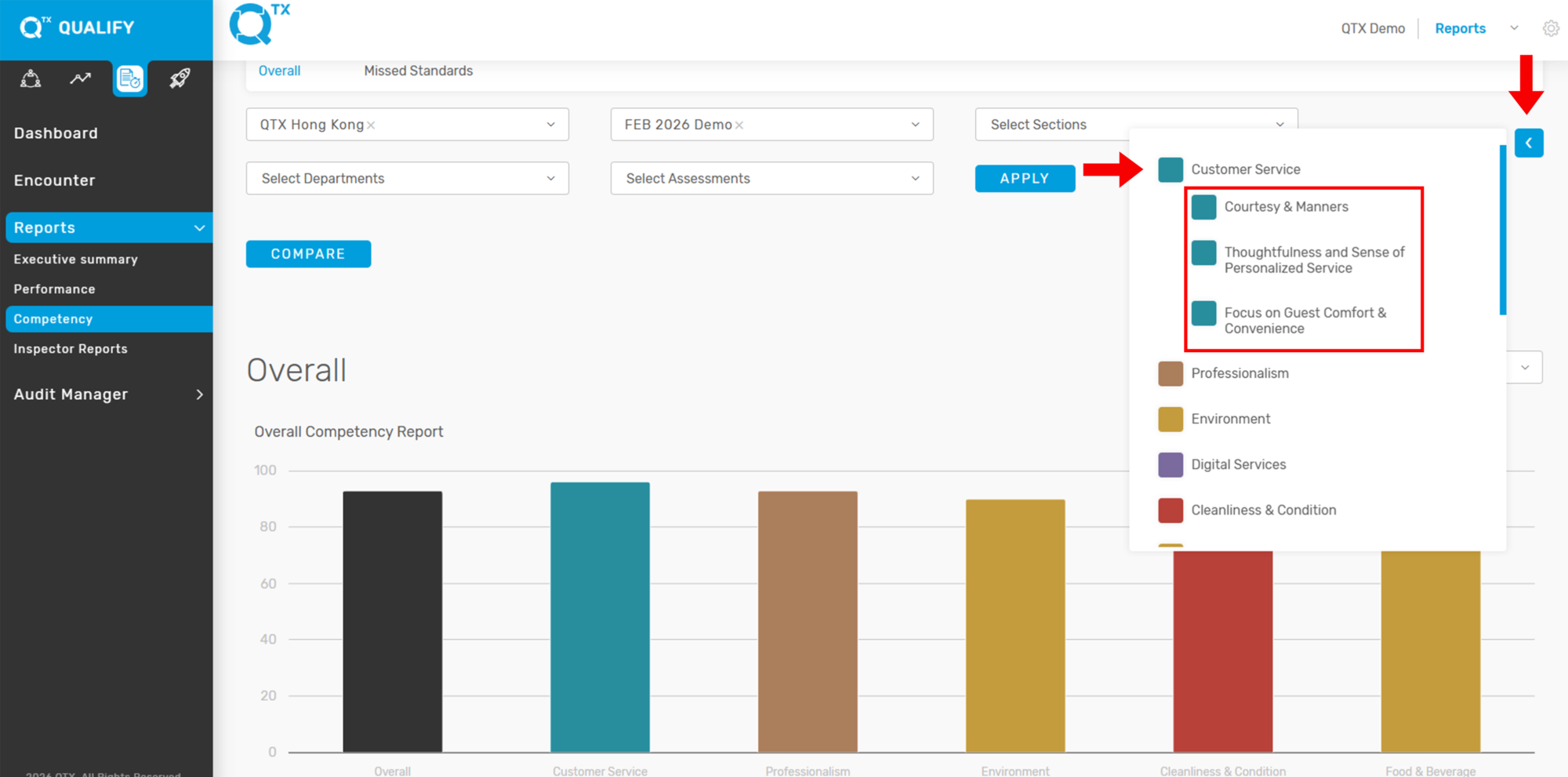
5. Click the “Arrow” button to show or hide the Competency list. Then, click on the colored box items within the list to view the corresponding Subcompetency or Segment name, if available.


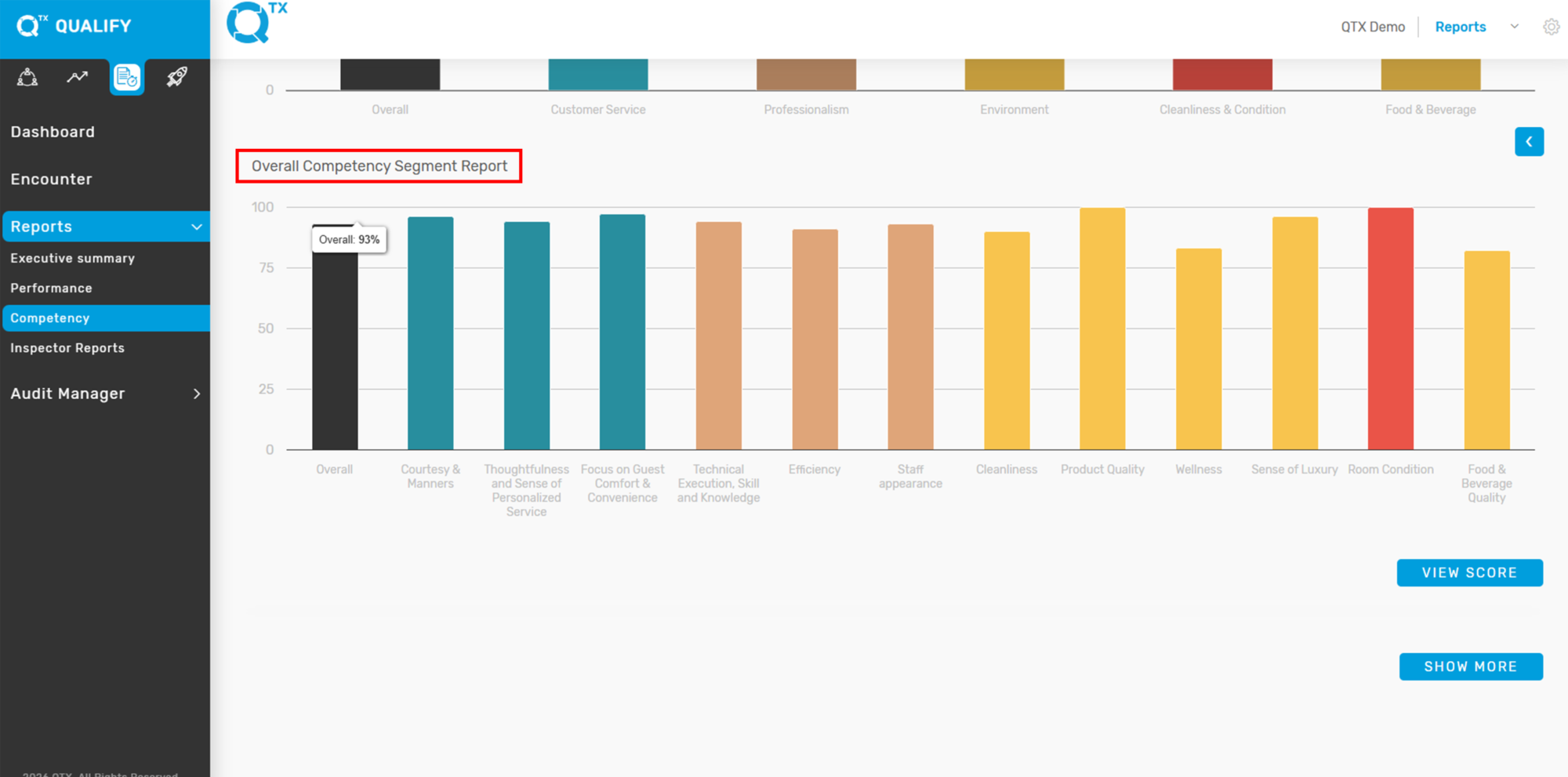
6. Below is the Overall Competency Segment Report, which provides a breakdown of performance across various segments.


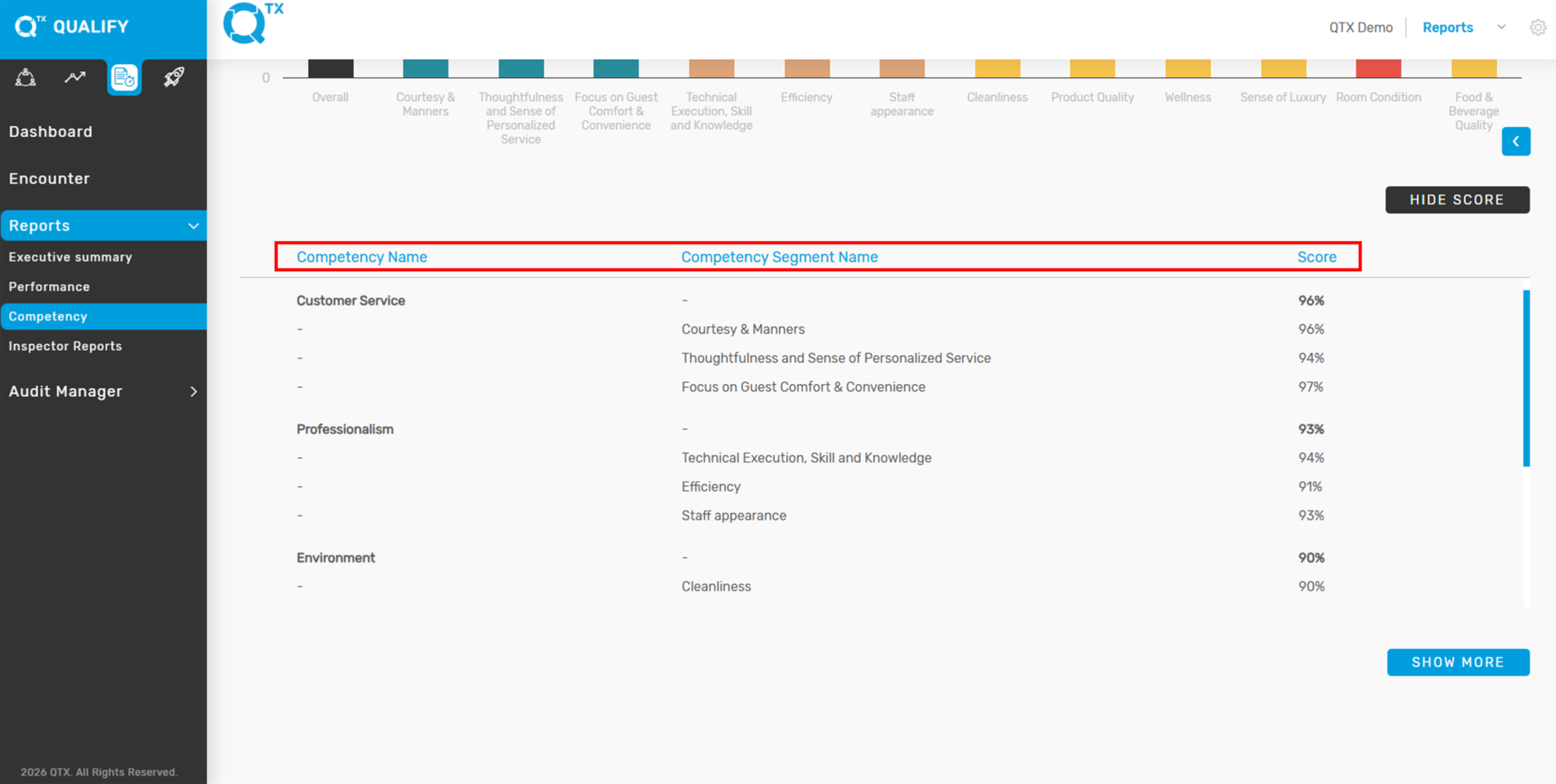
7. Click the “VIEW SCORE” button to display the scores categorized by Competency and Competency Segment Name.


8. From here, you can view the Competency Name, Competency Segment Name, and their corresponding scores.


If you need further assistance, please send an email to helpdesk@q-tx.com

Qualify: How to View Number of Missed Standards Report in Performance

This displays the number and percentage of missed standards for a department and/or section, based on the selected Assessment Name.


1. On the Dashboard landing page, click the “QUALIFY” button to proceed.


2. Click the “Reports” button, then select “Performance” from the dropdown menu to proceed.


3. Click the “Missed Standards” tab to access the relevant section. Then, use the selection list to filter and choose the specific information you want to view. And click the “Apply” button.


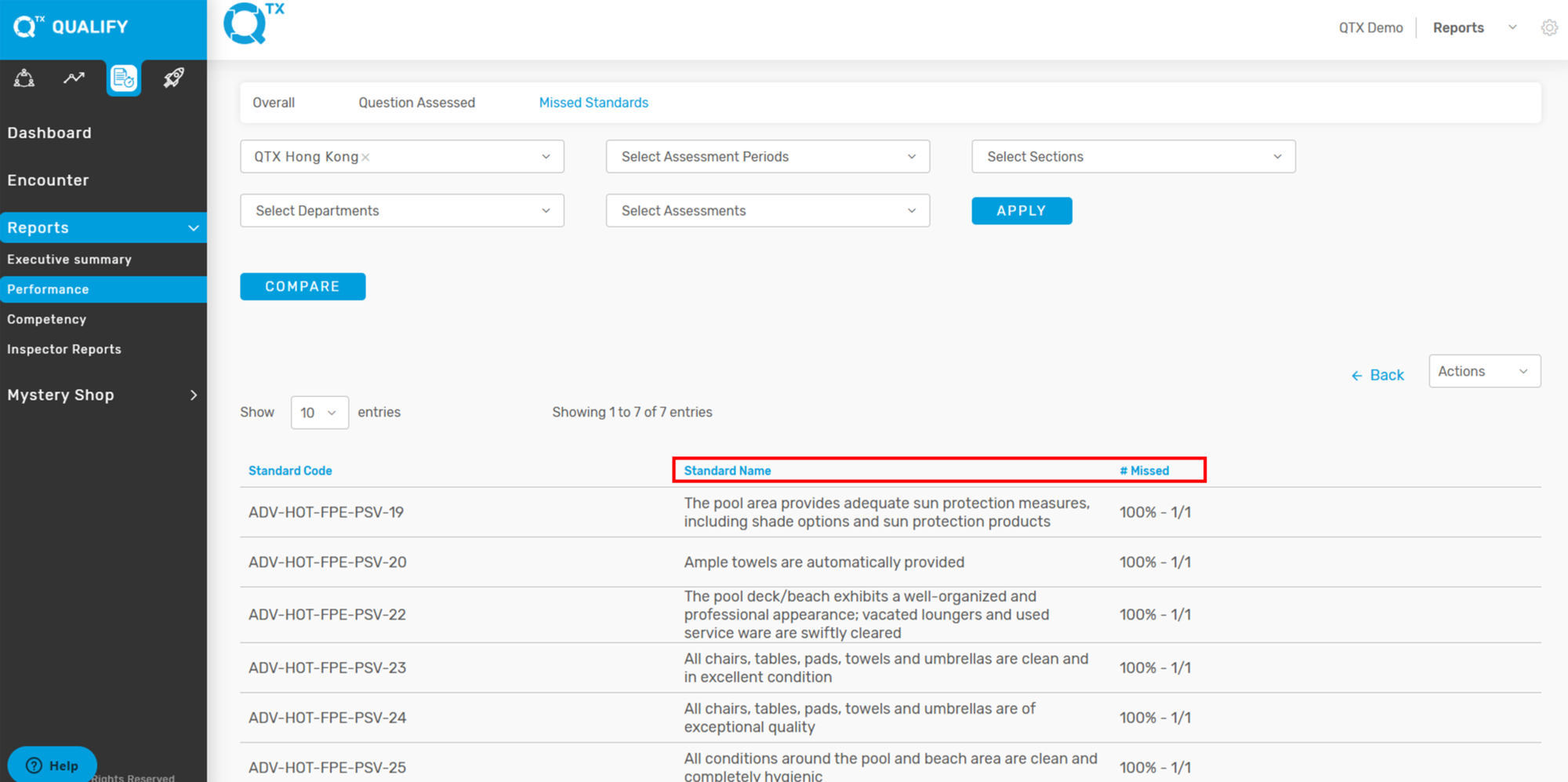
4. The report will display the total of missed standards by number and percentage, based on the selected Assessment Name.


5. Click on any Assessment Name, and the list of missed standards per standard will be displayed as shown below.


If you need further assistance, please send an email to helpdesk@q-tx.com
Qualify: How to View Summary of Questions Assessed

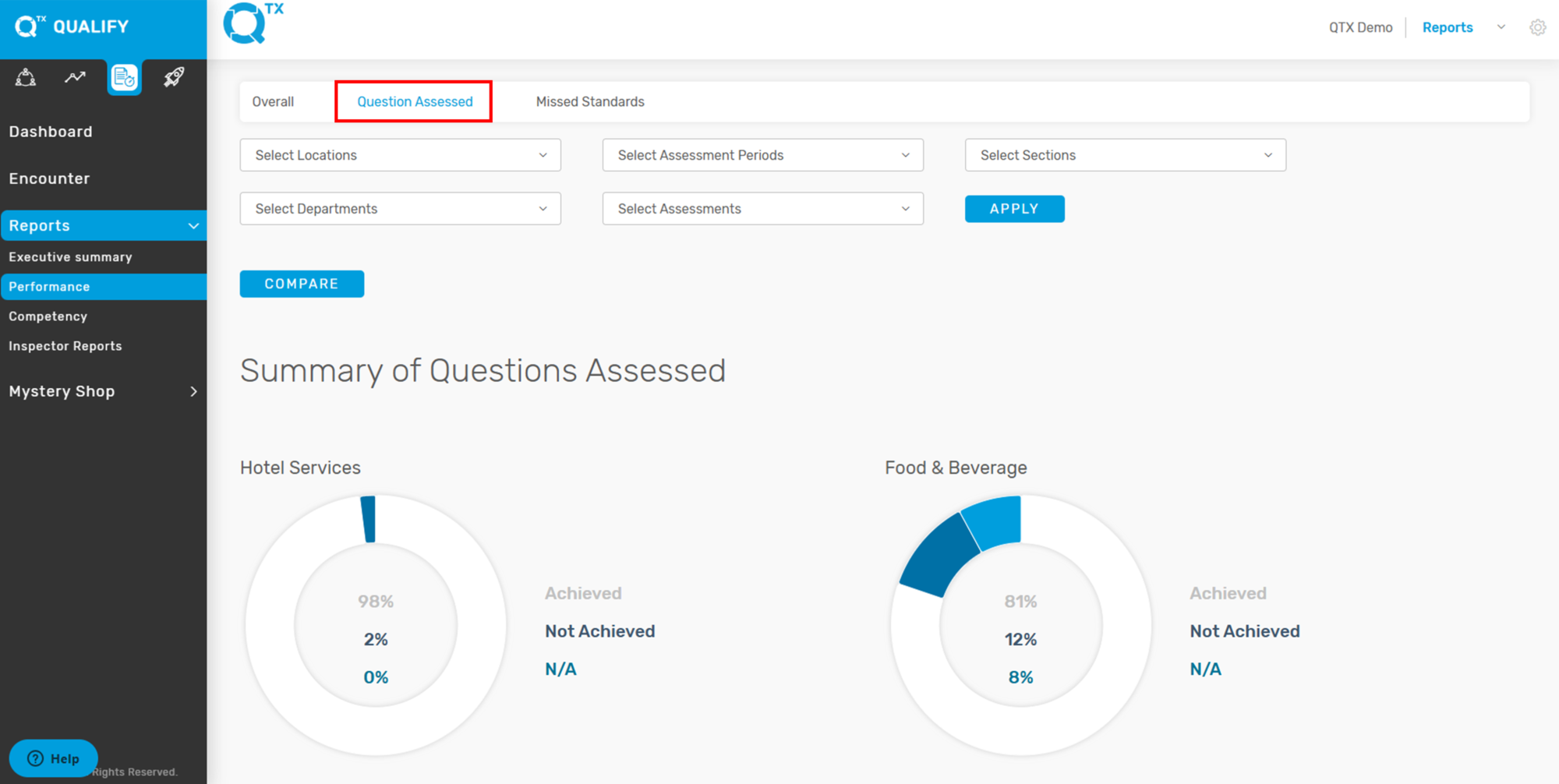
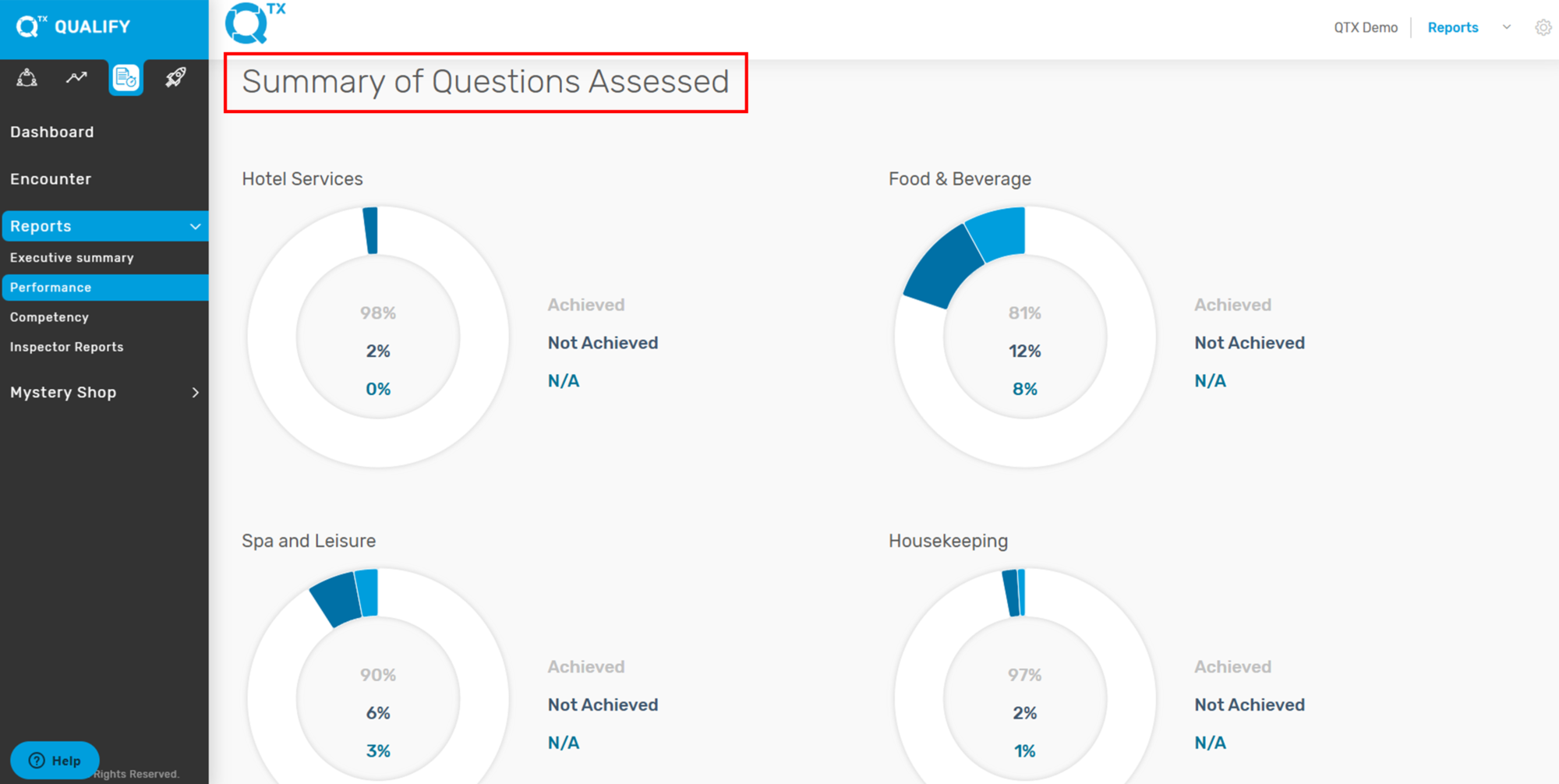
This displays a summary of the questions that have been achieved and not achieved by the department. The percentage score is presented in both pie chart and table formats.


1. On the Dashboard landing page, click the “QUALIFY” button to proceed.


2. Click on the “Reports” button, then select “Performance”.


3. Click the “Question Assessed” Tab. Then, use the selection list to filter and choose the specific information you want to view.


4. The system will display a summary of the assessed questions as a percentage, shown in a pie chart.


5. This table helps provide a clear overview of how each department performed in its assessments. By showing the percentage of Achieved, Not Achieved, and N/A responses, it allows users to quickly identify strengths and areas for improvement.

The N/A (Not Applicable) score is important because it indicates questions that were not relevant to the specific department or situation. These are excluded from the final performance calculation to ensure the score accurately reflects only the applicable criteria. This prevents departments from being unfairly scored on items outside their scope of responsibility.


If you need further assistance, please send an email to helpdesk@q-tx.com

Qualify: How to View the Overall Performance Report

The Performance Report enables management to provide positive feedback and identify areas for improvement. It also allows departments to review results collaboratively and develop action plans to enhance skills and performance.


1. On the Dashboard landing page, click the “QUALIFY” button to proceed.


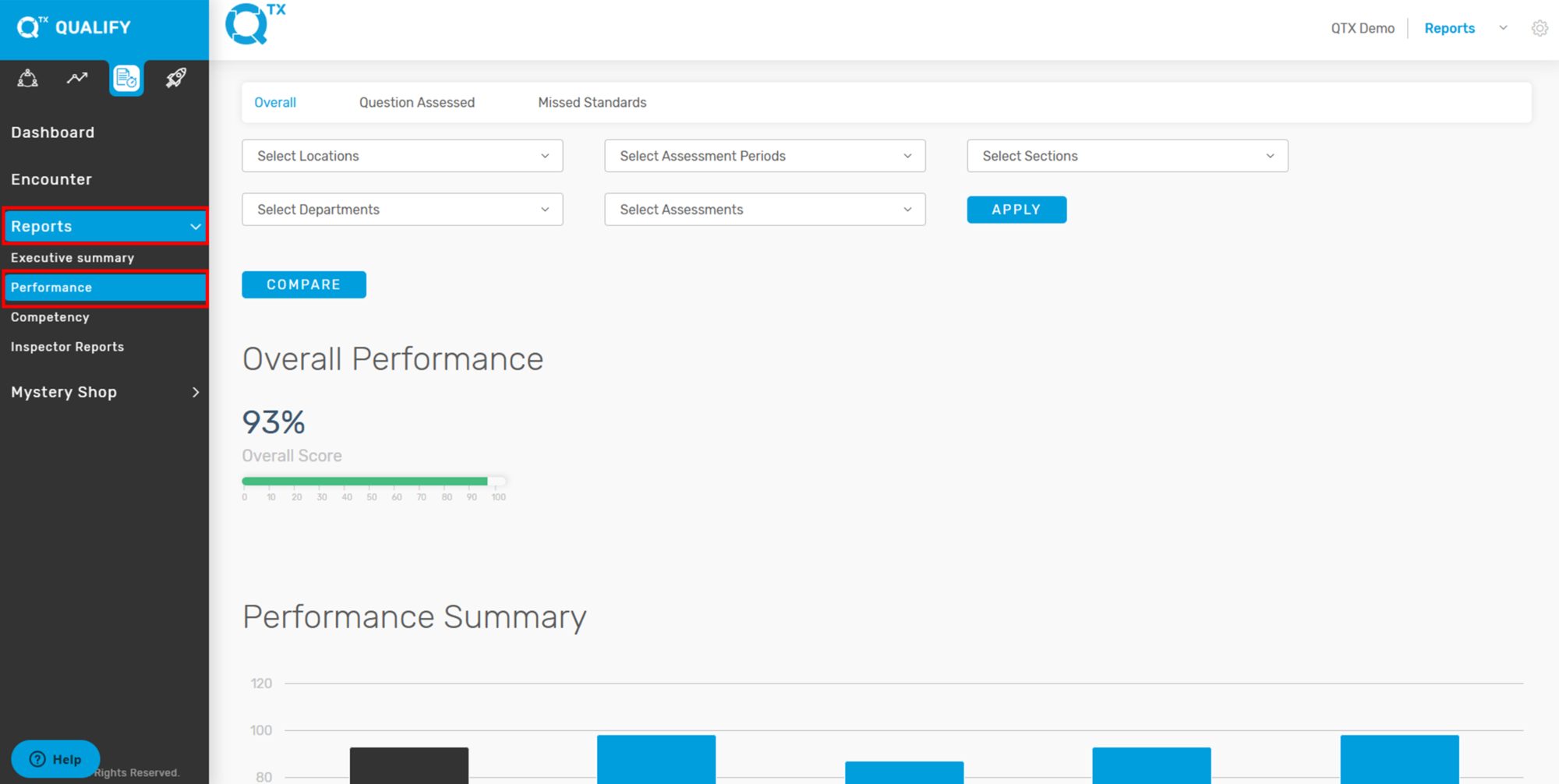
2. Click on the “Reports” button, then select “Performance”.


3. The system will redirect you to the ‘Overall’ tab. From there, select the relevant information from the dropdown list to apply filters.


4. The Overall Performance score is displayed as a percentage and shown in a graph format. Hover your cursor over a bar in the graph to view the exact Overall score.


If you need further assistance, please send an email to helpdesk@q-tx.com

Qualify: How to View the Overall Score of Assessment Period in Encounter

Displaying the Overall Score as a percentage helps determine the department’s achievements during a specific assessment period. The inspector evaluates the department’s service performance based on standardized rating scales.


1. On the Dashboard landing page, click the “QUALIFY” button to proceed.


2. Click the ‘Encounter’ button, then select the relevant information and click the ‘Apply’ button to filter.


3. The Overall Score is displayed as a percentage based on the selected assessment period.


If you need further assistance, please send an email to helpdesk@q-tx.com

Connect: How to Choose to Show the Number of Decimal Points in Reports

This setting allows users to define the number of decimal points displayed in reports. Adjusting the decimal precision ensures numerical data is presented with the required accuracy, whether rounded for simplicity or shown in full detail for analytical purposes.


1. On the Dashboard landing page, click the “SETTINGS” button located in the upper-right corner.


2. Then, choose “Manage Profile” from the drop-down menu.


3. Here, you will see the account owner’s profile details along with the option to change the password.


4. At the bottom of the page, you can configure how numbers are displayed in the reports (e.g., number of decimal points) and also change the language.


If you need further assistance, please send an email to helpdesk@q-tx.com

Connect: How to View Monthly Report

The Monthly Report compiles feedback and insights from guest experiences at the hotel. It serves as a key tool in evaluating service standards, identifying trends, and ensuring consistency in the quality of hospitality provided to guests. This report supports continuous improvement by highlighting strengths and addressing areas that require attention.


1. On the Dashboard landing page, ensure you are in the Connect Platform. Then, click on REPORTS – MONTHLY REPORT. Use the FILTER option to fill in and complete all the required information.


After applying the filter, scroll down to view the Overall Satisfaction, Global Score, and Response Rates.


List of Key Metrics, including the Number of Responses


The Top 5 Areas represent the departments or outlets with the highest satisfaction rates, while the Bottom 5 Areas represent those with the lowest satisfaction rates.


2. Here, you can view the data related to Problem Resolution.


Guest Demographics refers to the statistical characteristics of hotel guests, such as age, gender, nationality, place of origin, purpose of stay (business or leisure), and other background information. These details help the hotel understand its guest profile, identify trends, and tailor services to meet guest needs more effectively.


This data shows the Commentary Statistics Report for each department or outlet, along with the total number of comments.


If you need further assistance, please send an email to helpdesk@q-tx.com

Connect: How to View Survey Templates

On this platform, you can view the list of available survey templates, including After Stay Surveys, General Surveys, and Outlet Surveys. These templates are designed to gather valuable feedback from guests at different touchpoints of their experience. The After Stay Survey helps capture insights on overall satisfaction after a guest’s visit, the General Survey provides feedback on broad service areas, and the Outlet Survey focuses on specific departments or facilities such as restaurants, spa, or other outlets. Using these templates ensures consistency in data collection and allows the hotel to monitor guest experiences across various service areas.


1. When you are on the Dashboard landing page, ensure you are in the Connect Platform and click on the SURVEY BUILDER tab. This section allows you to create, customize, and manage survey templates tailored to different guest experiences. You can design questions, adjust formats, and select specific survey types (After Stay, General, or Outlet) to gather the most relevant feedback for your needs.


After Stay Survey – This survey is conducted after the guest has departed. It is designed to gather feedback on the overall experience, including satisfaction with services, facilities, and staff interactions, helping the hotel identify strengths and areas for improvement.


General Survey – This survey is sent to guests who have recently stayed at the hotel. It captures feedback on their stay experience, covering key aspects such as service quality, amenities, and overall satisfaction, providing valuable insights for continuous improvement.


Outlet Survey – This survey is designed to gather feedback on a guest’s experience in specific hotel outlets, such as restaurants, bars, or spas. It evaluates elements like food and beverage quality, service, ambiance, décor, and overall atmosphere, providing insights into how each outlet meets guest expectations.


If you need further assistance, please send an email to helpdesk@q-tx.com

Connect: How to View Satisfaction Rate and Global Score of Owned vs. Leased Outlet

The QTX system provides a detailed Satisfaction Rate and Global Score for both Company-owned and Leased outlets, displayed separately in graph and table formats. It also includes a performance indicator that helps departments and management evaluate success in achieving specific targets.

  • Satisfaction Rate measures the percentage of positive responses from guests or users based on their direct feedback. This reflects how well the service, product, or experience met or exceeded expectations. A high Satisfaction Rate indicates strong performance in guest engagement, service quality, and operational consistency, while a lower rate highlights areas that require improvement.

  • Global Score is a comprehensive performance index that combines multiple evaluation criteria—including service standards, compliance checks, and overall guest experience—into a single score. Unlike the Satisfaction Rate, which is primarily guest-driven, the Global Score provides a broader, balanced perspective by integrating both guest feedback and operational standards. This allows management to identify trends, benchmark results across different outlets, and track progress against strategic goals.

By comparing both indicators, organizations gain deeper insights: the Satisfaction Rate highlights customer sentiment, while the Global Score reflects the overall operational and service excellence.


1. On the Dashboard landing page, click Reports under the CONNECT platform, then select Response Analyses.


2. Fill in the required filter details, then generate and view the report.


3. You will be directed to the Performance tab. Click Performance, then select Owned vs Leased Outlet, and choose Satisfaction Rate or Global Score.


4. The Overall Satisfaction Rate graph will be displayed. Hover your cursor over any bar in the graph to view the exact percentage score.


5. Next, the system will display the Overall Owned Outlets graph. Hover your cursor over any bar to view the exact percentage score for each outlet.
Click the VIEW MORE button to display the table view of each outlet.


6. The next section displays the Owned Outlet report with Key Metrics Scores by Department in a table format. This indicates if each department performance has increased or decreased.


8. Next, you can view the Leased Outlets report in a graph format, similar to the Owned Outlets display for your reference. Click VIEW MORE at the bottom to see additional details. (Image needs to be updated).


If you need further assistance, please send an email to helpdesk@q-tx.com

Connect: How to View Performance Report

This report provides a detailed measurement of staff performance based on satisfaction levels and scores. It highlights the performance outcomes of a specific group or department, enabling management to identify areas of growth, monitor progress, and assess the overall performance of the organization.


1. When you are on the Dashboard landing page, click on “Reports” under the CONNECT platform.


2. Click on “Response Analyses” under Reports. Next, fill in the required details in the Filters section. Make sure you are on the “Performance” tab to proceed.


3. The system will first display the overall performance report, showing both the Satisfaction Rate and the Global Score.


4. The table below displays the scores for the key metrics, highlighting whether performance has improved or declined.


5. The information can be viewed by the selected number of entries. Hover your cursor over the “Response Ratio” box to display additional details in a pop-up box below.


6. Below, a table summarizes departmental performance, showing the Department, the corresponding Survey Question, and the most recent scores. It also compares results against previous data (Vs Prev.), indicates performance improvement or decline (P.I.), and shows the number of responses collected (# of R.).

This layout allows management to quickly assess guest satisfaction levels across key service areas such as Check-In Experience, Concierge Services, and Guest Room/Suite, while tracking performance trends over time.


If you need further assistance, please send an email to helpdesk@q-tx.com