Perform: How to Add New Question Category

Creating a new Question Category helps organize questions into specific groups, making assessments more structured and easier to manage.


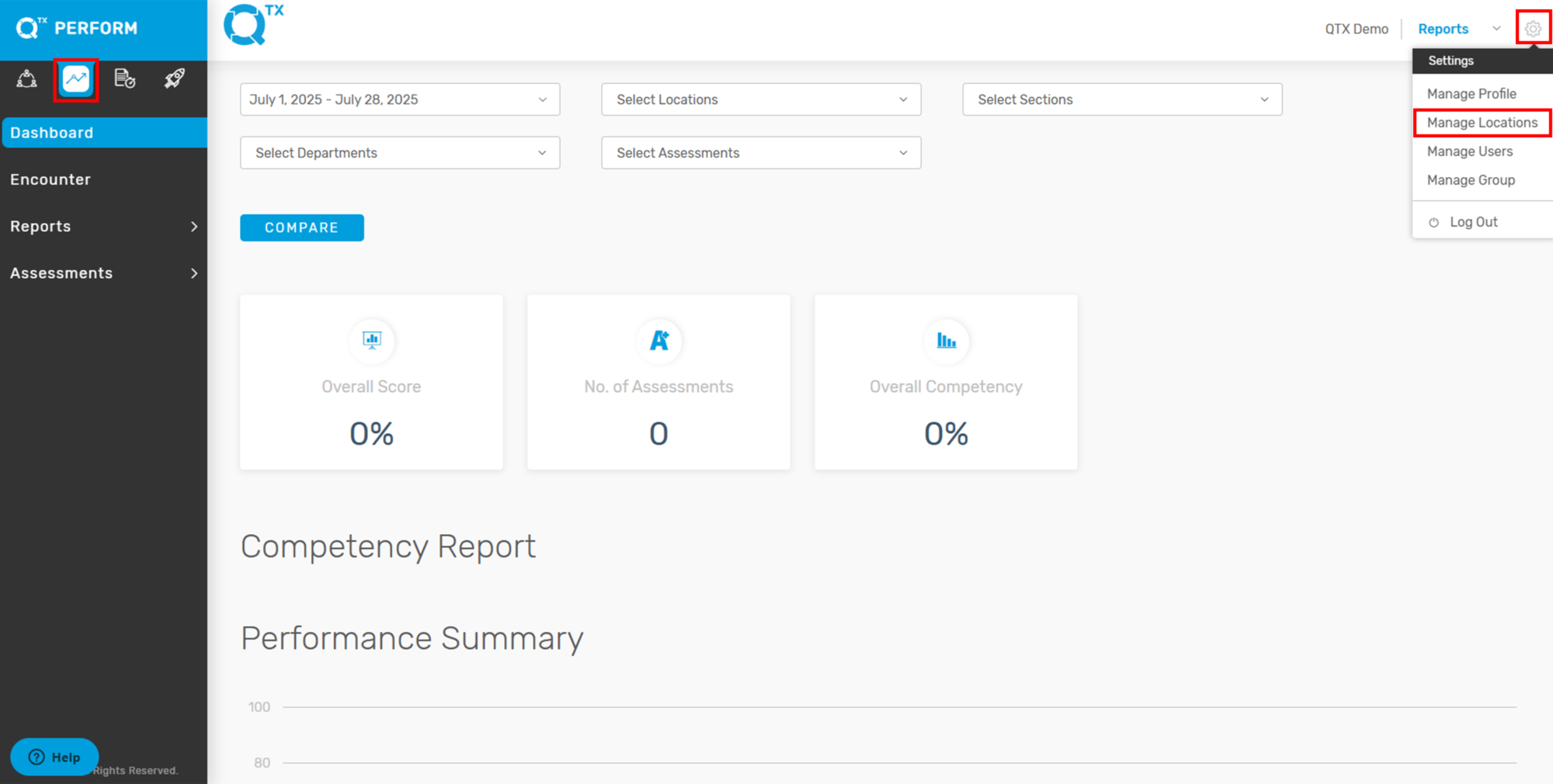
1. On the Perform Dashboard landing page, click the Settings icon located at the top right corner of your screen, then select “Manage Locations” from the dropdown menu.


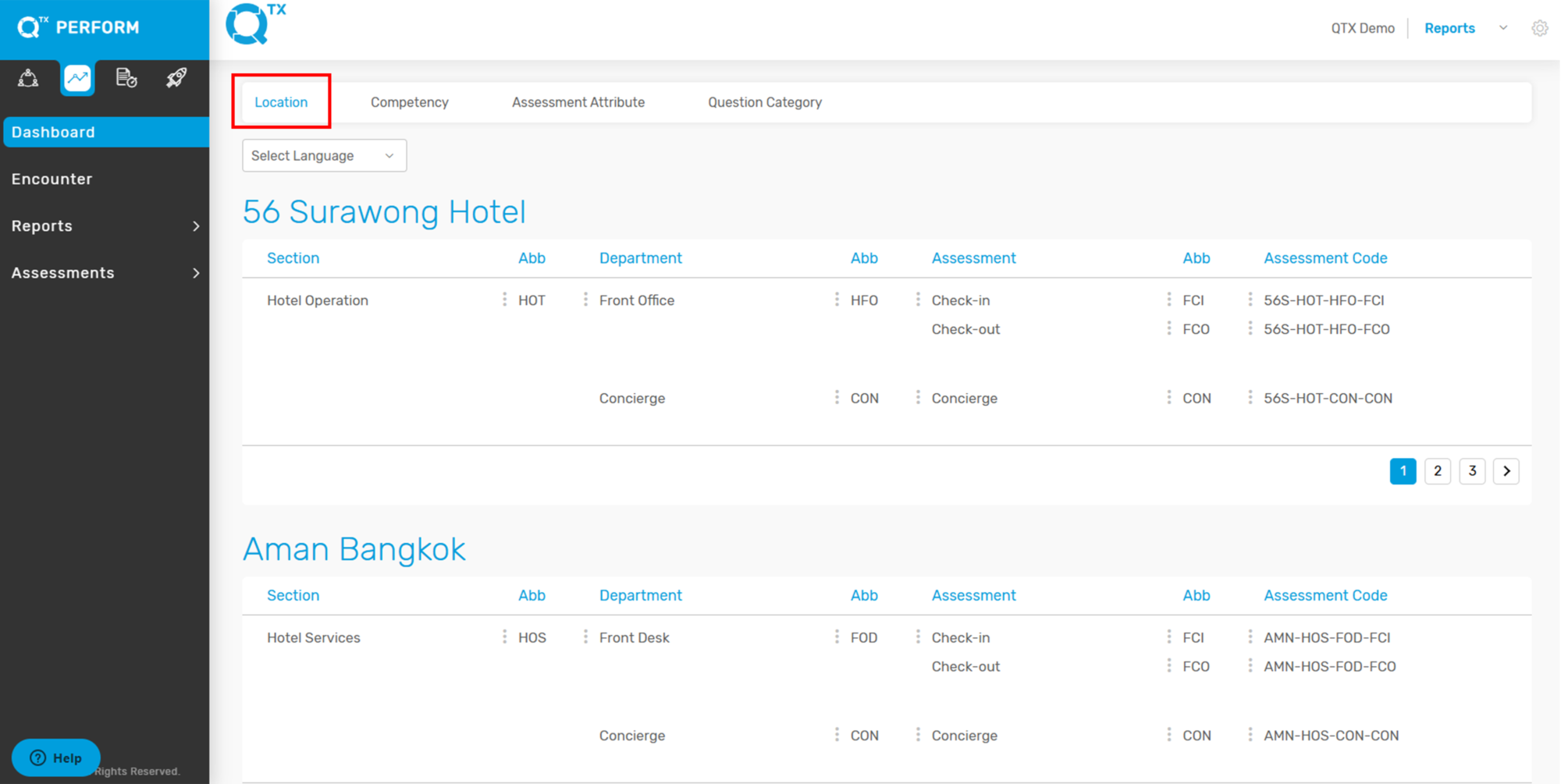
2. The system will automatically direct you to the “Location” tab.


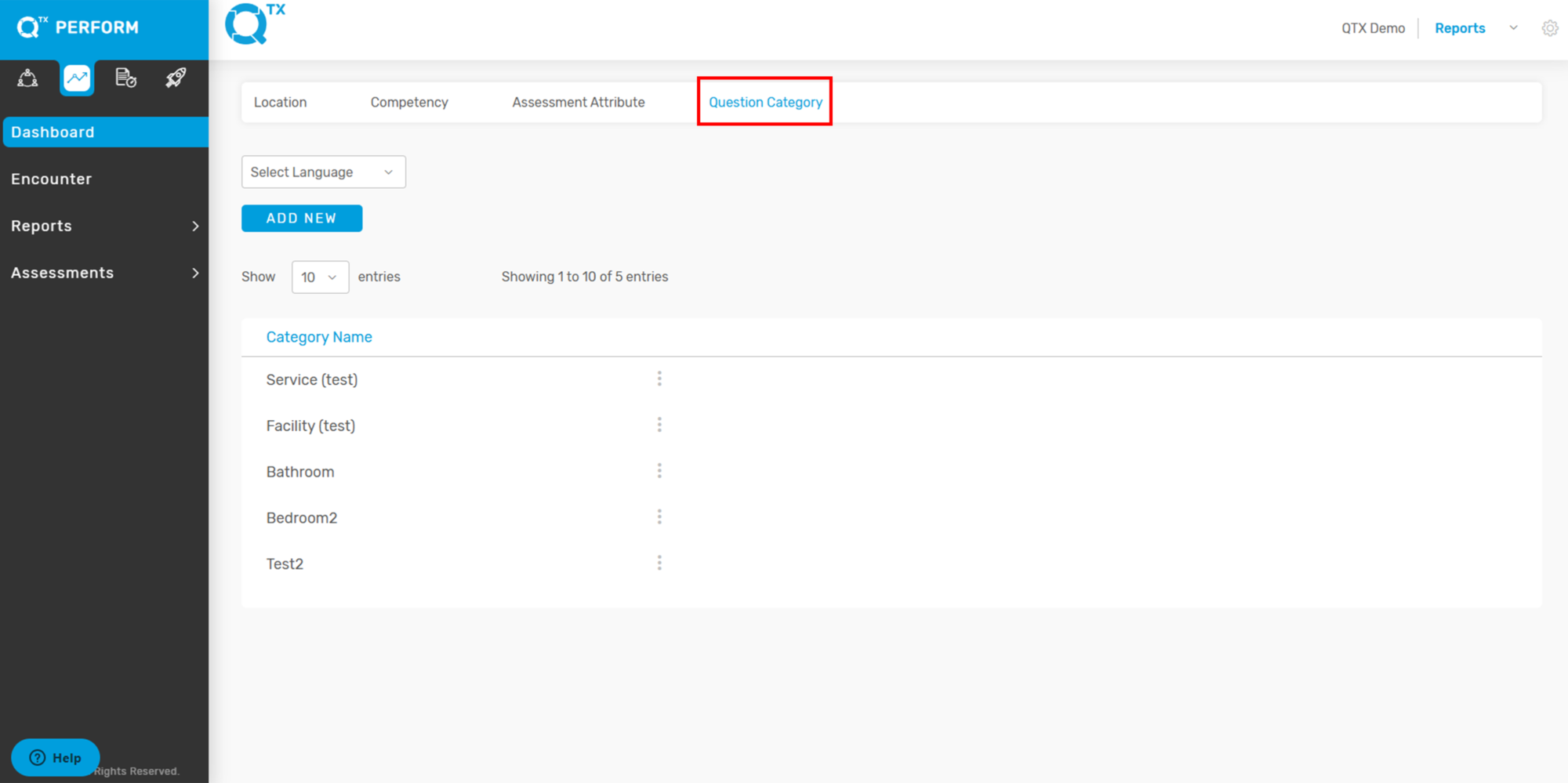
3. Click on the “Question Category” tab to view and manage existing categories.


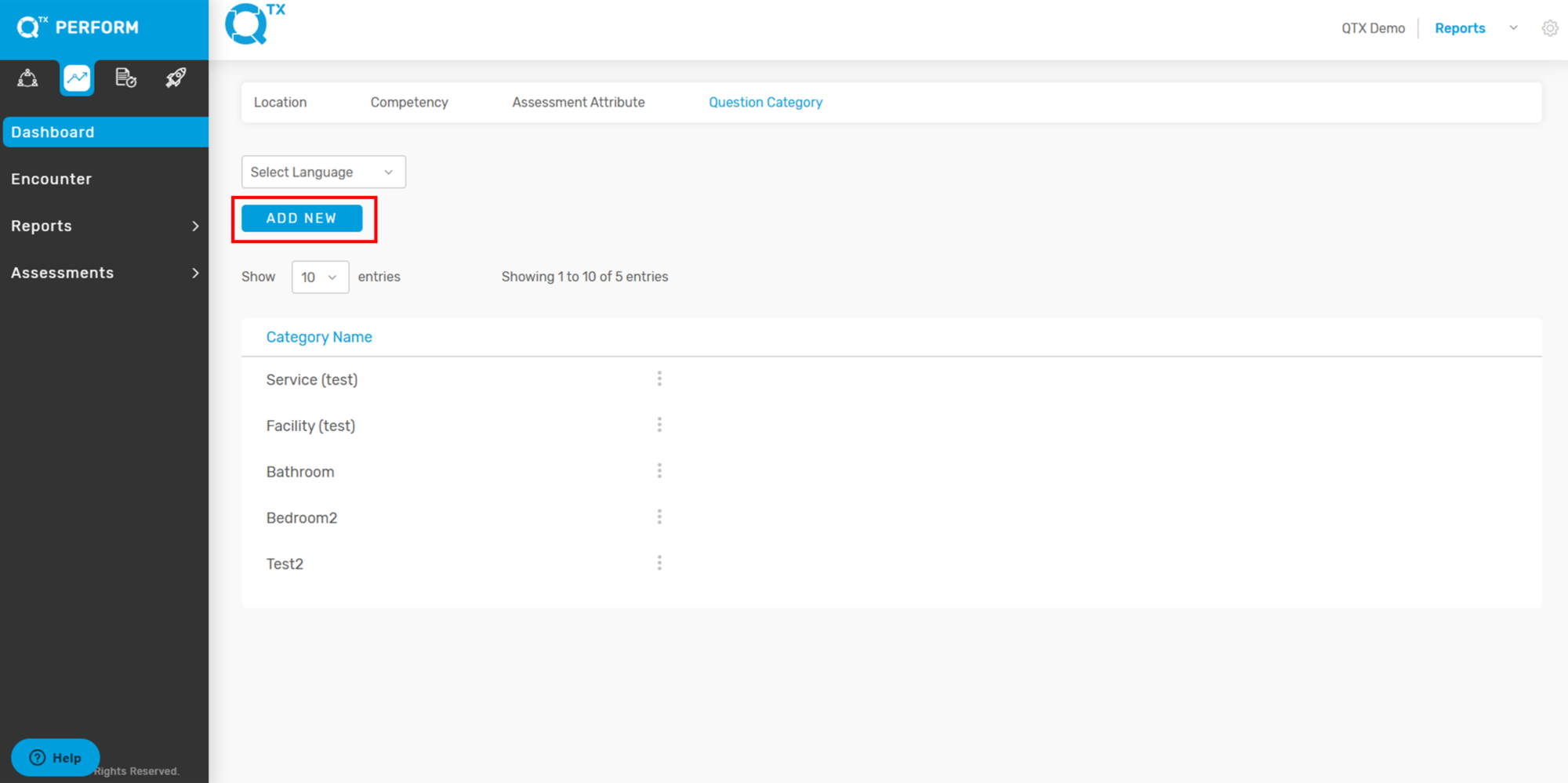
4. Click “Add New” to start creating a new Question Category.


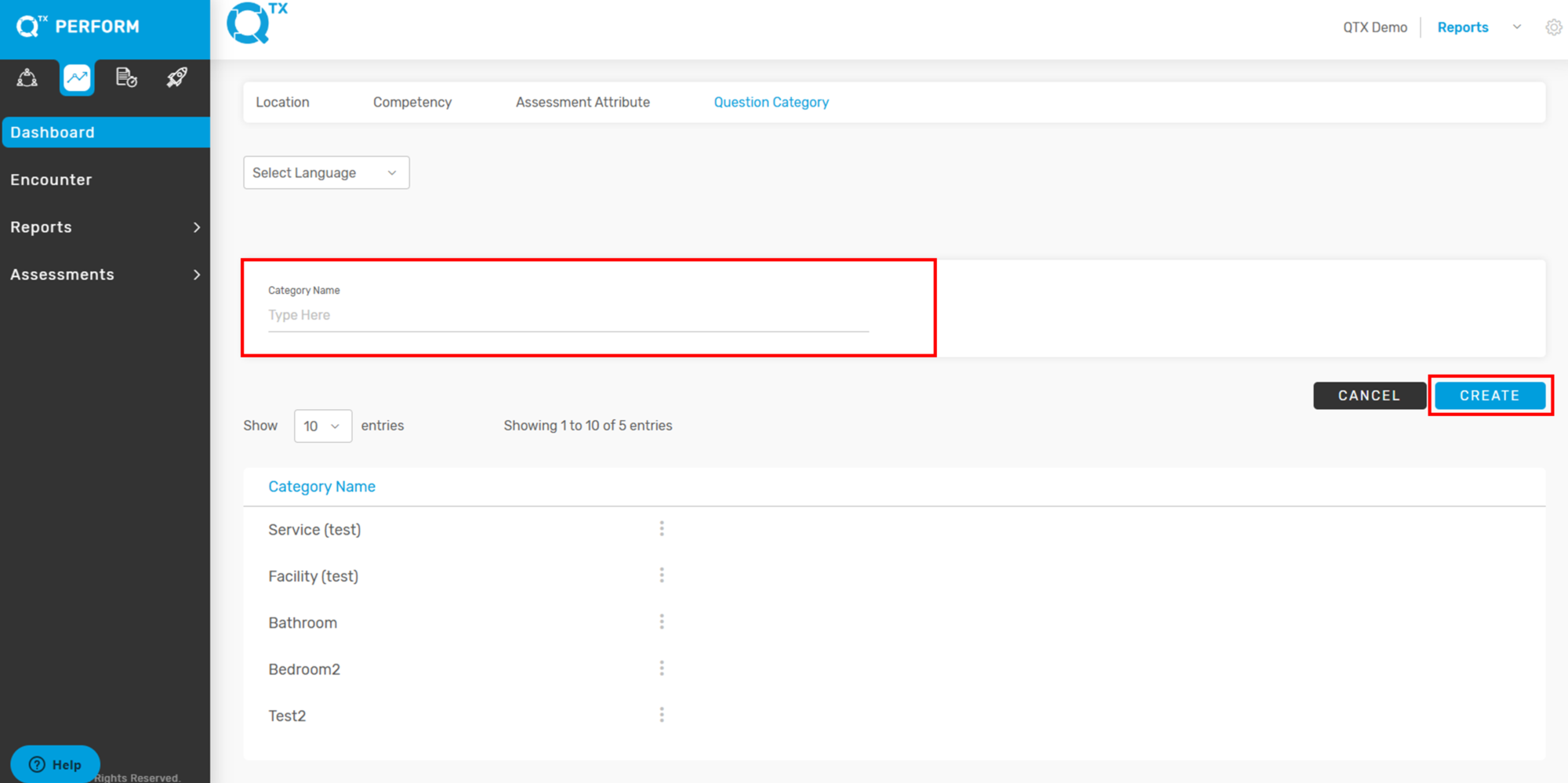
5. The user can start creating or adding a new “Question Category”, then click “Create” to save.


If you need further assistance, please send an email to helpdesk@q-tx.com

Perform: How to View Dashboard Reports

QTX dashboards allow users to monitor the contribution of the various departments in their organization. To gauge exactly how well an organization is performing overall, it is possible to capture and report specific data points from each department within the organization. This provides a “snapshot” of performance.


1. When you are on the Dashboard landing page, make sure that you click on the PERFORM platform and fill in all the information needed in the Filters.


2. Scroll down to see the Competency Report,  Performance Summary, and the top 10 Most Frequently Missed and Most Achieved Standards.


3. Performance Indicator will be available on a table and a trending chart will display the average score of the filtered data.


If you need further assistance, please send an email to helpdesk@q-tx.com