Qualify: How to Add New Question Category

Creating a new Question Category helps organize questions into specific groups, making assessments more structured and easier to manage.


1. On the Qualify Dashboard landing page, click the Settings icon located at the top right corner of your screen, then select “Manage Locations” from the dropdown menu.


2. The system will automatically direct you to the “Location” tab.


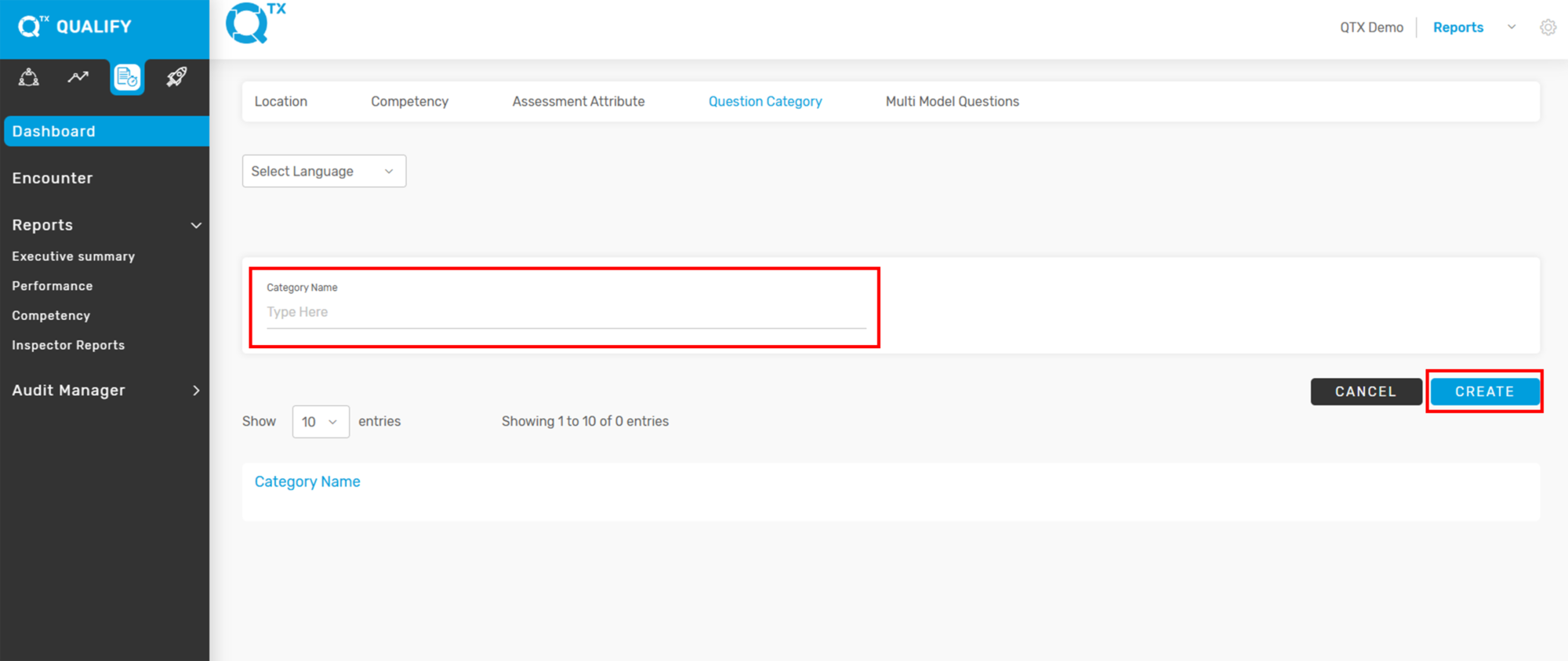
3. Click on the “Question Category” tab to view and manage existing categories.


4. Click “Add New” to start creating a new Question Category.


5. The user can start creating or adding a new “Question Category”, then click “Create” to save.


If you need further assistance, please send an email to helpdesk@q-tx.com

Qualify: How to Add New Competency and Sub Competency

Adding new Competencies and Sub-Competencies is essential for maintaining a clear and structured evaluation framework. Each Competency represents a key area of performance or skill, while Sub-Competencies provide detailed breakdowns to ensure specific expectations are assessed accurately.


1. On the Qualify Dashboard landing page, click the Settings icon located at the top right corner of your screen, then select “Manage Locations” from the dropdown menu.


2. The system will automatically direct you to the “Location” tab.


3. Click on the “Competency” tab to view the list of existing Competencies, Sub-Competencies, and their corresponding Codes.


4. Click “Add New” to begin creating a new Competency or Sub-Competency.


5. The user can start creating or adding a new Competency and Sub-Competency, then click “Create” to save.


If you need further assistance, please send an email to helpdesk@q-tx.com

Qualify: How to View Top 10 Missed Standards and Top 10 Achieved Standards

Viewing the Top 10 Missed or Achieved Standards provides valuable insights for management, highlighting which departments consistently meet expectations and which require improvement. This allows for targeted performance optimization, ultimately contributing to better operational outcomes. Understanding when to strictly enforce standards and when flexibility is appropriate is essential to maintaining both efficiency and guest satisfaction.


1. On the Dashboard landing page, click the “QUALIFY” button to proceed.


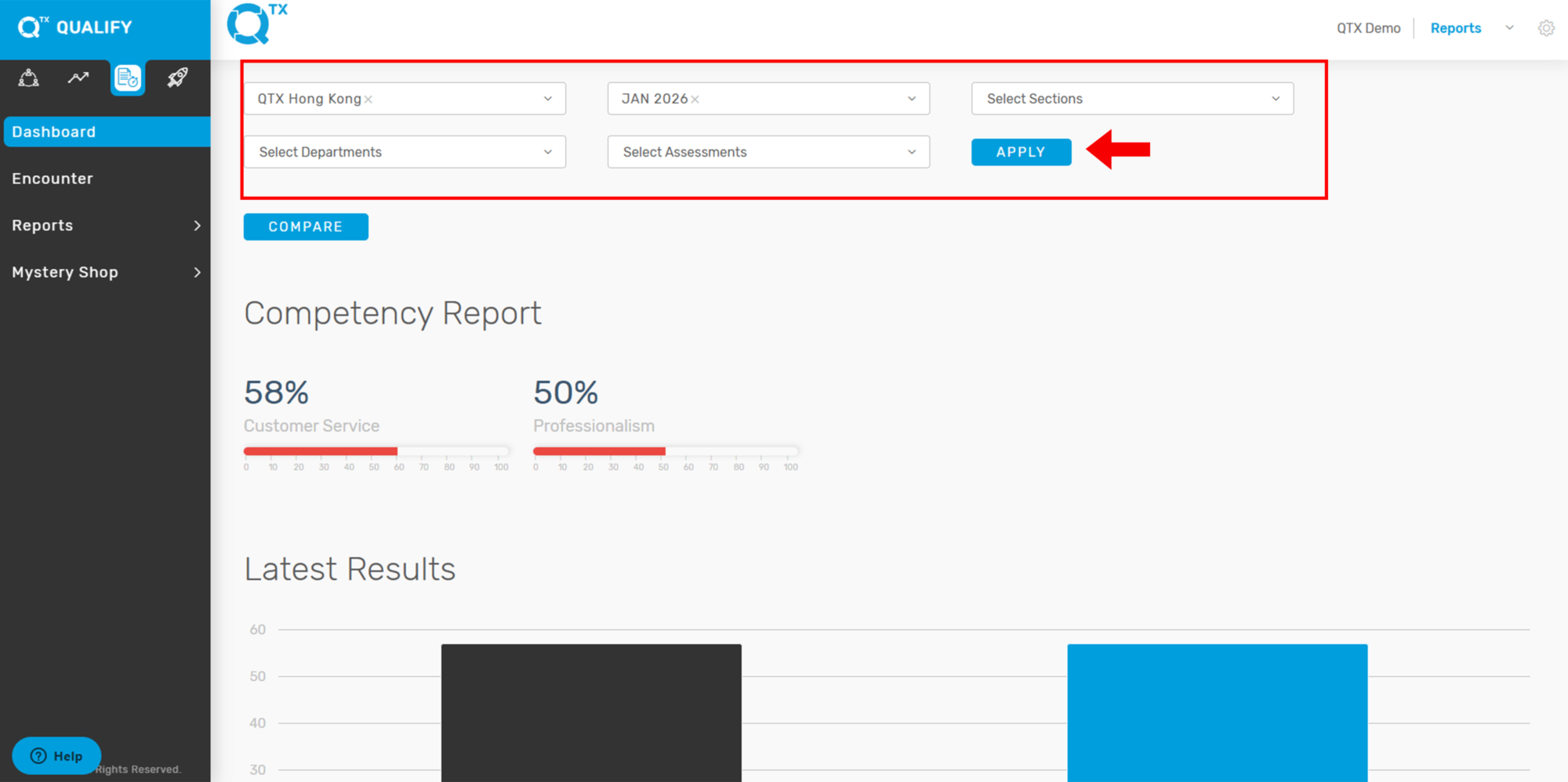
2. Fill out the required details in the Filters section, such as Location, Department, Section, and Assessment, to generate a focused and accurate report based on your selection criteria.


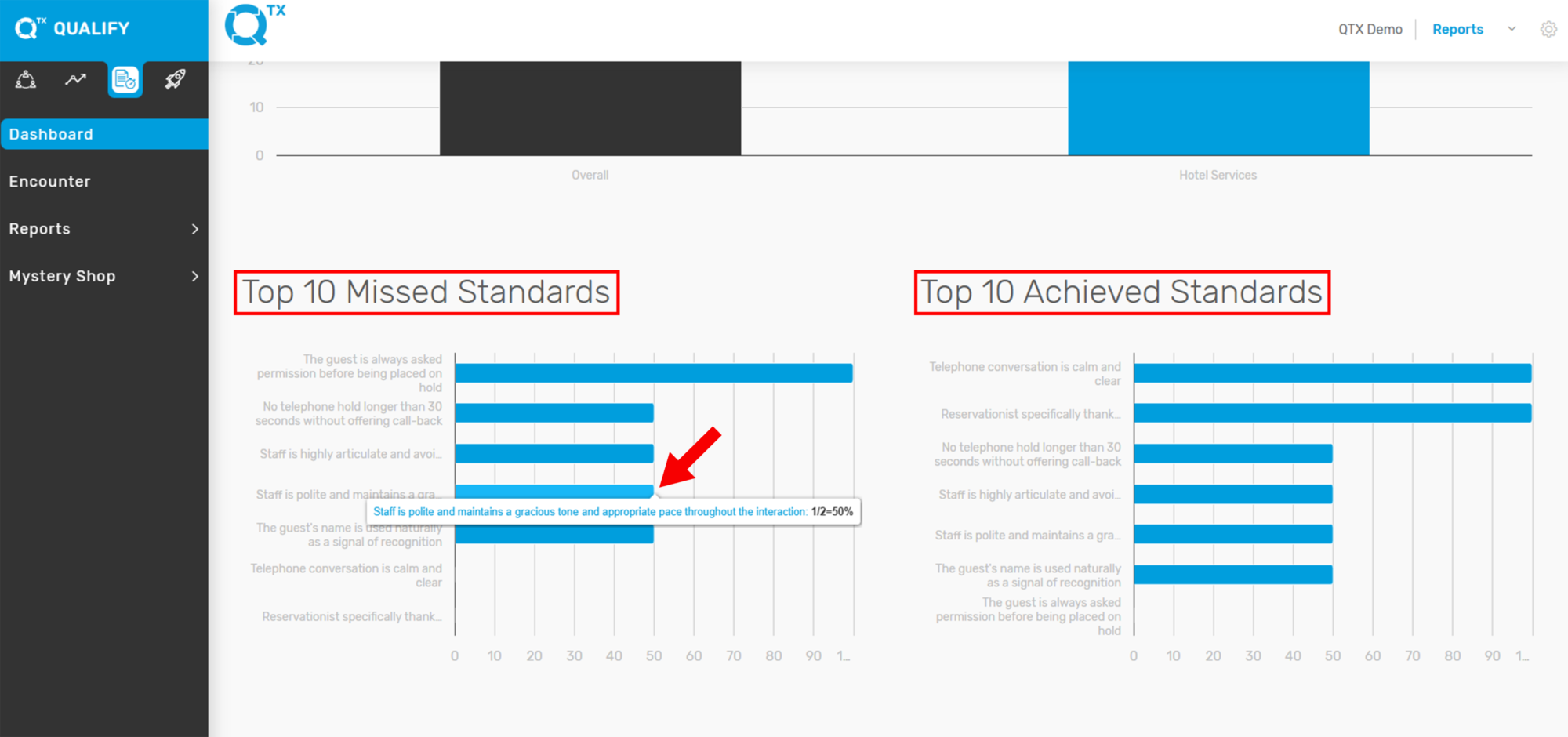
3. On the same page, scroll down to view the Top 10 Missed Standards and Top 10 Achieved Standards. Hover your cursor over any line on the graph to see detailed information, including the specific standard and its corresponding score.


If you need further assistance, please send an email to helpdesk@q-tx.com

Qualify: How to View Dashboard Reports

The QTX Platform is tailored for hotels to create cost-effective, results-driven mystery shopping programs that align with their specific operational needs. Each report is purpose-built for hotel environments, enabling teams to quickly identify and address recurring issues to enhance service quality and operational efficiency.


1. On the Dashboard landing page, click the “QUALIFY” button to proceed.


2. Fill out the required details in the Filters section, such as Location, Department, Section, and Assessment, to generate a focused and accurate report based on your selection criteria.


3. On the same page, scroll down to view the reports. The Competency Report displays percentage scores categorized by Competency. Any score below 80% will appear as a yellow graph line, making it easy to identify areas needing improvement.


4. The Latest Results section displays the most recent score for the selected Location. Hover your cursor over the bars on the graph to view the exact percentage score.


5. You can view the Top 10 Missed Standards and Top 10 Achieved Standards, each displayed with its corresponding scores to help identify areas of improvement and success. You can also view the standard by hovering the cursor.


If you need further assistance, please send an email to helpdesk@q-tx.com