How to Add New Assessment Attributes

Assessment Attributes are the key components used to define, filter, and organize an assessment. They help categorize and structure assessment content for easier tracking, reporting, and evaluation. These attributes are applied to each assessment to provide more context and relevance based on department, area, frequency, and more.


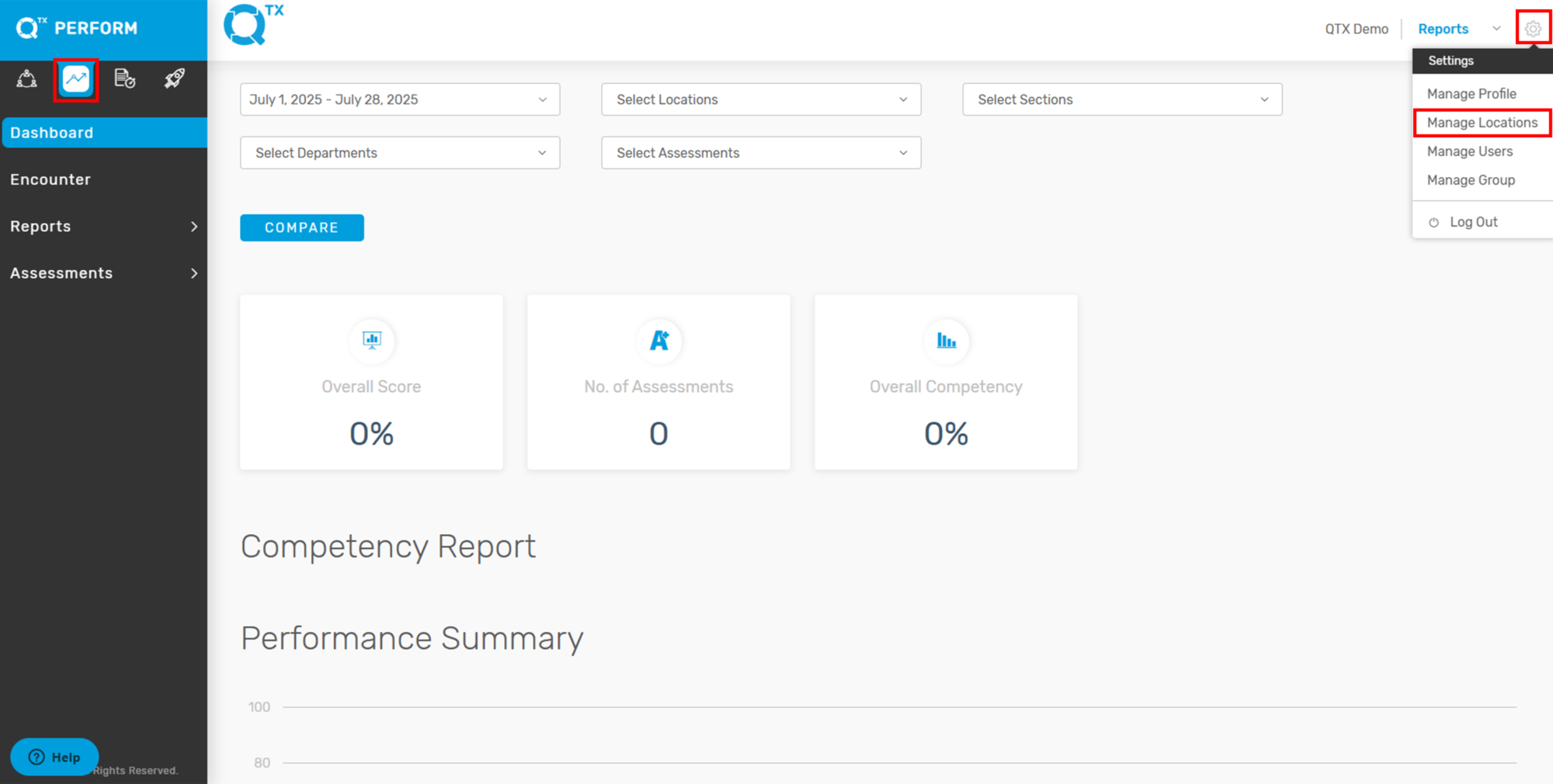
1. On the Launch Dashboard landing page, click the Settings icon located at the top right corner of your screen, then select “Manage Locations” from the dropdown menu.


2. The system will automatically direct you to the “Location” tab.


3. Click on the “Assessment Attribute” tab to view and manage existing Assessment Attributes.


4. Click “Add New” to start creating a new Assessment Attributes


5. The user can start creating or adding a new “Assessment Name”, then click “Create” to save.


If you need further assistance, please send an email to helpdesk@q-tx.com

Perform: How to Add New Question Category

Creating a new Question Category helps organize questions into specific groups, making assessments more structured and easier to manage.


1. On the Perform Dashboard landing page, click the Settings icon located at the top right corner of your screen, then select “Manage Locations” from the dropdown menu.


2. The system will automatically direct you to the “Location” tab.


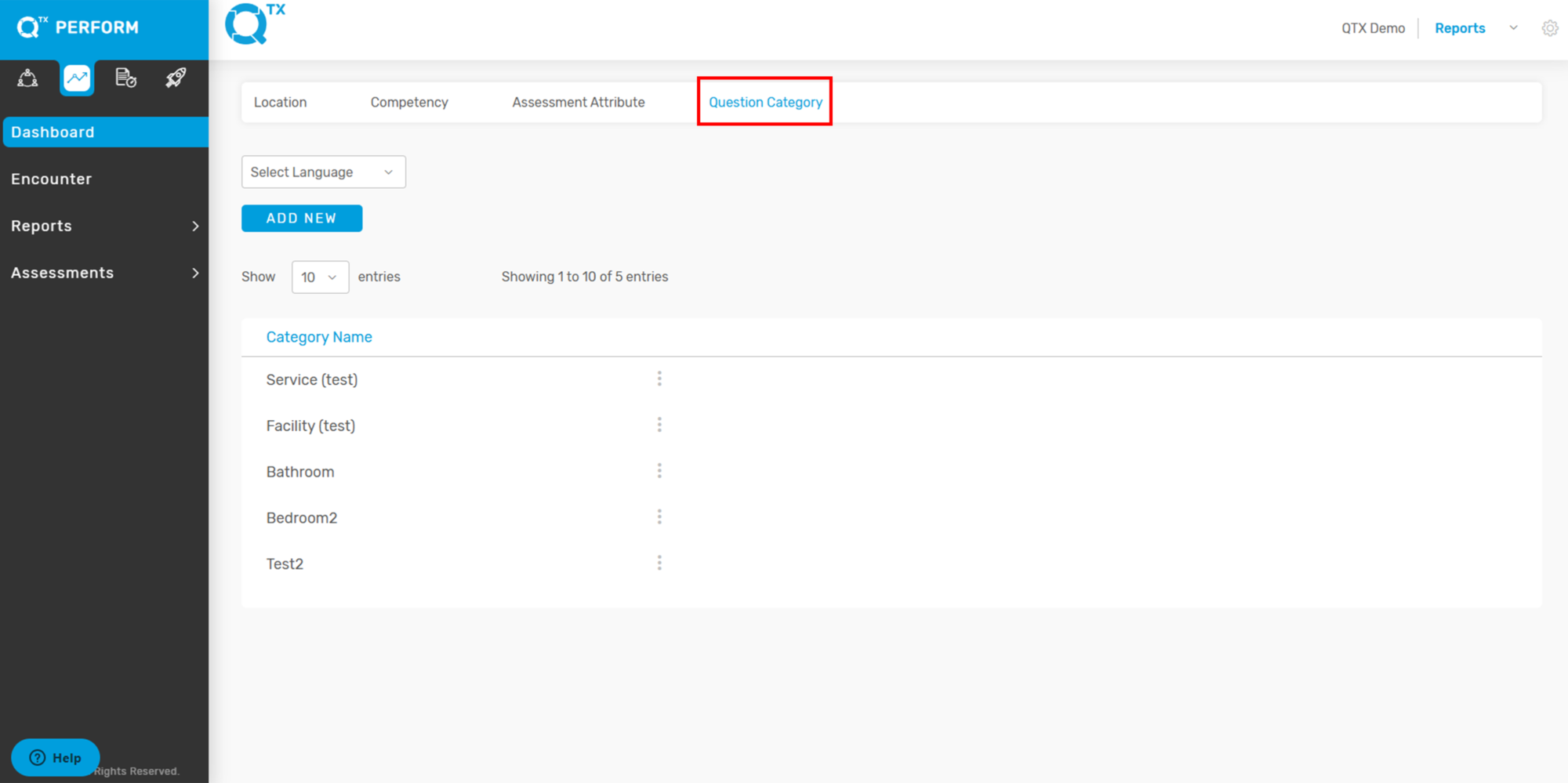
3. Click on the “Question Category” tab to view and manage existing categories.


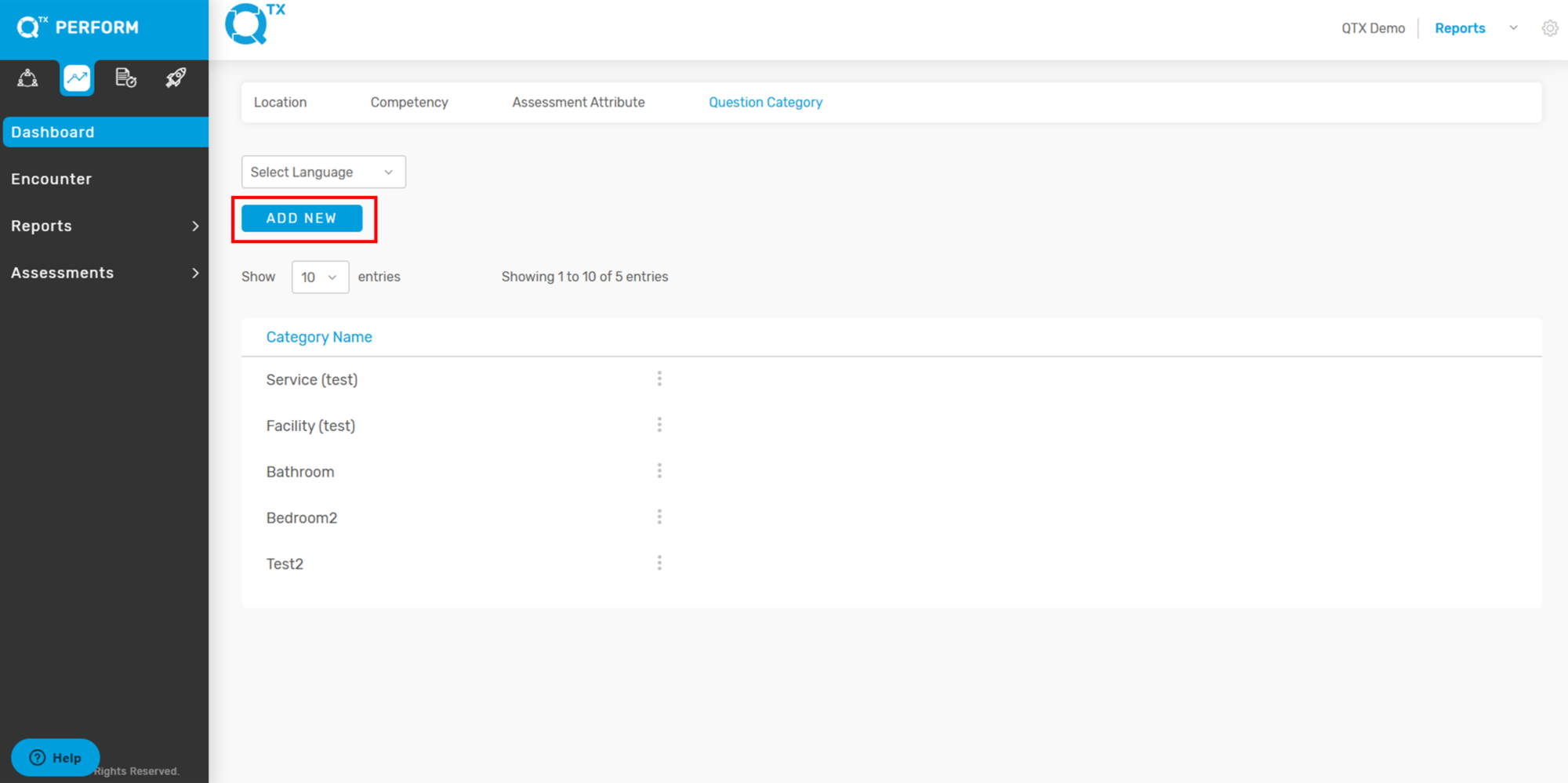
4. Click “Add New” to start creating a new Question Category.


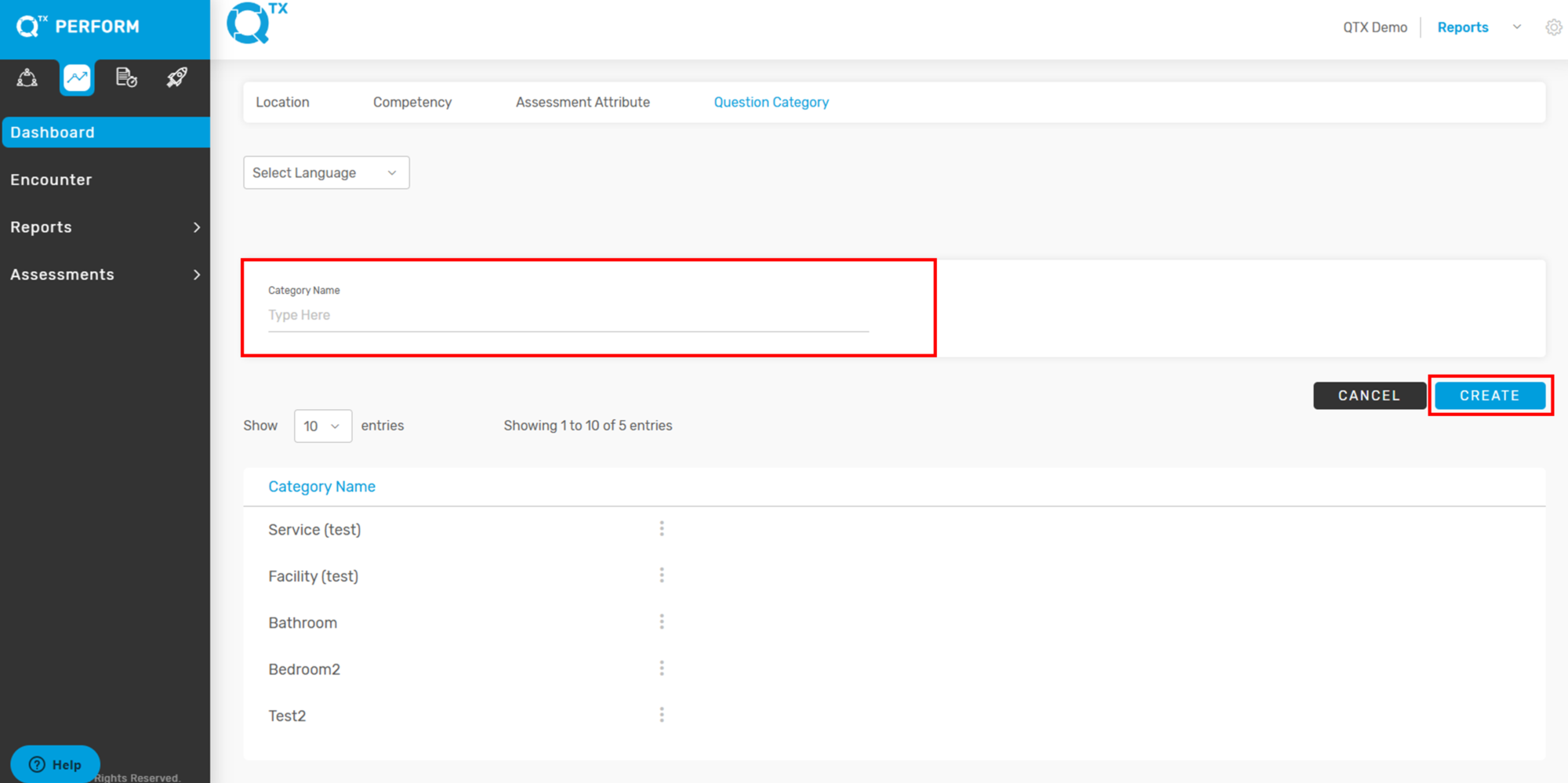
5. The user can start creating or adding a new “Question Category”, then click “Create” to save.


If you need further assistance, please send an email to helpdesk@q-tx.com

Perform: How to Add New Competency and Sub Competency

Adding new Competencies and Sub-Competencies is essential for maintaining a clear and structured evaluation framework. Each Competency represents a key area of performance or skill, while Sub-Competencies provide detailed breakdowns to ensure specific expectations are assessed accurately.


1. On the Perform Dashboard landing page, click the Settings icon located at the top right corner of your screen, then select “Manage Locations” from the dropdown menu.


2. The system will automatically direct you to the “Location” tab.


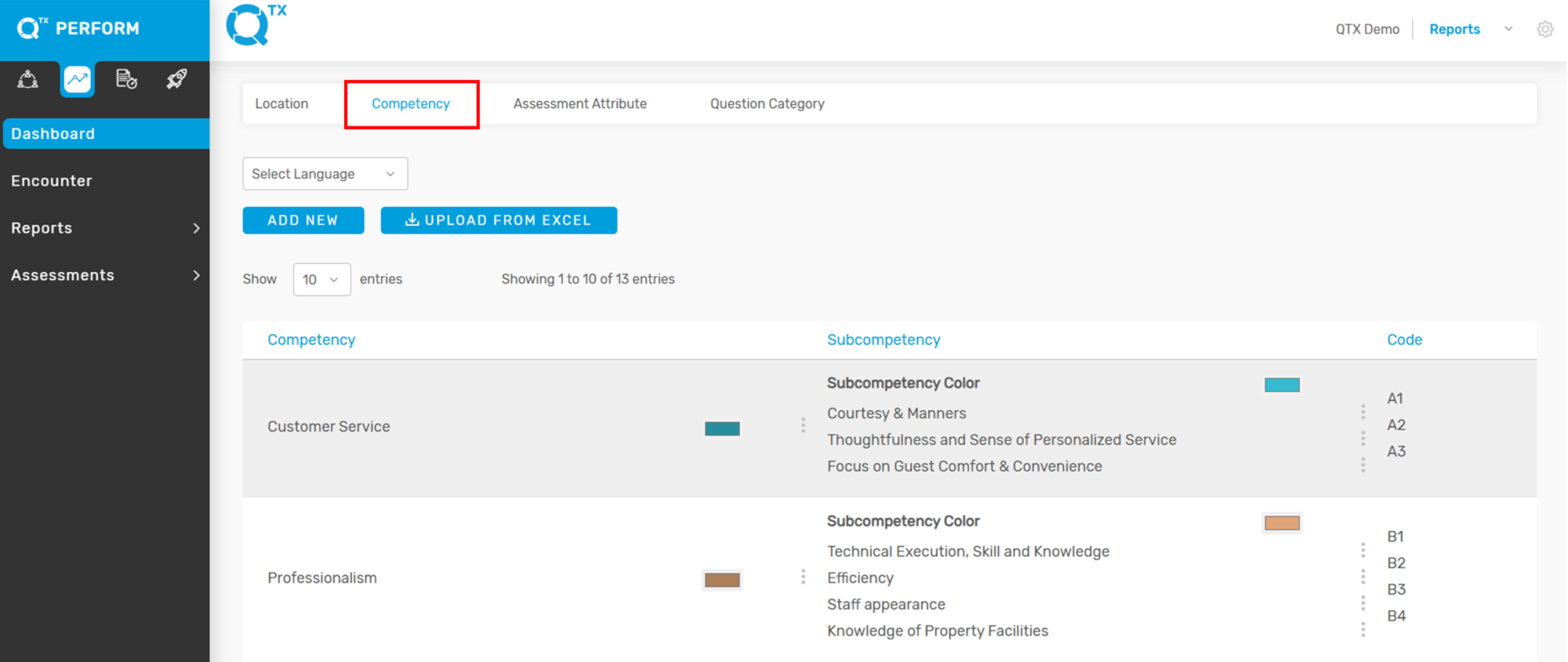
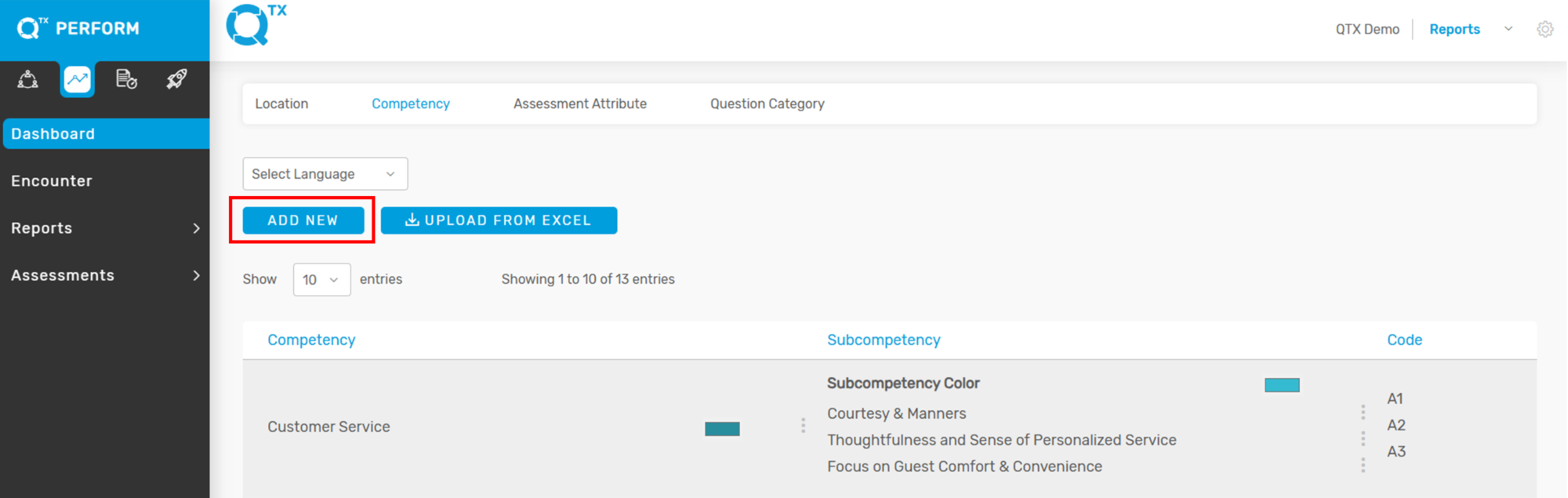
3. Click on the “Competency” tab to view the list of existing Competencies, Sub-Competencies, and their corresponding Codes.


4. Click “Add New” to begin creating a new Competency or Sub-Competency.


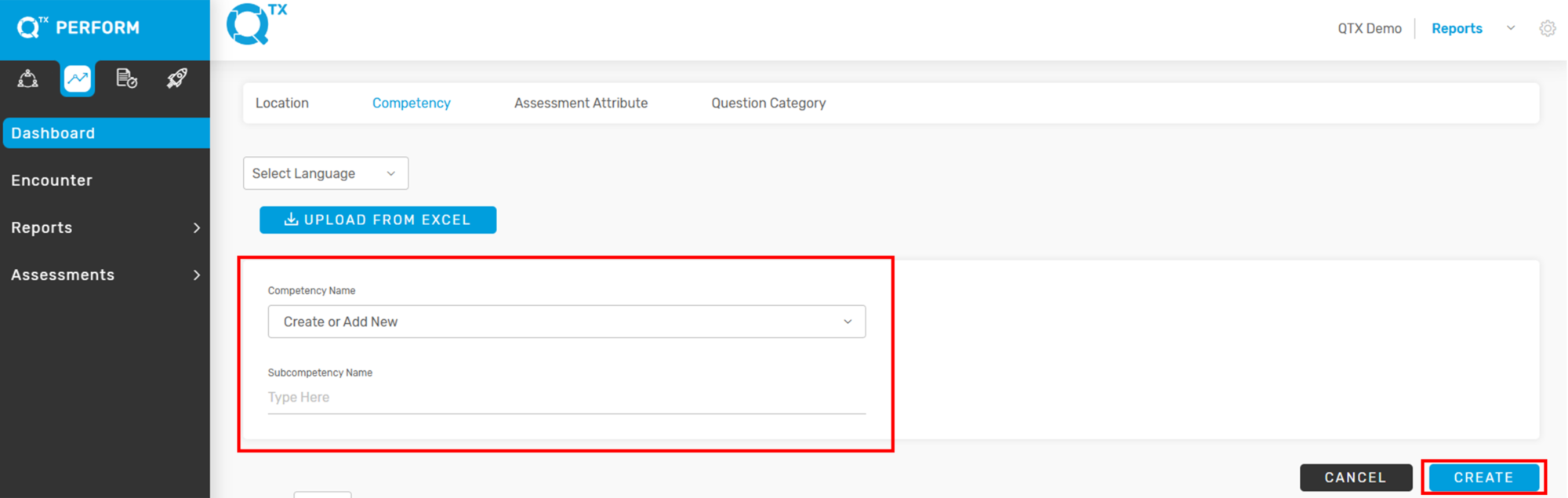
5. The user can start creating or adding a new Competency and Sub-Competency, then click “Create” to save.


If you need further assistance, please send an email to helpdesk@q-tx.com

Perform: Activity Log on Encounter Report

The Activity Log feature provides a detailed timeline of events related to each Encounter Report. It allows users to track progress, identify changes, and review the assessment lifecycle from start to completion.

🔍 Where to find It:

1. Navigate to the Encounter Report: Go to the “Encounter” tab on the left sidebar. Select a report (e.g., Check In (test)).


2. View Activity Count: In the Encounter summary page, locate the “Activity Log” column (see red arrow in the first image).


3. Open the Activity Log: The number shown (e.g., 3) indicates how many activity entries are available for that report.


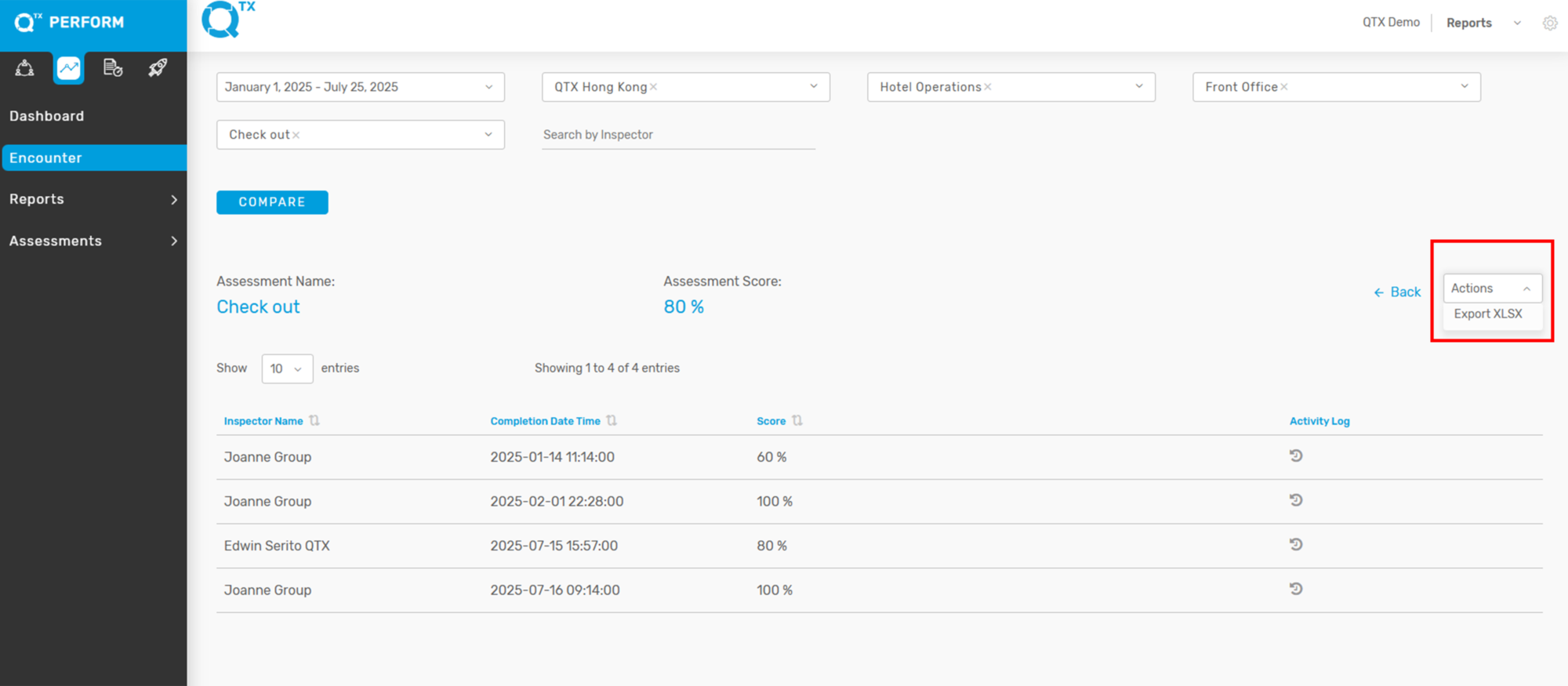
4. The user can also export the Excel file by clicking the Action dropdown on the right side and selecting ‘Export XLSX’.


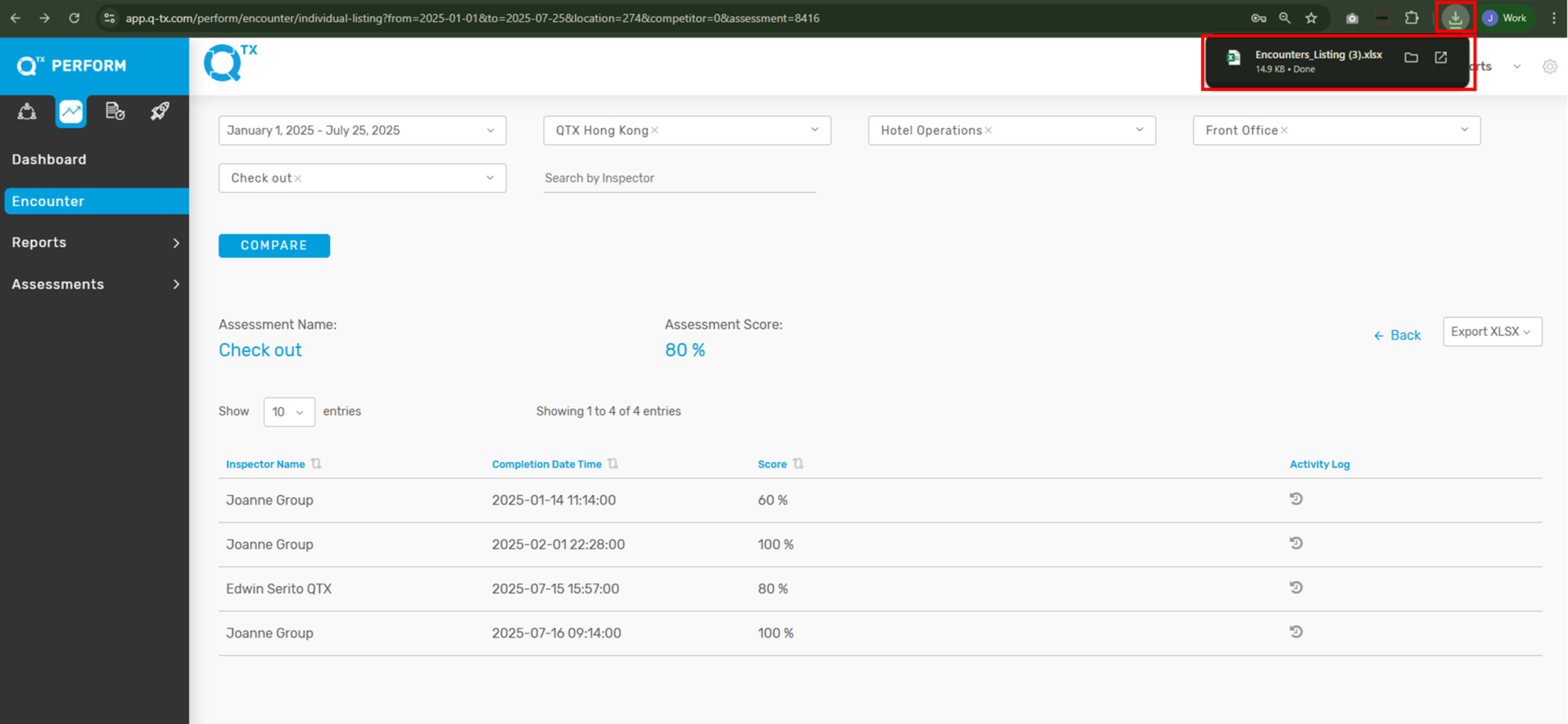
5. The exported Excel file usually appears in the upper right corner of the screen. If the file does not appear, press the shortcut key “Ctrl + J” on your keyboard to view all downloaded files in your browser.


6. Here is an overview of your exported file from the Activity Log.


If you need further assistance, please send an email to helpdesk@q-tx.com

Perform: How to View List of Completed Assessments and How to Edit Assessment in Encounter Report

The Encounter Report feature in QTX Perform allows team leaders, inspectors, and champions to track and review employee evaluations. These assessments are essential for monitoring job performance, recognizing achievements, and identifying areas for improvement.

Each submitted assessment provides a detailed breakdown of standards, inspector comments, and timestamps. In cases where an update or correction is needed, authorized users (e.g., Champions) can edit the report to ensure accuracy and data integrity.

This guide walks you through the steps to view completed assessments and edit existing records in the Encounter Report section.


1. Click on the PERFORM module and select the ENCOUNTER tab.


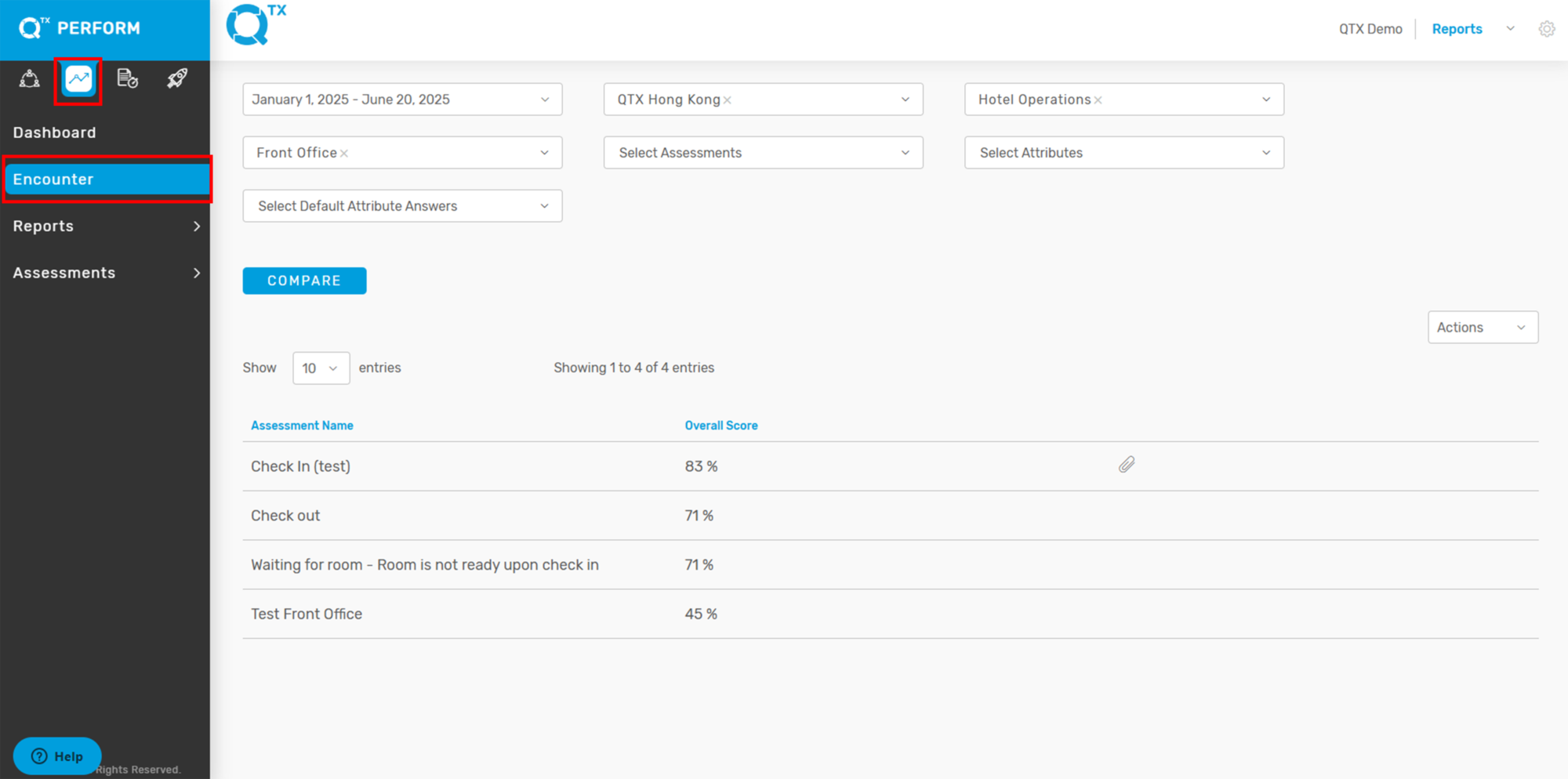
2. Use the filter options to search for specific assessments (e.g., by date, location, section and department, or assessment name).


3. You’ll see a list of assessments with their names and overall scores. Click an Assessment Name (like “Check In Test”) to view its full report.


📎 Clip Icon Meaning: A paperclip icon next to an assessment means there are files attached. Click it to see or download them.


4. On the Encounter page, after choosing your filters (like date and location), you’ll see a list of assessments.

The Assessment Name & Score (e.g., “Check In (test)”) and its overall score are at the top, giving you a quick summary of how that assessment performed.

Below this, the table shows individual results by Inspector Name (pointed out by the red arrow). Each line tells you who finished the assessment, when they did it, their score, and if there are any attached files. You can click on an inspector’s name to see their detailed results.

This setup helps you easily track and compare how individuals and groups are performing.

Activity Log Feature

5. When you open an Encounter Report, you’ll see a summary:
Report Title: The name of the assessment (like “Check In”).
Instructions: Special tasks for the audit.
Submitted: When the report was sent.
Overall Comment: A general note on performance.
Attached Files (red arrow): Pictures or videos linked to the comment.
This section quickly shows the report’s key details and any attached files.


6. This section provides users with a quick overview of the assessment’s timing, person assessed, and session details.
Assessment Date & Time: Shows the start and end dates (e.g., June 17, 2025) and times (e.g., 12:07 PM to 12:08 PM), helping to track duration.
Attributes: Includes the Team Member Name (Auditee) (e.g., Jeralyn) and Room Number (e.g., 2046) associated with the assessment.
Shift / Period: Indicates the time of day the assessment occurred (e.g., Afternoon).
Tip: Make sure the shift period matches the actual time of the assessment for reporting accuracy.


7. The image displays a detailed assessment report, highlighted by a red box at the top, showing columns for “№”, “Standard Name”, “Yes/No”, “Score”, “Segment”, “Commentary”, and “Attached Files”. An arrow specifically points to a “No” in the “Yes/No” column and a “0” in the “Score” column for a particular standard, indicating that this specific standard was not met during the assessment. The “Commentary” section next to it provides an explanation for the missed standard.


8. If you need to update or revise details in an existing Encounter Report, follow these steps:
On the top right section of the report page, find the “EDIT” button.
It is highlighted in blue and located beside the “VIEW HISTORY” button.
Click on the “EDIT” button (see red box and arrow in the image) to enter the editing mode.


9. Once in edit mode, you can modify fields such as:
Overall Comments
Overall Attached files
Assessment Date and Time details
Attributes ( Team Member Name (Auditee), Shift/Period, Room Number)

Yes/No Selection
Commentary
Attach File per Standard


10. Save Your Changes: After editing, make sure to save the report by clicking the Finish button to apply your changes.


If you need further assistance, please send an email to helpdesk@q-tx.com

Perform: How to View the Overall Score of Assessment Period in Encounter

Displaying the overall score as a percentage provides a clear measure of the department’s performance during a specific assessment period. The inspector evaluates service delivery based on established standards, allowing for an objective and consistent assessment of achievement.


1. From the Dashboard landing page, navigate to the PERFORM platform and select the “ENCOUNTER” tab to proceed.


2. Please ensure all required information is completed by using the available filters.


3. The Assessment Name and corresponding Overall Score will be displayed.


If you need further assistance, please send an email to helpdesk@q-tx.com

Perform: How to View the Summary of Question Assessed

This displays a summary of the scores for questions achieved and not achieved, categorized by department. The percentage scores are presented in both pie chart and table formats.


1. When you are on the Dashboard landing page, click on the PERFORM platform, then go to “Reports – Question Assessed” tab..


2. Ensure that filters are applied and all required information is completed.


3. The summary of assessed questions will be presented in both pie chart and table formats, showing Achieved, Not Achieved, and N/A scores.


If you need further assistance, please send an email to helpdesk@q-tx.com

Perform: How to View Performance Missed Standard Reports

This report highlights the standards missed during the audit, including the total number and percentage of missed standards.


1. When you are on the Dashboard landing page, make sure that you click on the PERFORM platform, then go to “Reports – Performance” and select the “Missed Standards” tab.


2. Ensure that filters are applied and all required information is completed.


3. All assessment names with missed standards will be displayed, along with the total number of missed standards.


4. Click any Assessment name to view the missed standards, including the number of times each was missed and the corresponding standard code.


5. Click any Standard name to view the details of the missed standard (i.e Inspector Name, Comment, Attribute, Assessment Date).


If you need further assistance, please send an email to helpdesk@q-tx.com

Perform: How to View Dashboard Reports

QTX dashboards allow users to monitor the contribution of the various departments in their organization. To gauge exactly how well an organization is performing overall, it is possible to capture and report specific data points from each department within the organization. This provides a “snapshot” of performance.


1. When you are on the Dashboard landing page, make sure that you click on the PERFORM platform and fill in all the information needed in the Filters.


2. Scroll down to see the Competency Report,  Performance Summary, and the top 10 Most Frequently Missed and Most Achieved Standards.


3. Performance Indicator will be available on a table and a trending chart will display the average score of the filtered data.


If you need further assistance, please send an email to helpdesk@q-tx.com

Perform: How to View Overall Performance

Performance reports allow management to provide both positive feedback and identify areas that may need improvement. Departments can review results together and use them to create development plans that support skill-building and better performance.


1. From the Dashboard landing page, click on the PERFORM Platform, then go to “REPORTS – PERFORMANCE.”


2. Use the FILTERS section to fill in all the required information — such as date range, department, and other relevant criteria — to ensure you’re viewing the correct data.


3. After applying the filters, the Performance Summary or Overall Performance report will be displayed. This gives you a clear overview of how individuals or teams are performing, highlighting strengths and areas that may need further development.


If you need further assistance, please send an email to helpdesk@q-tx.com

Perform: How to View Overall Competency Report

Each standard in the report reflects a category of the guest experience known as a Competency, which may also include Subcompetency or Segment details. This report helps you review performance by Location, Section, and Department.


1. From the Dashboard landing page, click on the “PERFORM” button.


2. Click the “Reports” button, then select “Competency” from the list.


3. Make sure you’re on the “Overall” tab. Use the FILTERS to enter all necessary information (such as date range, location, department, etc.) to generate accurate results.


4. The Overall Competency Report will display as a graph. You can hover your cursor over each bar to view the percentage score for that Competency.


5. Click the arrow button to show or hide the Competency list. To view Sub – competency or Segment details, click the color-coded boxes on the right side of the graph.


6. For a deeper breakdown, click on “VIEW SCORE” and “SHOW MORE” buttons to see scores based on each Competency and its corresponding Segment name.


If you need further assistance, please send an email to helpdesk@q-tx.com
Perform: How to View Monthly Reports

Monthly reports provide valuable insights gathered from Hotel Guest Experiences. This information helps monitor the consistency and quality of the service we deliver to our guests.


1. From the Dashboard landing page, ensure you are on the “PERFORM” platform. Then, click on the “REPORTS – MONTHLY REPORT” tab.


2. Use the FILTERS to fill in all the required details — such as date range, location, and department — to generate the correct report data.


Once the filters are applied, several key insights will be available:
A Property Graph Report Per Department will be shown at the top, offering a visual overview of departmental performance.


The Section Performance report displays each section’s name, score, and number of assessments completed.


3. You’ll also see a list of the Most Improved and Least Improved Departments, which helps highlight areas of growth and those needing attention.


4. Below that, a breakdown of Competency Names is displayed along with their Scores and Percentage Increase, showing where progress has occurred.


5. At the bottom, the report includes the Overall Competency Report, Competency Segment scores, and a list of the Top Missed Questions, offering deeper insights into service consistency and training opportunities.


If you need further assistance, please send an email to helpdesk@q-tx.com
Perform: How to View List of Available Locations as a Group User

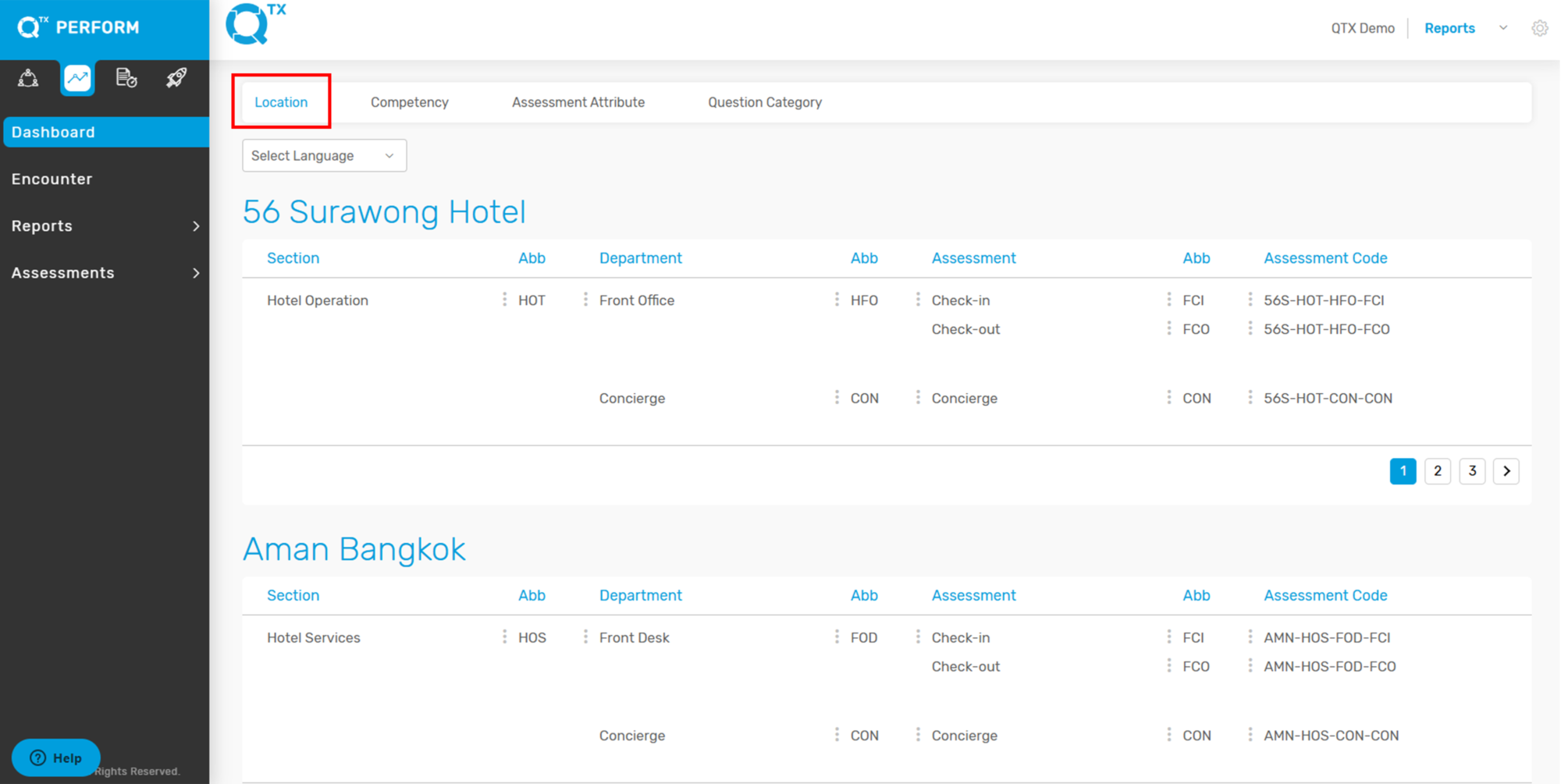
Within the Perform Platform Settings, you can view detailed information about each location. This includes the property name, abbreviation, and its corresponding city, state, and country. This is especially useful for verifying available properties and their setup.


1. From the Dashboard landing page, click on the PERFORM Platform tab.
Then, click the “SETTINGS” button located in the upper right corner of the screen.


2. Select “Manage Locations” from the settings menu.


3. You will be redirected to the Perform Platform Settings page.
Click on the “LOCATION” tab to continue.


4.Scroll down to view the list of available Locations.
Here, you’ll see each property’s name, abbreviation, and its assigned City, State, and Country.


If you need further assistance, please send an email to helpdesk@q-tx.com
Perform: How to View Inspector Reports

Inspector Reports are used to evaluate a range of hotel services and amenities, including room service, dining, and public areas like pools. These reports are based solely on visual inspections and reflect what the inspector directly observed.


1. From the Dashboard landing page, ensure you are on the PERFORM platform.
Click the “REPORTS – INSPECTOR REPORTS” tab.


2. Use the FILTERS provided to fill in all the necessary details, such as date range, location, and inspector name, to generate the correct report view.


3. Once filters are applied, a list of User Names (inspectors) will appear at the bottom of the page.


4. To view the Completed Assessment Ratio, simply click on an inspector’s name.
This will bring up details including:

List of Assessment Names
Completion Dates
Score Percentages
Department Names
Section Names
Location Names


5. To view the detailed Encounter Report, click on any “Room Inspection” listed under the assessment names.


6. Scroll down the report to view the Standard Names, Segments, and Inspector Commentary.
You’ll also have the option to View, Send, or Download any attached files.


If you need further assistance, please send an email to helpdesk@q-tx.com
Perform: How to View Competency Missed Standard Reports

This report highlights the number and percentage of missed standards categorized by Competency, helping teams identify common gaps and areas needing improvement.


1. From the Dashboard landing page, click on the “PERFORM” tab.


2. Click the “Reports” button, then select “Competency” from the dropdown menu.


3. Make sure you are on the “MISSED STANDARDS” tab.


4. The report will display a breakdown of missed standards by number and percentage, organized by each Competency.


If you need further assistance, please send an email to helpdesk@q-tx.com
Perform: How to View Assigned Assessment as a Group User

An assessment consists of one or more questions, activities, or actions within an assignment that can be scored. A category groups together similar assessment types and can be weighted to impact the overall course or performance score.


1. From the Dashboard landing page.


2. Ensure you are in the “PERFORM” platform.
Then click on the “ASSESSMENTS – ASSIGNMENTS” tab.


3. Use the FILTERS at the top of the page to enter all required information — such as date range, department, location, or user — to refine your search results.


4. Scroll down the page to view the list of Assessment Names associated with the filtered criteria.


If you need further assistance, please send an email to helpdesk@q-tx.com
Perform: How to Find/View the Competency as a Group User

Competencies help define the skills or tasks a person needs to perform well in their job. Each one includes detailed behaviors that show different levels of proficiency.


1. From the Dashboard, go to the PERFORM Platform. Click the “SETTINGS” button at the top right of the screen.


2. Choose “Manage Locations” from the menu.


3. You will be taken to the Connect Platform Settings page. Click the “COMPETENCY” tab.


4. Scroll down to see the list of Competencies, Sub – competencies, and their Codes.


If you need further assistance, please send an email to helpdesk@q-tx.com
Perform: How to Customize Assessments as a Group User

This platform offers advanced “Customize Assessment” capabilities, enabling users to efficiently add or update assessment questions to align with dynamic requirements.


1. From the Dashboard landing page, make sure you’re in the PERFORM platform. Then click on “ASSESSMENTS – BUILDER.”


2. The highlighted section displays essential details for each assessment, including the Assessment Code, Assessment Name, Department Name, Section Name, a QR code download link, and the Last Update timestamp. This allows users to easily identify and manage assessment records.
To view an assessment’s details, select its Assessment Code from the list.


3. The image displays a “Customize Assessment” page within a system, likely for managing performance or training. Key areas highlighted by red boxes include the “Check-in” section and “Assessment Instructions.” Users can edit instructions, such as “go to front desk,” and also edit the “Check-in” assessment name.


4. Highlight several features on the “Customize Assessment” page. The top left red box indicates a multi-step process, with numbers 1 through 7 likely representing the number of assessment sections or questions that need to be answered. A red box further down outlines an area to “Drag and drop or click to upload file,” with a note that only image, audio, and video files (up to 10MB) are allowed. Finally, a red arrow points to a checkbox labeled “Enable Employee Recognition,” indicating an optional feature for the assessment.


5. The “Assessment Attributes” where users can define custom fields for an assessment. Two primary attributes, “Team Member Name” and “Shift / Period,” are shown with their respective options. Red arrows indicate these attribute sections, and a red box highlights the “Select Attribute” dropdown menu at the bottom, which allows users to add more attributes like “Room Number,” “MOD Name,” “Hotel Occupancy,” and others from a predefined list.


6. A red arrow points to the “Require comment for” field, which has a dropdown menu highlighted by a red box. This dropdown allows users to select whether comments are “N/A,” “NO,” or “YES” for specific answers within the assessment. This feature enables control over when an assessor must provide additional textual feedback.


7. The primary questions are referred to as “Standard” (e.g., “Did the staff greet you…”). Red arrows highlight fields for “Placeholder” and “Question Guide,” which provide additional context. Below these, “Test1” and “Test 1” represent the “Competency” and “Sub Competency” respectively. A “1” indicates the “Weightage,” and “Test2” represents the “Category.”


8. On the lower page, you’ll have the option to click “ADD QUESTION” to include a new question in the assessment.


If you need further assistance, please send an email to helpdesk@q-tx.com
Perform: How to Assign an Assessments to Inspector as a Group User

An assessment consists of one or more questions, tasks, or actions that an individual can be scored on. A category is a group of assessment types that can be assigned a percentage or weight toward the overall course score.

Here’s how to assign an assessment in the PERFORM platform:


1. From the Dashboard landing page, make sure you’re in the PERFORM platform.


2. Then click on the “ASSESSMENTS – ASSIGNMENTS” tab.


2. Click the “ASSIGN ASSESSMENT” button.


3. Fill in all the required information such as location, department, section, assessment name, and user details.


4. Once everything is complete, click the “ASSIGN” button to finalize the process.


If you need further assistance, please send an email to helpdesk@q-tx.com
Perform: How to Assign an Assessment as a Group User

Web or Mobile App-Based Testing – Assigning Assessments

Web or mobile-based assessments allow inspectors to answer specific questions and upload related media (images, video, audio) with commentary. Only assigned Inspectors can complete these assessments.

1. From the Dashboard landing page, click the “PERFORM” button.


2. Then select “Assessments.”


2. Click “Assignments” under the Assessments menu, then click the “ASSIGN ASSESSMENT” button.


3. Fill in all the required details by selecting the appropriate options from the dropdown lists (e.g., location, section, department, assessment name, inspector).


4. Choose your preferred Assign Type:

  • “ONCE” – for a one-time assessment

  • “RECURRING” – for multiple or scheduled assessments (you can select multiple days)


5. Set the Start Date, Send Time, and End Date for the assessment.

Once everything is complete, click the “ASSIGN” button to save and finalize the assignment.


If you need further assistance, please send an email to helpdesk@q-tx.com