
Exporting a file allows the user to convert data from one file type to another format. Once the file is exported to the desired format (as indicated by its file name suffix), it can be opened and worked on in any application that recognizes and supports that format.
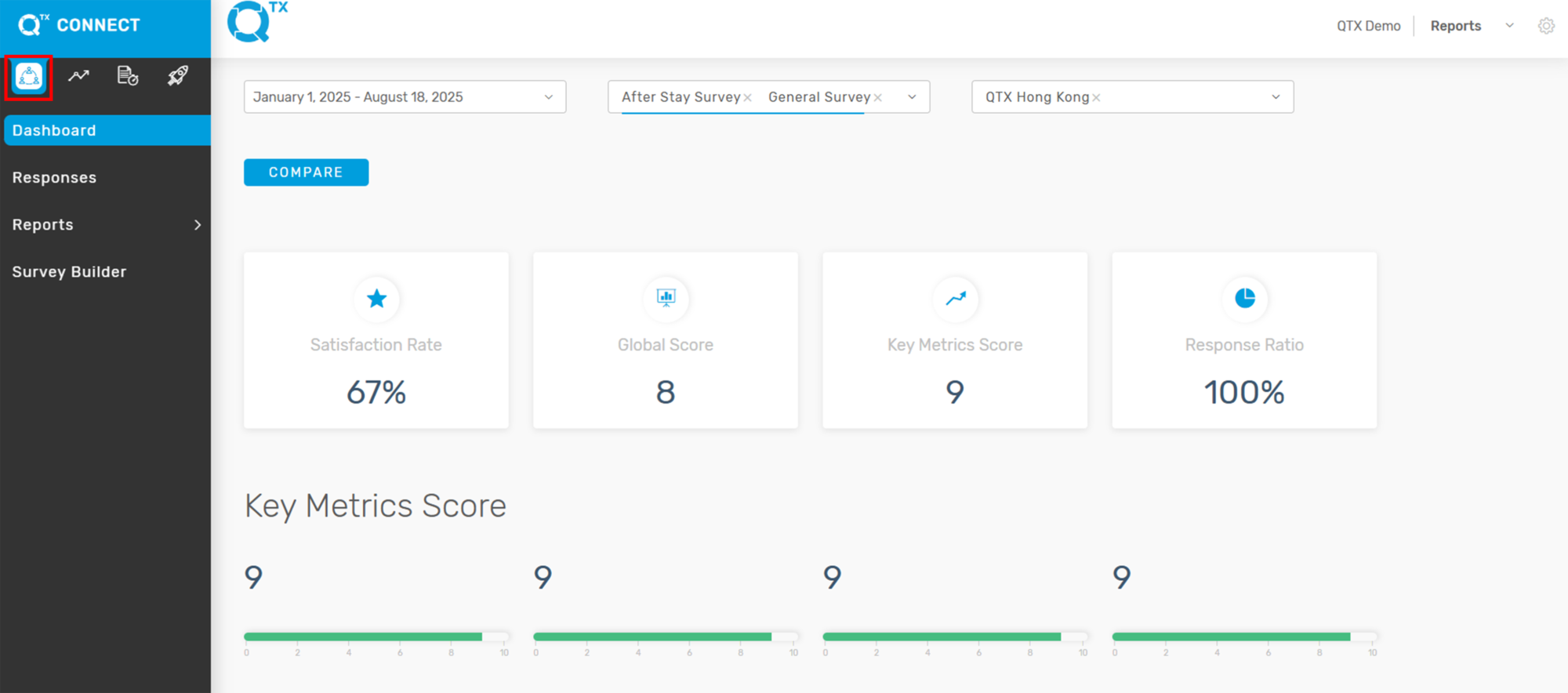
1. After logging in, you will be directed to the Dashboard Landing page.
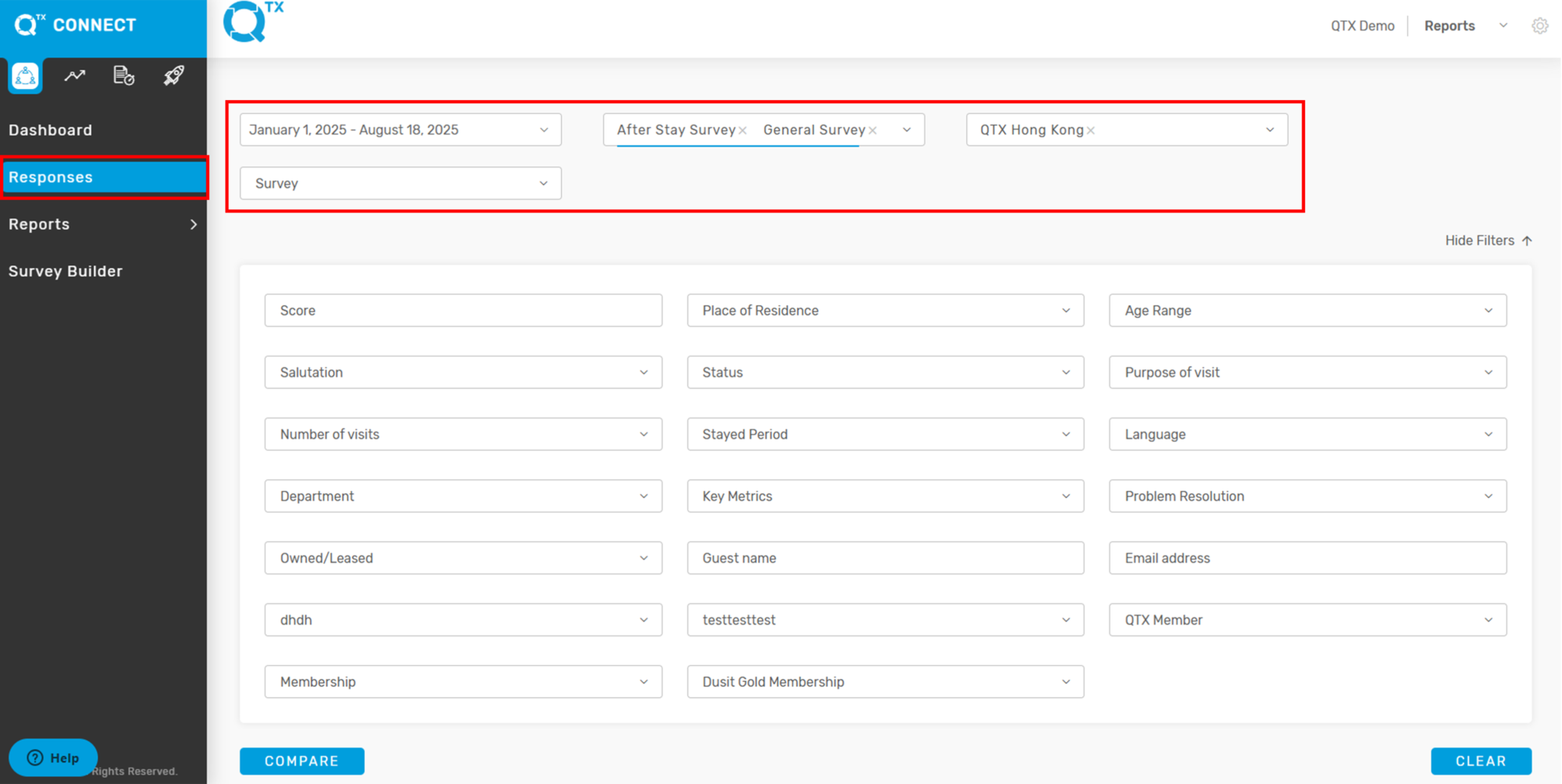
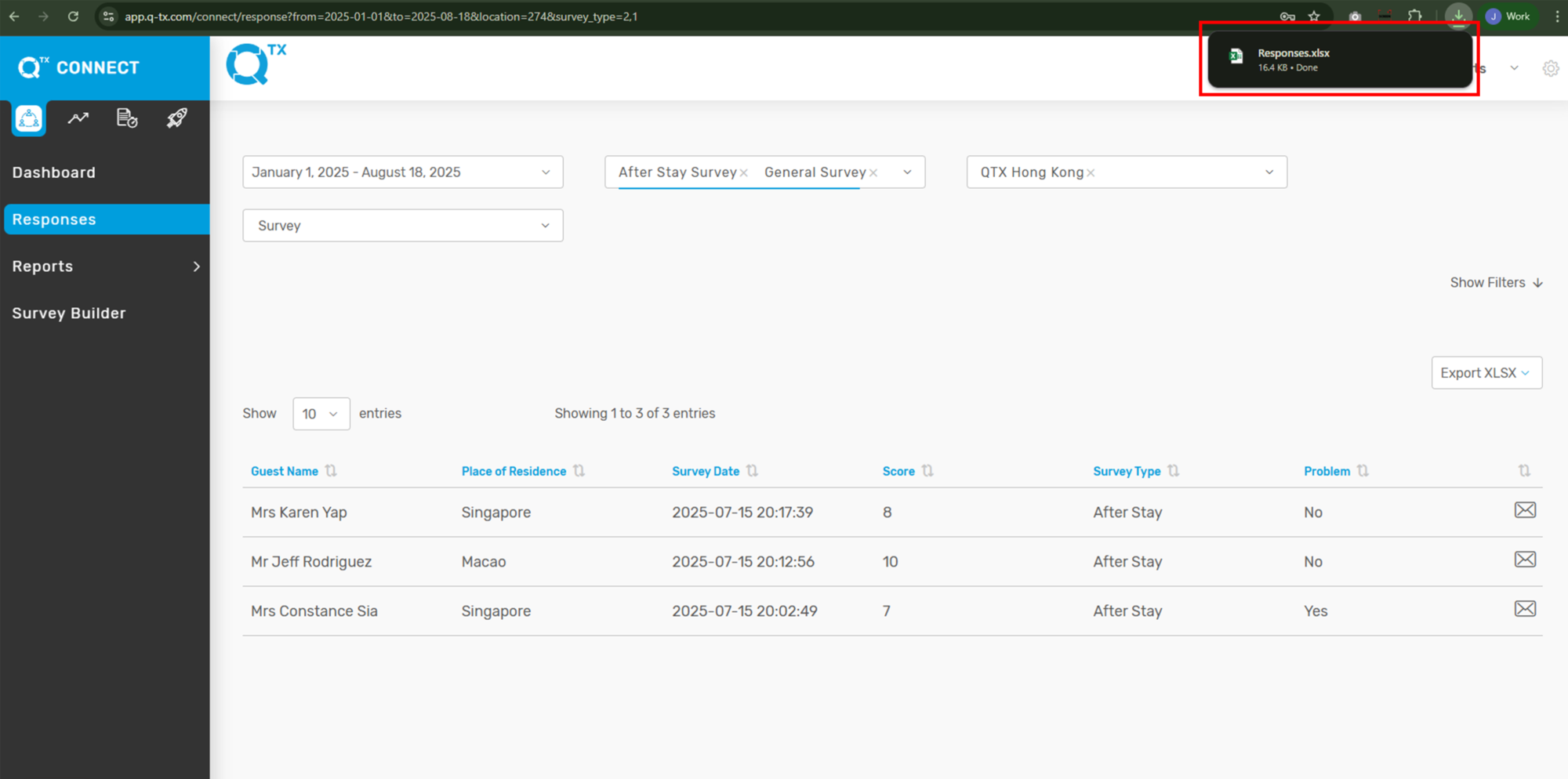
2. First, click on Responses, then fill in the filter criteria you want to view.
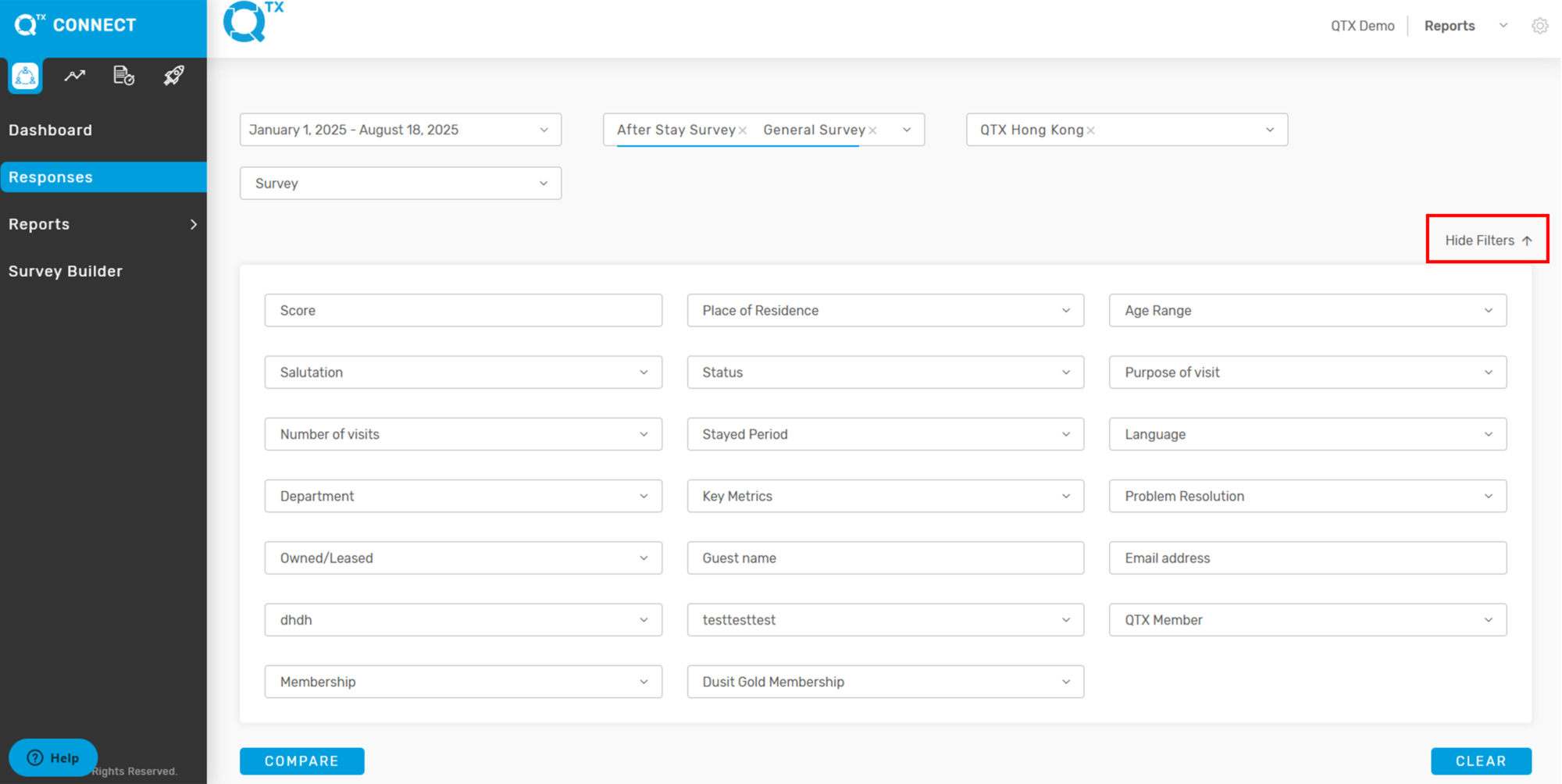
There is also a Hide Filter option on the right side, which allows for easier viewing of the data.
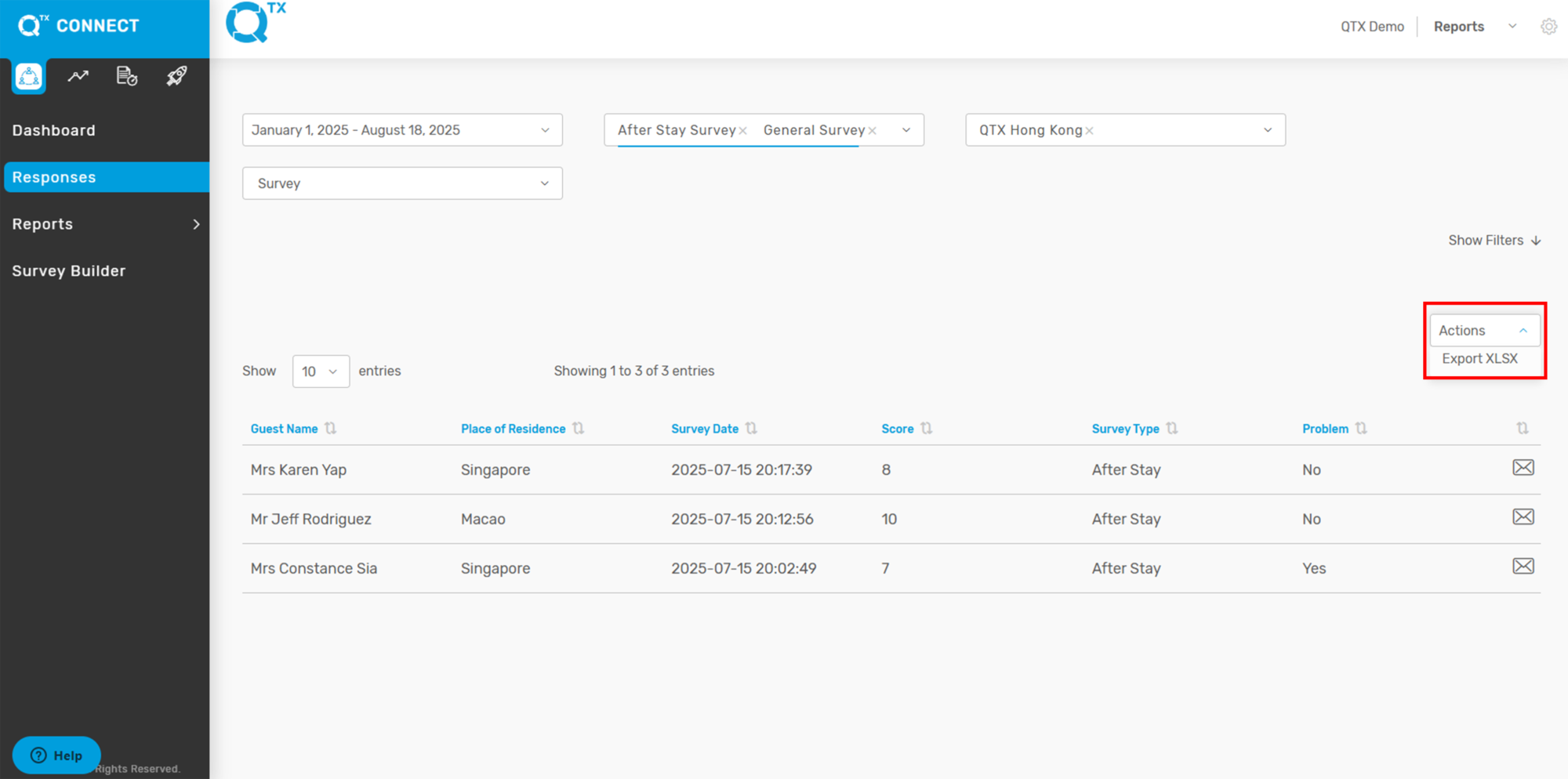
3. From here, select the ACTIONS button. A drop-down menu will appear, where you can choose EXPORT XLSX.
4. The exported file will appear on your screen. Click on it to open, and you can then view and edit the file in Microsoft Excel.
If you need further assistance, please send an email to helpdesk@q-tx.com