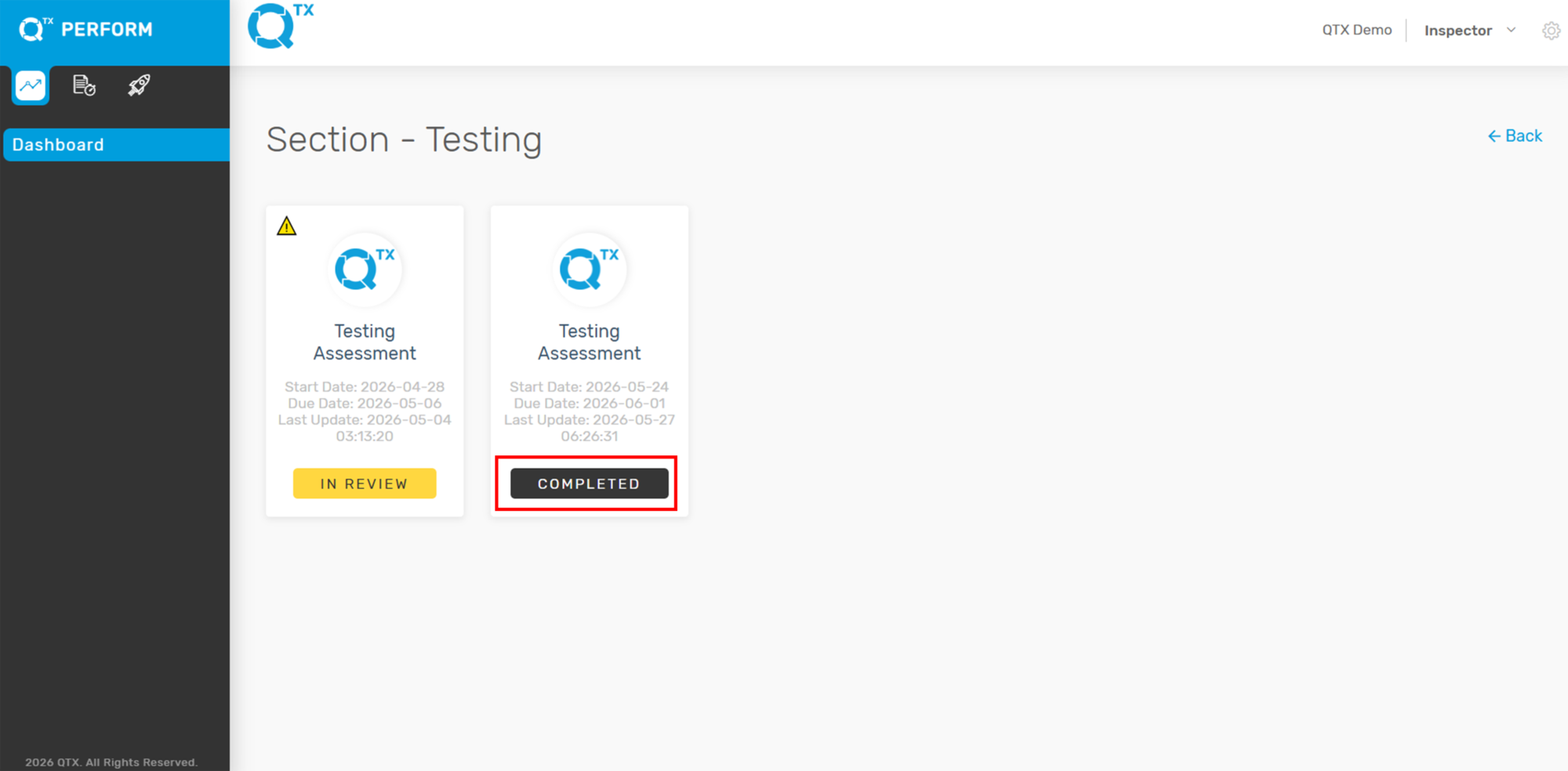
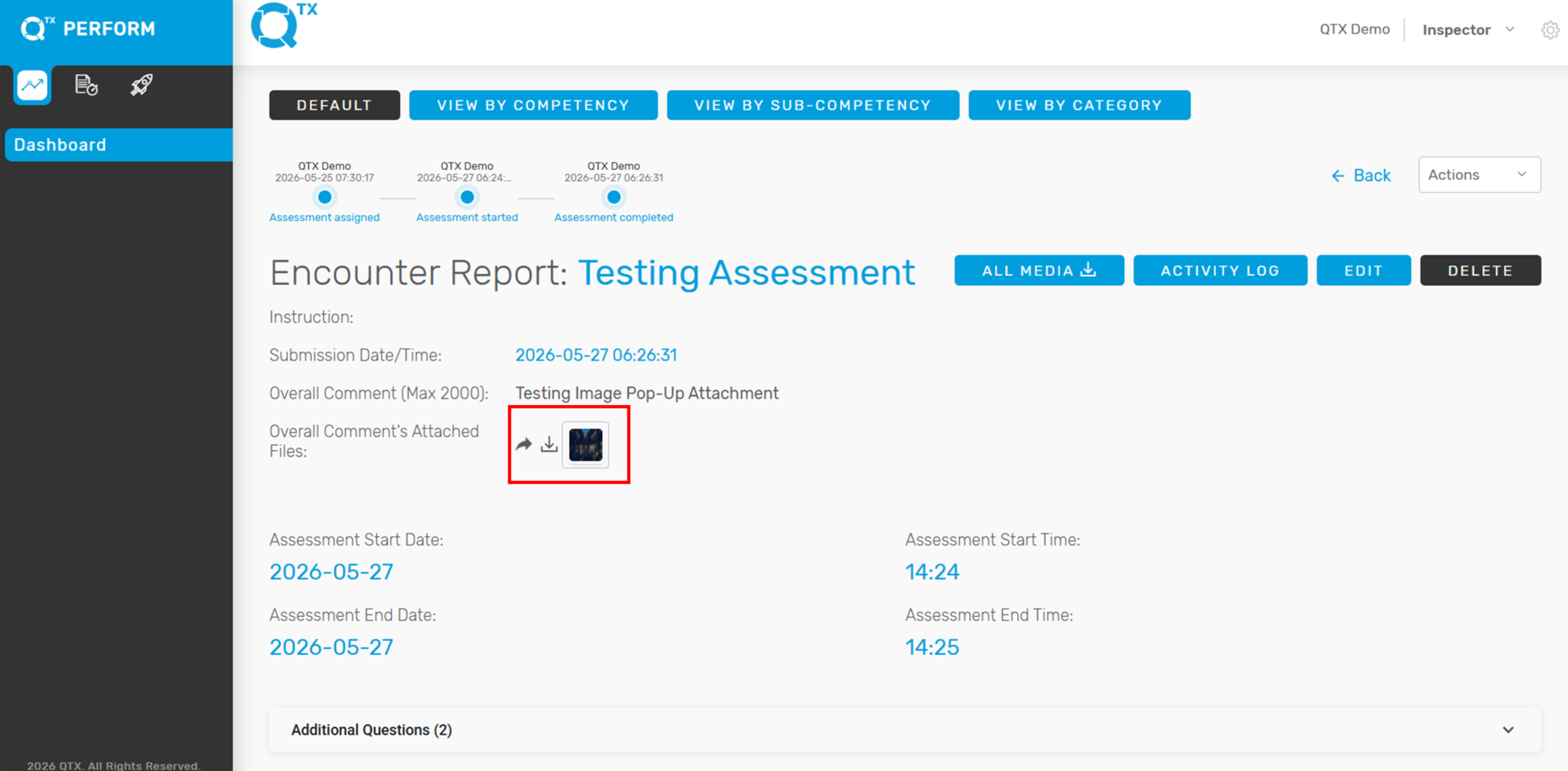
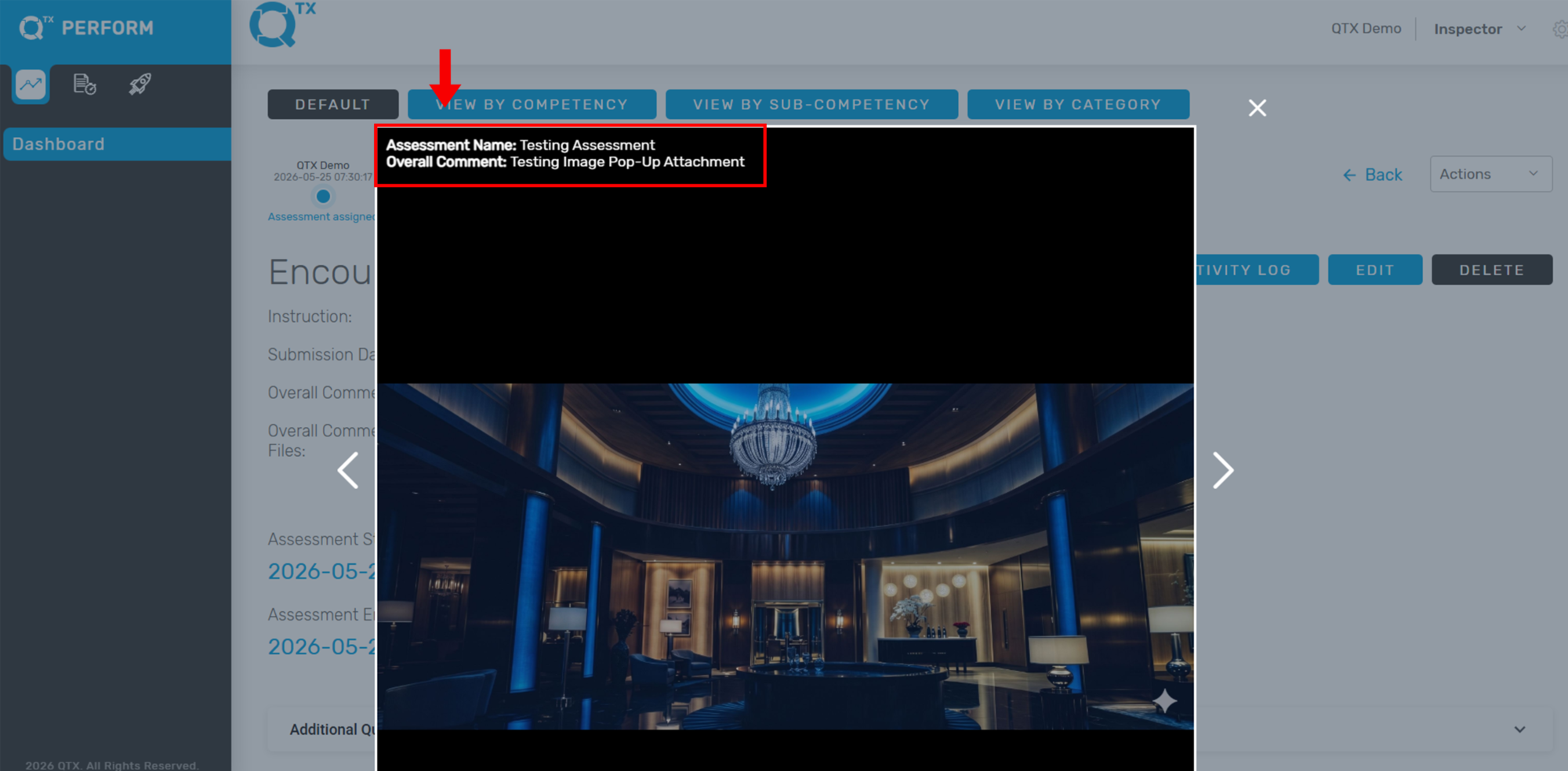
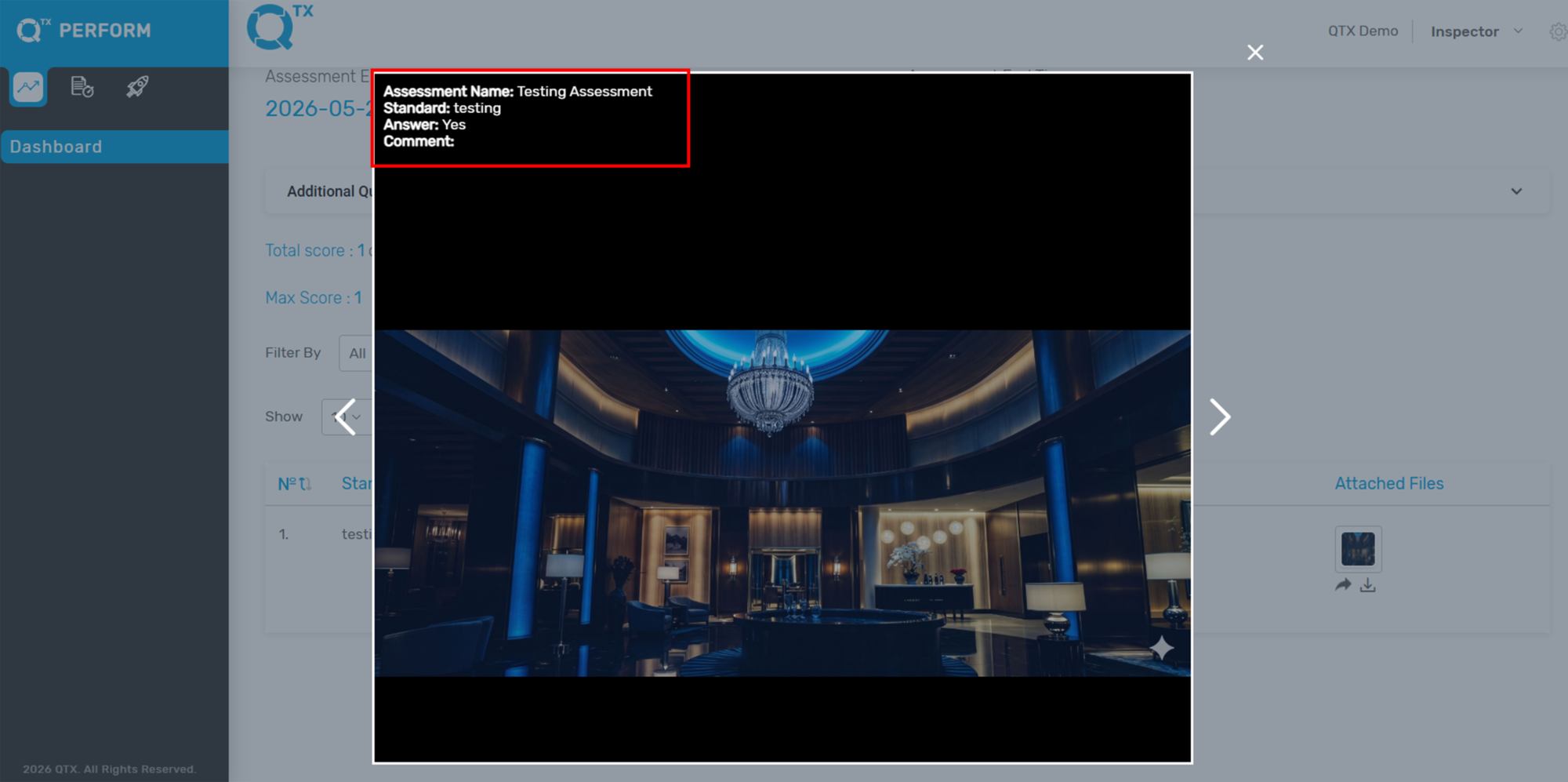
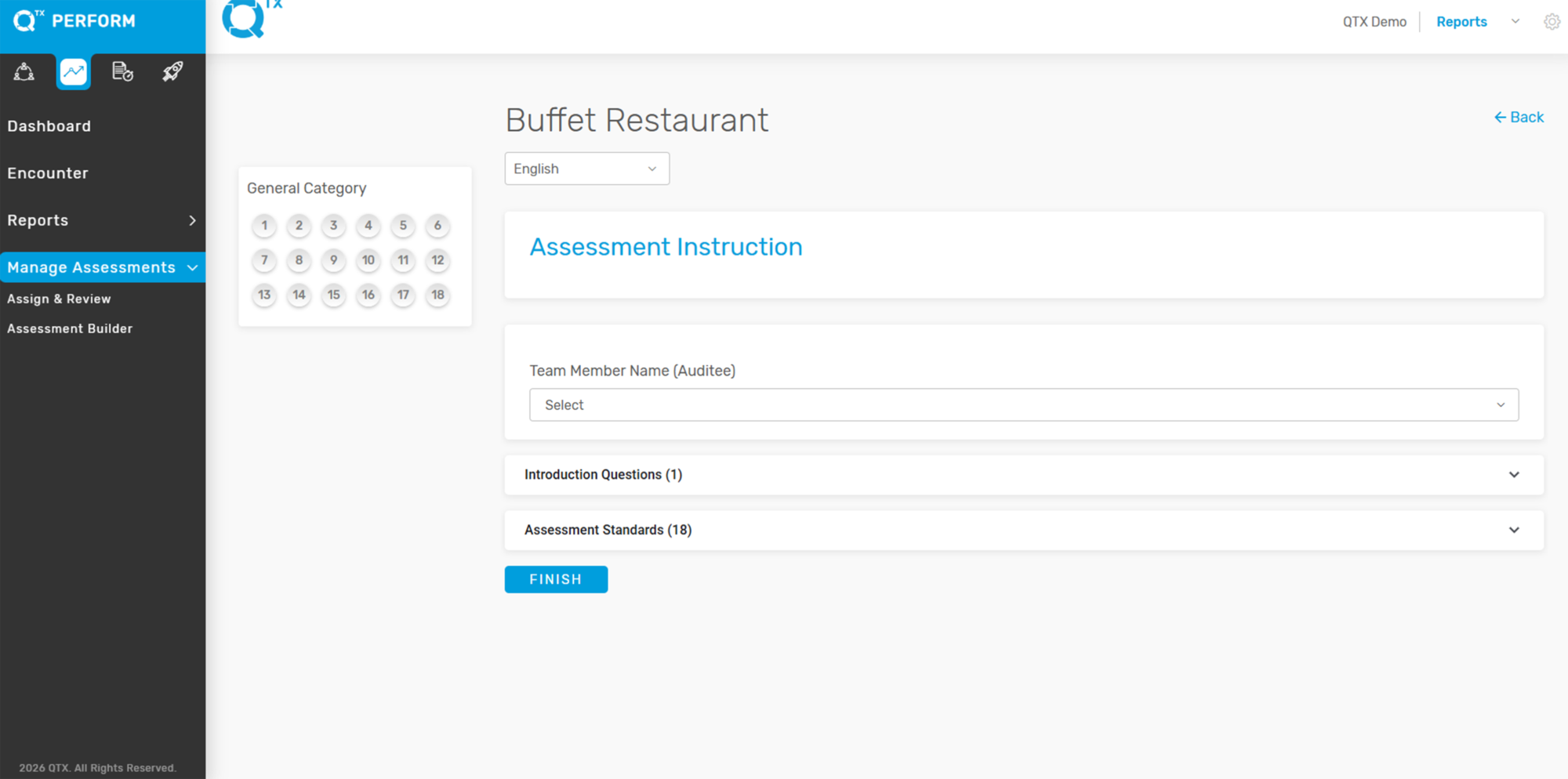
How to Check/View Total Questions per Assessment

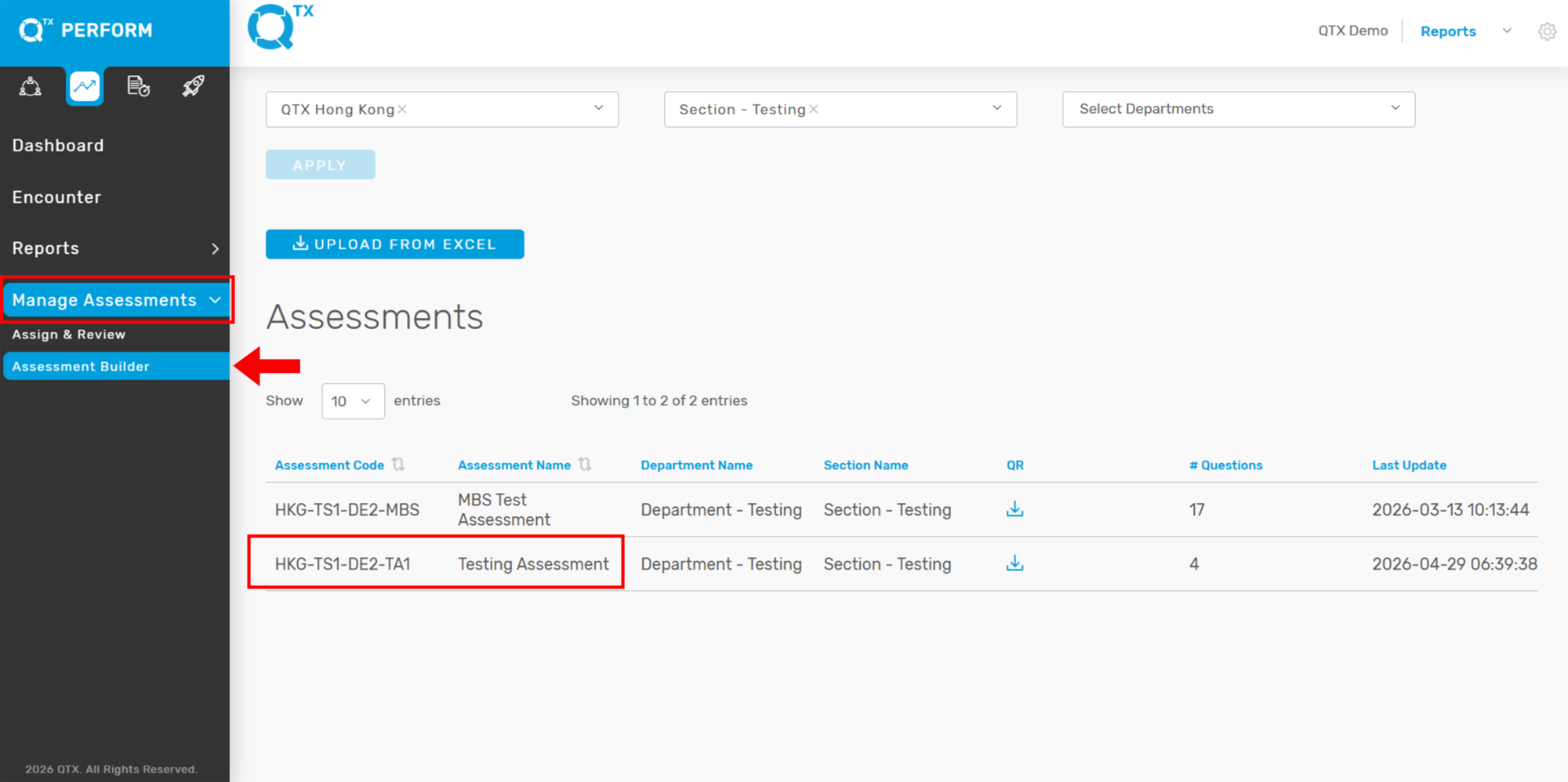
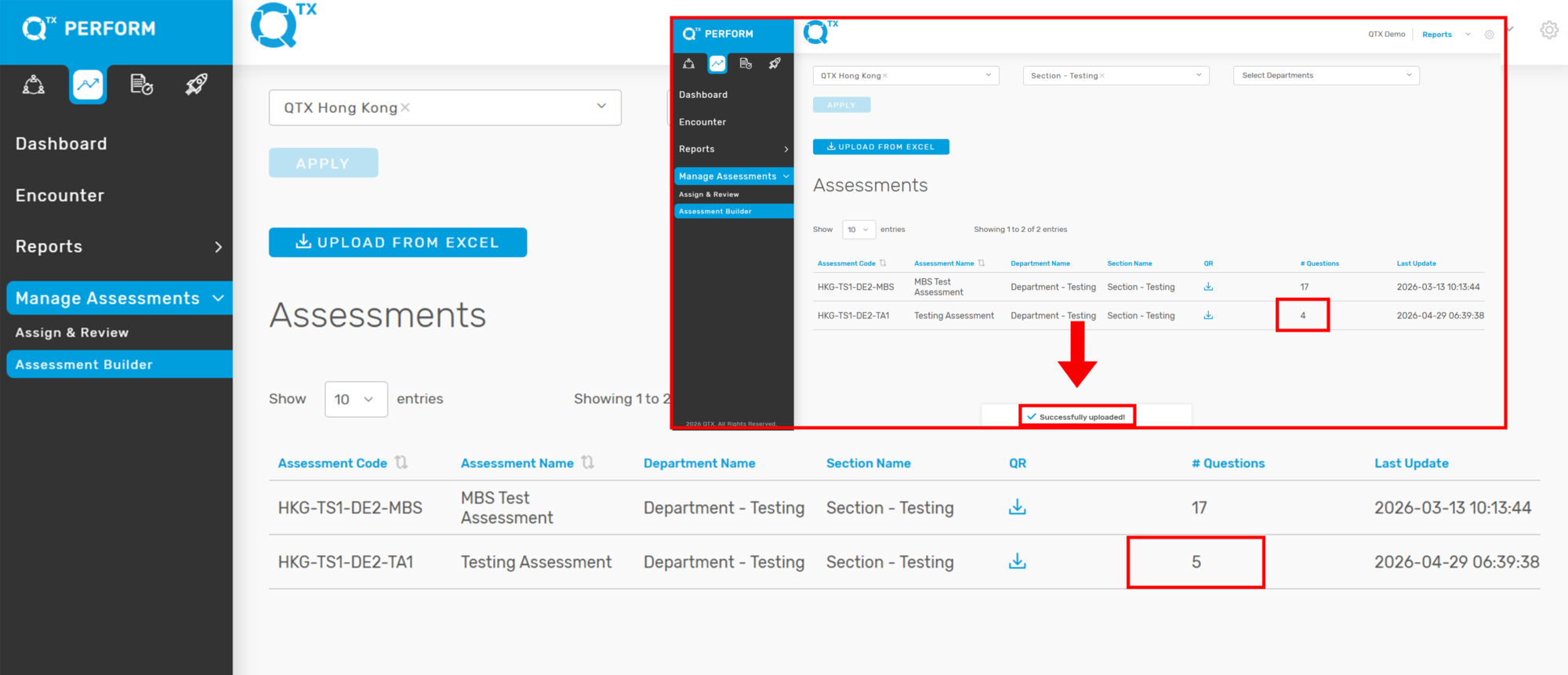
A new “# Questions” column has been added to the Assessment Builder listing page. This column displays the total number of questions for each assessment, calculated from Assessment Standards, Introduction Questions, and Additional Questions.

Users can also hover over the question count to view a detailed breakdown by category.

This enhancement applies to the Perform, Qualify, and Launch platforms.

How this help

  • Provides quick visibility of the total number of questions per assessment
  • Displays a detailed question breakdown by category on hover
  • Helps users manage and review assessments more efficiently


1. Log in to the Platform. Access the Perform, Qualify, or Launch platform using your web browser.


2. Click Manage Assessment to open the Assessment Builder listing page.


3. On the Assessment Builder listing page, locate the # Questions column to view the total number of questions for each assessment.


If you need further assistance, please send an email to helpdesk@q-tx.com

How to View the Labels and Guidance

Menus, labels, placeholders, and guidance comments have been updated across key areas of the platform, including the Reports, Assessment, and Assignment pages.

Additional guidance comments were also added within the Assessment Builder sections to help users better understand fields and configuration options.

These updates are available on the web versions of the Perform, Qualify, and Launch platforms.

  • Improves clarity and consistency across the platform
  • Enhances user understanding with additional guidance comments
  • Creates a more intuitive and user-friendly experience


1. Access the Perform, Qualify, or Launch platform using your web browser. Click Manage Assessment. In the Assessment Builder, you will notice updated labels and guidance comments to help users better understand and complete the configuration process.


If you need further assistance, please send an email to helpdesk@q-tx.com

How to Create New Department, Section and Assessment name

This feature allows users to set up a new structure within the system by creating a Department, assigning it to a Section, and defining a unique Assessment Name. This setup ensures a more organized, role-specific, and efficient evaluation process.


1. On the Dashboard landing page, click the Settings icon located at the top right corner of your screen, then select “Manage Locations” from the dropdown menu.


2. The system will direct you to the Location tab.
From there, choose the Location where you want to create a new Department, Section, and Assessment Name. This step ensures that the new setup is correctly assigned to the intended property or site.


3. Once you’ve selected the desired Location, go to the Structure tab.


4. Click Add Section to create a new section name.
In the “Abb” field, enter a 3-letter abbreviation for the section. This abbreviation is required, especially when uploading assessments using the Excel format, as it helps map the section correctly during the import process.

Note: As shown in the image, the red arrow and the message “The abbreviation has already been taken” indicate that the abbreviation you’ve entered (e.g., TE1) is already in use in the system.


5. Click Add Department, then choose from the Section you just created.
Next, click Add New Department — this means you are assigning a new department under the selected section.

This step helps organize departments within their relevant sections for a structured and efficient setup.


6. Follow the same steps as in Section and Department creation to add a new Assessment.


7. Once done, go back to the Location tab and check if the newly created Section, Department, and Assessment appear in the structure list.

This confirms that your setup has been successfully created and saved in the system.


If you need further assistance, please send an email to helpdesk@q-tx.com

How to Attach Standard Function

The Attach Standard Function in QTX Builder allows you to link visual references to a specific standard or question using a custom code.


1. Upload the image file to a shared drive and ensure that the sharing settings allow anyone with the link to view it.


2. Once done, copy the image link for later use..


3. In the QTX Builder, open the assessment where you want to add an image. You will use the following HTML code format: <a href=”any_link” target=”_blank”>Text to show</a>

Paste this code into the Question Guide section of the relevant standard or question. Replace “any_link” with your copied image link and Text to show with a descriptive label (e.g., “Standard”).

Example:
Please click on this link: <a href=”https://drive.google.com/file/d/1LF-egMMYTfFV2Z-irtNKMaMDPpHDPm-F/view?usp=sharing” target=”_blank”>Standard</a>


4. To preview the changes, click the Preview button located below the Customize Assessment Name section.


5. Click the information icon (‘i’) to view the Question Guide linked to the standard or question.


6. Hover your mouse over the “Standard” link and click it to display the attached image.


7. The image will then be displayed in a new tab as intended.


If you need further assistance, please send an email to helpdesk@q-tx.com

How to Activate the Primary Button

To make the Primary Attribute and Primary Attribute Value appear clearly in the exported Excel file, you must activate the Primary Button for at least one attribute during setup.


1. From the Perform dashboard landing page, click on Assessments, then select Builders.


2. Click the name of the assessment where you want to activate the Primary Attribute.


3. Scroll down to the Attributes section and toggle the switch to activate the Primary Attribute.


If you need further assistance, please send an email to helpdesk@q-tx.com

How to Edit Attributes on a Completed Assessment

Learn how to review and modify assessment attributes even after submission, including understanding system limitations and what changes are still allowed.


1. On the Dashboard landing page, click the “Perform” button.


2. Select “Encounter Reports” to view the list of available assessments.
Choose the assessment you wish to edit.


3. The inspector’s name will be displayed on the screen. Click on the name to open the completed encounter report.


4. On the report page, click the “Edit” button.

Note: Edit access may be restricted and is not available to all users.


5. You can now modify the attributes as needed. Once done, click the “Finish” button to save your changes.


If you need further assistance, please send an email to helpdesk@q-tx.com

How to Add a Selection List of Questions in the Introduction and Additional Questions Sections (Masterlist)

This feature provides a dropdown selection list of guide questions sourced from a centralized library (Multi-Model Questions Settings). It allows users to easily reuse commonly used questions across multiple assessments, ensuring consistency and efficiency.

The masterlist contains pre-created Introduction and Additional Questions that can be applied to different checklists, especially for assessments that are repetitive or share similar structures.

Questions selected from the masterlist can still be edited within the assessment builder without affecting:

The original version is stored in the master list
Other assessments using the same question
Previously recorded responses or history
This ensures flexibility while maintaining a standardized question bank.


1. On the Dashboard Landing Page, go to Settings, then click Manage Locations.


2. Locate and click Multi-Model Questions. This is where your masterlist of questions is managed.


3. To add Introduction Questions, click Add Questions


4. Enter the question in the box, choose the Question Type, then click Create to save.


5. For the Additional Questions tab, follow the same process as in Step 3.


If you need further assistance, please send an email to helpdesk@q-tx.com

How to Add Introduction and Additional Questions in Assessment Builder from the Masterlist?

This feature provides a dropdown selection list of guide questions sourced from a centralized library (Multi-Model Questions Settings). It allows users to easily reuse commonly used questions across multiple assessments, ensuring consistency and efficiency.

The masterlist contains pre-created Introduction and Additional Questions that can be applied to different checklists, especially for assessments that are repetitive or share similar structures.

Questions selected from the masterlist can still be edited within the assessment builder without affecting:

The original version is stored in the master list

Other assessments using the same question

Previously recorded responses or history

This ensures flexibility while maintaining a standardized question bank.


1. On the Perform Dashboard Landing Page, go to Manage Assessment, then click Assessment Builder.


2. Use the filter to select the desired Location, Section, and Department where you want to add Introduction and Additional Questions from the masterlist. Then click Apply


3. In the Assessment Builder, select the assessment name you want to add an Introduction Questions.


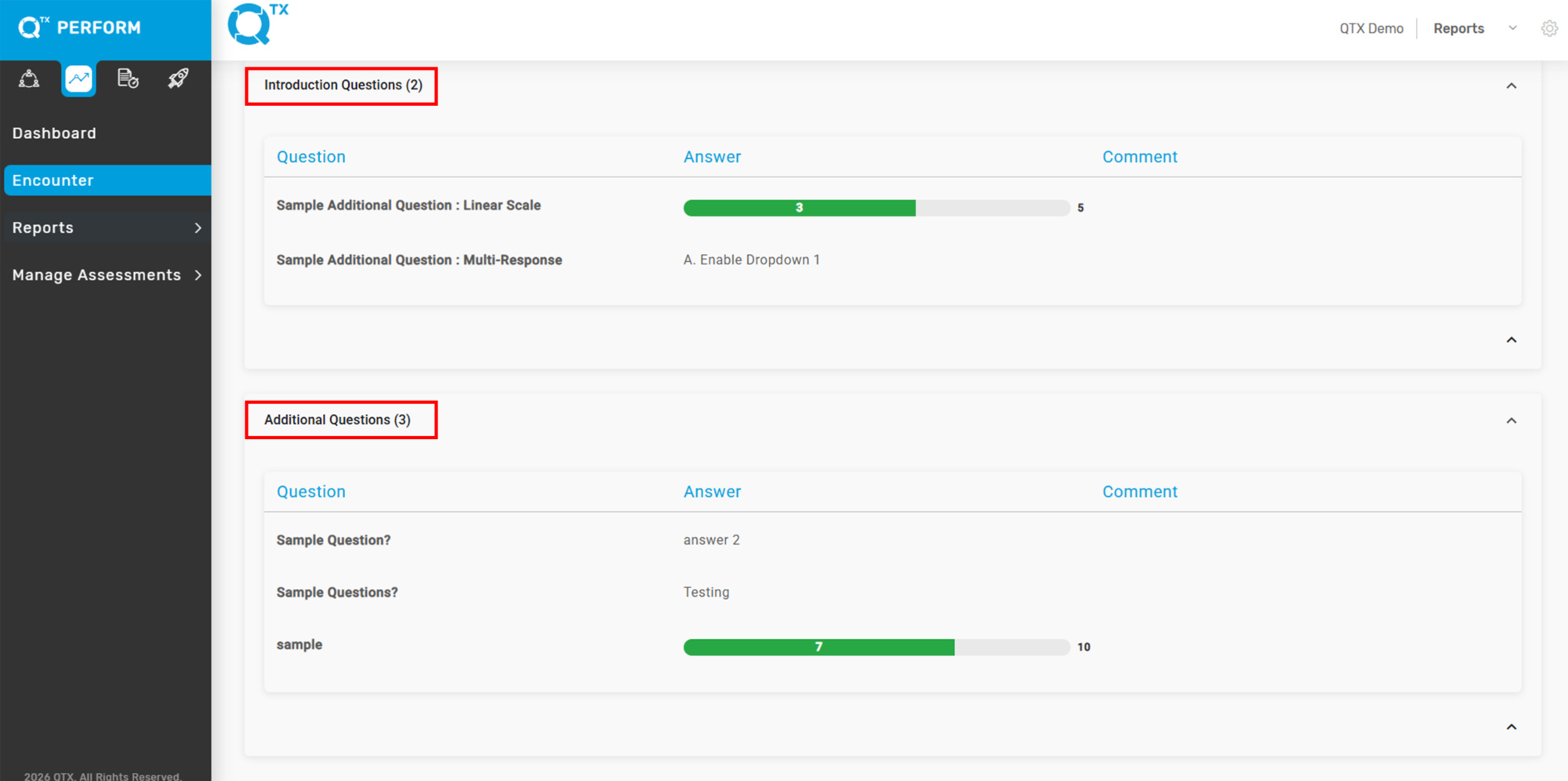
4. From here, you will see the Introduction Questions and the Additional Questions.


5. Select Introduction Questions, and you will see the Attach Questions From Master List feature.


6. After you click it, all pre-created Introduction Questions will appear. Once selected, the question will be automatically added to your list without needing to click the Create button. Note that the Question Type is pre selected base on the original Masterlist.


7. For the Additional Questions tab, repeat the same process outlined in Step 4.


If you need further assistance, please send an email to helpdesk@q-tx.com

How to View/Add Introduction and Additional Questions Sections in Assessment Builder

Introduction & Additional Questions: Feature Overview
The Introduction and Additional Questions sections allow you to add essential context and feedback to your main assessment. These optional sections act as bookends: use Introduction Questions to set the stage before the checklist begins, and Additional Questions to capture final thoughts or signatures once the checklist is finished.

Why It Matters
This feature moves beyond simple “Yes/No” answers to give you a fuller picture of your data. By using a mix of Radio buttons, drop-downs, and Free Text, you can make surveys faster to complete while still capturing the exact details you need. Whether you need a quick site confirmation at the start or a detailed summary at the end, these sections make your assessments more flexible and professional.


1. On the Perform Dashboard Landing Page, go to Manage Assessment, then click Assessment Builder.


2. Use the filter to select the desired Location, Section, and Department where you want to add Introduction and Additional Questions from the masterlist. Then click Apply


3. In the Assessment Builder, select the assessment name you want to add an Introduction Questions.


4. From here, you will see the Introduction Questions and the Additional Questions.


5. Select the Introduction Questions and click Add Question


6. Enter the question in the box, choose the Question Type, then click Create to save.


If you need further assistance, please send an email to helpdesk@q-tx.com

How do I view the different question types in Multi model features in Assessment builder?

These question types are designed to support flexible and structured data collection depending on the assessment need. They allow organizations to gather both quantitative and qualitative insights, improve evaluation accuracy, and ensure assessments are tailored to different response formats.


1. On the Perform Dashboard Landing Page, go to Manage Assessment, then click Assessment Builder.


2. In the Assessment Builder, select the assessment name you want to add an Introduction Questions.


3. From here, you will see the Introduction Questions and the Additional Questions.


4. Select the Introduction Questions and click Add Question


5. After entering the question, click the Question Type.


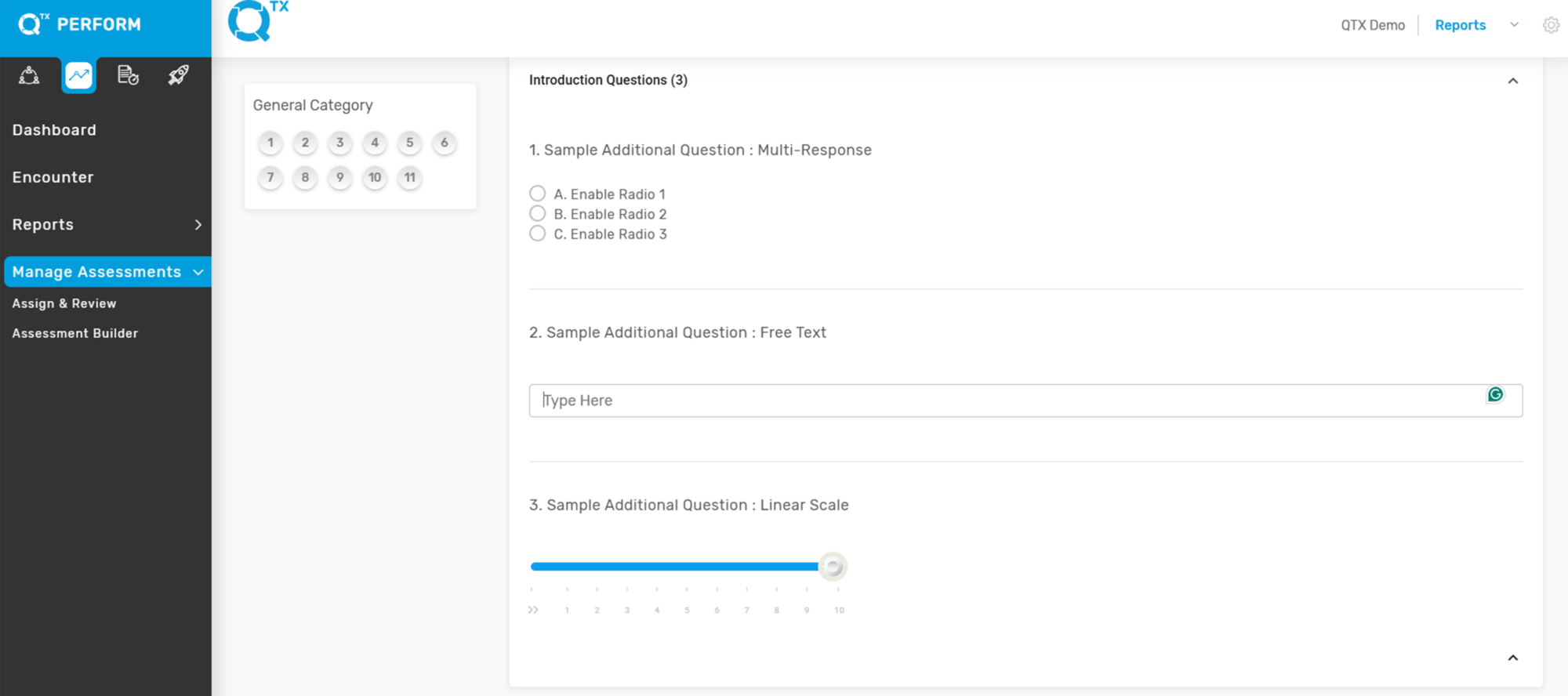
6. Multi-Response – Allows respondents to select multiple answers from a given list.
Use: Best for identifying all applicable choices or behaviors.

Enable Radio – Respondents can select only one answer from a list.
Use: Used when only one correct or preferred option is expected.

Enable Dropdown – Respondents choose one answer from a dropdown menu.
Use: Suitable for saving space and simplifying long option lists.

Respondents can select multiple answers from a dropdown or list.
Use: Useful when multiple applicable responses are needed in a compact format.


7. Free Text – Open-ended question allowing respondents to type any answer.


8. Linear Scale – Respondents rate on a scale (e.g., 1–5, 1–10) for quantitative assessment.


9. This is a preview of the image we have created.


If you need further assistance, please send an email to helpdesk@q-tx.com

How to Add Attributes Before the Assessment Starts

Attributes can be added during the setup phase of an assessment to ensure that all required criteria, tags, or classifications are properly defined before the assessment begins. This step helps structure the assessment correctly and ensures that all relevant data points are captured from the start.

Make sure all necessary attributes are reviewed and correctly applied before proceeding.

Adding attributes before the assessment starts ensures consistency, improves reporting accuracy, and reduces the need for changes after deployment. It also helps align the assessment structure with reporting and analysis requirements across Perform, Qualify, and Launch platforms.


1. Go to Manage Assessment and click the Assessment Builder tab.


2. Filter by Location, Section, and Department to find the assessment name that requires modification.


3. Go to the Attributes tab, where you will see different attribute options available for configuration.


4. Identify the required attributes and toggle them on as needed.


5. Enable the “Show First” option to display the selected attributes at the top of the assessment.


This is a preview of the assessment once it is toggled on.


If you need further assistance, please send an email to helpdesk@q-tx.com

How to View Attachment Indicators on the Encounter Listing Page?

What is the update to the Overall Competency Score calculation?

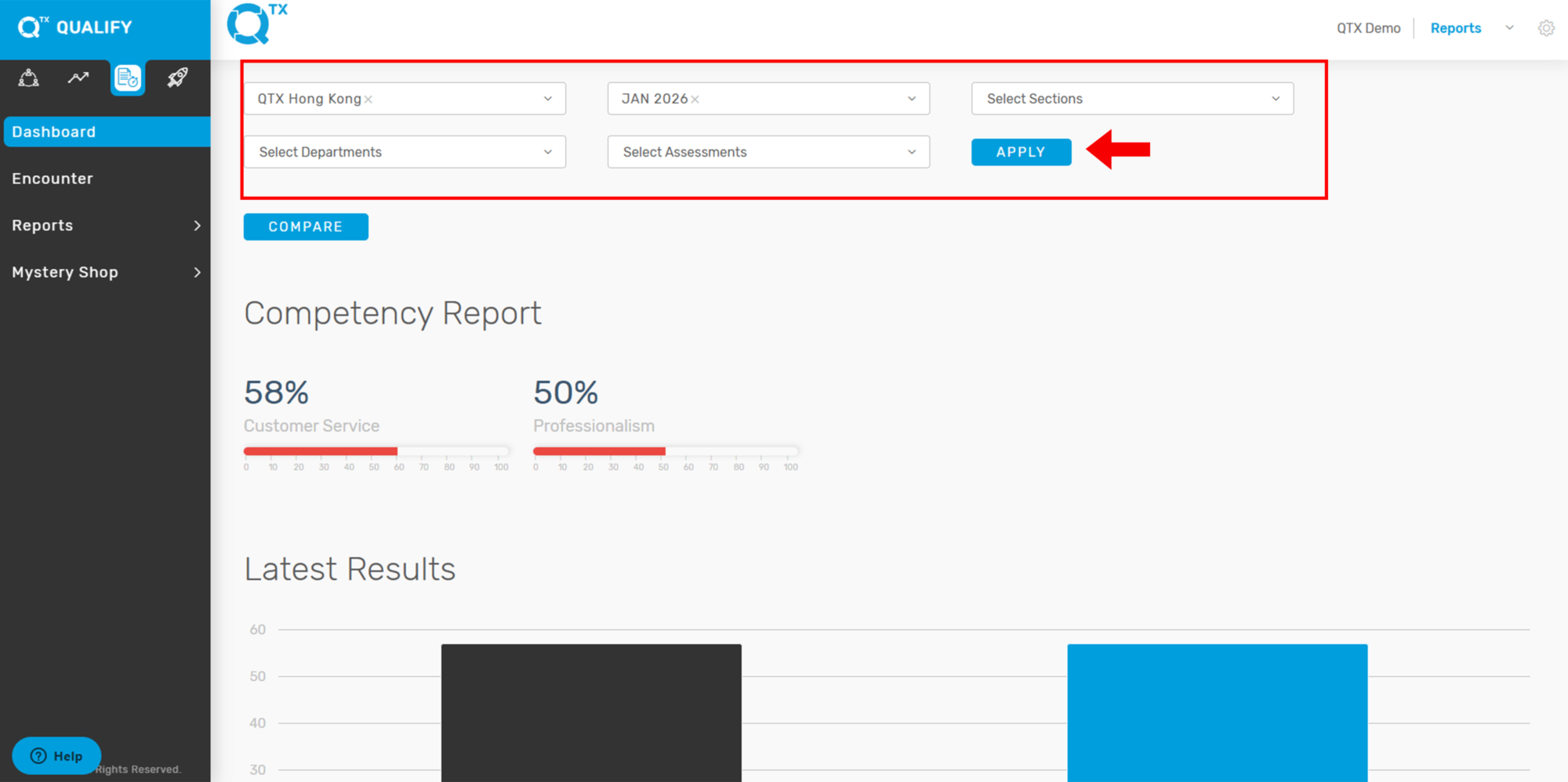
To provide a more balanced and transparent evaluation of performance, the Overall Competency Score is now calculated as the average of all individual competency scores.

This enhancement is now reflected in the:

  • Dashboard
  • Reports → Competency pages

across the following platforms:

  • Perform
  • Qualify
  • Launch

How is the Overall Competency Score calculated?

The system calculates the Overall Competency Score by adding all competency scores and dividing the total by the number of competencies.

Example:

image.png

  • Customer Service = 100%
  • Professionalism = 0%

The Overall Competency Score is calculated as:

100+0/2 = 50

Result: 50% Overall Competency

What are the benefits of this enhancement?

This updated calculation method:

  • Provides a more accurate and fair representation of overall performance
  • Ensures equal weighting across competencies
  • Improves transparency in score computation
  • Makes competency performance easier to interpret and analyze

No action is required from users, as this update is automatically applied within the system.

How to view the vetting process in the Reporting view?

The Vetting Process is a structured review stage where completed assessments are evaluated, refined, and validated before finalization. This process ensures that all assessments meet quality standards and that any required corrections or clarifications are properly addressed. It also helps maintain consistency and accuracy across all submitted assessments.

The vetting process improves overall efficiency by enhancing data quality and reporting accuracy, reducing errors before finalization, and standardizing review workflows across teams. It also promotes transparency between reviewers and inspectors, while creating a clear audit trail of all communications and changes made during the review process.

By default, completed assessment statuses vary across platforms. In Qualify, completed assessments are automatically set to In-Review, meaning the vetting process begins immediately. In Perform and Launch, completed assessments remain in Completed status, and the reviewer must manually change the status to In-Review to initiate the vetting process.


1.  On the Perform or Launch Platform, go to Manage Assessment, then click on the Assign & Review tab and locate the assessment you want to review. For example, Assessment Name Bar.

Under the Change Status column, toggle the status from Completed to In-Review to start the vetting process.


2. Click the View button to open the Encounter Page and review the assessment standards. Review the inspector’s answers for each standard thoroughly.


3. If changes are needed, click the In-Review button to send feedback and request revisions from the inspector.


4. Look for the warning icon beside standards, which indicates items that require further action.


5. Once the inspector updates the required items, the icons will change from a warning icon to a check mark, indicating completion. Click the View button again to review the updated responses.


6. After final review, change the assessment status from In-Review to Completed.


7. To track all updates and communications, open the Activity Log on the Encounter Page. You can filter details by Event or User.


If you need further assistance, please send an email to helpdesk@q-tx.com

How to view the vetting process in the Inspector’s view?

The Vetting Process is a structured review stage where completed assessments are evaluated, refined, and validated before finalization. This process ensures that all assessments meet quality standards and that any required corrections or clarifications are properly addressed. It also helps maintain consistency and accuracy across all submitted assessments.

The vetting process improves overall efficiency by enhancing data quality and reporting accuracy, reducing errors before finalization, and standardizing review workflows across teams. It also promotes transparency between reviewers and inspectors, while creating a clear audit trail of all communications and changes made during the review process.

By default, completed assessment statuses vary across platforms. In Qualify, completed assessments are automatically set to In-Review, meaning the vetting process begins immediately. In Perform and Launch, completed assessments remain in Completed status, and the reviewer must manually change the status to In-Review to initiate the vetting process.


1. Go to the Inspector’s Dashboard and locate the assessment in Vetting State.
The status will appear as In-Review, and a warning icon will be displayed on the upper-left corner of the assessment folder, indicating that the reviewer has requested further action. Click the In-Review and Next button to proceed.


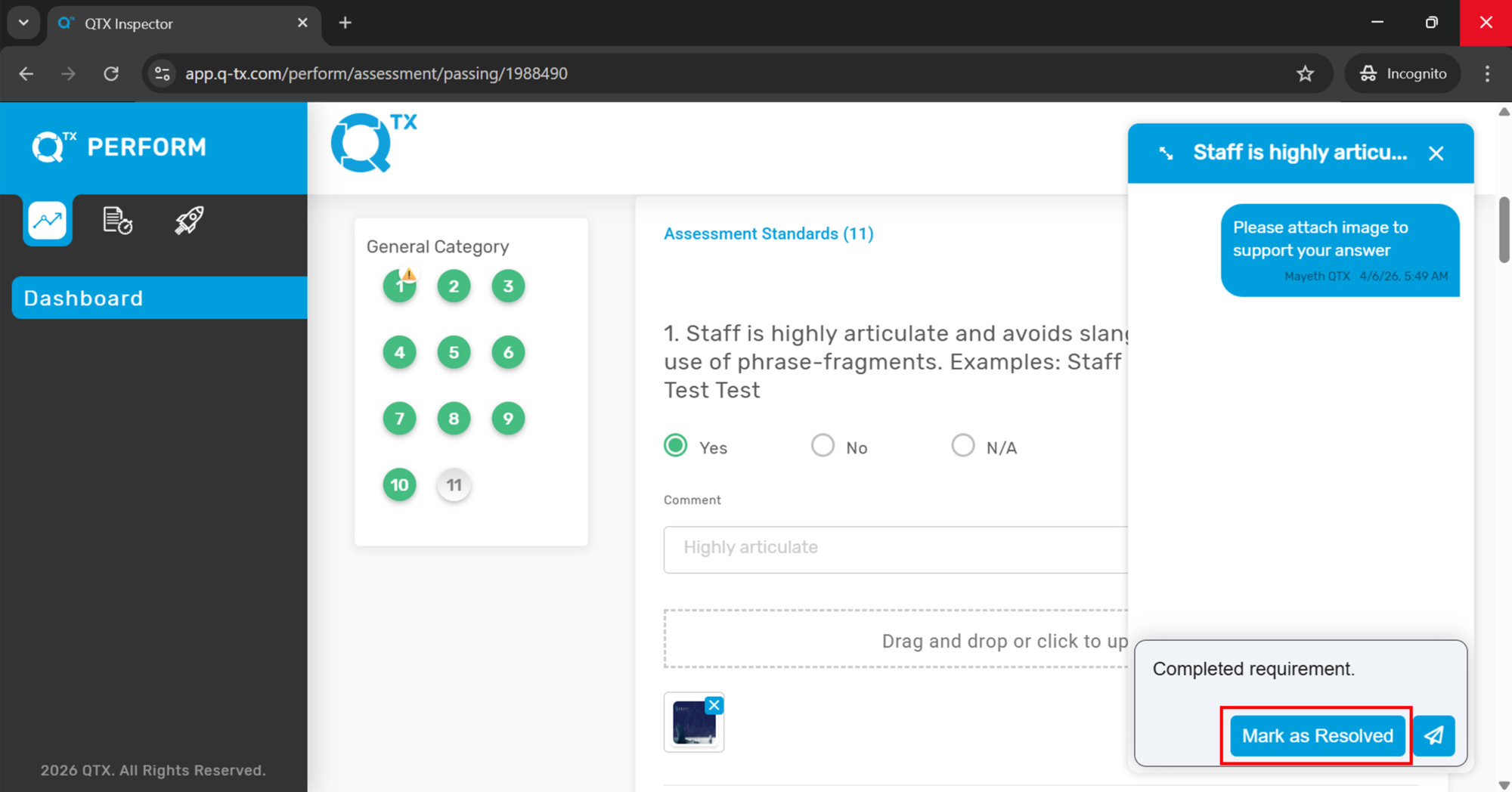
2. On the Assessment Page, identify the standards marked with a warning icon, indicating items that need revision. Click the icon on the right side to view the reviewer’s comments or requested changes. Update your answers accordingly.


3. After completing the required updates, you may optionally add a response to the reviewer. Click Mark as Resolved.


4. Once marked as resolved, you have the option to notify the reviewer.
Click Notify to send a message or email notification.


5. After resolution, the icons will change from a warning icon to a check mark, indicating that the standards and assessment have been successfully updated.


If you need further assistance, please send an email to helpdesk@q-tx.com

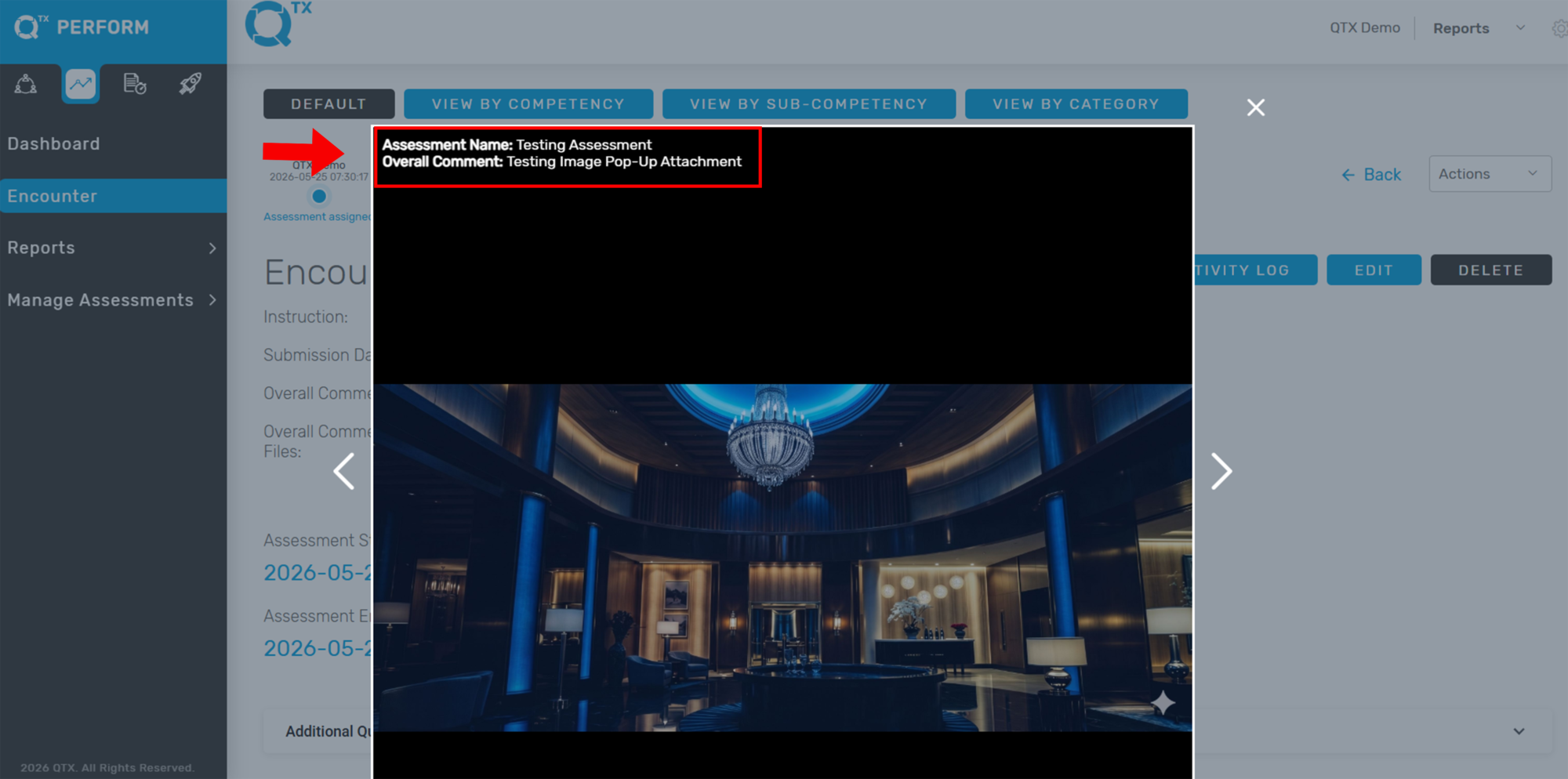
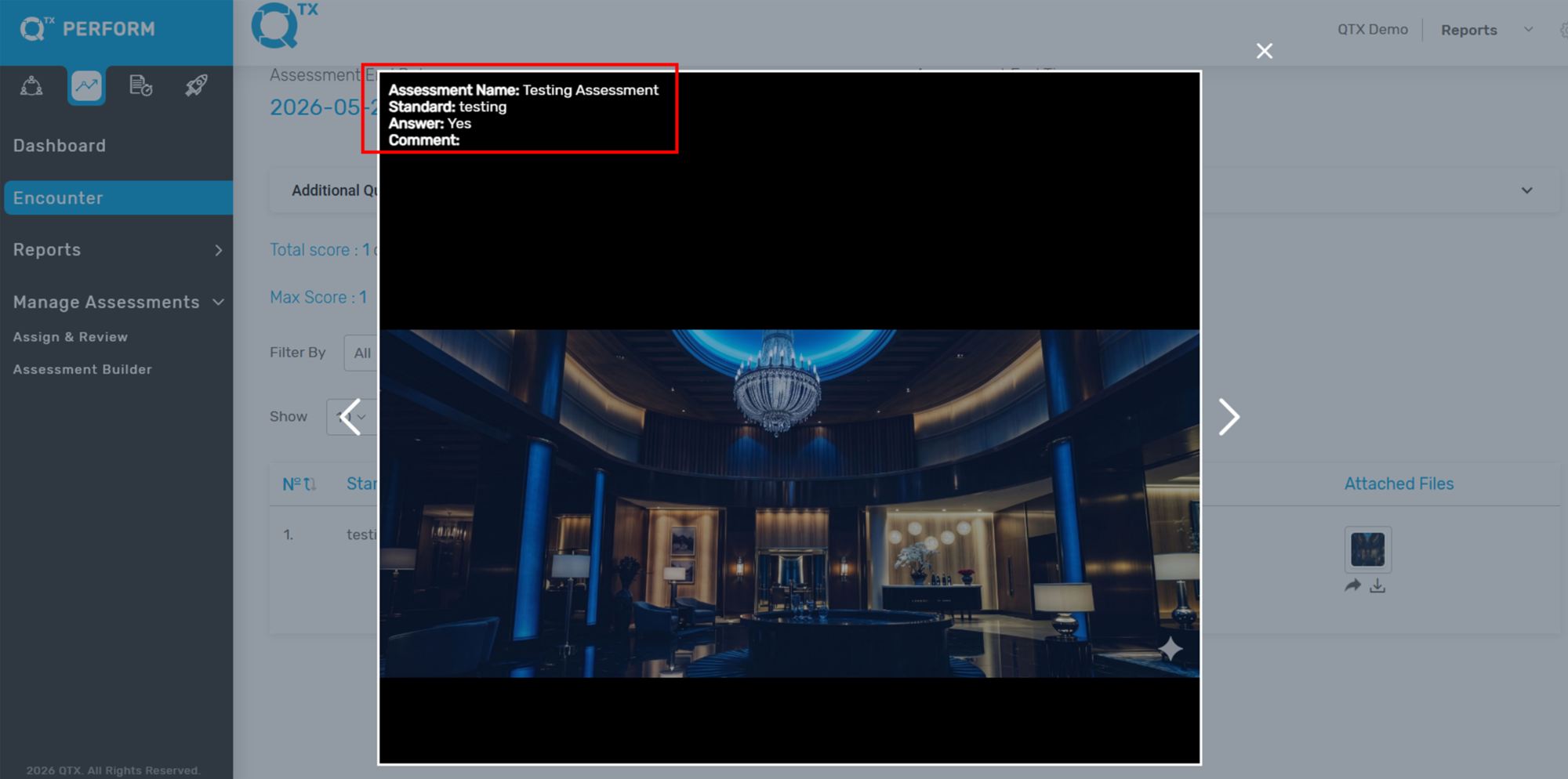
How to Send Attachments from the Encounter Page

This guide explains how to send attached images from the Encounter page to a specific user for review. Follow the steps to share images directly from the encounter report and ensure the intended recipient can review the attached documentation properly.


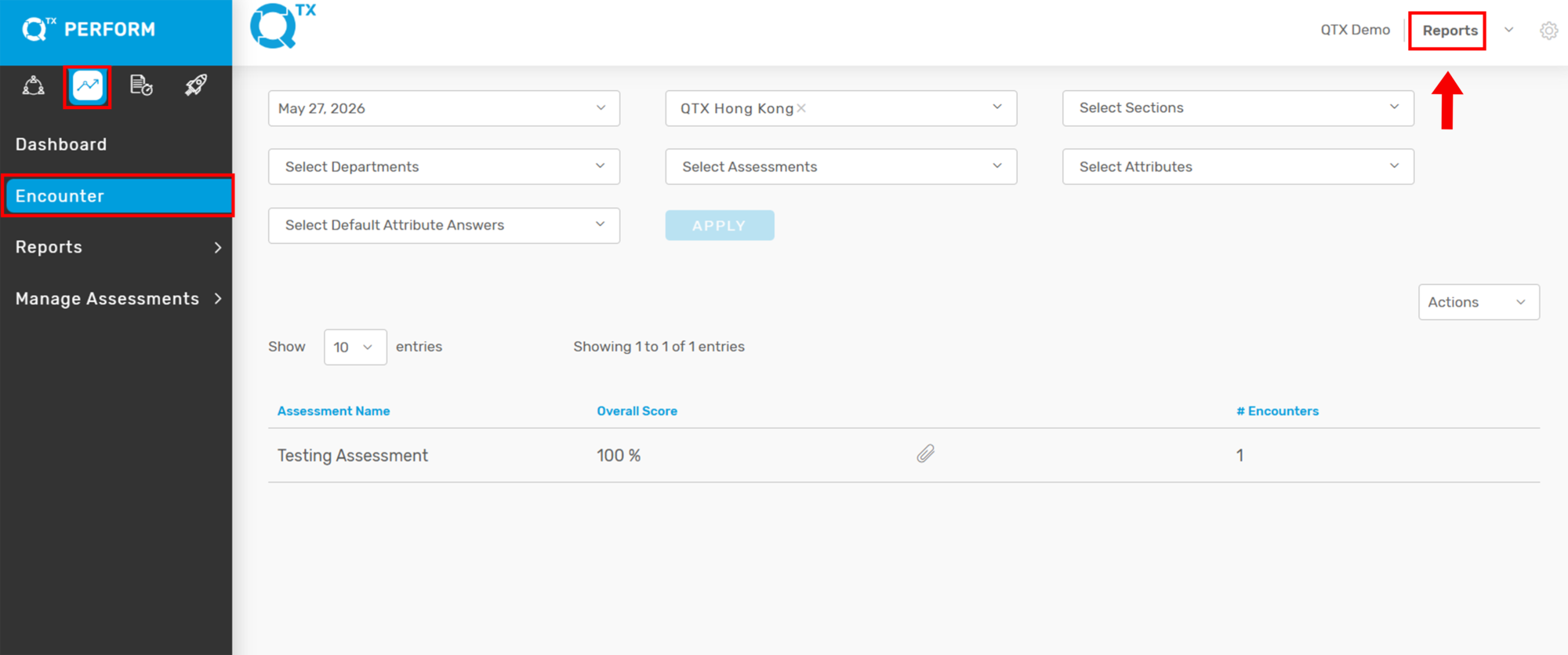
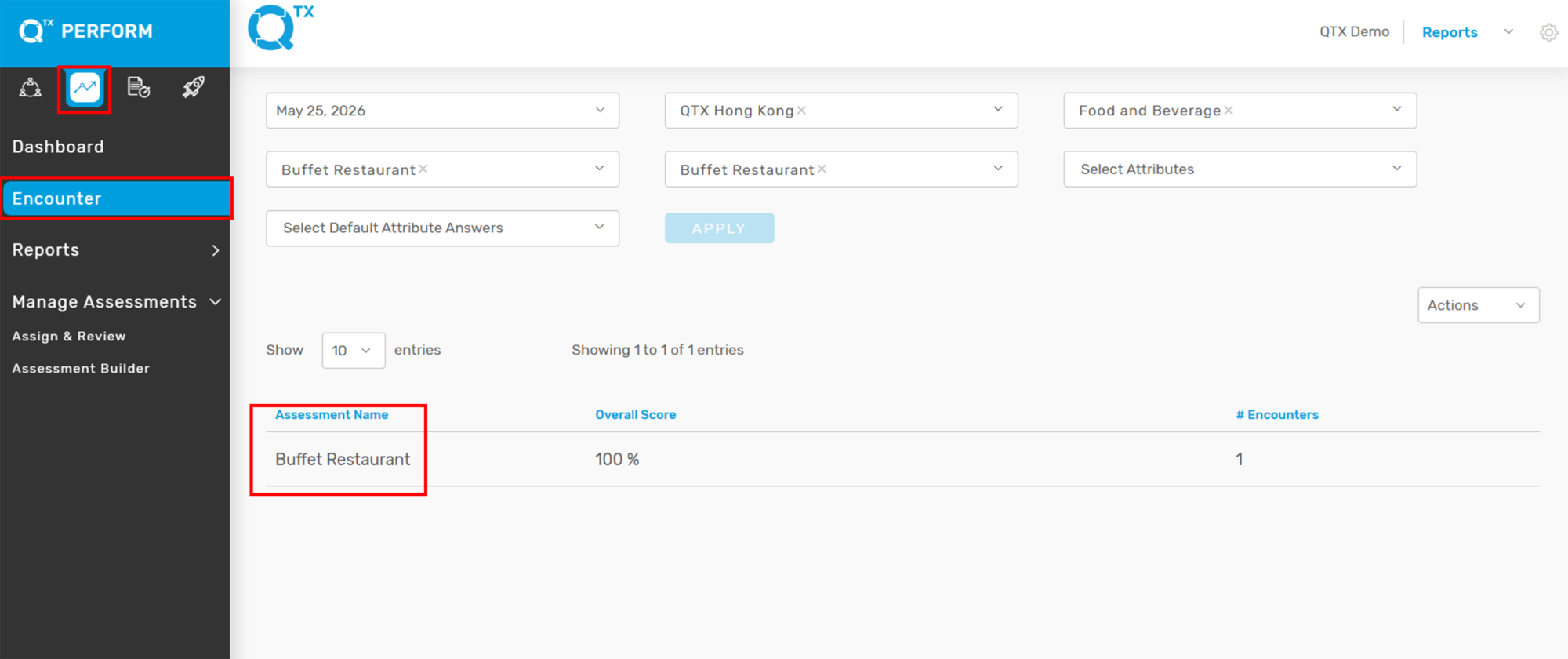
1. On the Dashboard landing page, go to the Encounter Report tab.


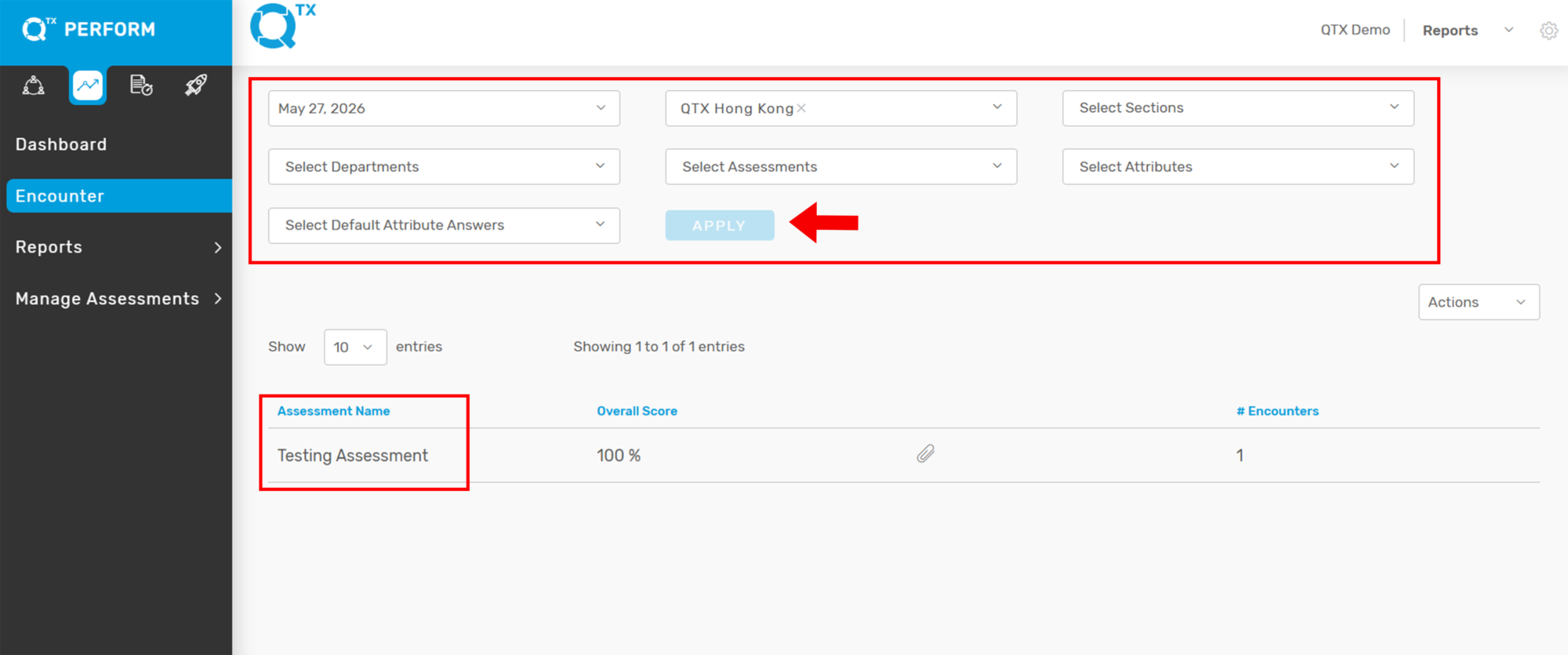
2. You may use the filter options to find the assessment you want to review.
Look for the clip icon indicated by the arrow, which signifies that the assessment contains an attachment.


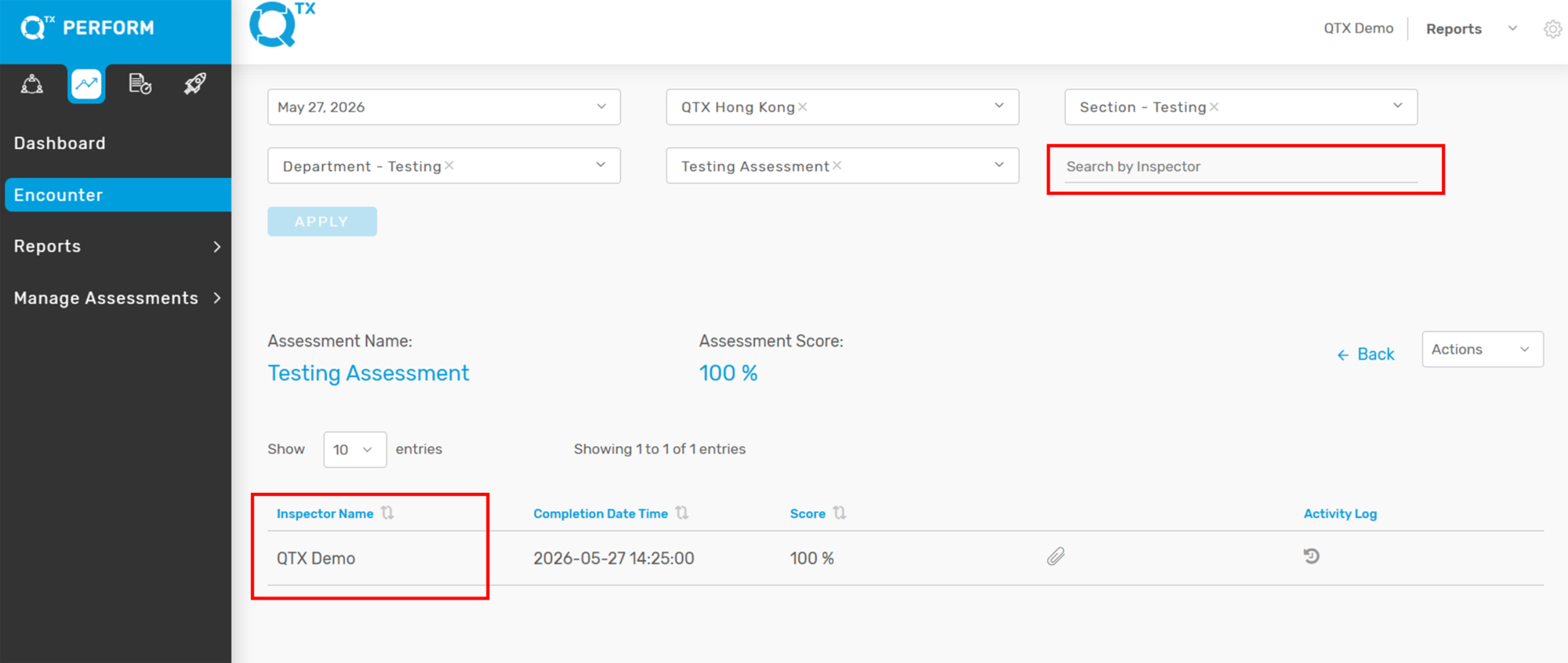
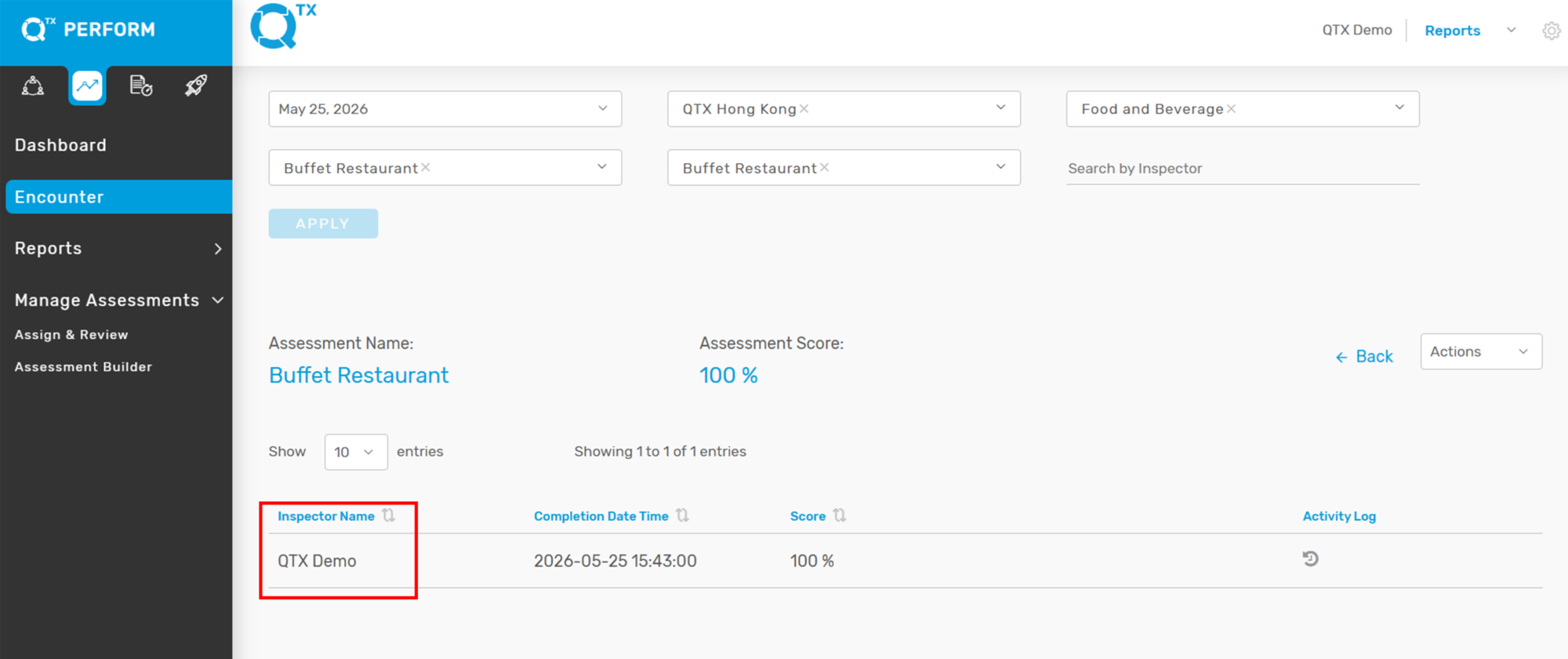
3. For example, click the assessment under the inspector name “QTX Demo” to open it for review.


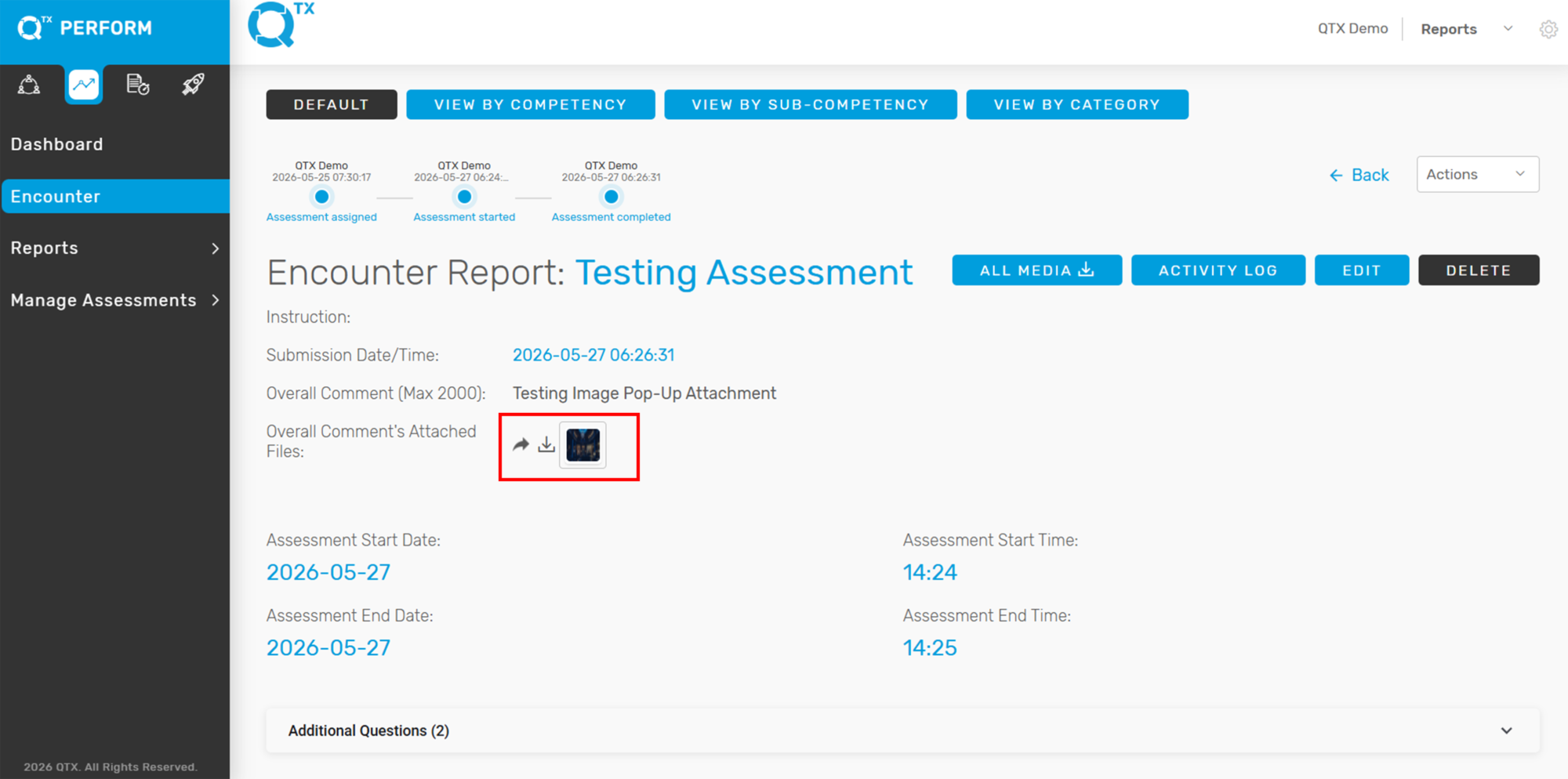
4. You will notice that attachments may appear in the Summary Comment Attached File section, as well as within specific standards of the assessment.


5. Click the Share button to open the compose email window. From there, you can add your review comments or feedback related to the image and send it to the intended recipient. Once completed, click Submit.


Note: The Share button will only function when an attachment is available in the encounter report. If there is no attachment, the Share button will not respond when clicked.


If you need further assistance, please send an email to helpdesk@q-tx.com

Can I still edit the “In Review” Assessment?

A: Yes, as long as the assessment is still in In Review status, it can still be edited.

Steps to edit the assessment:

  1. Go to the Inspector Dashboard
  2. Locate the specific assessment
  3. Click the In Review button
  4. Click Next
  5. Proceed to update the answers as needed
  6. Click Finish or re-submit the assessment once done

If the assessment is no longer in In Review status, editing will no longer be possible.

Attachment Shuffling for Standards and Overall Comments

What is Attachment Shuffling?

Attachment Shuffling is a new QTX feature that allows users to reorder attachments using a simple drag-and-drop interface on the web.


Which attachments can be reordered?

You can reorder attachments for:

  • Standards

  • Overall Comments

  • Assessment Instructions


Where can I shuffle attachments in QTX?

Attachment shuffling is available in the following areas:

  • Encounter Edit page – for Standards and Overall Comments

  • Builder page – for Assessment Instructions

  • Inspector Mode – for Standards and Overall Comments


Will the attachment order reflect in exported reports?

Yes. The reordered attachments will appear in the same sequence in the Encounter PDF export.


Which QTX platforms support this feature?

This feature is available across:

  • Perform

  • Qualify

  • Launch


How does this feature help users?

Attachment Shuffling:

  • Enables flexible reordering directly from the web interface

  • Improves usability and control over how attachments appear in PDFs

  • Ensures consistent behavior across Perform, Qualify, and Launch platforms

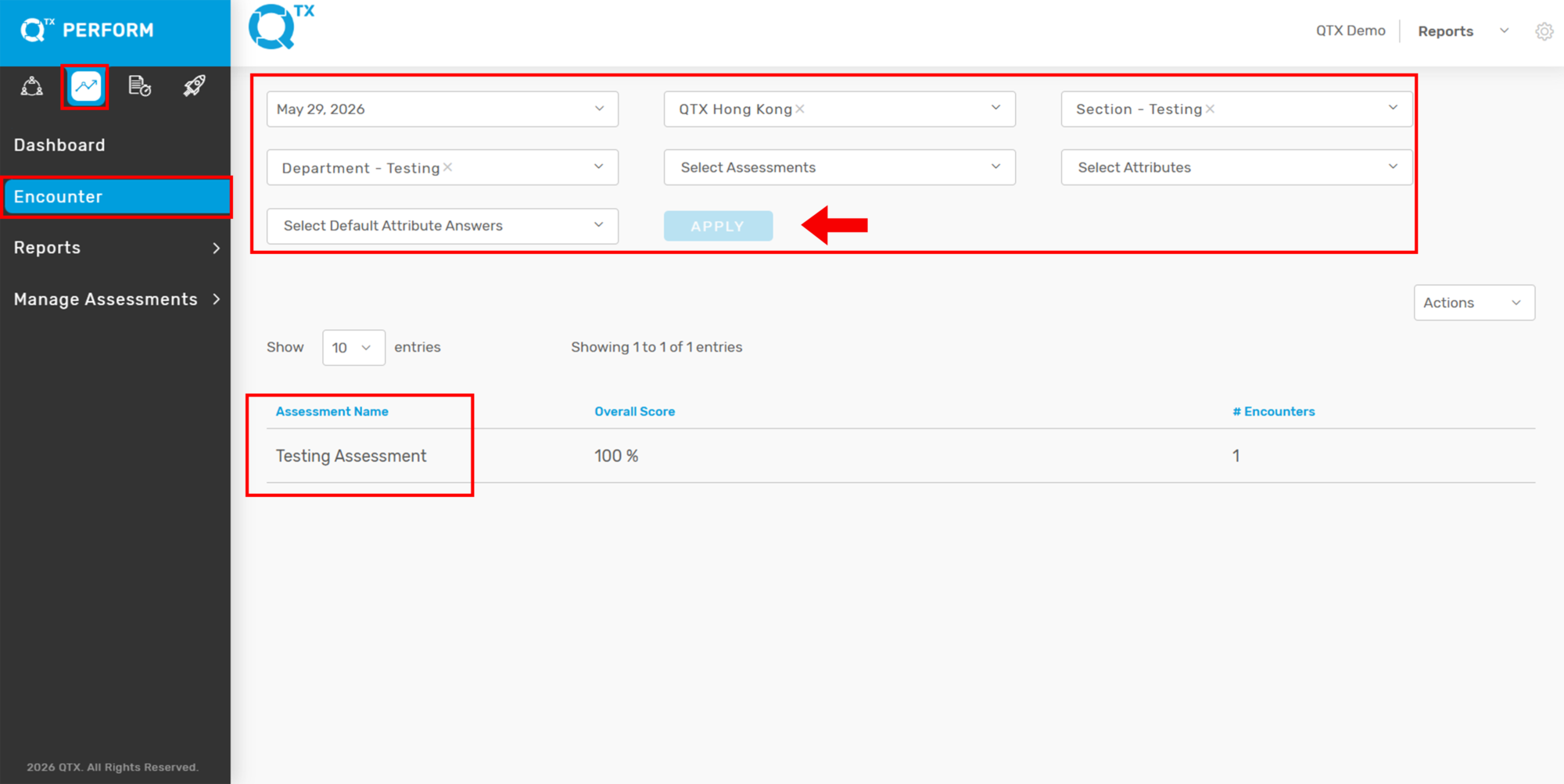
When does the APPLY button become enabled?

Answer:

Dynamic Enable/Disable of Filter Apply Button

What is the new enhancement?

The Apply button for filters is now dynamically enabled or disabled based on user interaction, ensuring clearer and more intuitive filter behavior.


How does the Apply button work now?

The Apply button behavior follows these rules:

  • The button is enabled only when a user changes a filter value that has not yet been applied

  • The button is disabled once the filter changes have been applied

  • This behavior also applies to free-text search filters


Which QTX platforms support this enhancement?

This update applies to:

  • Perform

  • Qualify

  • Launch


How does this enhancement help users?

This improvement:

  • Prevents unnecessary clicks by enabling the Apply button only when there are pending changes

  • Clearly indicates when filters or search inputs need to be applied

  • Helps users focus on relevant data more quickly

  • Improves overall efficiency and accuracy when filtering results

How can I track changes made in the system?

Answer:

Activity Log Permission for Location-Type Users

What’s new in this update?

The Activity Log permission, previously available only to Group Users, is now extended to Location-type users. This permission can be assigned exclusively by a Super Admin, based on a client’s request.


Who can assign the Activity Log permission?

Only a Super Admin can assign the Activity Log permission to Location-type users.


Who can access the Activity Log with this permission?

With this update:

  • Location-type users can be granted access to view Activity Logs

  • Access is controlled and delegated by the Super Admin


Which QTX platforms support this change?

This enhancement applies to:

  • Perform

  • Qualify

  • Launch


How does this feature help users?

This enhancement:

  • Allows Location-type users to independently view activity logs without relying on Group users

  • Enables faster identification and resolution of issues at the location level

  • Gives Super Admins and Clients better control over log visibility and access delegation

How does start and end date validation work?

Answer:

Start and End Date Validation in Inspector Mode and Encounter Edit Page

What is the new enhancement?

QTX now includes validation for the Start Date and End Date fields in both Inspector Mode and the Encounter Edit Page to ensure data accuracy and consistency.


Where does this validation apply?

The validation applies to:

  • Inspector Mode

  • Encounter Edit Page


What are the validation rules for Start Date and End Date?

The following rules apply in both modes:

  • Start Date cannot be greater than End Date
    The Start Date must always be earlier than or equal to the End Date.

  • Dates cannot be more than 120 days earlier than the current date
    Both Start Date and End Date must fall within the last 120 days from today.

  • Dates cannot be set in the future
    Start Date and End Date must not be later than the current date.


Was this validation available before?

No. Previously, Start Date and End Date were not validated in either Inspector Mode or on the Encounter Edit Page.


Which QTX platforms are affected by this change?

This enhancement applies to:

  • Perform

  • Qualify

  • Launch


How does this enhancement help users?

This validation:

  • Prevents date-related errors that could impact reports or compliance

  • Ensures accurate data entry through automatic checks

  • Reduces manual verification and rework

  • Saves time and minimizes processing delays

Why can’t I edit my completed assessment on the Encounter Report?

Answer:
The Edit option is only available to Group Users or to users who have been granted special permission.

If you don’t have access to edit a completed assessment, you can export the file to Excel or PDF, add the necessary information there, and send it to the QTX Support Team for review.

Solution: Please contact your Training Team Admin or Champion to request them to contact QTX Support for permission to grant you edit access.

Why can’t I see anything on my Inspector account?

Possible Reasons and Solutions:

New User Account

If your account was just created, it may not have any assessments assigned yet.

Solution: Wait for the admin or manager to assign an assessment to your account.

No Assessment Assigned

You might not have any active assessments linked to your profile.

Solution: Contact your administrator to confirm or request assignment of assessments.

If the issue continues, please contact QTX Support for further assistance.

Why does the code x000D appear on my QTX assessment?

Possible Reasons and Solutions:

Copied Content from Notepad or Another Excel File

The x000D code usually appears when text is copied and pasted from Notepad to Excel or Excel to Excel.

Explanation: The x000D code represents a carriage return or line break (like pressing the “Enter” key).

Hidden Line Breaks in Cells

Sometimes, Excel cells contain hidden line breaks even if they don’t look like it.

Solution: Use Excel’s Find and Replace feature (Ctrl + H) to find _x000D_ and replace it with a blank space.

Formatting Issues from External Sources

Copying text from formatted documents (like Word or PDFs) can also add invisible characters.

Solution: Before pasting into Excel, first paste the text into Notepad to remove hidden formatting, then copy it again to Excel.

Why can’t I log in to my account?

Possible Reasons and Solutions:

No Access Granted

    • The user account may not have system access.

    • Solution: Contact your administrator to confirm your access rights.

Inactive Account

    • The account may have been inactive for more than 3 months and was automatically disabled.

    • Solution: Request reactivation from your system administrator.

Incorrect Username or Password

    • The login details entered may be incorrect.

    • Solution: Double-check your username and password, or use the “Forgot Password” option to reset it.

If the issue persists, please contact QTX Support for further assistance.

Why can’t I view my assigned Mystery Shop?

Possible Reason:
The End Date of the Mystery Shop Assessment Period may have already expired.

How to Check:

  1. Go to QTX Qualify.

  2. Under Mystery Shop, filter the desired Assessment Period.

  3. Click the three dots (⋮) next to the Assessment Period name.

  4. Select “Edit.”

  5. Check if the End Date has expired.

If the End Date has already passed, the Mystery Shop will no longer be visible.

What is Competency used for?

Answer:
Competency is used to assess, track, and develop an employee’s skills, knowledge, and behaviors needed for specific roles in the organization. It helps identify strengths, skill gaps, and training needs, supporting career growth and performance improvement.

Why can’t I upload a file larger than 10MB?

Answer:
To ensure smooth system performance and a good user experience on both web and mobile platforms, the file upload limit is set to 10MB.

This limit helps to:

  • Maintain fast upload times

  • Reduce the risk of failed uploads due to network interruptions

  • Ensure compatibility across different devices and browsers

  • Manage server resources efficiently for all users

If you need to share a file larger than 10MB, you can:

  • Use a file compression tool to reduce the file size, or

  • Upload it to a secure cloud storage service (e.g., Google Drive, Dropbox) and share the link instead.

For further assistance or alternative upload methods, please contact our support team.

Why can’t a user view past assessment results?

Possible Reasons and Solutions:

Role Permissions

    • The user’s role may not have permission to view past assessment results.

    • Solution: Check and update the user’s role permissions to ensure access is granted.

Access to Reporting Tab

    • The user may not have access to the Reporting tab.

    • Solution: Grant the user access to the Reporting tab in the system settings.

Assessment Visibility Settings

Some assessments may be configured to hide results after the assessment period ends.

Solution: Check the visibility settings under the assessment configuration and adjust if needed.

Expired or Archived Assessments

The assessment results might be archived, or the assessment period may have expired.

Solution: Confirm if the assessment is still active or request admin access to archived data.

User Not Assigned to Assessment

The user may not have been part of that specific assessment or location.

Solution: Verify if the user was included in the assigned assessment group.

Why can’t the user publish an assessment after uploading the checklist?

Checklist Format Issues
The uploaded checklist may not match the required format.
Solution: Review the checklist and ensure it follows the correct format before uploading again.

Empty Titles or Options
Some sections, questions, or answer options might be left blank.
Solution: Go through the checklist and make sure all titles, sections, and options are fully filled in.

File Upload Error
The checklist may not have uploaded properly due to network issues or file corruption.
Solution: Try uploading the checklist again, then attempt to publish the assessment.

General Tip
After making corrections, refresh the page and check that all updates are saved before publishing.

For further assistance, please contact our support team.

Can I upload multiple checklists at once?

No, the system currently supports uploading only one checklist at a time using the Excel uploader.

Step-by-step guide if you have multiple checklists:

  • Prepare each checklist separately in its own Excel file.

  • Go to the Assessments → Builder → Upload from Excel section.

  • Upload the first checklist and wait for the confirmation message that says “Successfully uploaded.”

  • Repeat the process for each additional checklist.

  • Make sure each checklist is correctly named to avoid confusion.

This ensures that all checklists are properly uploaded and available in the system.

For further assistance, please contact our support team.

How do I reset a users password?

 Open Settings
Click the gear icon located in the upper-right corner of the screen to access Settings.

 Go to Manage Profile
From the Settings menu, select “Manage Profile.”

Reset the Password
Click on “Reset Password.”

Enter New Password
Input the new password and confirm it by re-entering the same password in the required fields.

Save Changes
Click “Save” or “Confirm” to apply the new password.

Notes:

  • If you encounter any issues, contact your system administrator for assistance.

How to a Upload a New Assessment from Excel

This feature allows you to quickly create a new assessment by importing an Excel file. Instead of entering each item manually, you can upload a formatted spreadsheet, and the system will automatically generate the assessment based on your data. This helps save time and ensures consistency across checklists.


1. Ensure that the new assessment name has already been created in the QTX system.

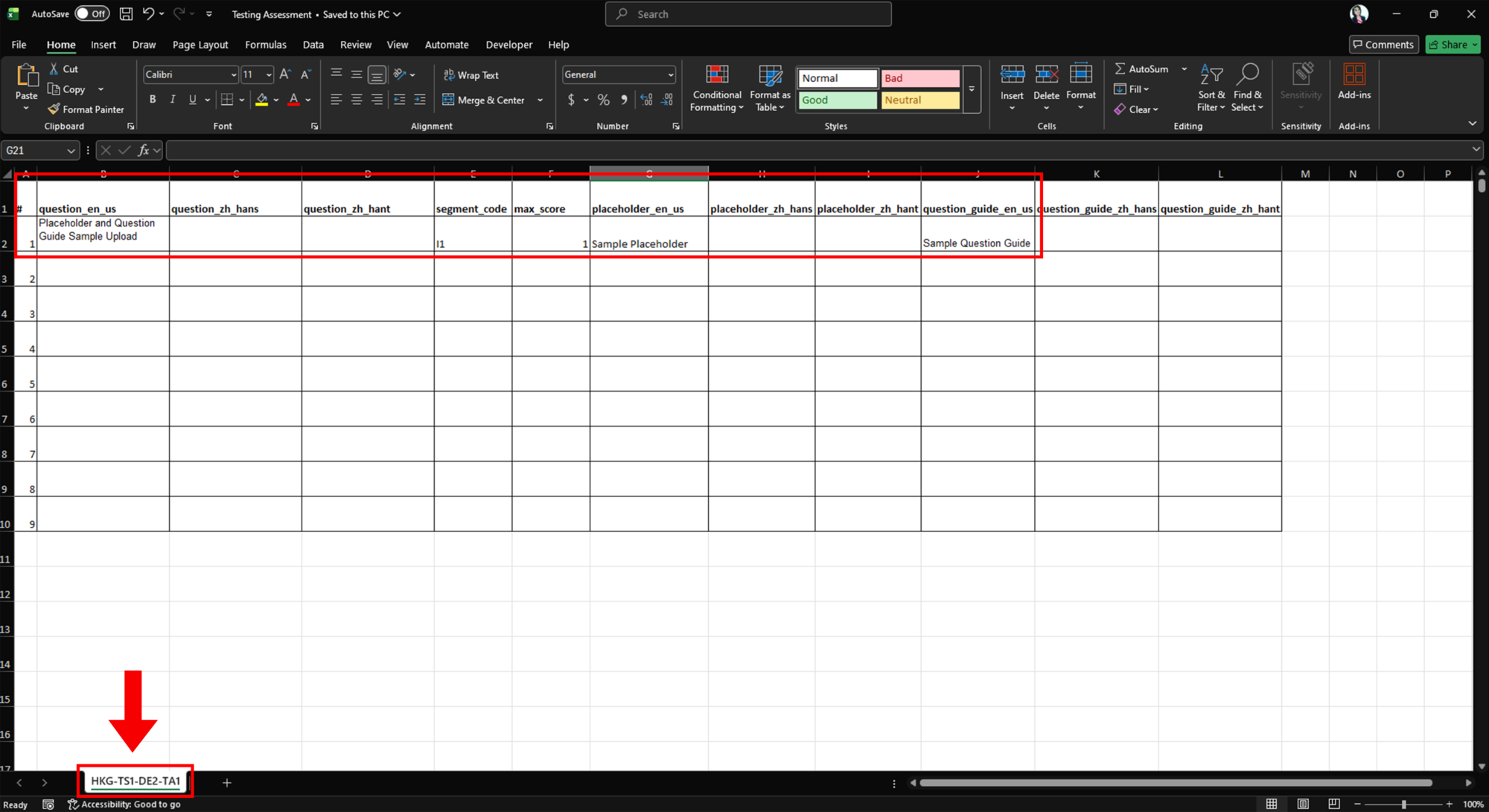
2. Prepare the assessment template and fill in the necessary information. The required columns are A, B, E, and F.


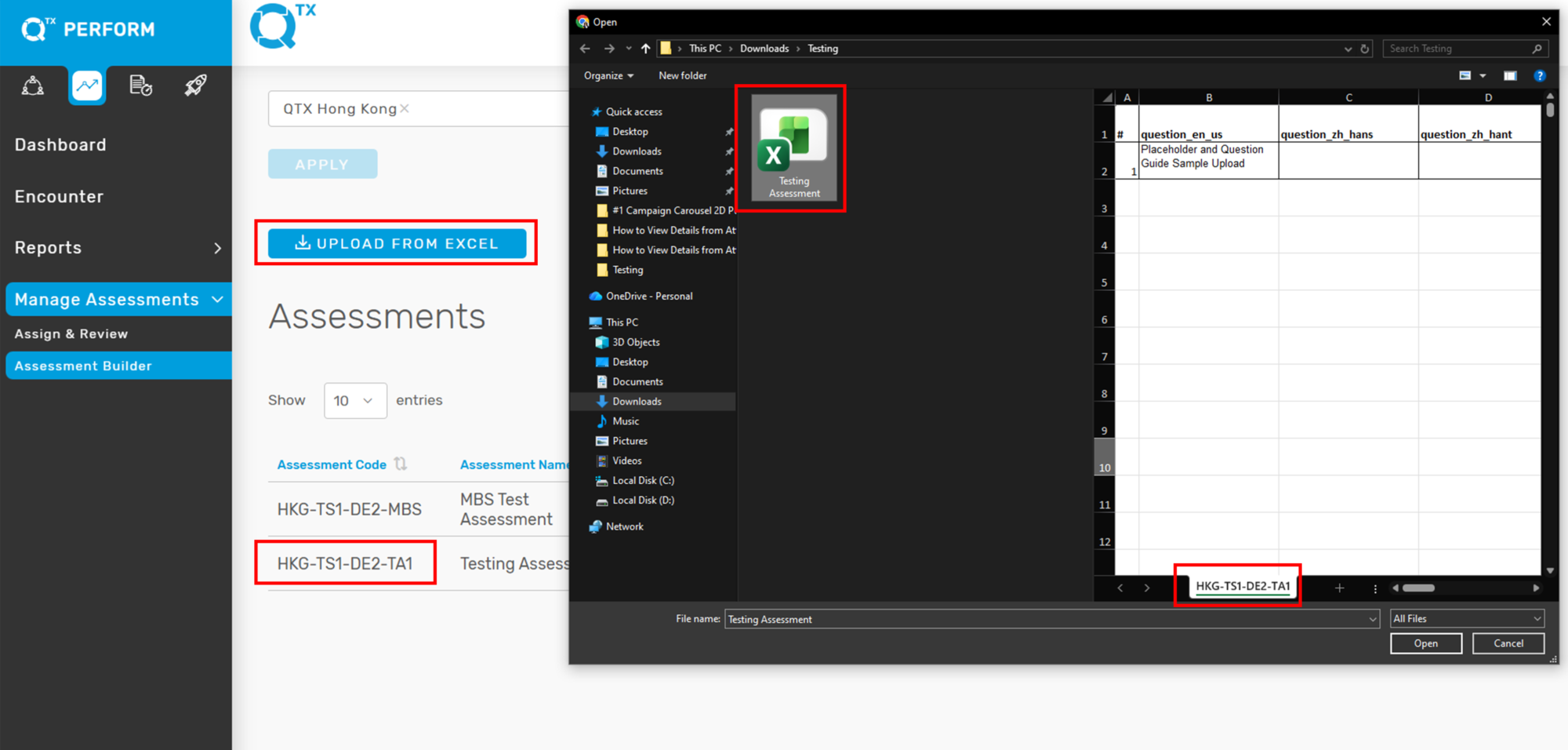
3. The Excel file name and the sheet name should be the same as the QTX unique assessment code.

Example: HKG-SEC-SEC-CHG


4. Once the Excel file is ready, log in to the platform (e.g., Perform) and navigate to Assessments → Builder.

5. Click the “UPLOAD FROM EXCEL” button and select the prepared Excel file.


6. A confirmation message will appear once the upload is successful.

7. To verify the upload, use the filter to select the relevant location, section, and department. Click the assessment to open and review the uploaded checklist.


If you need further assistance, please send an email to helpdesk@q-tx.com

Why isn’t my checklist appearing in the Perform section?

Possible Reasons and Solutions:

Incorrect Assessment Code
The assessment code may be incorrect or not properly linked.
Solution: Ensure that the correct assessment code is entered.

Assessment Not Published
The checklist may not have been published after being uploaded.
Solution: Verify that the assessment status is set to Published.

User Access or Role Restriction
The user may not have the necessary permissions to view or perform the assessment.
Solution: Confirm that the user’s role has the appropriate access rights.

Location or Assignment Mismatch
The checklist may be assigned to a different location or user group.
Solution: Check that the checklist is assigned to the correct location or intended users.

How do I create a new assessment?

Answer:

To create a new assessment, follow these steps:

  • Navigate to Assessments from the main menu.

  • Click on Builder to open the assessment creation module.

  • Select “Upload from Excel” to import your assessment file.

  • Choose the correct Excel file from your device and upload it.

  • Wait for the system notification confirming “Successfully uploaded.”

Once the upload is complete, your assessment will be created in the system.


Notes:

  • Ensure your Excel file follows the required template format before uploading.

  • If the upload fails, review the file for formatting errors or missing required fields.

[How to upload a new assessment from Excel Guide]

[QTX Guide 001 How to Customize Assessments Video]

For further assistance, please contact our support team.

Qualify: How to extend the mystery shop assignment

The Mystery Shop Assignment module allows administrators to schedule and manage mystery evaluations for different service areas or departments.


1. On the Dashboard landing page, click the “QUALIFY” button to proceed.


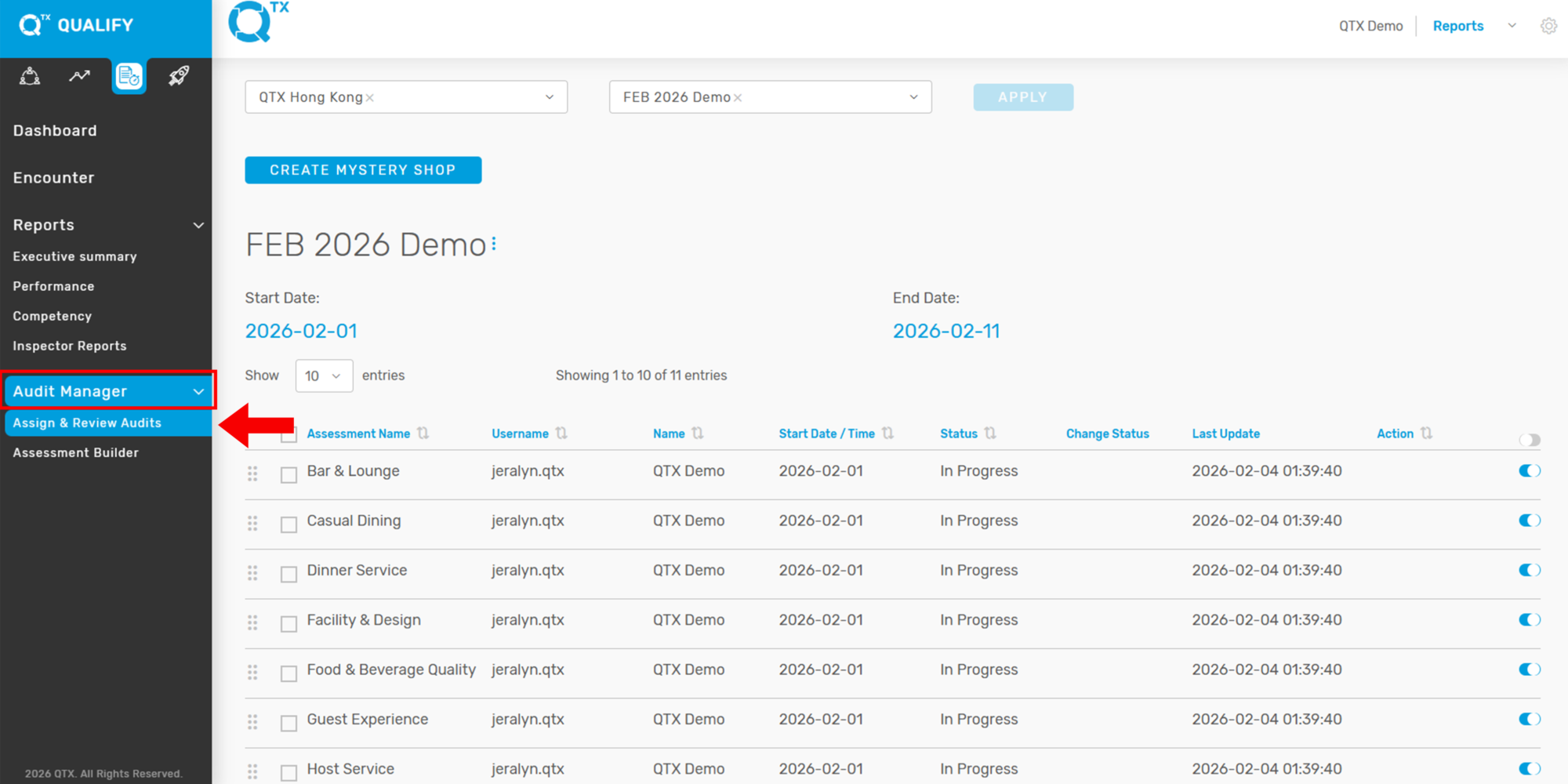
2. Go to the Audit Manager tab and select Assign & Review Audits.


3. Use the filter to select the desired Assessment Period you want to extend, then click Apply.


4. Click the three dots (as shown by the arrow) to reveal the Edit and Delete options.


5. Select Edit, click the Dropdown arrow, update the End Date, and then click Save.


If you need further assistance, please send an email to helpdesk@q-tx.com

How to Add New Assessment Attributes

Assessment Attributes are the key components used to define, filter, and organize an assessment. They help categorize and structure assessment content for easier tracking, reporting, and evaluation. These attributes are applied to each assessment to provide more context and relevance based on department, area, frequency, and more.


1. On the Launch Dashboard landing page, click the Settings icon located at the top right corner of your screen, then select “Manage Locations” from the dropdown menu.


2. The system will automatically direct you to the “Location” tab.


3. Click on the “Assessment Attribute” tab to view and manage existing Assessment Attributes.


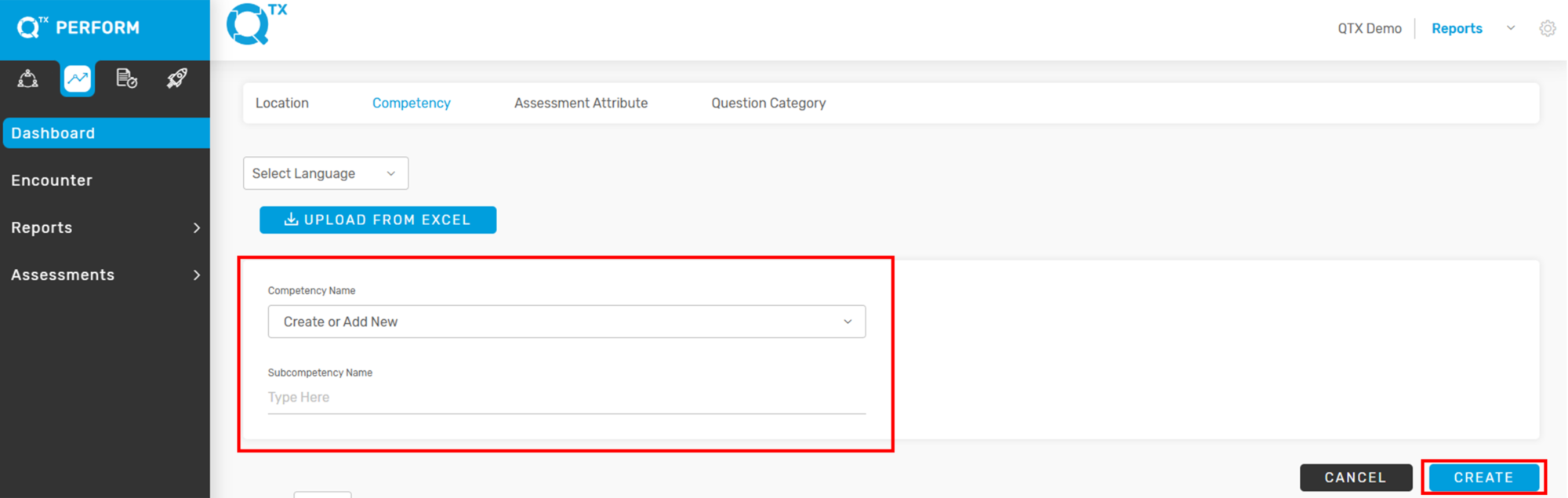
4. Click “Add New” to start creating a new Assessment Attributes


5. The user can start creating or adding a new “Assessment Name”, then click “Create” to save.


If you need further assistance, please send an email to helpdesk@q-tx.com

Launch: How to Add New Question Category

How to Add New Question Category

Creating a new Question Category helps organize questions into specific groups, making assessments more structured and easier to manage.


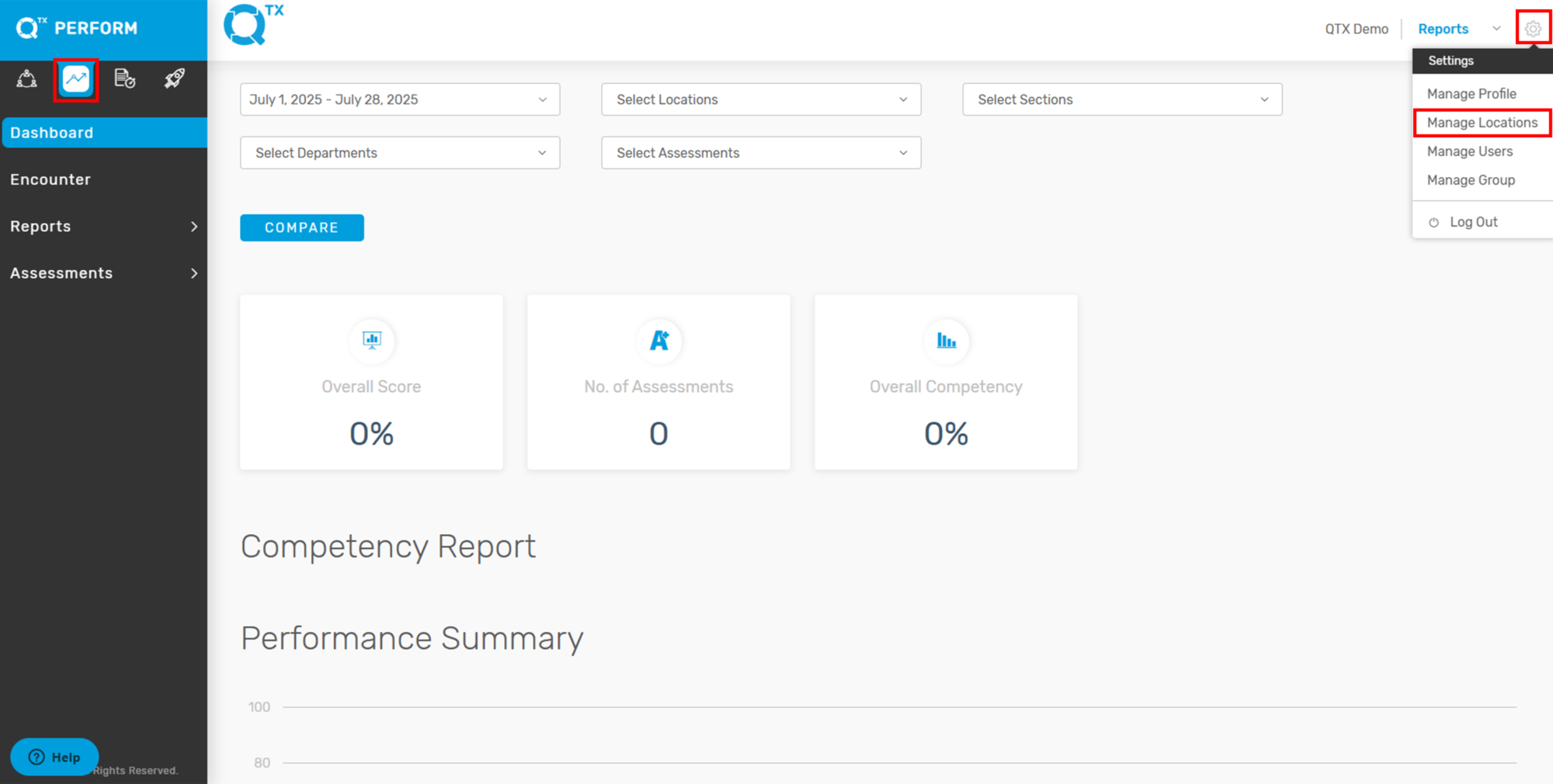
1. On the Launch Dashboard landing page, click the Settings icon located at the top right corner of your screen, then select “Manage Locations” from the dropdown menu.


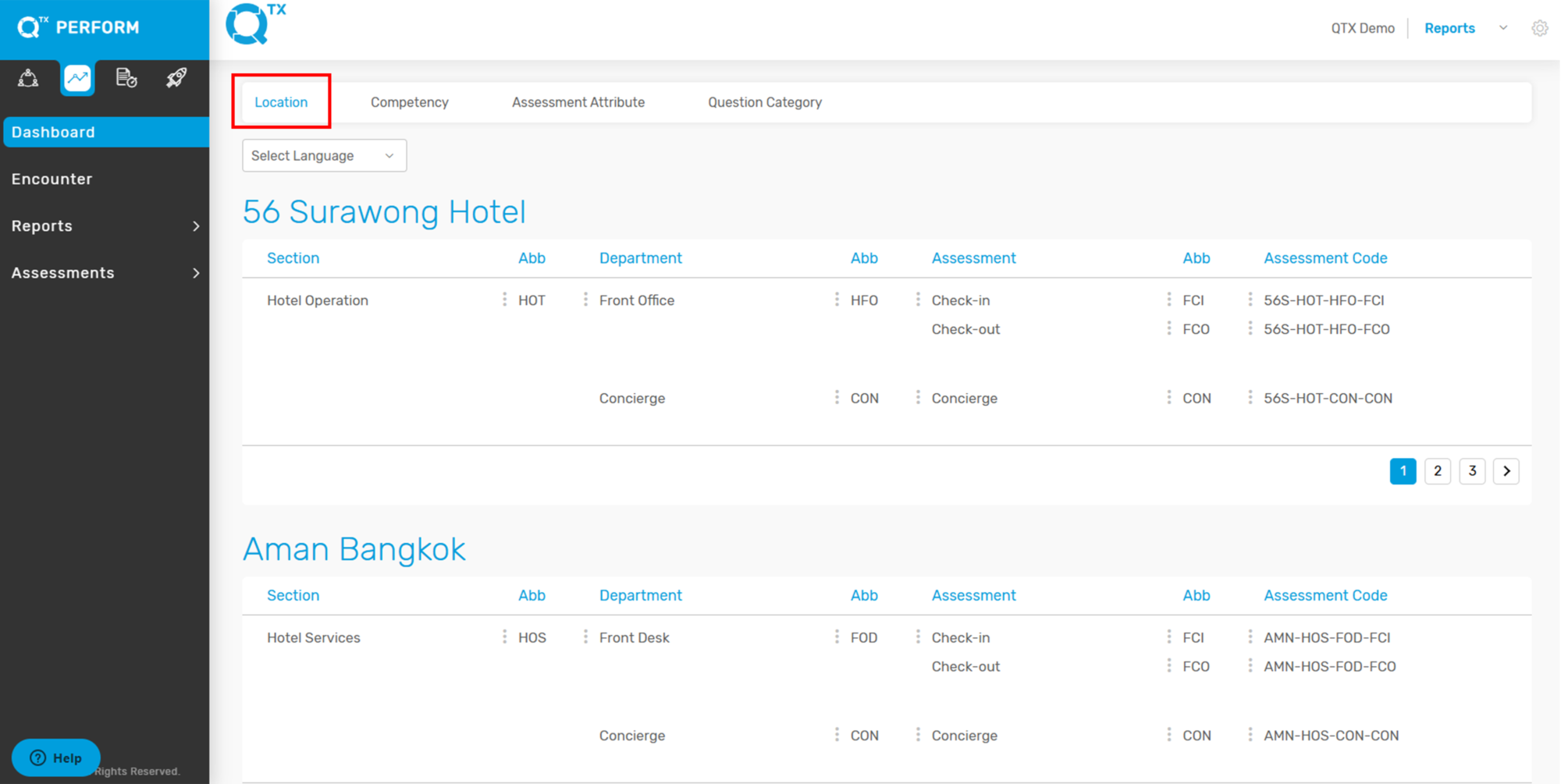
2. The system will automatically direct you to the “Location” tab.


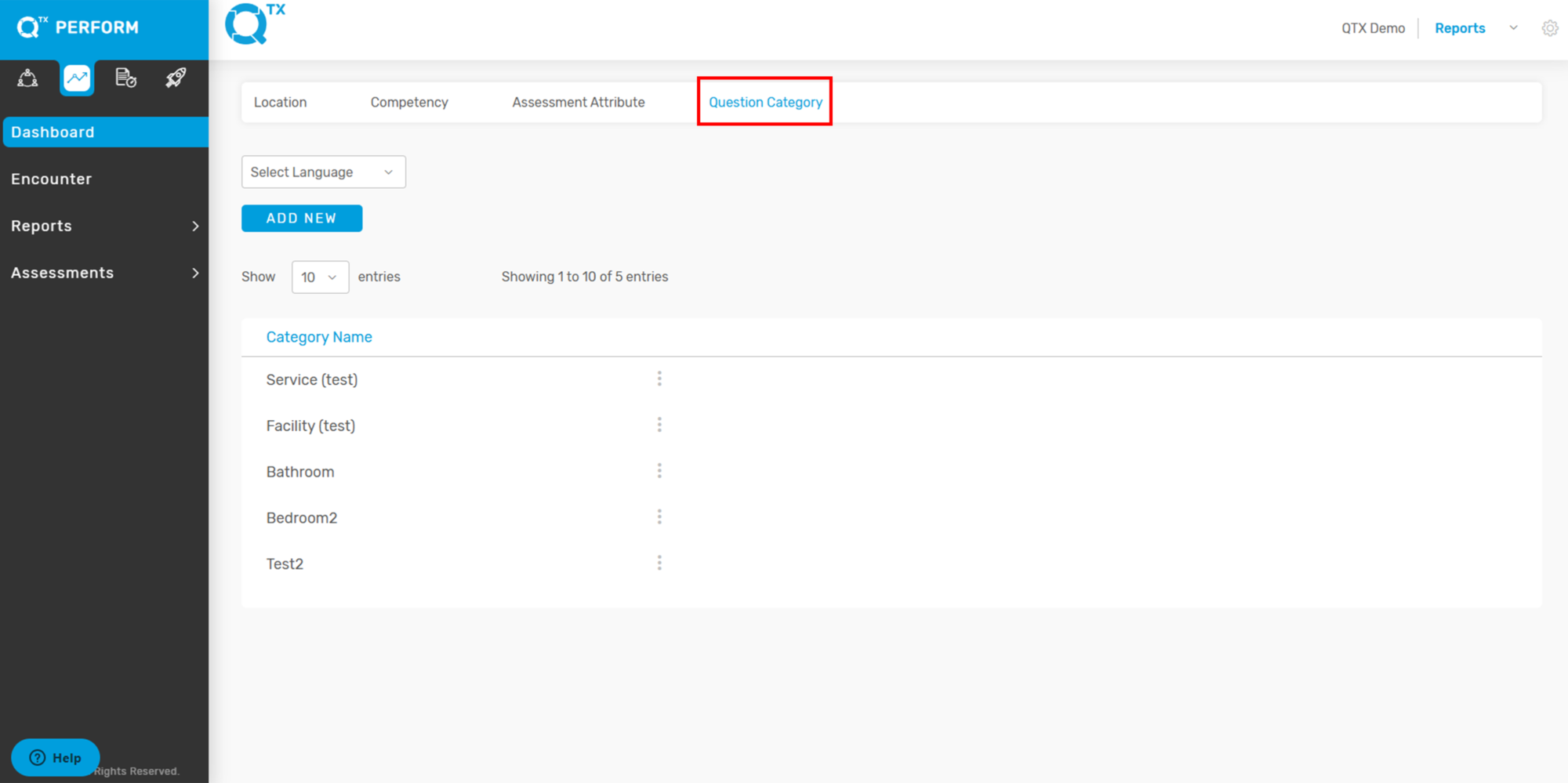
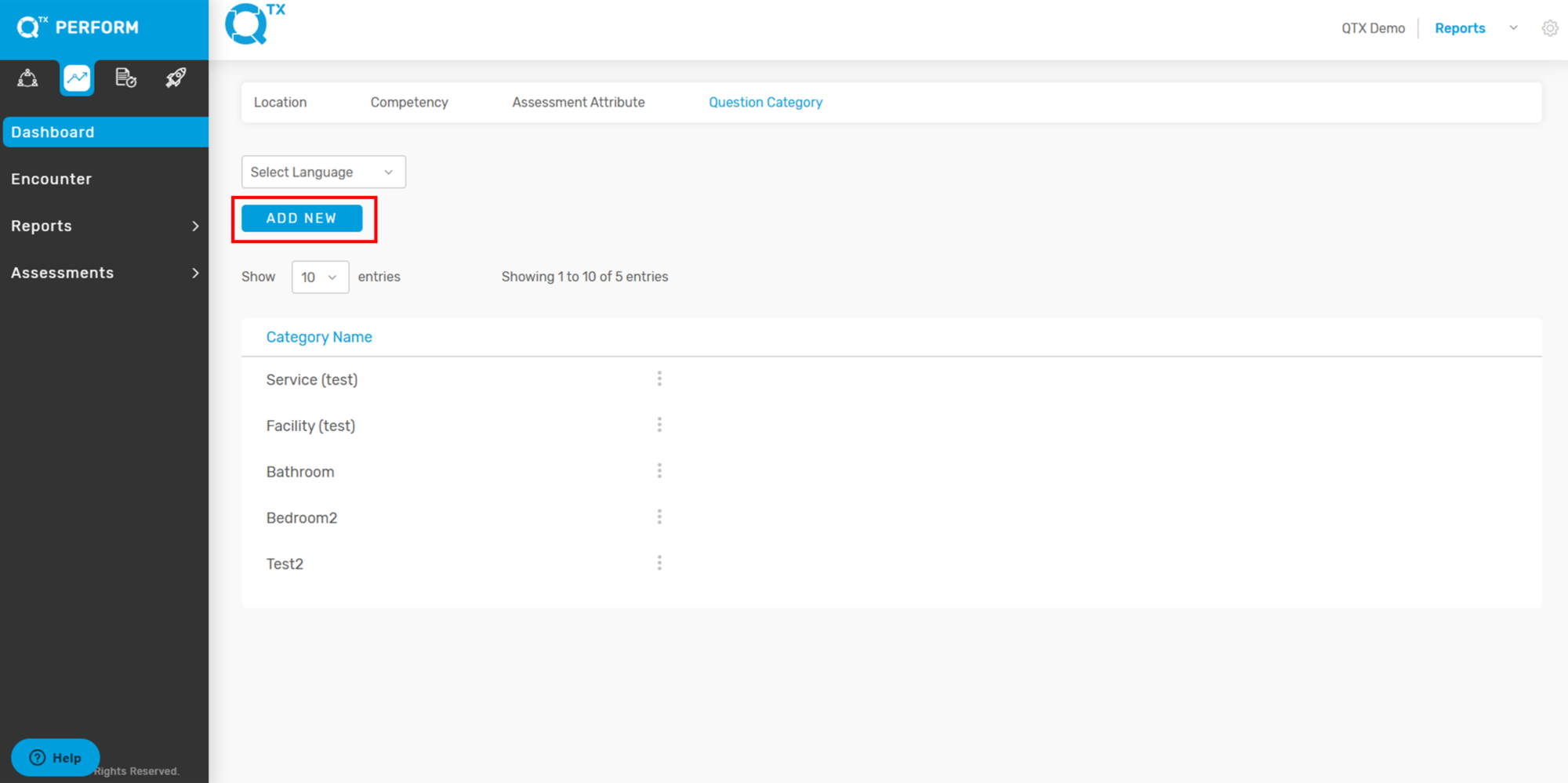
3. Click on the “Question Category” tab to view and manage existing categories.


4. Click “Add New” to start creating a new Question Category.


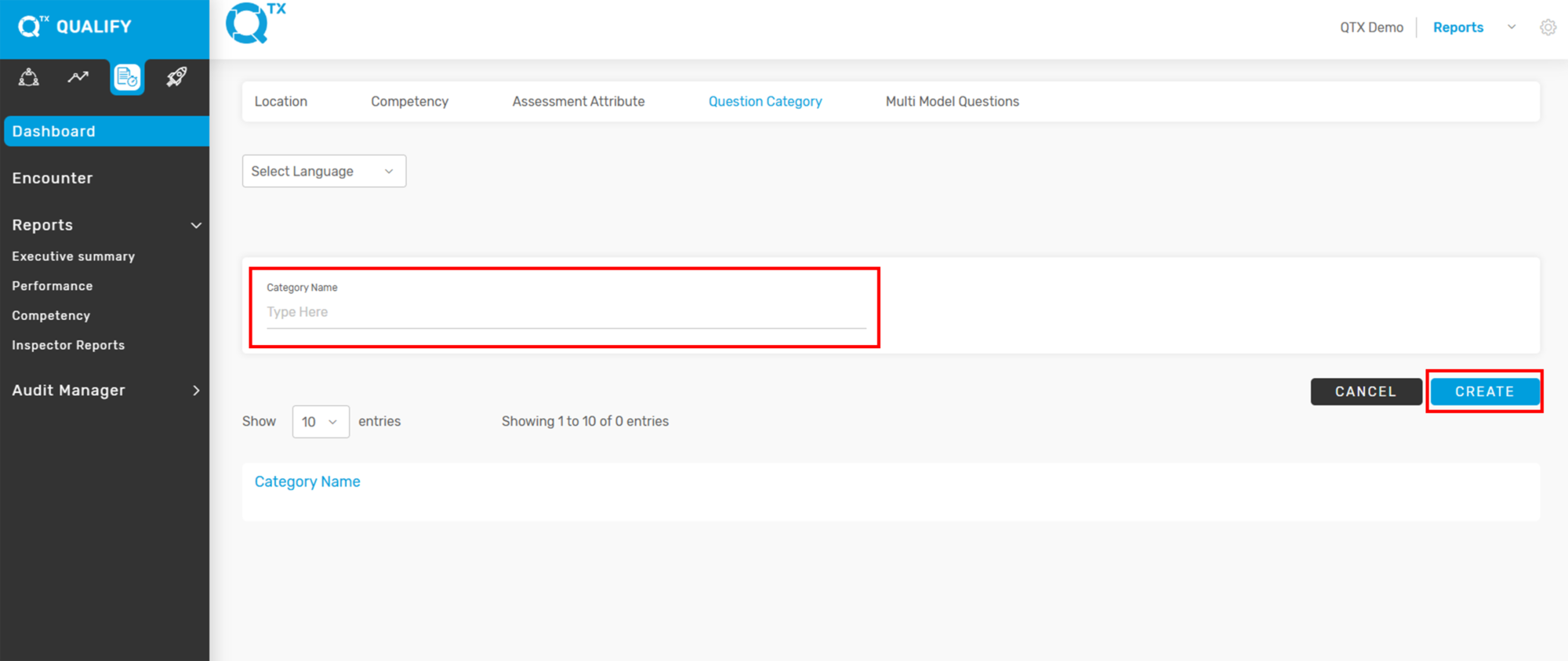
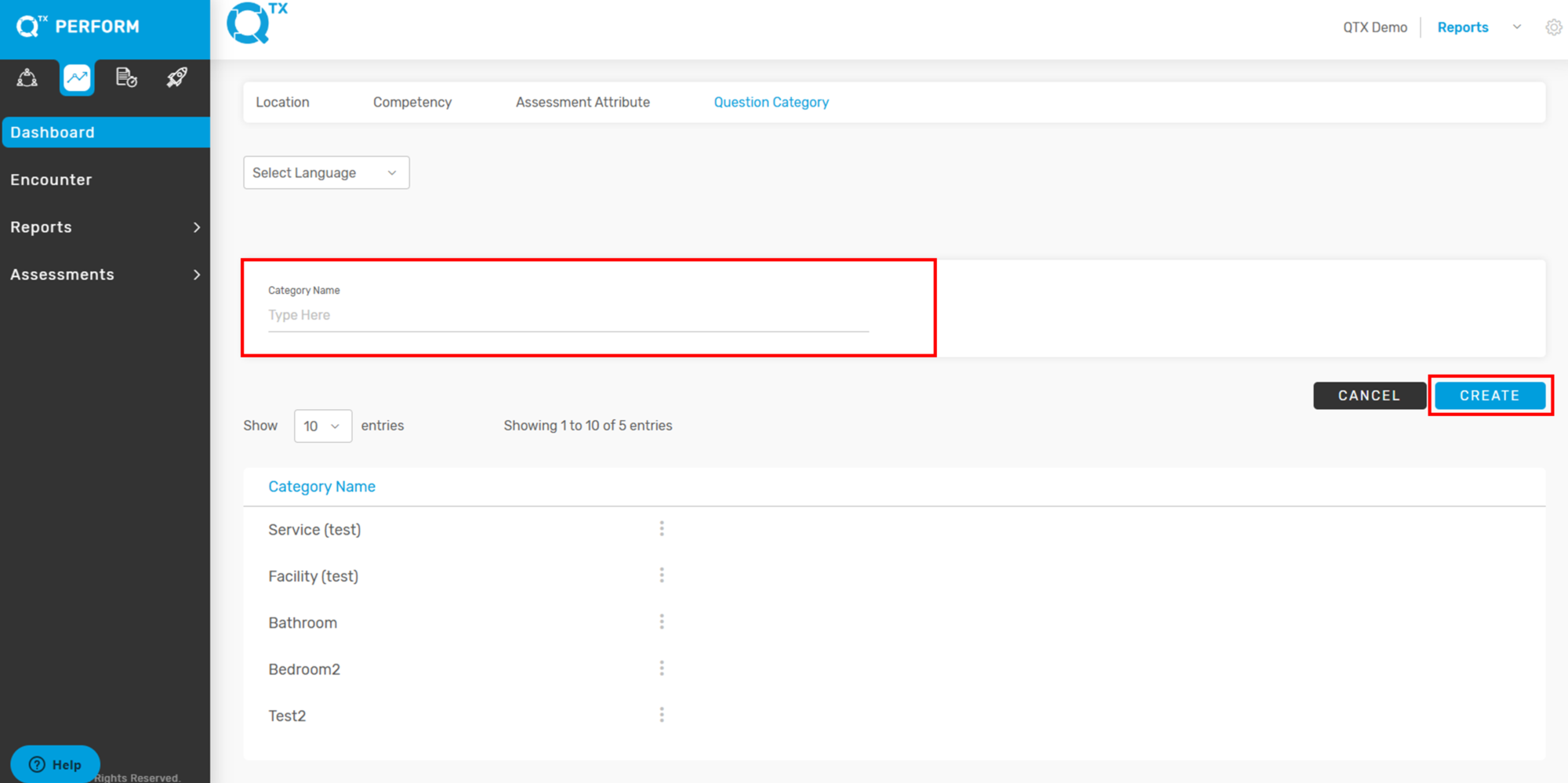
5. The user can start creating or adding a new “Question Category”, then click “Create” to save.


If you need further assistance, please send an email to helpdesk@q-tx.com

Qualify: How to Add New Question Category

Creating a new Question Category helps organize questions into specific groups, making assessments more structured and easier to manage.


1. On the Qualify Dashboard landing page, click the Settings icon located at the top right corner of your screen, then select “Manage Locations” from the dropdown menu.


2. The system will automatically direct you to the “Location” tab.


3. Click on the “Question Category” tab to view and manage existing categories.


4. Click “Add New” to start creating a new Question Category.


5. The user can start creating or adding a new “Question Category”, then click “Create” to save.


If you need further assistance, please send an email to helpdesk@q-tx.com

Perform: How to Add New Question Category

Creating a new Question Category helps organize questions into specific groups, making assessments more structured and easier to manage.


1. On the Perform Dashboard landing page, click the Settings icon located at the top right corner of your screen, then select “Manage Locations” from the dropdown menu.


2. The system will automatically direct you to the “Location” tab.


3. Click on the “Question Category” tab to view and manage existing categories.


4. Click “Add New” to start creating a new Question Category.


5. The user can start creating or adding a new “Question Category”, then click “Create” to save.


If you need further assistance, please send an email to helpdesk@q-tx.com

Launch: How to Add New Competency and Sub Competency

Adding new Competencies and Sub-Competencies is essential for maintaining a clear and structured evaluation framework. Each Competency represents a key area of performance or skill, while Sub-Competencies provide detailed breakdowns to ensure specific expectations are assessed accurately.


1. On the Launch Dashboard landing page, click the Settings icon located at the top right corner of your screen, then select “Manage Locations” from the dropdown menu.


2. The system will automatically direct you to the “Location” tab.


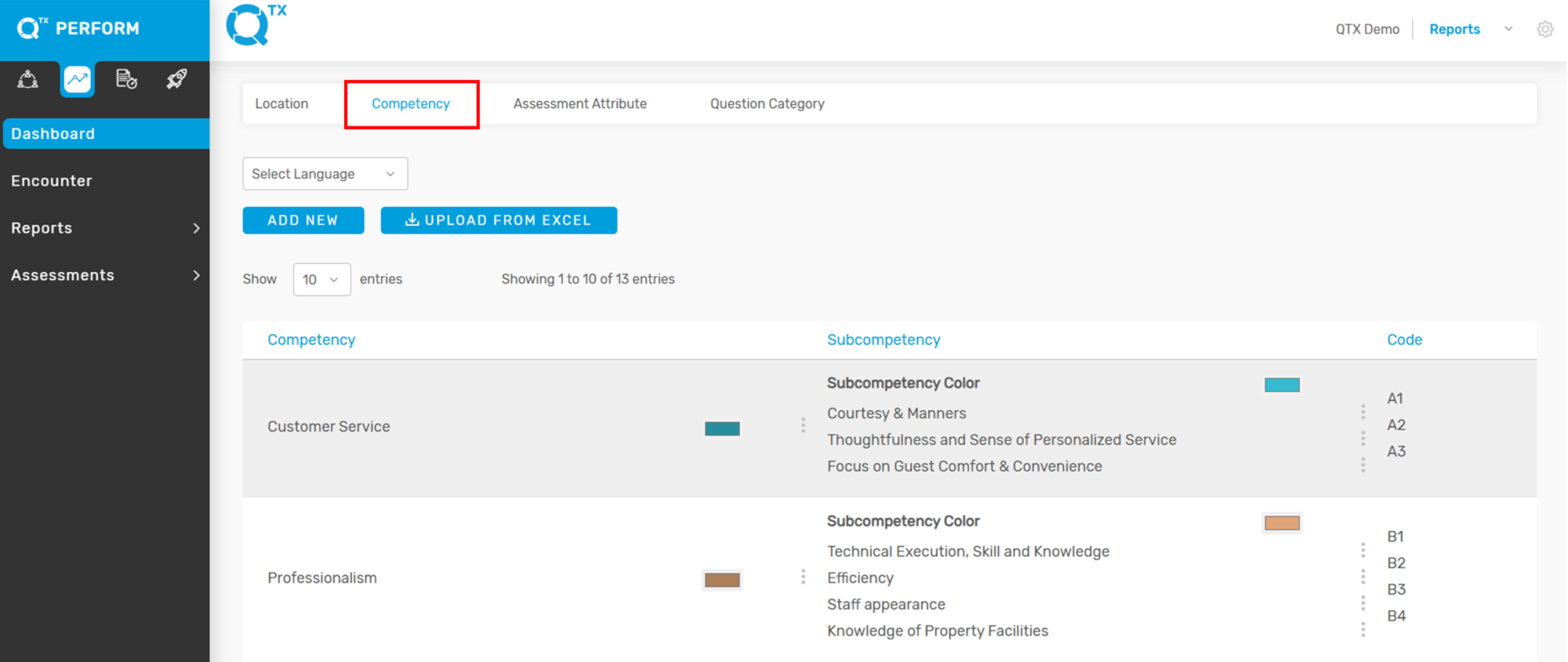
3. Click on the “Competency” tab to view the list of existing Competencies, Sub-Competencies, and their corresponding Codes.


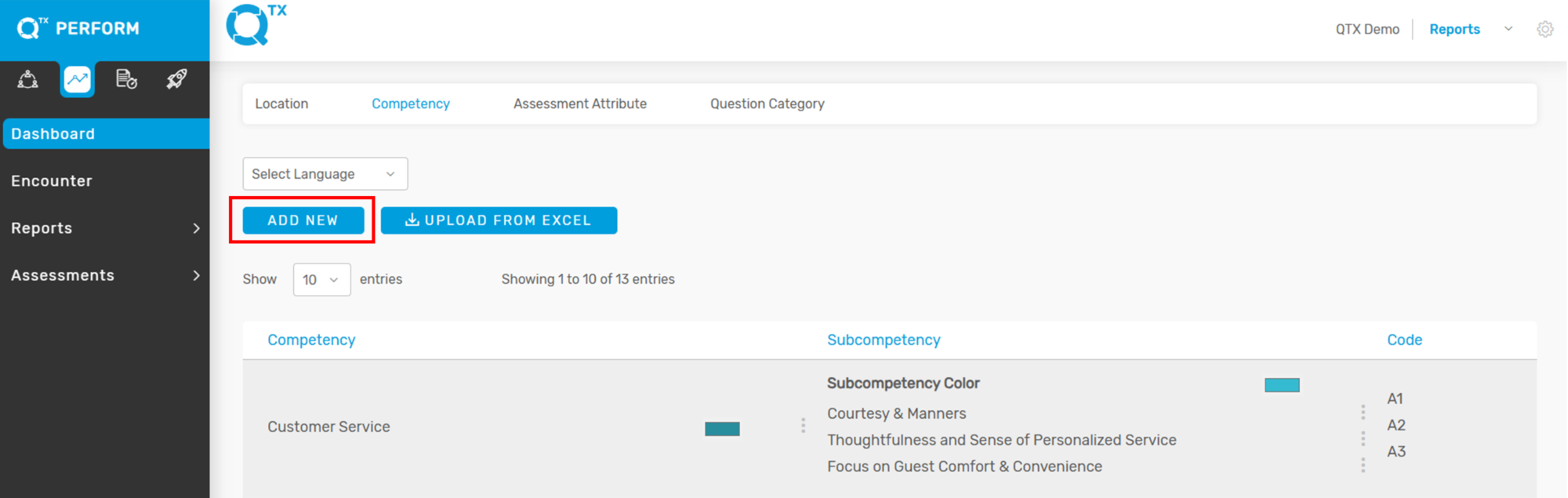
4. Click “Add New” to begin creating a new Competency or Sub-Competency.


5. The user can start creating or adding a new Competency and Sub-Competency, then click “Create” to save.


If you need further assistance, please send an email to helpdesk@q-tx.com

Qualify: How to Add New Competency and Sub Competency

Adding new Competencies and Sub-Competencies is essential for maintaining a clear and structured evaluation framework. Each Competency represents a key area of performance or skill, while Sub-Competencies provide detailed breakdowns to ensure specific expectations are assessed accurately.


1. On the Qualify Dashboard landing page, click the Settings icon located at the top right corner of your screen, then select “Manage Locations” from the dropdown menu.


2. The system will automatically direct you to the “Location” tab.


3. Click on the “Competency” tab to view the list of existing Competencies, Sub-Competencies, and their corresponding Codes.


4. Click “Add New” to begin creating a new Competency or Sub-Competency.


5. The user can start creating or adding a new Competency and Sub-Competency, then click “Create” to save.


If you need further assistance, please send an email to helpdesk@q-tx.com

Perform: How to Add New Competency and Sub Competency

Adding new Competencies and Sub-Competencies is essential for maintaining a clear and structured evaluation framework. Each Competency represents a key area of performance or skill, while Sub-Competencies provide detailed breakdowns to ensure specific expectations are assessed accurately.


1. On the Perform Dashboard landing page, click the Settings icon located at the top right corner of your screen, then select “Manage Locations” from the dropdown menu.


2. The system will automatically direct you to the “Location” tab.


3. Click on the “Competency” tab to view the list of existing Competencies, Sub-Competencies, and their corresponding Codes.


4. Click “Add New” to begin creating a new Competency or Sub-Competency.


5. The user can start creating or adding a new Competency and Sub-Competency, then click “Create” to save.


If you need further assistance, please send an email to helpdesk@q-tx.com

Perform: Activity Log on Encounter Report

The Activity Log feature provides a detailed timeline of events related to each Encounter Report. It allows users to track progress, identify changes, and review the assessment lifecycle from start to completion.

🔍 Where to find It:

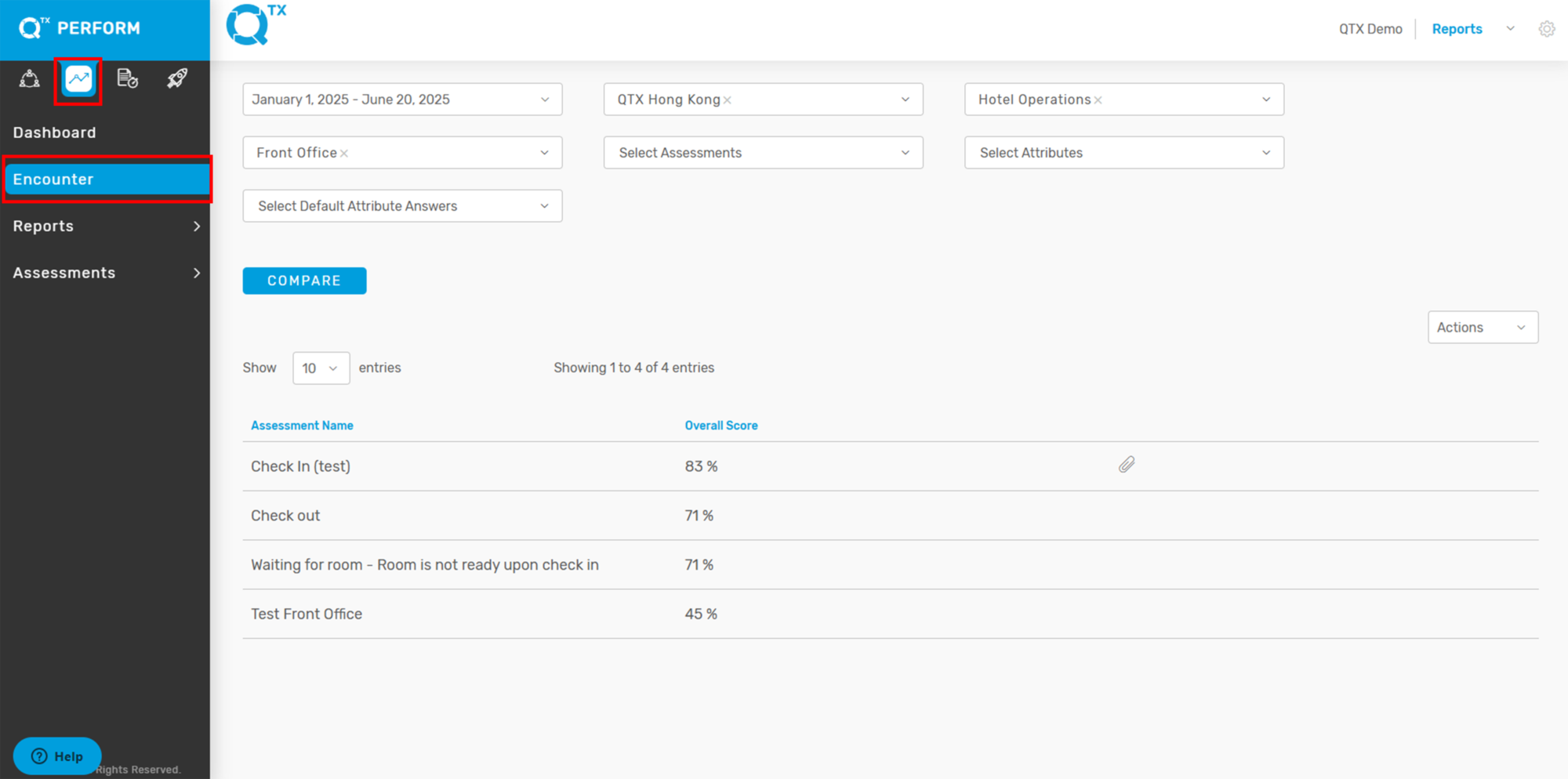
1. Navigate to the Encounter Report: Go to the “Encounter” tab on the left sidebar. Select a report (e.g., Check In (test)).


2. View Activity Count: In the Encounter summary page, locate the “Activity Log” column (see red arrow in the first image).


3. Open the Activity Log: The number shown (e.g., 3) indicates how many activity entries are available for that report.


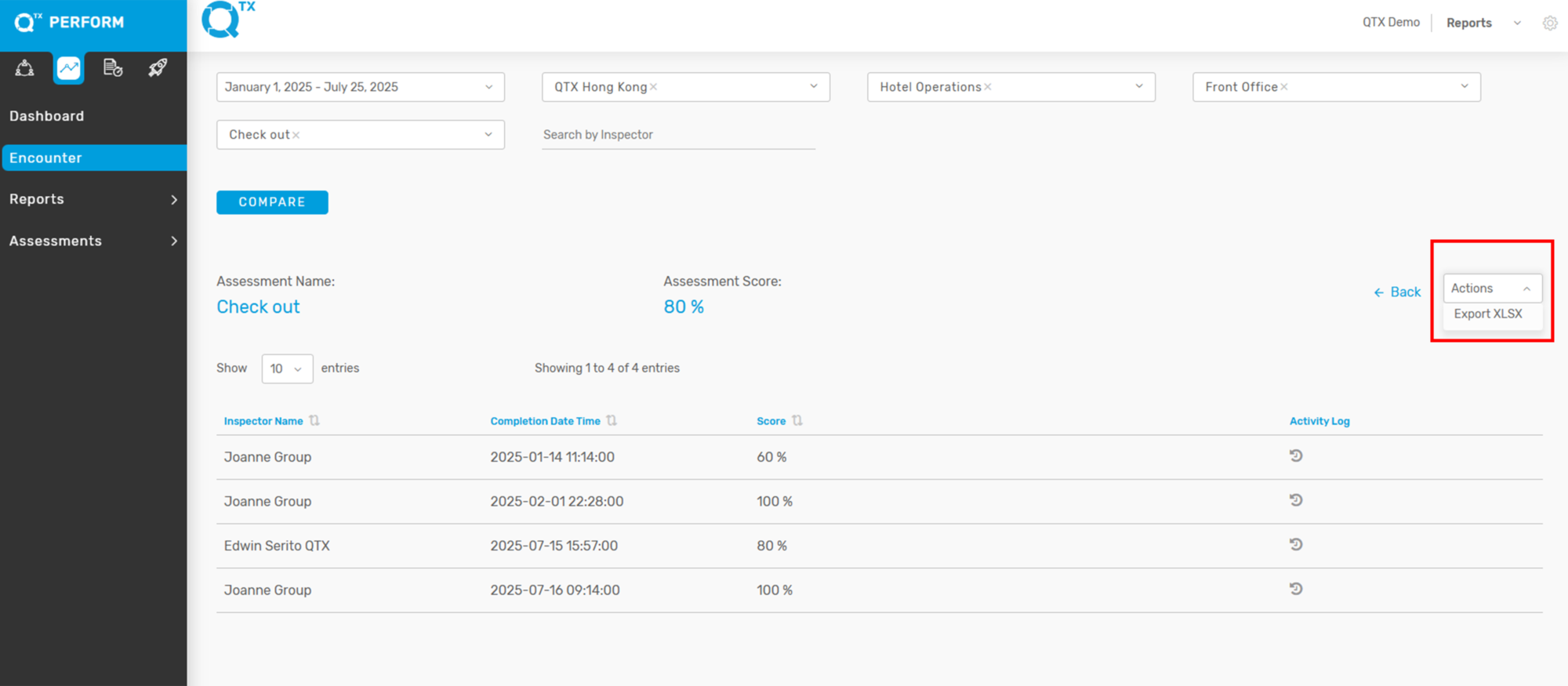
4. The user can also export the Excel file by clicking the Action dropdown on the right side and selecting ‘Export XLSX’.


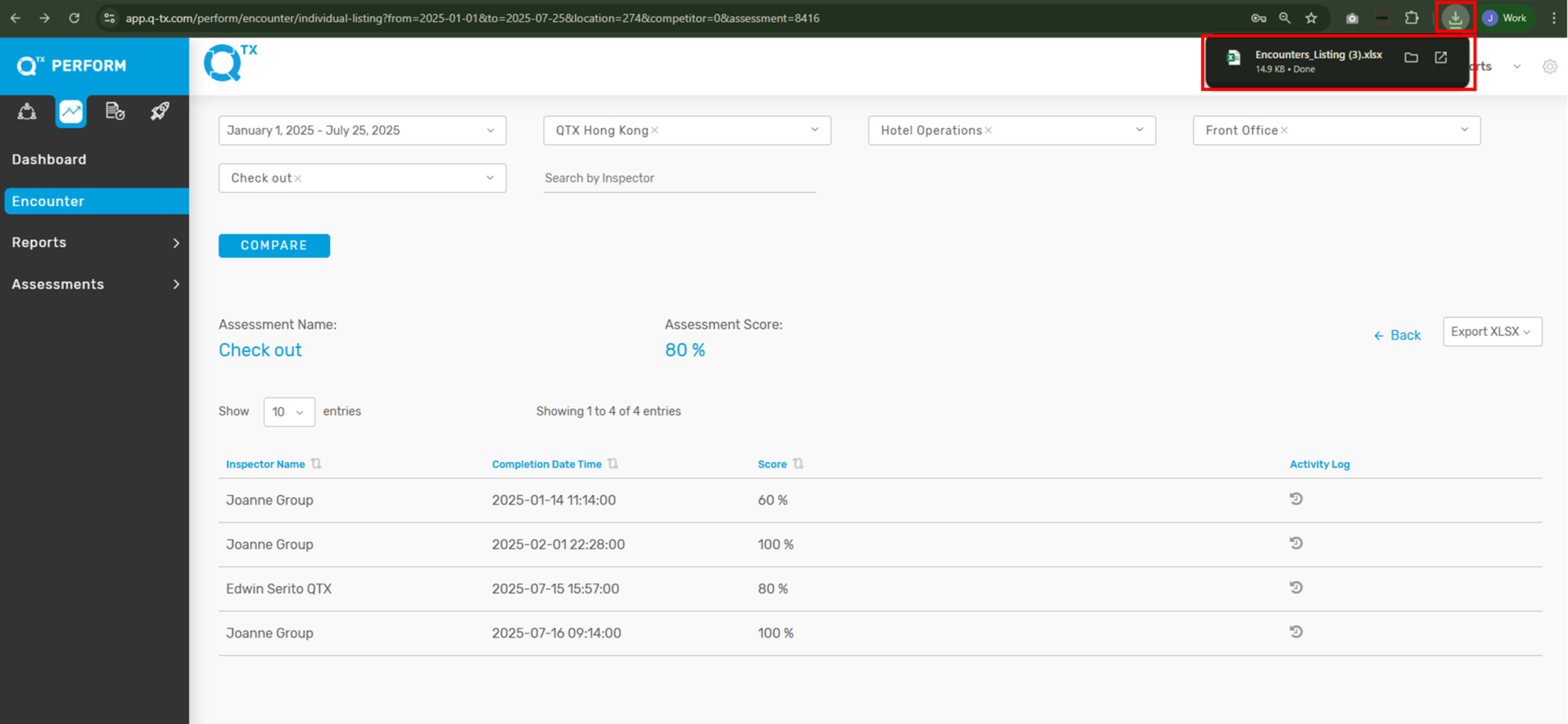
5. The exported Excel file usually appears in the upper right corner of the screen. If the file does not appear, press the shortcut key “Ctrl + J” on your keyboard to view all downloaded files in your browser.


6. Here is an overview of your exported file from the Activity Log.


If you need further assistance, please send an email to helpdesk@q-tx.com

FAQs

How do I create a new assessment?

Go to Assessments > Builder > Upload from Excel > wait for notification pop up “Successfully uploaded”


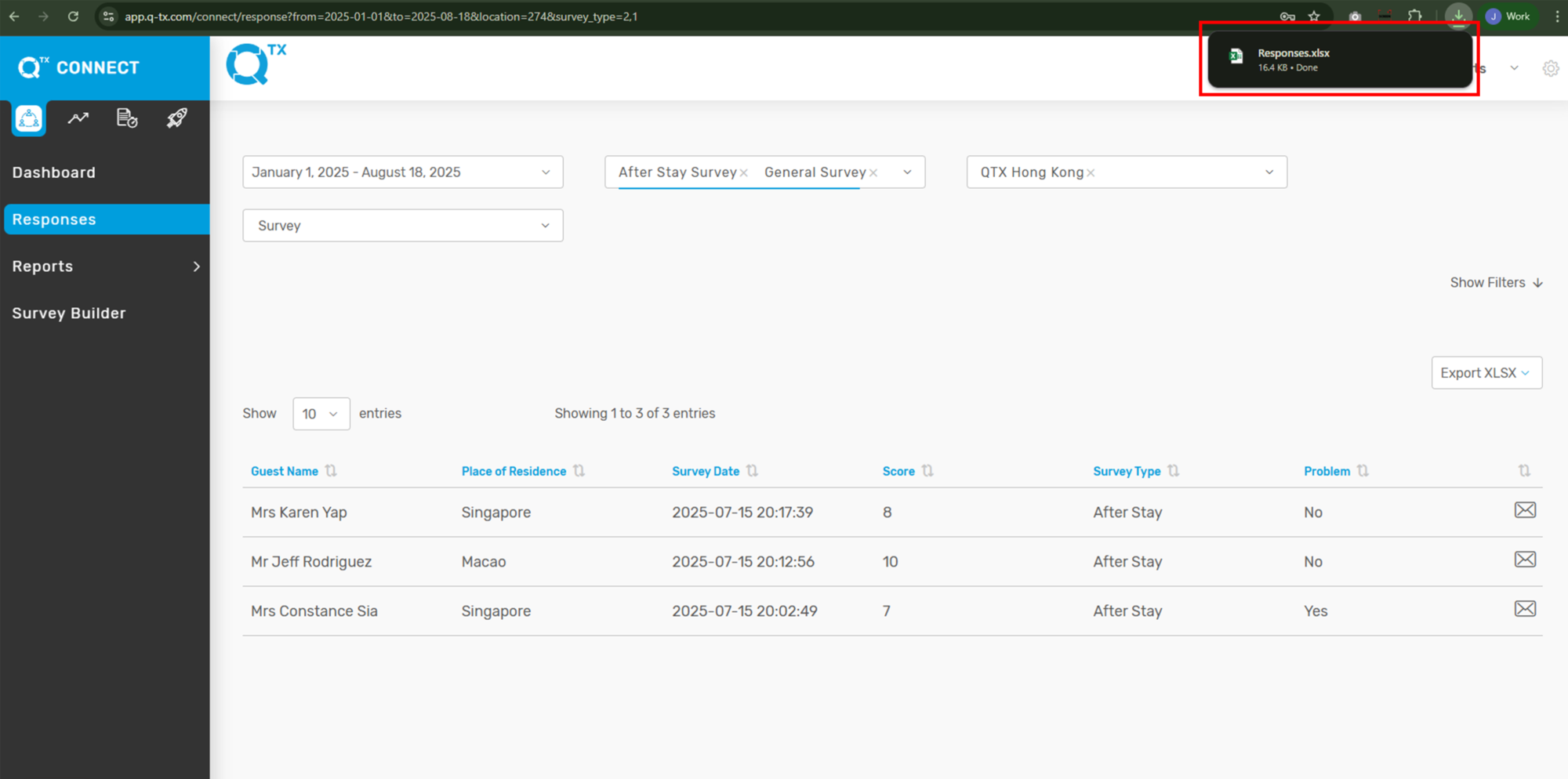
Connect: How to Export Excel File in Responses

Exporting a file allows the user to convert data from one file type to another format. Once the file is exported to the desired format (as indicated by its file name suffix), it can be opened and worked on in any application that recognizes and supports that format.


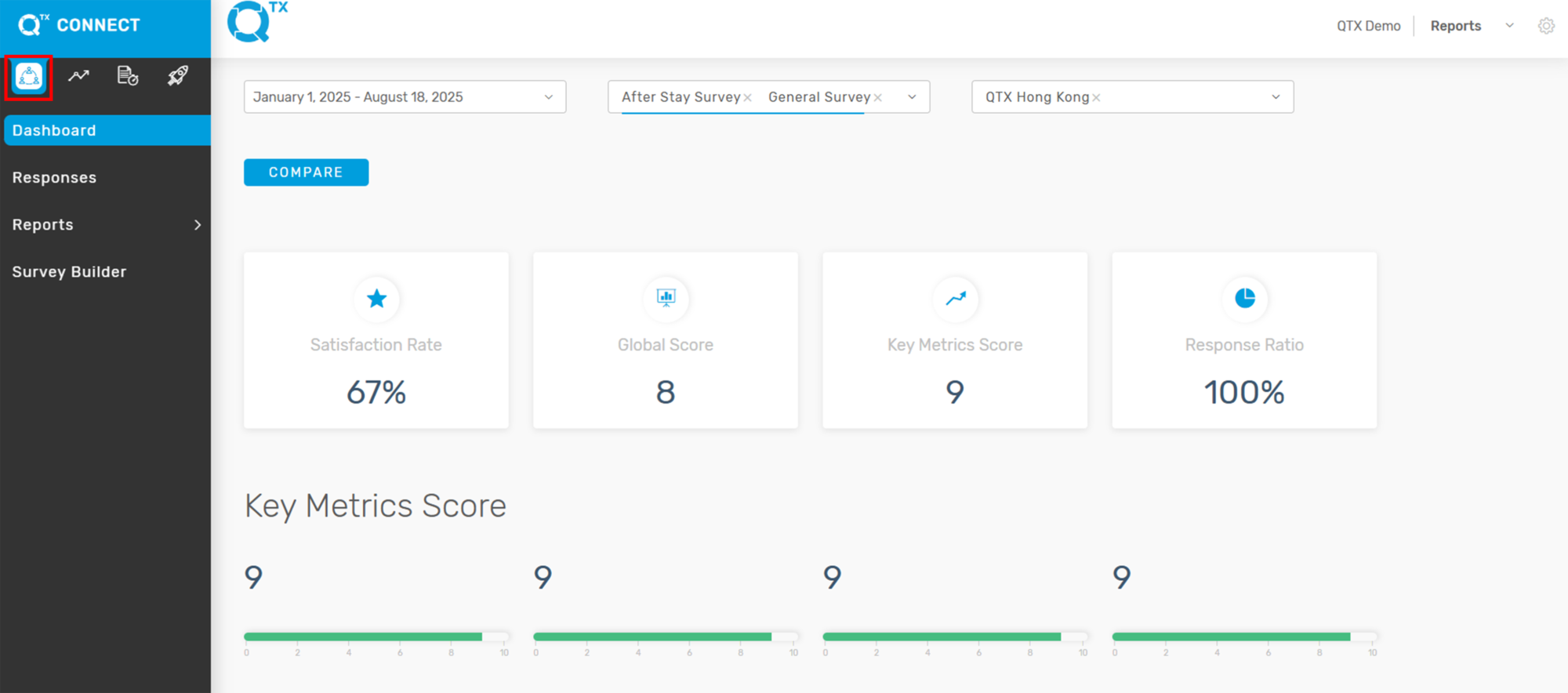
1. After logging in, you will be directed to the Dashboard Landing page. 


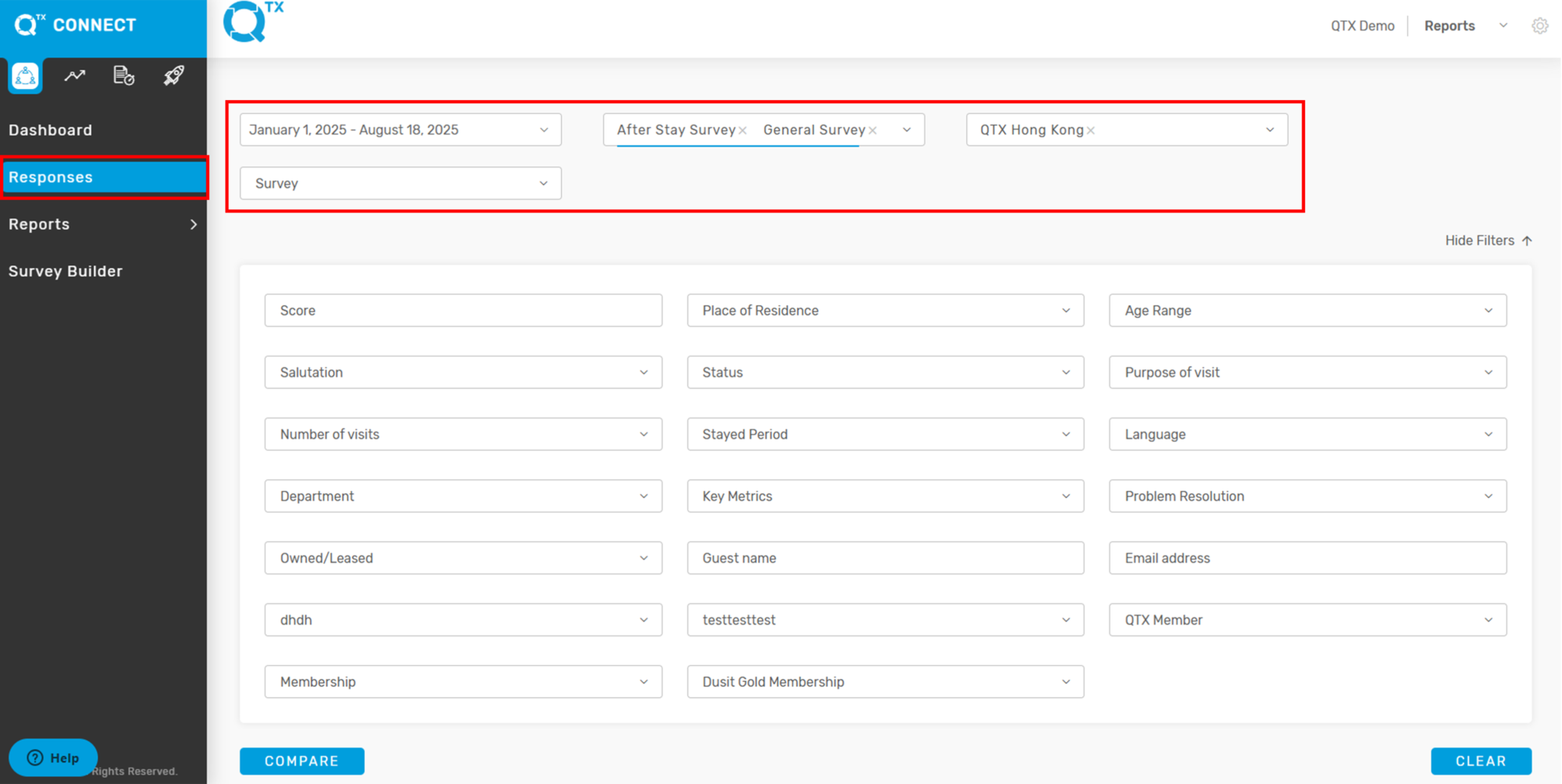
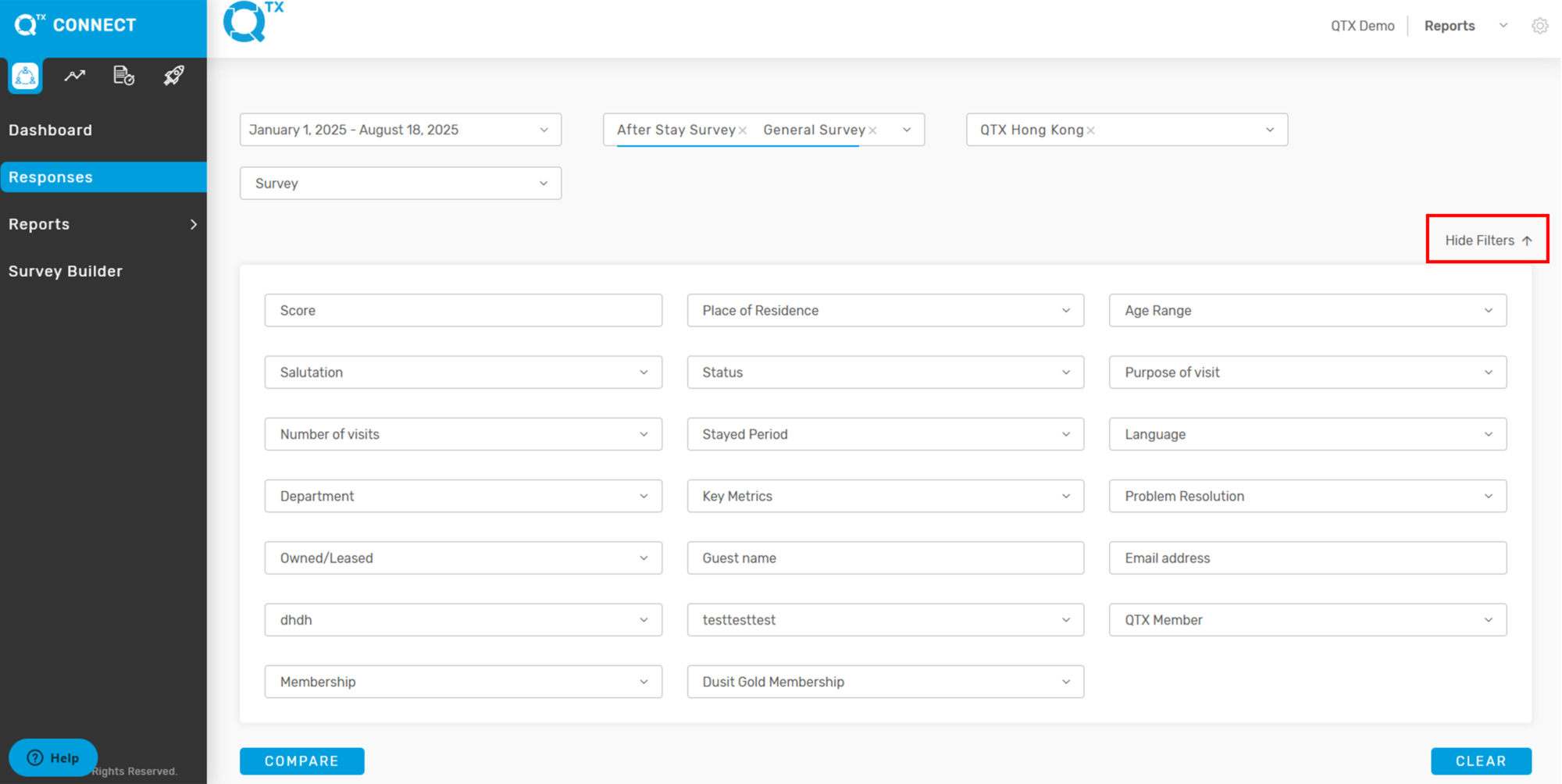
2. First, click on Responses, then fill in the filter criteria you want to view.


There is also a Hide Filter option on the right side, which allows for easier viewing of the data.


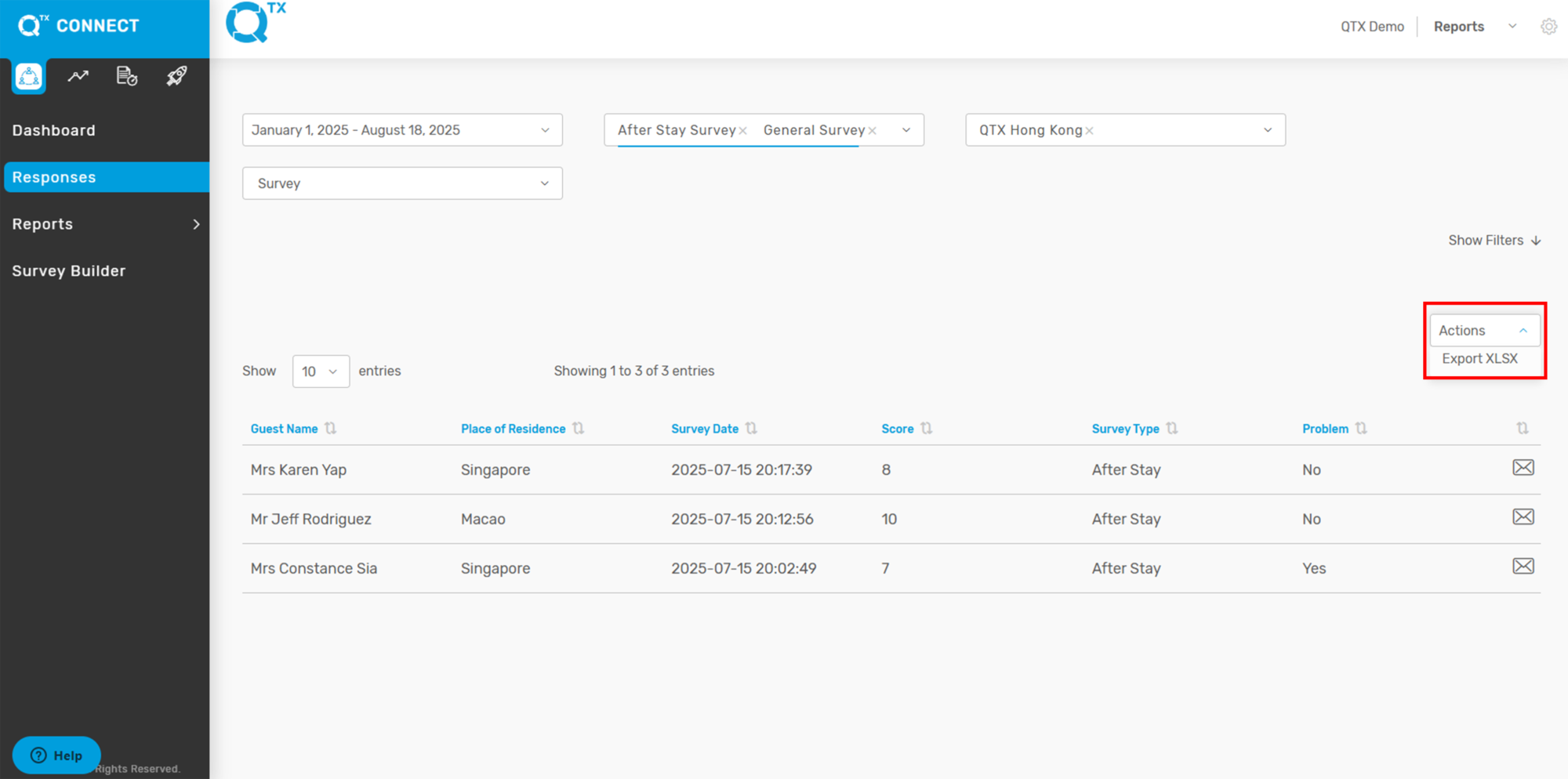
3. From here, select the ACTIONS button. A drop-down menu will appear, where you can choose EXPORT XLSX.


 4. The exported file will appear on your screen. Click on it to open, and you can then view and edit the file in Microsoft Excel.


If you need further assistance, please send an email to helpdesk@q-tx.com

Perform: How to View List of Completed Assessments and How to Edit Assessment in Encounter Report

The Encounter Report feature in QTX Perform allows team leaders, inspectors, and champions to track and review employee evaluations. These assessments are essential for monitoring job performance, recognizing achievements, and identifying areas for improvement.

Each submitted assessment provides a detailed breakdown of standards, inspector comments, and timestamps. In cases where an update or correction is needed, authorized users (e.g., Champions) can edit the report to ensure accuracy and data integrity.

This guide walks you through the steps to view completed assessments and edit existing records in the Encounter Report section.


1. Click on the PERFORM module and select the ENCOUNTER tab.


2. Use the filter options to search for specific assessments (e.g., by date, location, section and department, or assessment name).


3. You’ll see a list of assessments with their names and overall scores. Click an Assessment Name (like “Check In Test”) to view its full report.


📎 Clip Icon Meaning: A paperclip icon next to an assessment means there are files attached. Click it to see or download them.


4. On the Encounter page, after choosing your filters (like date and location), you’ll see a list of assessments.

The Assessment Name & Score (e.g., “Check In (test)”) and its overall score are at the top, giving you a quick summary of how that assessment performed.

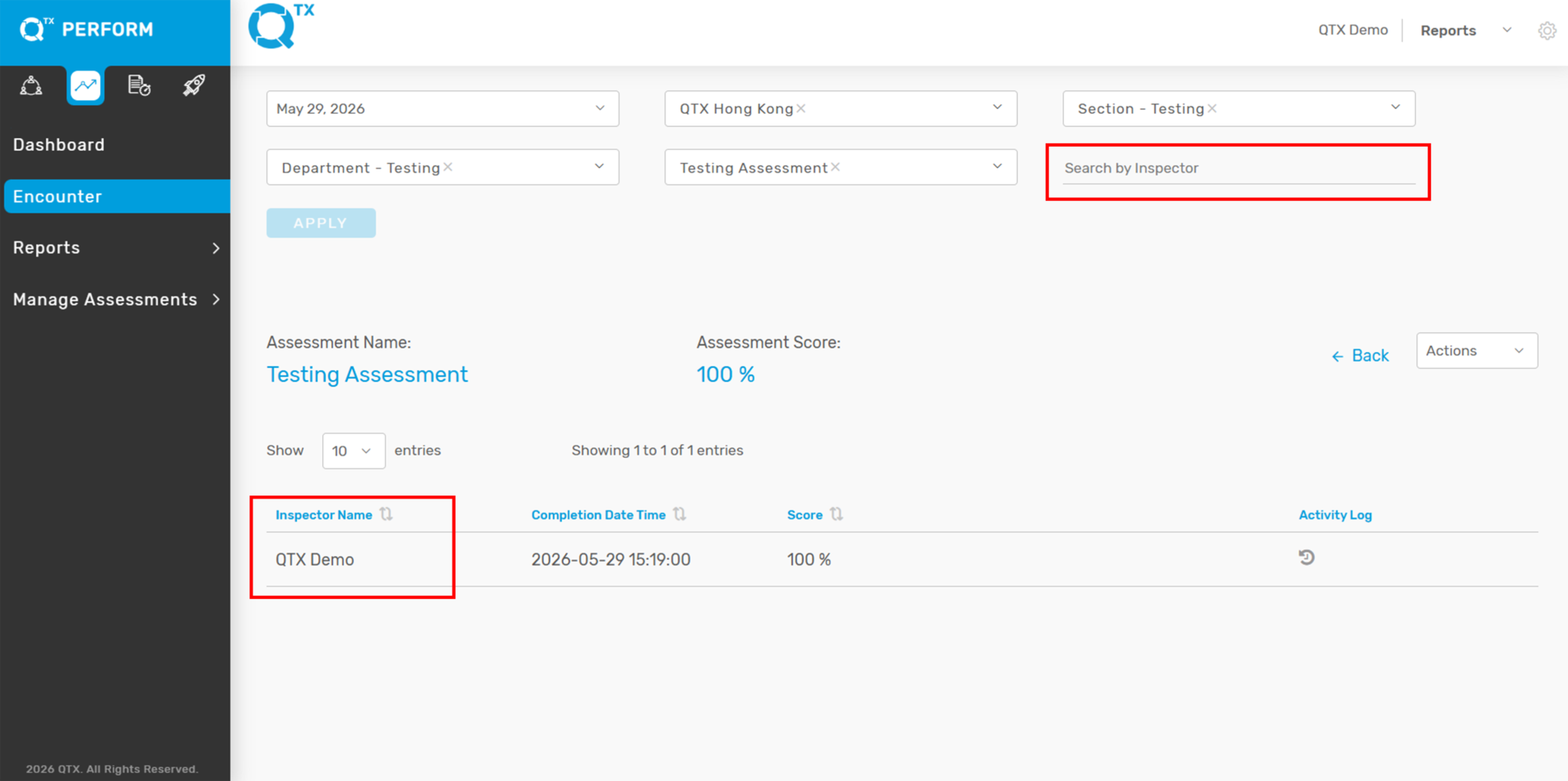
Below this, the table shows individual results by Inspector Name (pointed out by the red arrow). Each line tells you who finished the assessment, when they did it, their score, and if there are any attached files. You can click on an inspector’s name to see their detailed results.

This setup helps you easily track and compare how individuals and groups are performing.

Activity Log Feature

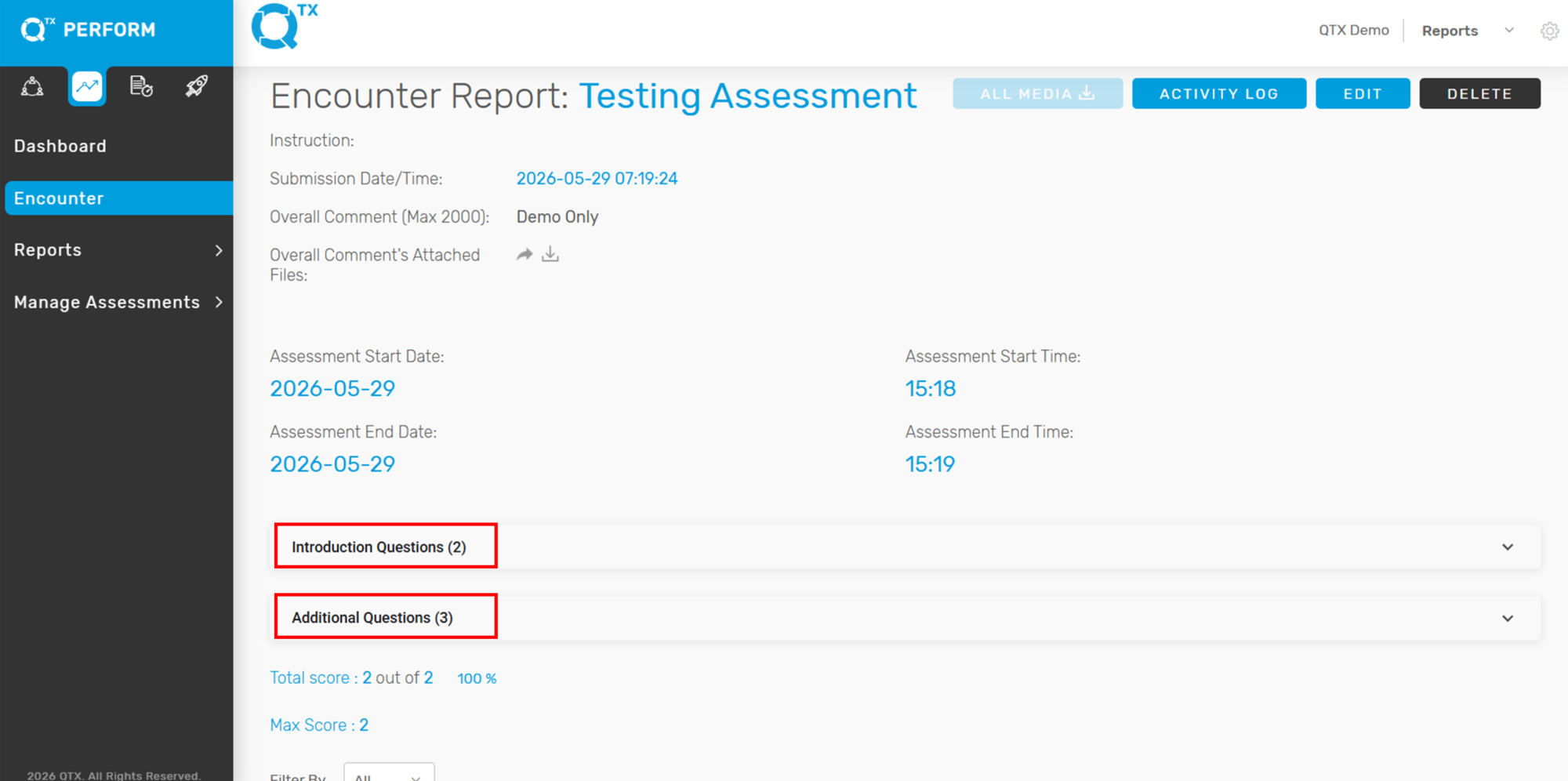
5. When you open an Encounter Report, you’ll see a summary:
Report Title: The name of the assessment (like “Check In”).
Instructions: Special tasks for the audit.
Submitted: When the report was sent.
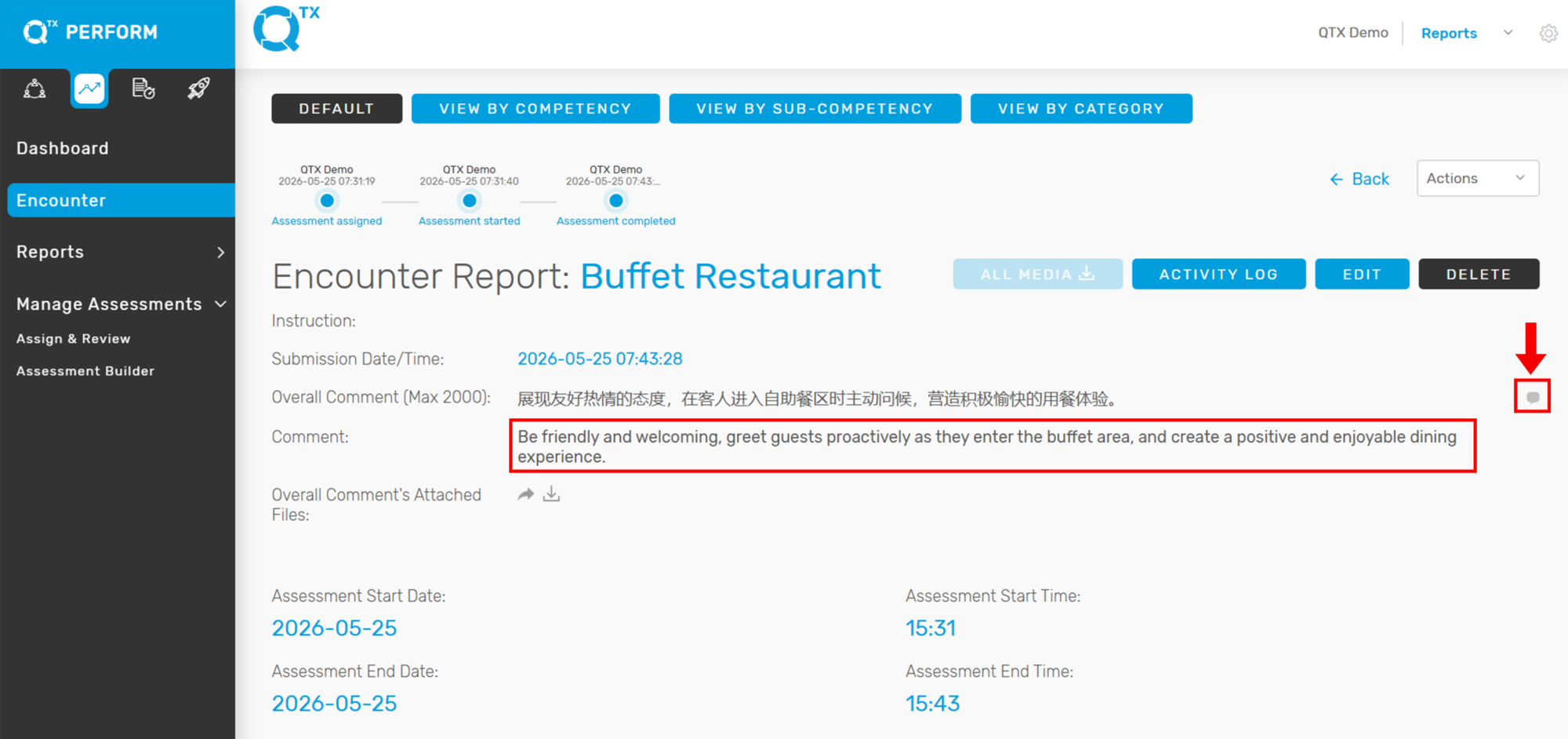
Overall Comment: A general note on performance.
Attached Files (red arrow): Pictures or videos linked to the comment.
This section quickly shows the report’s key details and any attached files.


6. This section provides users with a quick overview of the assessment’s timing, person assessed, and session details.
Assessment Date & Time: Shows the start and end dates (e.g., June 17, 2025) and times (e.g., 12:07 PM to 12:08 PM), helping to track duration.
Attributes: Includes the Team Member Name (Auditee) (e.g., Jeralyn) and Room Number (e.g., 2046) associated with the assessment.
Shift / Period: Indicates the time of day the assessment occurred (e.g., Afternoon).
Tip: Make sure the shift period matches the actual time of the assessment for reporting accuracy.


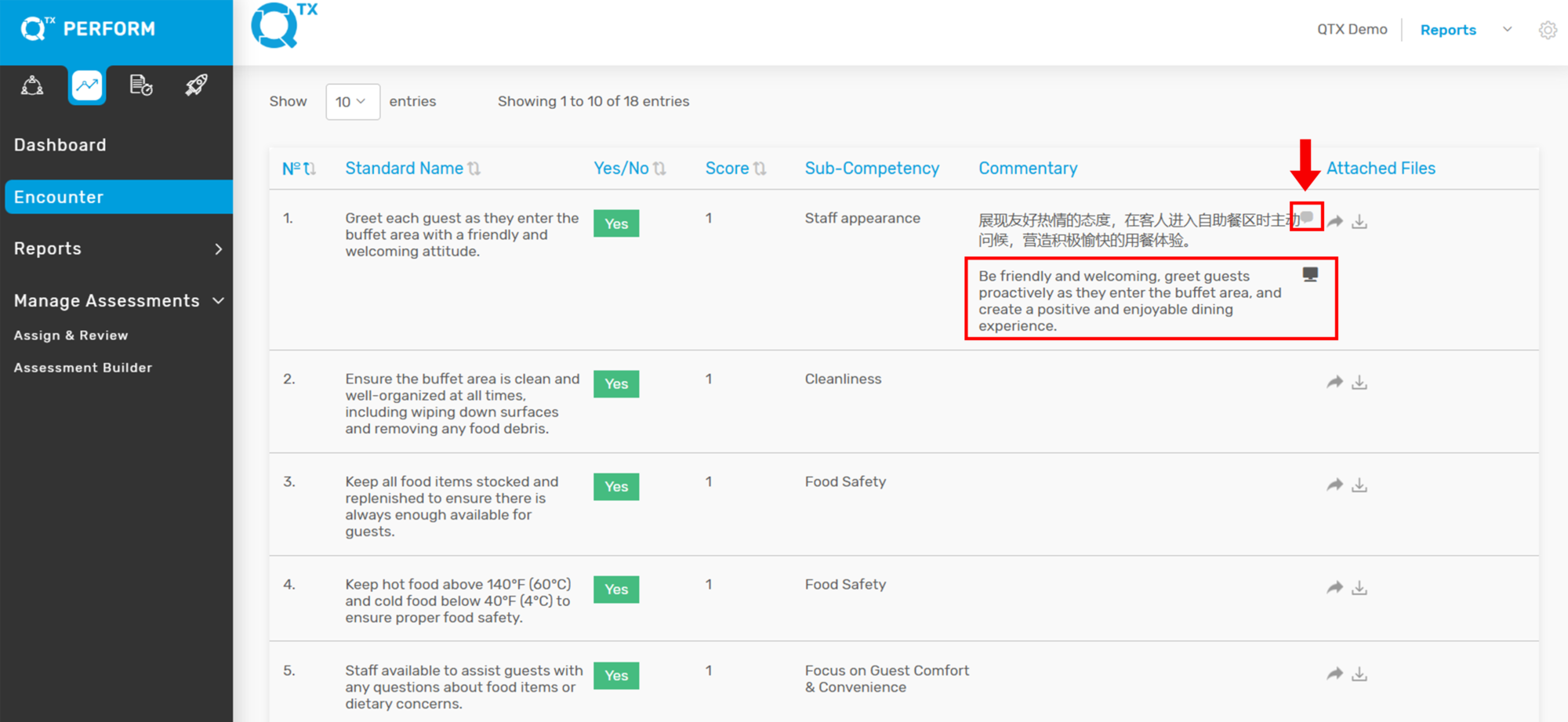
7. The image displays a detailed assessment report, highlighted by a red box at the top, showing columns for “№”, “Standard Name”, “Yes/No”, “Score”, “Segment”, “Commentary”, and “Attached Files”. An arrow specifically points to a “No” in the “Yes/No” column and a “0” in the “Score” column for a particular standard, indicating that this specific standard was not met during the assessment. The “Commentary” section next to it provides an explanation for the missed standard.


8. If you need to update or revise details in an existing Encounter Report, follow these steps:
On the top right section of the report page, find the “EDIT” button.
It is highlighted in blue and located beside the “VIEW HISTORY” button.
Click on the “EDIT” button (see red box and arrow in the image) to enter the editing mode.


9. Once in edit mode, you can modify fields such as:
Overall Comments
Overall Attached files
Assessment Date and Time details
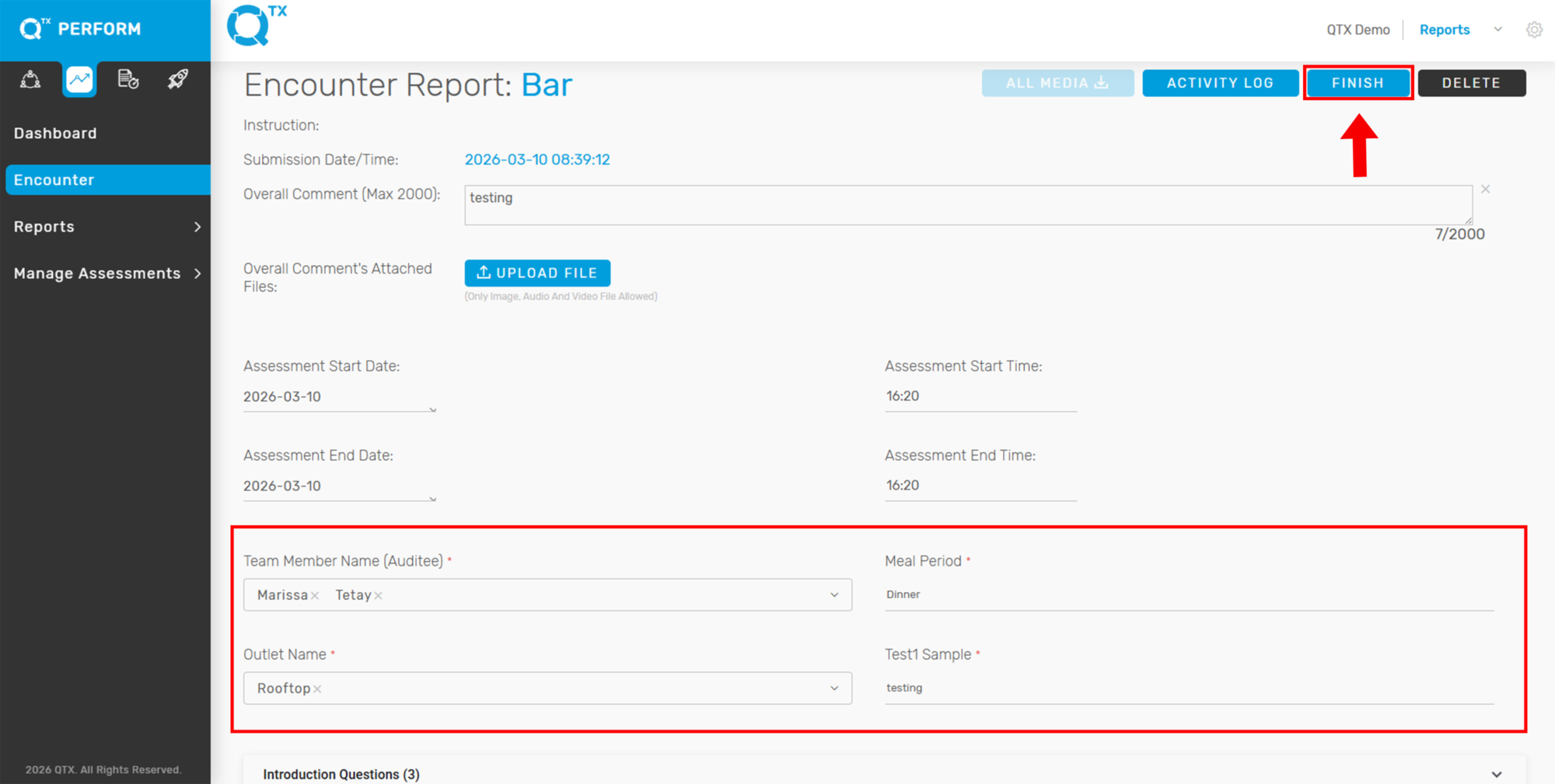
Attributes ( Team Member Name (Auditee), Shift/Period, Room Number)

Yes/No Selection
Commentary
Attach File per Standard


10. Save Your Changes: After editing, make sure to save the report by clicking the Finish button to apply your changes.


If you need further assistance, please send an email to helpdesk@q-tx.com
Connect: How to View Guest Name Lists for After Stay, General, and Outlet Surveys in Responses

The Hotel Satisfaction Survey (also referred to as a customer satisfaction survey or guest questionnaire) is a set of questions sent to guests after their stay. It enables hotels to gather valuable feedback, respond quickly to issues or needs, and enhance customer engagement.


1. On the “CONNECT” dashboard landing page, click on Responses.


2. The filters will appear. Click on Survey Type and select After Stay Survey. (Follow the same procedure to view After Stay + General Survey and General Survey.)


3. The available guest name list will be displayed. To view a guest’s responses, click on the guest’s name, and you will be directed to the Guest Response landing page.


On the Guest Response page, you can use the options highlighted at the top right. The envelope icon allows you to send an email, while the Actions button opens a drop-down menu with additional options to Export file.


4. Click on Survey Type. A drop-down list will appear; from there, select Outlet Survey.


5. This will take you to the available guest name list. To view the guest responses for each outlet, click on the guest’s name, and you will be directed to the Guest Response landing page.


Here, you can view the guest’s name, score, place of residence, location, and language.


If you need further assistance, please send an email to helpdesk@q-tx.com
How to Change Password

The ‘Manage Profile’ section provides access to your complete account details, enabling you to modify your password, username, first name, last name, and email address. The ‘Password Change’ function specifically facilitates updating your account’s authentication credentials.


1. On the Dashboard landing page, click the “SETTINGS” button in the upper right corner.


2. In the dropdown menu, select “Manage Profile.”


3. On the “Manage Profile” screen, locate the password section.
Enter your Current Password.
Enter your New Password.
Confirm your new password by entering it again.
Click “Save” to apply the changes.


If you need further assistance, please send an email to helpdesk@q-tx.com
How to Download QR Code as a Group User

The main advantage of a QR code is its versatility. This is beneficial for both Management and Inspector and it is easy to distribute by just downloading a code.


1. When you are on the Dashboard landing page, click on the “LAUNCH” button.


2. Click on the “Assessments” button, then select “Builder” from the dropdown menu.


3. To download the QR code for a specific assessment, simply click the “Download” button beside the assessment name. This QR code allows users to quickly access the assessment using a mobile device. Make sure you select the correct assessment before downloading. You can scan the downloaded QR code to test if it directs you to the correct assessment page.


4. The downloaded file normally appears in the upper right corner of your screen.


5. Click on the downloaded file and the QR code image will appear.


If you need further assistance, please send an email to helpdesk@q-tx.com
Launch: How to View the Encounter Report by Competency, Sub-Competency, and Category

The Encounter Report provides a detailed evaluation of the department’s service performance, as assessed by the Inspector using standardized criteria. Users can view the report from different perspectives—by Competency, Sub-Competency, or Category—to gain deeper insights into specific areas of strength and opportunities for improvement. This helps teams better understand performance from the customer’s point of view and take action to enhance overall service quality.


1. On the Dashboard landing page, click the “LAUNCH” button to proceed.


2. Click the “Encounter” button, then complete the required details in the Filters section.


3. Fill in the required details in the Filters section. The Overall Score will then be displayed in percentage format based on the selected Assessment Period.


4. Click on any Assessment Period to view the list of completed assessments submitted by Inspectors.


5. Click on the Inspector’s name to view the Encounter Report. The report will be displayed in its default view.


6. After clicking the Inspector’s name, the Encounter Report will open in its default view.


7. To view the Encounter Report by competency, click “VIEW BY COMPETENCY.” The report will then be displayed and organized according to each Competency.


8. To view the Encounter Report by sub-competency, click “VIEW BY SUB-COMPETENCY.” The report will then be displayed and organized according to each Sub-Competency.


9. Users can also view the Encounter Report by category. Simply click “VIEW BY CATEGORY” to display the report organized under each relevant category.
Note: Currently, only the default category is available.


If you need further assistance, please send an email to helpdesk@q-tx.com
Qualify: How to Create or Assign New Mystery Shopper as a Group User

To enable an Inspector to carry out an assessment, a Group User must assign access to the Inspector for the relevant Location, Section, Department, and Assessment. It is also important to specify the assessment period for effective monitoring. There is no limit to the number of mystery shops that can be conducted.


1. On the Dashboard landing page, click the “QUALIFY” button to proceed.


2. Click on “Assign Mystery Shop” under the “Mystery Shop” section, then select the “CREATE MYSTERY SHOP” button to begin.


3. To assign an assessment in the QTX Qualify module, go to Mystery Shop > Assign Mystery Shop, then fill out the form as shown. Select the Location Name and Inspector Name from the dropdown menus. If needed, check the Send Email Notification box to alert the inspector via email. Next, choose or create the Assessment Period.


4. Once all fields are completed, click Assign to finalize the assignment.


If you need further assistance, please send an email to helpdesk@q-tx.com
Qualify: How to View Executive Summary Report

This report provides a summary of key features related to the department’s performance, offering management a concise overview without the need to review each individual report in detail.


1. On the Dashboard landing page, click the “QUALIFY” button to proceed


2. Click on the ‘Executive Summary’ button under the ‘Reports’ section, then complete the required details using the available filters.


3. This Image displays key competency metrics such as Customer Service and Professionalism, along with a Performance Summary chart that visually compares overall performance scores, such as Hotel Services. This section provides a quick and clear overview of team and department performance.


4. The chart indicates how many percentages are achieved, not achieved, and N/A. This summary helps users quickly assess performance outcomes. Below the chart, there’s a section labeled Summary Comments where detailed observations or feedback can be added.


If you need further assistance, please send an email to helpdesk@q-tx.com
Qualify: How to View and Edit the Encounter Report as a Group User

Mystery Shoppers evaluate the department’s service performance based on standard criteria, providing valuable insights into how customers perceive the company. This feedback helps identify areas for improvement. Group Users have the ability to edit the report, allowing them to manage and refine the assessment details as needed.


1. On the Dashboard landing page, click the “QUALIFY” button to proceed.


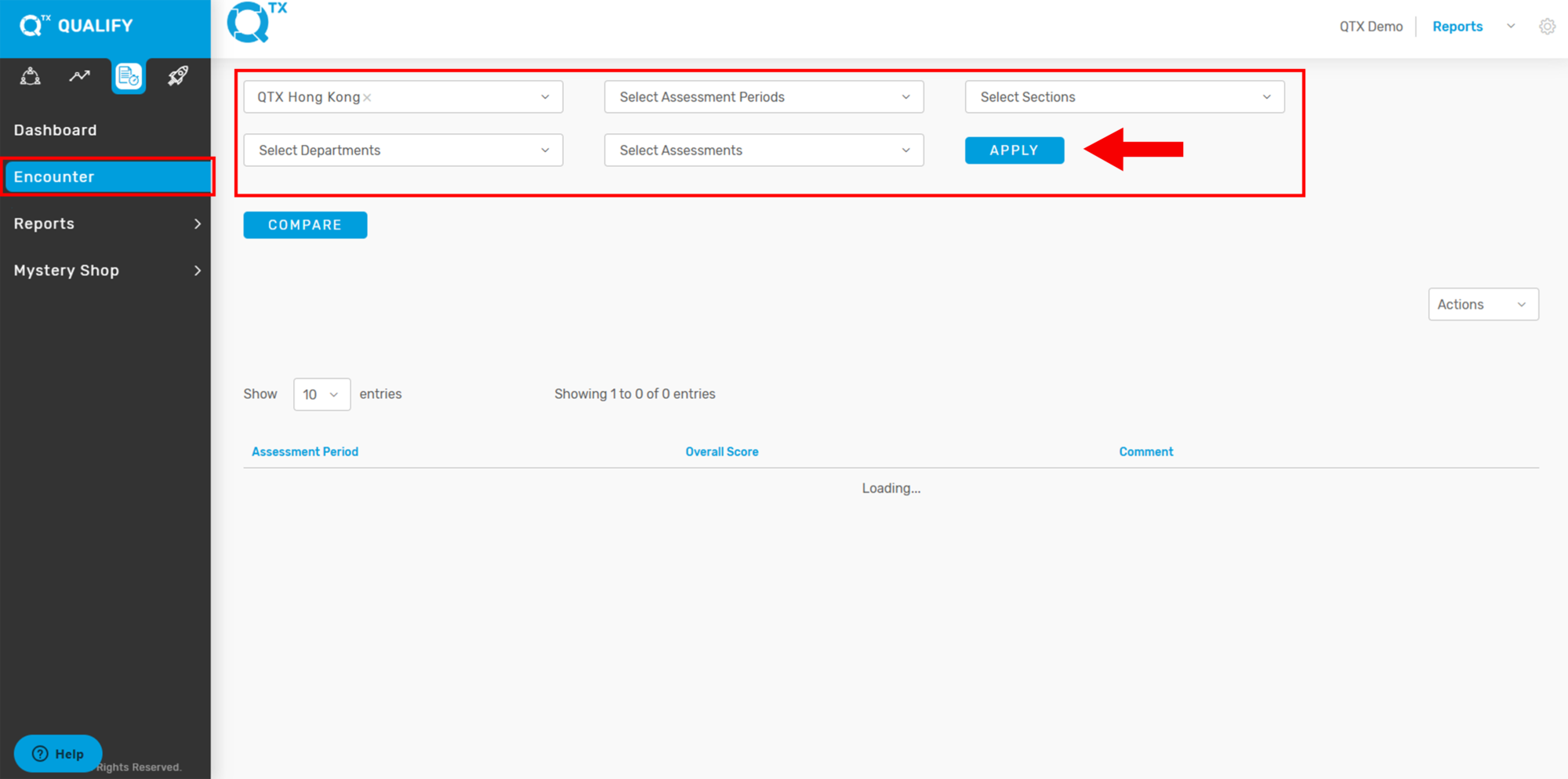
2. Click on the “Encounter” button located on the left-side menu. Once the page opens, fill in the required details in the Filters section to narrow down and view specific assessment results or encounter records. Click “Apply Button”.


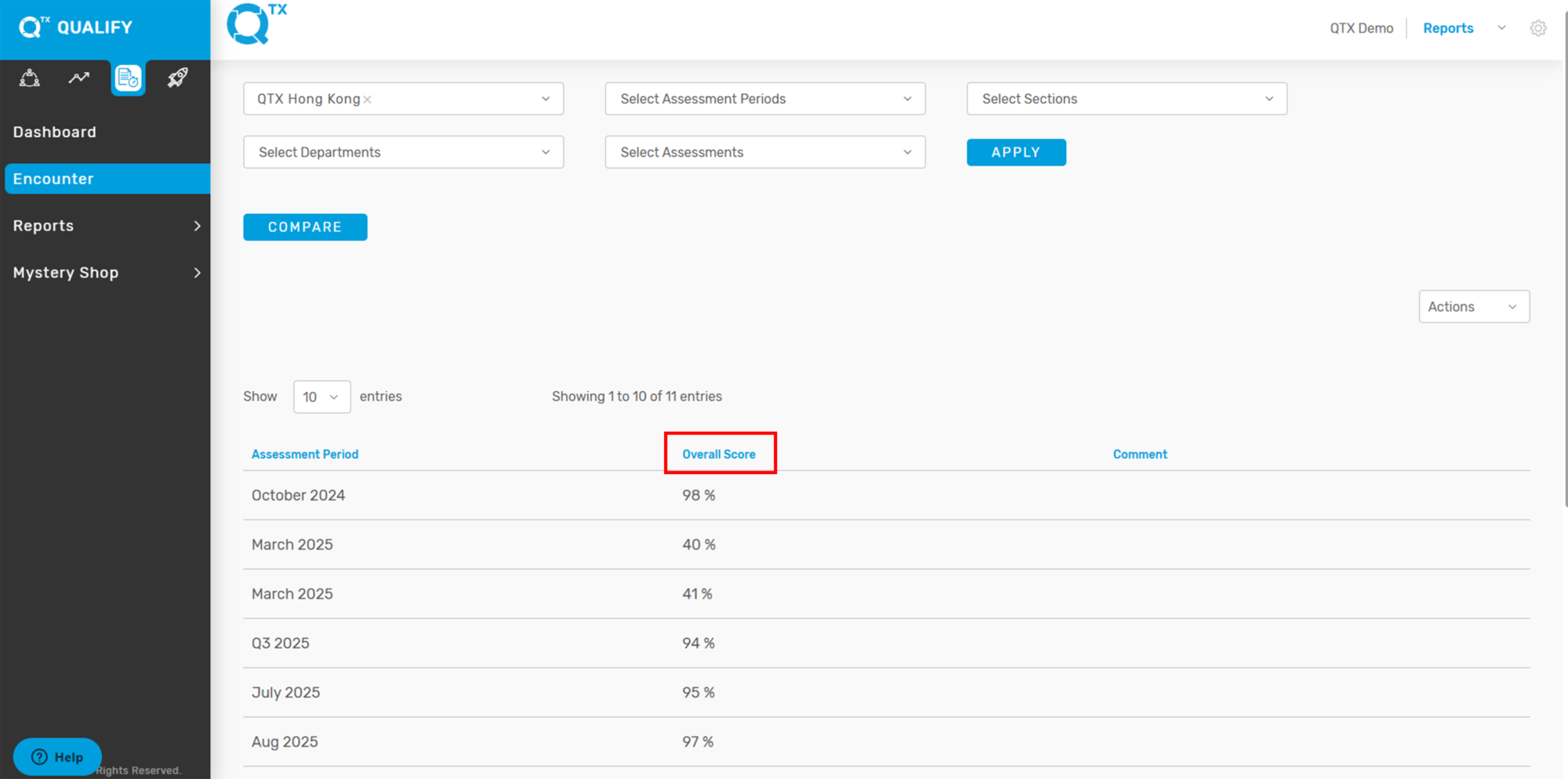
3. The Overall Score will be displayed as a percentage based on the selected Assessment Period, providing a clear summary of performance during that specific timeframe.


4. Click on “Assessment Periods” to display the available assessment names associated with that period, as shown in the example below. This allows users to select and view specific assessments conducted within the chosen timeframe.


5. Click on the Assessment Name to open and view the Encounter Report. The report will be displayed in its default view, showing key details such as inspector comments, scores, and assessment criteria.


6. Users can view the Encounter Report organized by Competency for a more structured analysis. Simply click on “VIEW BY COMPETENCY”, and the report will automatically display the results grouped under each specific competency category.


7. Click on the “Edit” icon to make changes to the Encounter Report. This function allows authorized users to update report details, ensuring accuracy and completeness of the assessment data.


8. The user can directly edit the Overall Comment by typing in the provided text box and can also upload or replace the Overall Comment Attachment as needed. This feature ensures that final observations and supporting documents can be updated efficiently.


9. The Assessment Date and Time fields are editable, allowing users to update or correct the start and end dates and times of the assessment to reflect the actual period it was conducted.


10. Answer “YES” or “NO,” and the score can be adjusted. The user may also fill in or edit the “Commentary” box and upload a file if needed.


11. Click on the “Finish” button to save all changes made to the assessment.


If you need further assistance, please send an email to helpdesk@q-tx.com
Qualify: How to View the Encounter Report

Mystery Shoppers assess the department’s service performance based on standard criteria. Their feedback helps identify areas for improvement by providing insight into how customers perceive the company.


1. On the Dashboard landing page, click the “QUALIFY” button to proceed.


2. Click on the “Encounter” button located on the left-side menu. Once the page opens, fill in the required details in the Filters section to narrow down and view specific assessment results or encounter records.


3. The Overall Score will be displayed as a percentage based on the selected Assessment Period, providing a clear summary of performance during that specific timeframe.


4. Click on Assessment Period to display the available “Assessment Names” associated with that period, as shown in the example below.


5. Click on the Assessment Name to open and view the Encounter Report. The report will be displayed in its Default view, showing key details such as inspector comments, scores, and assessment criteria.


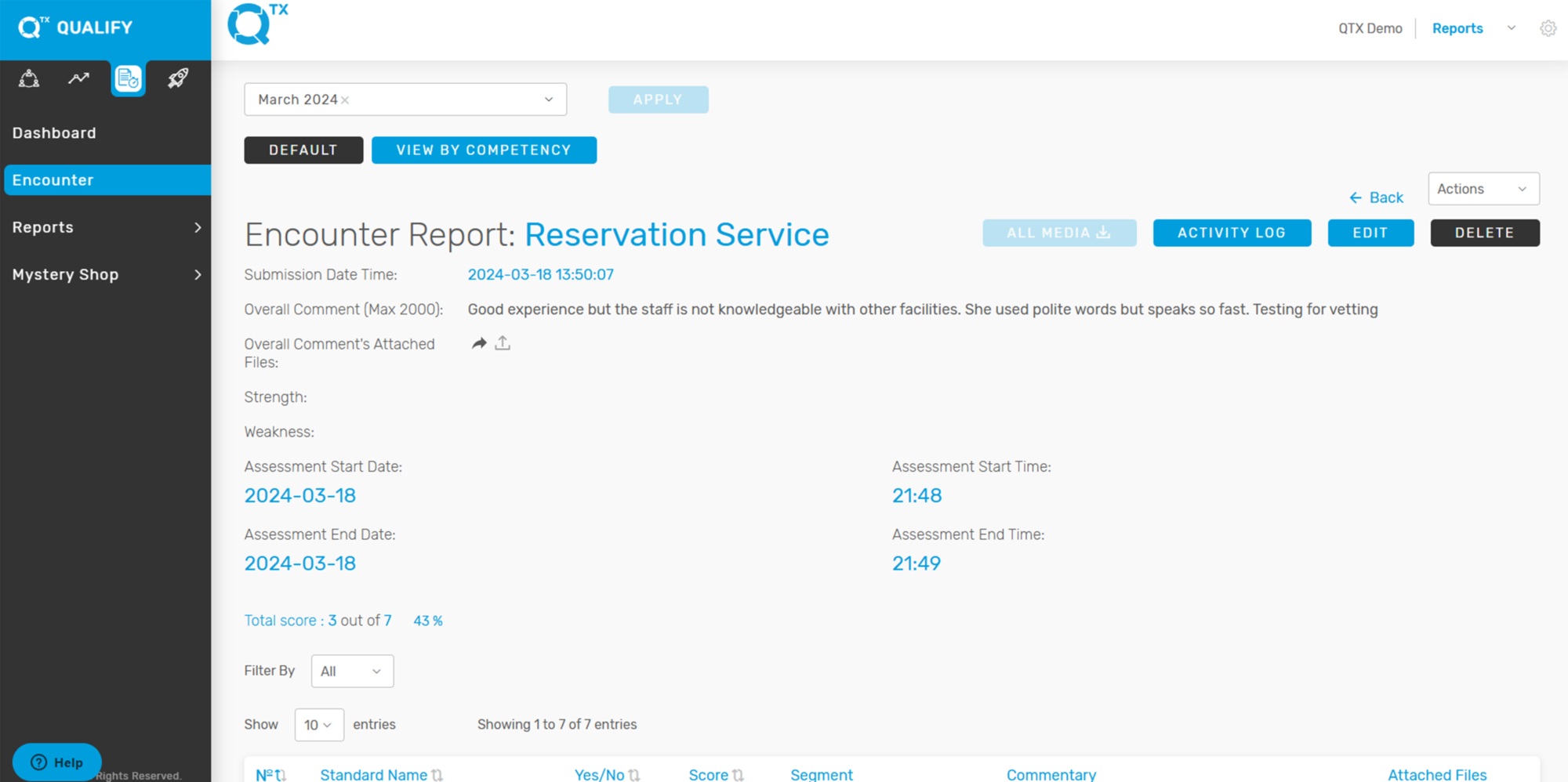
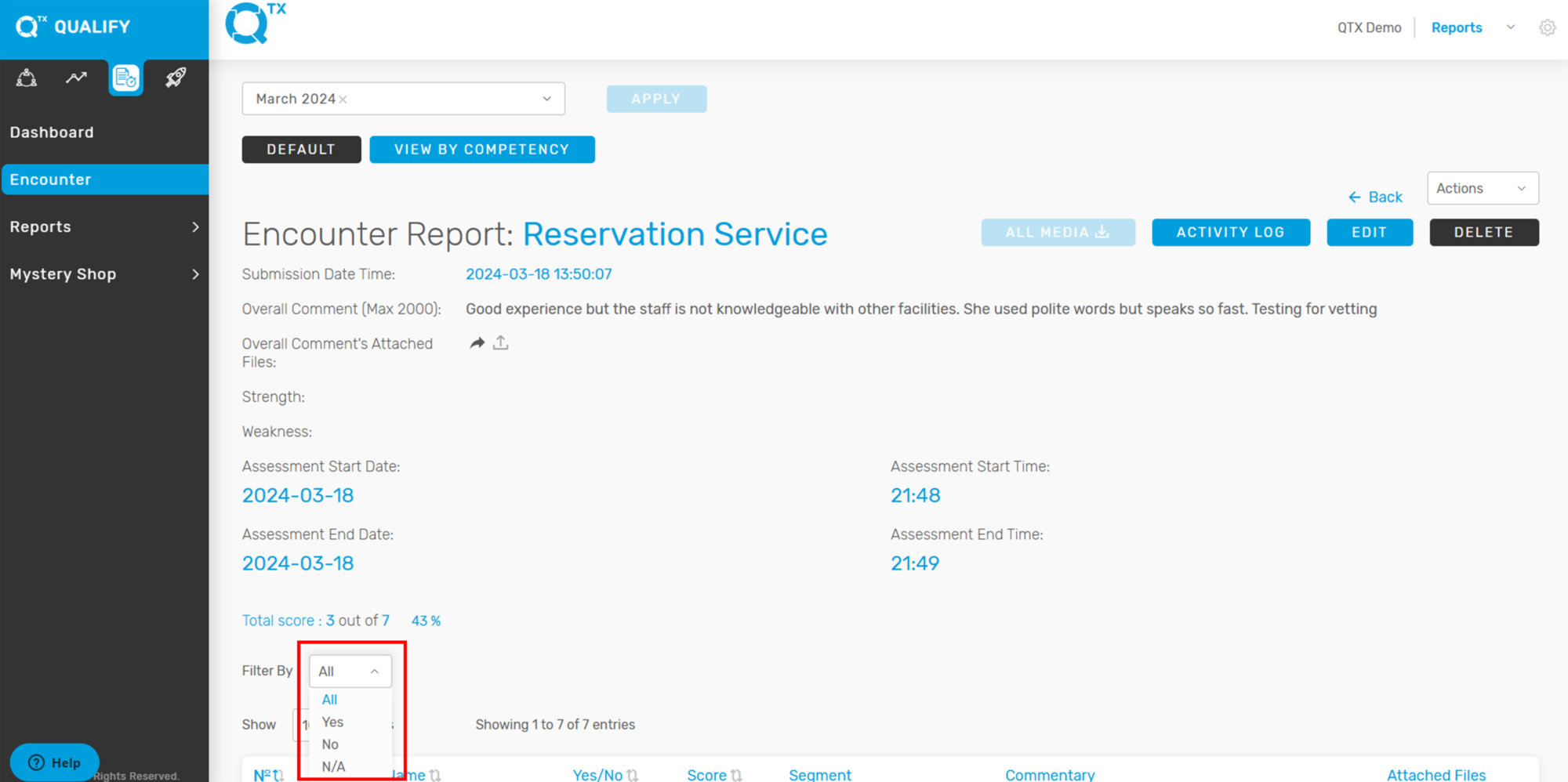
6. The user can view this filter in the Default view, which allows them to display all Yes, No, or N/A responses on a single encounter page.


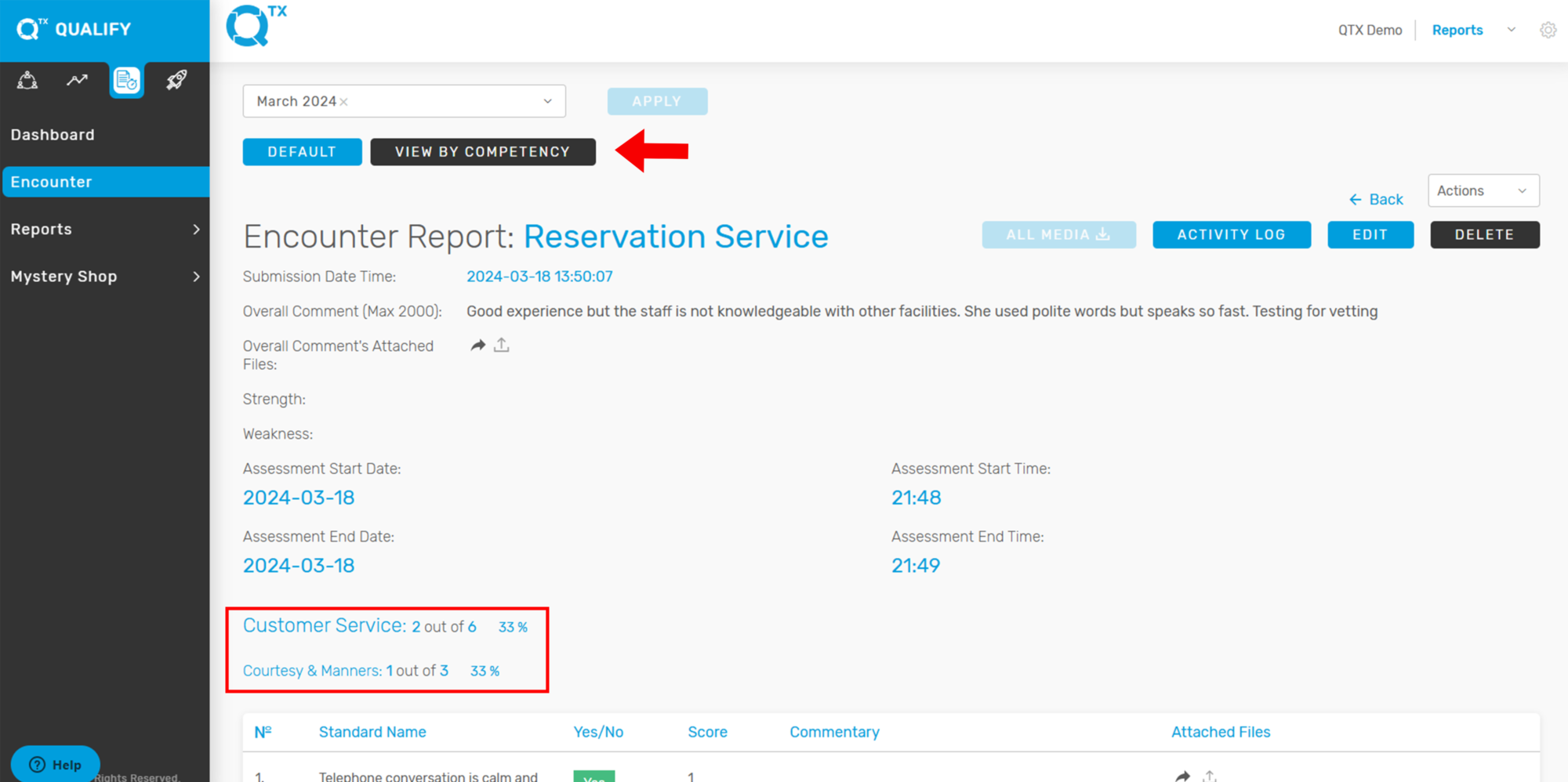
7. Users can view the Encounter Report organized by Competency for a more structured analysis. Simply click on “VIEW BY COMPETENCY”, and the report will automatically display the results grouped under each specific competency category.


If you need further assistance, please send an email to helpdesk@q-tx.com

Qualify: How to View Top 10 Missed Standards and Top 10 Achieved Standards

Viewing the Top 10 Missed or Achieved Standards provides valuable insights for management, highlighting which departments consistently meet expectations and which require improvement. This allows for targeted performance optimization, ultimately contributing to better operational outcomes. Understanding when to strictly enforce standards and when flexibility is appropriate is essential to maintaining both efficiency and guest satisfaction.


1. On the Dashboard landing page, click the “QUALIFY” button to proceed.


2. Fill out the required details in the Filters section, such as Location, Department, Section, and Assessment, to generate a focused and accurate report based on your selection criteria.


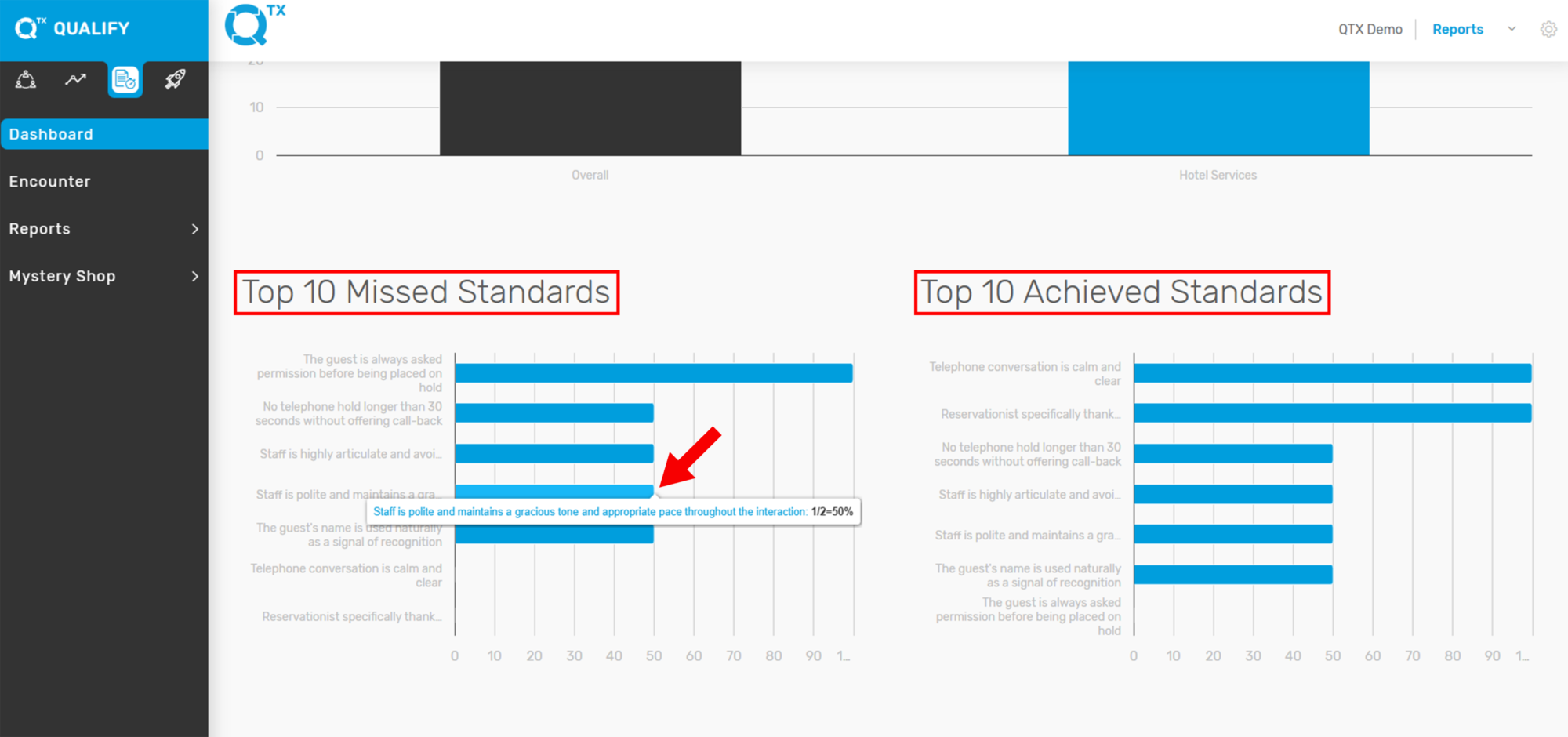
3. On the same page, scroll down to view the Top 10 Missed Standards and Top 10 Achieved Standards. Hover your cursor over any line on the graph to see detailed information, including the specific standard and its corresponding score.


If you need further assistance, please send an email to helpdesk@q-tx.com

Qualify: How to View Dashboard Reports

The QTX Platform is tailored for hotels to create cost-effective, results-driven mystery shopping programs that align with their specific operational needs. Each report is purpose-built for hotel environments, enabling teams to quickly identify and address recurring issues to enhance service quality and operational efficiency.


1. On the Dashboard landing page, click the “QUALIFY” button to proceed.


2. Fill out the required details in the Filters section, such as Location, Department, Section, and Assessment, to generate a focused and accurate report based on your selection criteria.


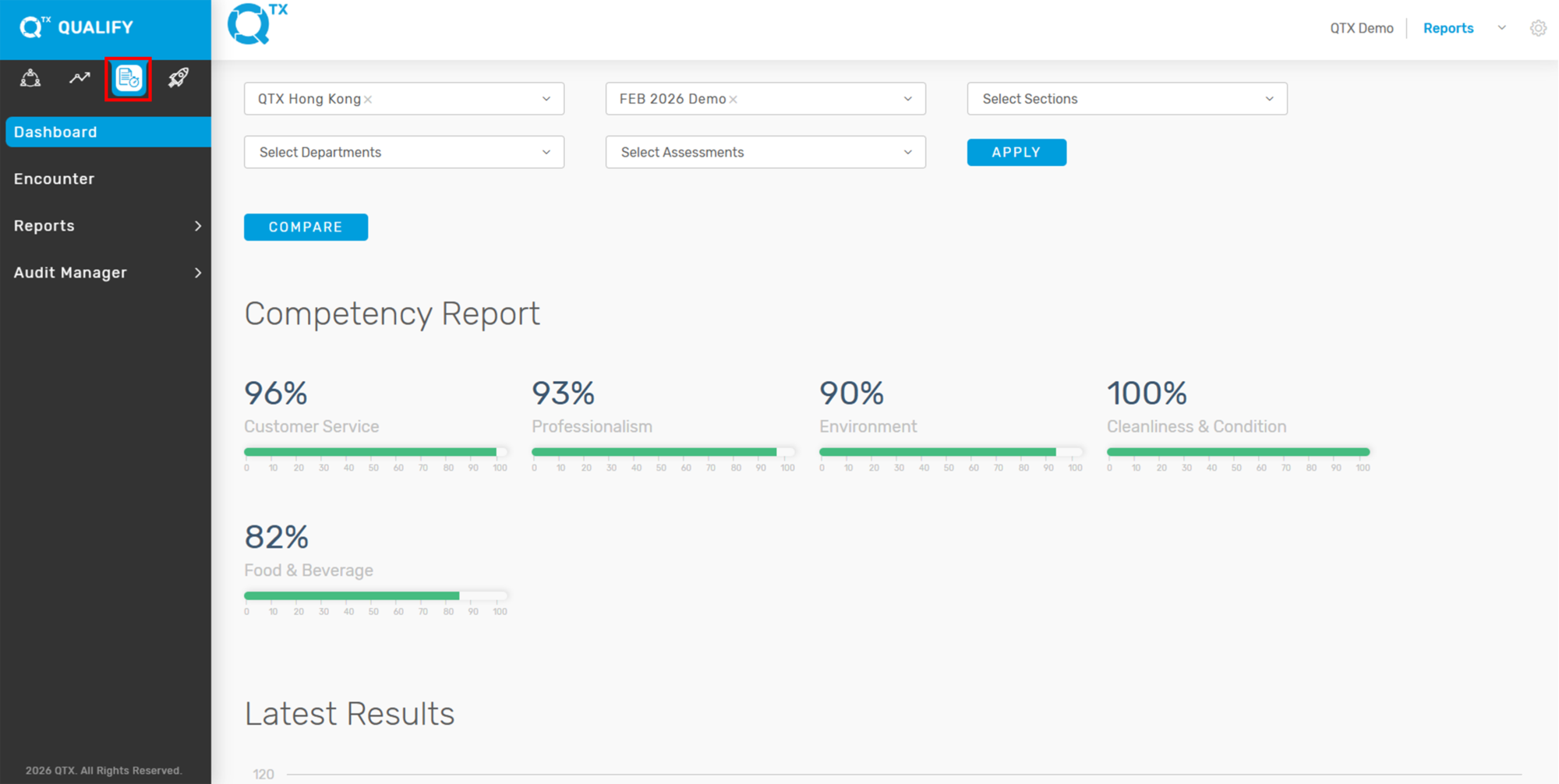
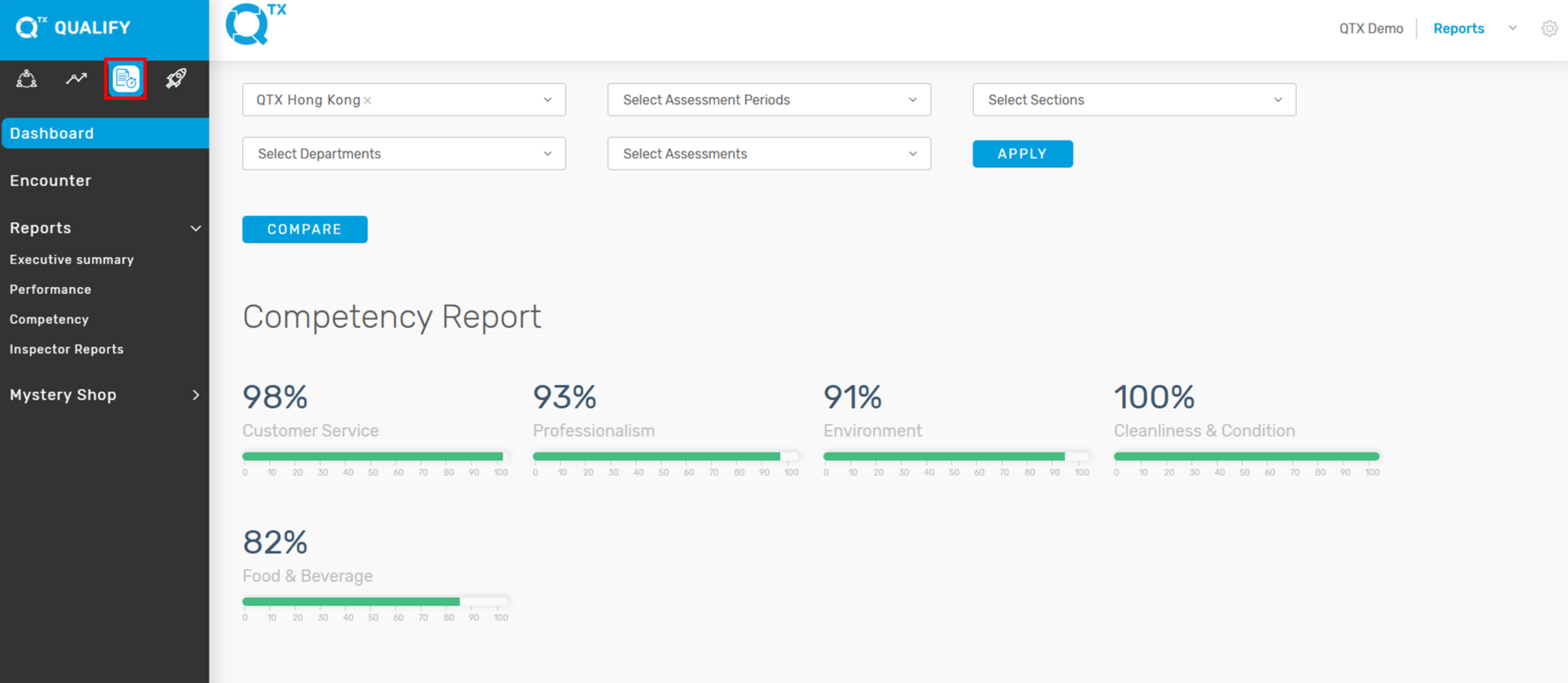
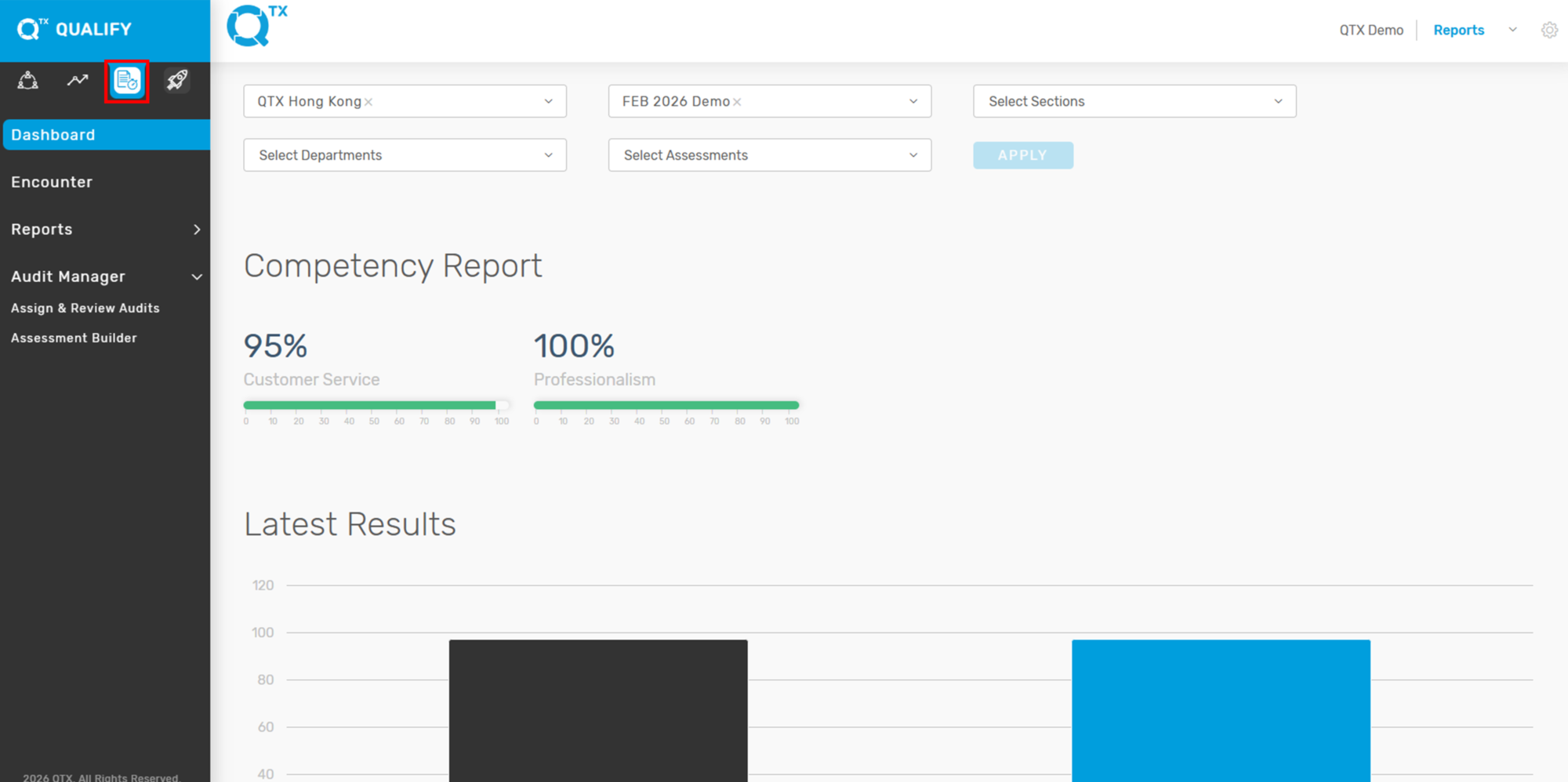
3. On the same page, scroll down to view the reports. The Competency Report displays percentage scores categorized by Competency. Any score below 80% will appear as a yellow graph line, making it easy to identify areas needing improvement.


4. The Latest Results section displays the most recent score for the selected Location. Hover your cursor over the bars on the graph to view the exact percentage score.


5. You can view the Top 10 Missed Standards and Top 10 Achieved Standards, each displayed with its corresponding scores to help identify areas of improvement and success. You can also view the standard by hovering the cursor.


If you need further assistance, please send an email to helpdesk@q-tx.com

Connect: How to Reply Guest Response as a Group User

This functionality allows you to view each guest’s response and communicate with them either automatically or manually through the QTX Connect platform.


1. From the dashboard landing page, click on Reports under the CONNECT platform.


2. Click on Response Analyses under Reports, then select the Problem Resolution tab. Next, fill out the required information in the filters.


3. This section displays resolution details and guest responses in a table format. Additional entries can be viewed by adjusting the number of entries shown or by clicking the page numbers at the bottom of the screen. To view a guest’s response, click anywhere on the guest’s row.


4. The system will display the full details of the guest’s response along with their stay information. To respond via email, click the envelope icon. (This action will redirect you to the Responses page.)


5. The guest’s email address is generated automatically. A default message will appear in the email body, which you can edit as needed. Use the scroll bar to view the full message. When you are ready to send, click the SUBMIT button.


If you need further assistance, please send an email to helpdesk@q-tx.com

Launch: How to Customize Assessments as a Group User

An assessment is a structured questionnaire used to evaluate the quality and standards of service in each section. It plays a key role in identifying performance levels and areas for improvement.


1. On the Dashboard landing page, click the “LAUNCH” button to proceed.


2. Click on the “Assessments” button, then select “Builder”.


3. Click on any Assessment to view or edit its contents.


4. The user can edit the title in real-time without navigating to the settings. Then, provide clear Assessment Instructions to guide users through the steps of the assessment. If needed, you can upload supporting files such as images, audio, or video by dragging and dropping them into the upload area.


5. The numbers at the top indicate the total number of standards included in this assessment. Each standard represents a specific question to be evaluated.
The red arrow points to the Assessment Attribute field, where you can enter or select specific details such as the Team Member Name (Auditee) to capture relevant information for each assessment entry.


6. From here, you will see the Standard Question along with two optional fields:
Placeholder – A temporary text field that indicates where and what type of content should be entered.
Question Guide – A short note or instruction that helps clarify how to properly answer the specific question.


7. Below, you can see the assessment items along with their corresponding Competencies and Sub-Competencies (if applicable). Each assessment item can be scored on a scale of 1 to 3.


8. The user can deactivate a standard if it is not necessary for the evaluation.

Note: Standards cannot be deleted if historical data already exists. To avoid potential issues, we recommend contacting Help Support for assistance with deleting, deactivating, or revising standards.


9. Assessments are predetermined by management and uploaded to the system by our development team. The “ADD QUESTION” function can only be used to place a new question at the end of the assessment. Click “NEXT” to navigate and view the remaining standards in the assessment.

Note: If a user needs to insert a question in between—which would alter the original order—they must submit the updated set of assessments to our team. This process helps ensure the integrity of historical data within the system.


If you need further assistance, please send an email to helpdesk@q-tx.com

Launch: How to View the Status of Assigned Assessments as a Group User

This report provides users with direct access to view inspector feedback and experiences. It also allows users to track the status of assigned assessments, indicating whether they have been started or completed.


1. On the Dashboard landing page, click the “LAUNCH” button.


2. Click the “Assessments” button, then select “Assignments” from the dropdown menu.


3. The assessment name will be displayed in a table format along with its corresponding “Status”.


4. A blue-highlighted “Action” button indicates that the assessment is active and ready to launch.


5. To view an assessment, click on the one with a “Completed” status. There are two types of status: “Completed” and “In Progress”.

“In Progress” means the assessment is still ongoing and has not been finished yet.


6. Users can access the Edit Assessment page, which is intended solely for updating the Start Date, Start Time, End Date, and End Time. After making changes, click “Assign” to save the updates.


7. To delete an unnecessary checklist, check the small box to the left of the assessment name, then click “DELETE”. You can view the remaining assessments by navigating to the next page.


If you need further assistance, please send an email to helpdesk@q-tx.com

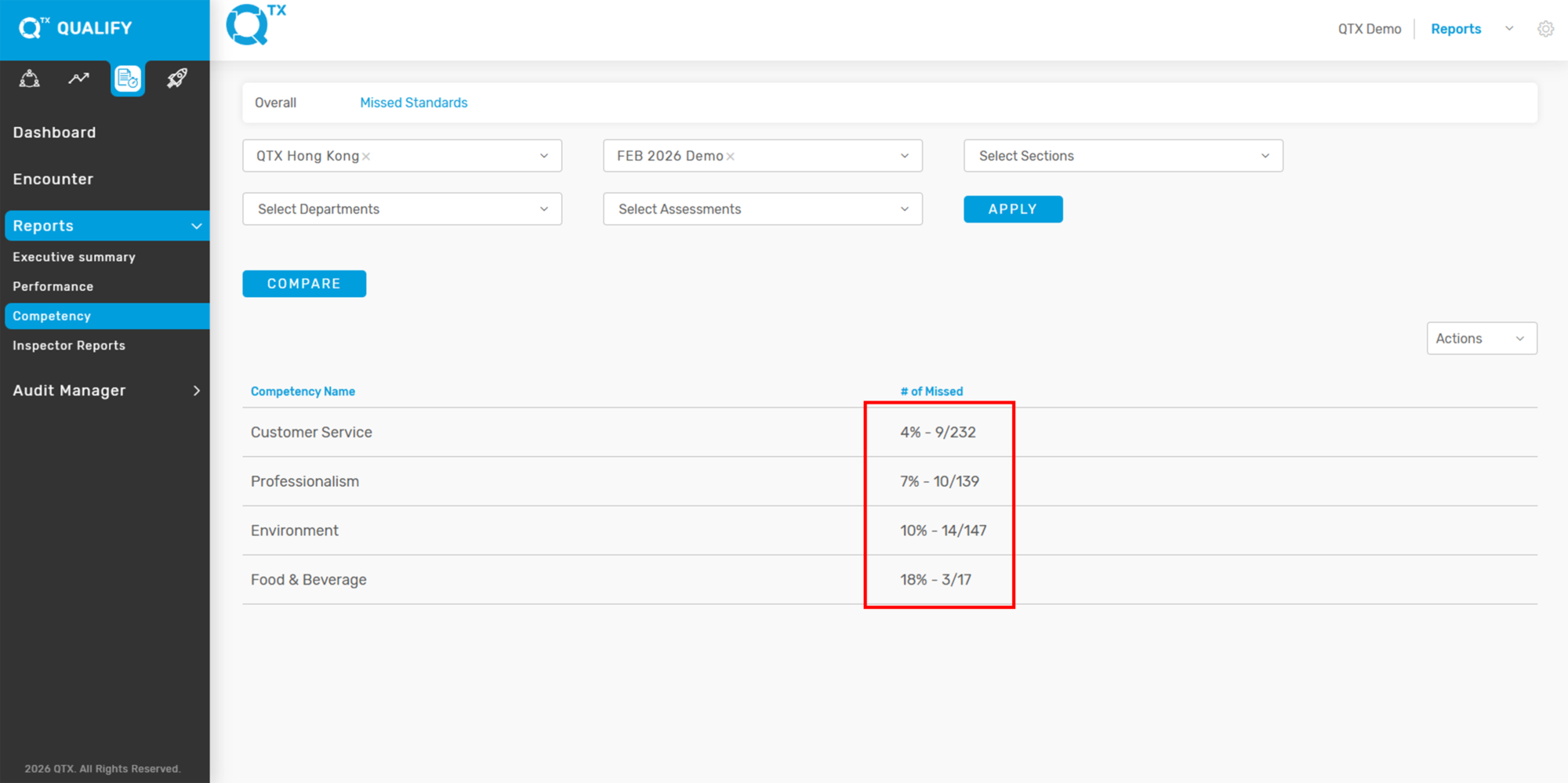
Launch: How to View Number of Missed Standards Report by Competency

This report displays the percentage of missed standards categorized by competency.


1. On the Dashboard landing page, click the “LAUNCH” button.


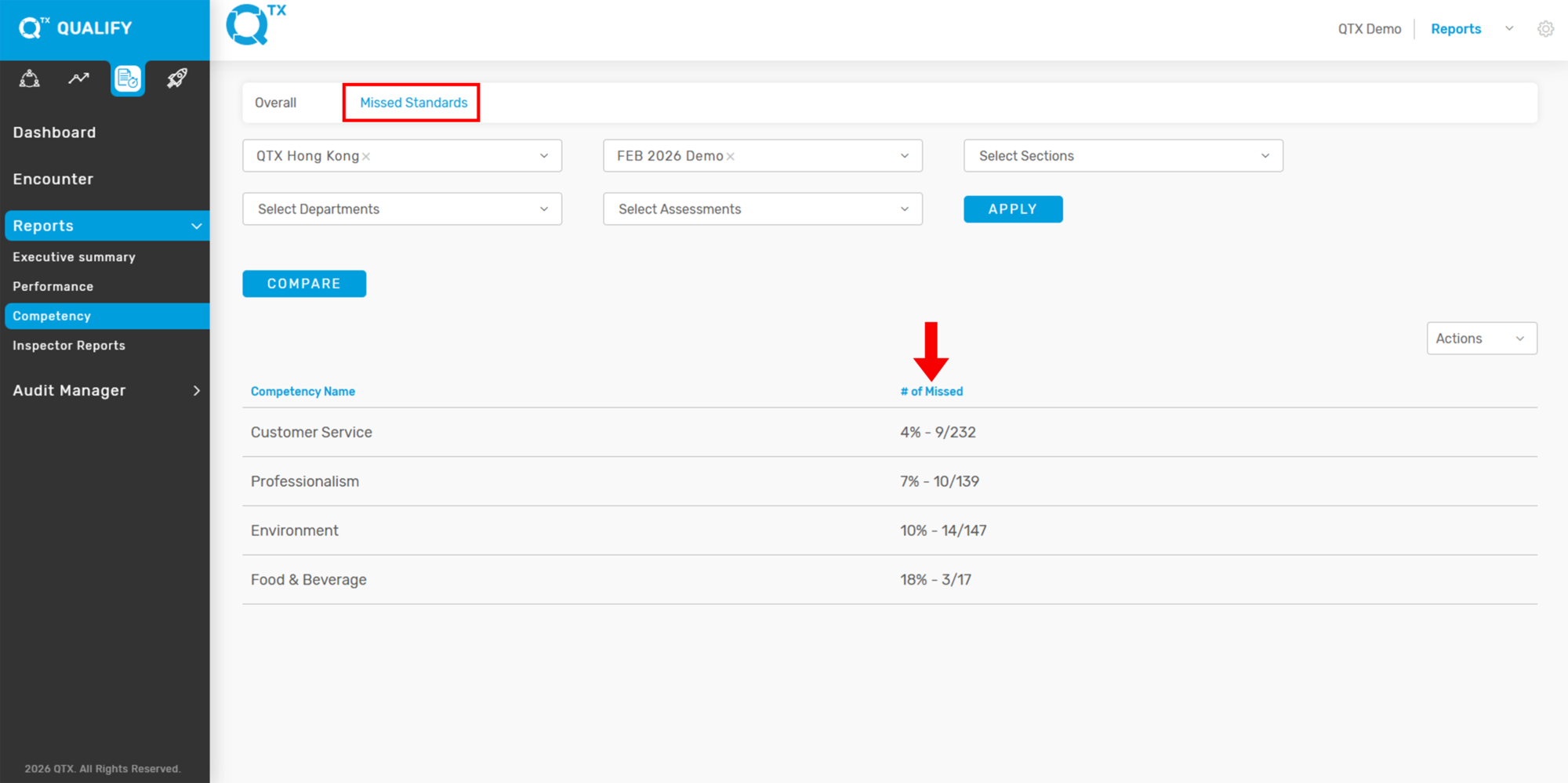
2. Click the “Reports” button, then select “Competency” from the dropdown menu.


3. Click the “Missed Standards” tab, then click “VIEW ALL” to apply filters and view the complete list.


4. The report displays missed standards by both number and percentage, categorized by competency.


If you need further assistance, please send an email to helpdesk@q-tx.com

Launch: How to View the Overall Competency Report

Each standard represents a specific aspect of the guest experience, organized under a Competency and its corresponding Sub competency or Segment. This report provides a breakdown of Competency details by Location, Section, and Department.


1. On the Dashboard landing page, click the “LAUNCH” button to proceed.


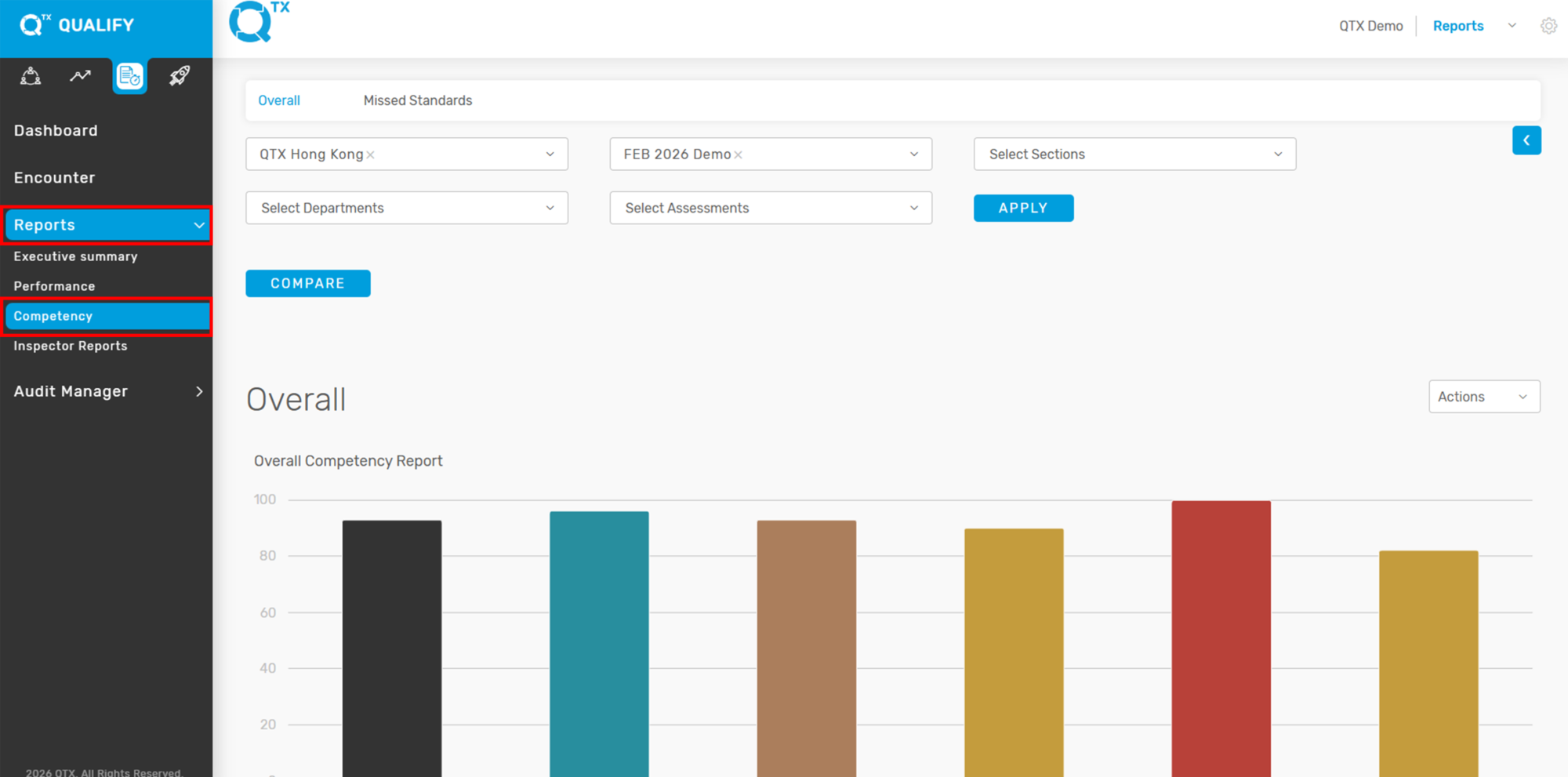
2. Click the “Reports” button, then select “Competency” from the dropdown menu.


3. Make sure you are on the “Overall” tab. Then, use the available filters to select the desired information.


4. The Overall Competency Report will appear in a graphical format. Hover your cursor over each bar to view the corresponding percentage score.


5. Click the “Arrow” button to expand or collapse the Competency list. Then, click the colored boxes to display the names of the Sub competency or Segment, if available.


6. Below is the Overall Competency Segment Report


7. Click the “VIEW SCORE” button to see the scores.


8. The data is categorized by Competency and its corresponding Competency Segment name.


9. Click “SHOW MORE” to view the Overall Competency and Overall Competency Segment reports categorized by Section.


If you need further assistance, please send an email to helpdesk@q-tx.com

Launch: How to View Number of Missed Standards Report in Performance

This displays the department and/or section’s missed standards, shown by number and percentage, based on each Assessment Name.


1. On the Dashboard landing page, click the “LAUNCH” button to proceed.


2. Click the “Reports” button, then select “Performance” from the dropdown menu.


3. Click the “Missed Standards” tab, then use the filters to select the relevant information.


4. The report will display missed standards by number and percentage, organized by Assessment Name.


If you need further assistance, please send an email to helpdesk@q-tx.com

Launch: How to View Summary of Questions Assessed

This section provides a summary score of questions that were either achieved or not achieved by the department. The percentage score is displayed in both pie chart and table formats for easy interpretation.


1. On the Dashboard landing page, click the “LAUNCH” button to proceed.


2. Click the “Reports” button, then select “Performance” from the dropdown menu.


3. Click the “Question Assessed” tab, then use the available filters to select the relevant information.


4. The summary of questions assessed by percentage will be displayed as a pie chart.


5. You can also view the Summary of Questions Assessed by percentage in a table format below the pie chart for easier comparison and analysis.


If you need further assistance, please send an email to helpdesk@q-tx.com

Launch: How to View the Overall Performance Report

The Performance Report enables management to recognize strengths by providing positive feedback and to identify areas that need improvement. Departments can use this information to discuss results collaboratively and develop action plans to enhance skills and overall performance.


1. On the Dashboard landing page, click the “LAUNCH” button to proceed.


2. Click on the “Reports” button, then select “Performance” from the dropdown menu to access performance-related data and insights.


3. The system will automatically direct you to the “Overall” tab. From there, use the available filters to select the relevant information you want to view.


4. The Overall Performance score will be displayed as a percentage and visualized in a bar graph. Hover your cursor over each bar to view the exact score.


If you need further assistance, please send an email to helpdesk@q-tx.com

Launch: How to View the Overall Score of Assessment Period in Encounter

Viewing the Overall Score as a percentage helps users understand the department’s performance during a specific assessment period. The Inspector evaluates service delivery based on defined standard scales, providing a clear measure of achievement.


1.  On the Dashboard landing page, click the “LAUNCH” button to proceed.


2. Click the “Encounter” button, then use the available filters to select and refine the information you wish to view.


3. The Overall Score will be displayed as a percentage based on the selected Assessment Period.


If you need further assistance, please send an email to helpdesk@q-tx.com

Launch: How to View Dashboard Reports

This report helps track progress on standards and identify performance gaps. It provides high-quality feedback on internal guest experiences, which can be quickly transformed into relevant, meaningful, and actionable insights.


1. From the Dashboard, click the LAUNCH icon, then use the FILTERS function to fill out the required information.


2. On the same page, scroll down to view the reports. The Competency Report displays competency scores as percentages.


3. The Performance Summary presents scores by section in a graphical format, including the Overall Score. Hover your cursor over each bar to view the specific scores and the number of assessments.


4. This section displays two key insights: Most Frequently Missed and Most Achieved Standards, helping identify areas for improvement and strengths in service. Below, a performance table shows monthly and overall scores by department, making it easy to track progress and trends across time.


5. The Trending Chart displays sections plotted on a line graph. Hover over the data points to view the corresponding scores. You can check or uncheck different sections to customize the view based on your preferences.


If you need further assistance, please send an email to helpdesk@q-tx.com

Launch: How to View List of Available Locations as a Group User

As a Group User in QTX, you have access to multiple Locations — each representing a specific property or hotel where customized activities are conducted to assess service standards and enhance the overall guest experience. These locations reflect actual hotel operations and help users evaluate performance across departments.


1. On the Dashboard landing page, click the “LAUNCH” button.


2. Click the Settings icon located in the top right corner of the screen, then select “Manage Locations” from the dropdown menu.


3. The system will automatically redirect you to the “Location” tab, where you can view, edit, or manage the list of properties assigned to your account.


4. The list of available Locations, along with their corresponding Sections and Departments, will be displayed on the screen as shown below. This allows you to easily view and manage the organizational structure of each property.


If you need further assistance, please send an email to helpdesk@q-tx.com

Launch: How to Find the Competency/Sub competency and Competency Code as a Group User

Each standard represents a specific category of the guest experience, referred to as a Competency or Sub-Competency. These classifications help organize and evaluate service performance based on key areas of hospitality and operational excellence.


1. On the Dashboard landing page, click the “LAUNCH” button.


2. Click the Settings icon in the top right corner of the screen, then select “Manage Locations” from the dropdown menu.


3. The system will direct you to the “Location” tab by default. From there, click on the “Competency” tab.


4. The system will display a list of Competencies along with their corresponding Sub-Competencies and assigned Codes.


5. You can change the language setting for competency details, if other language options are available. Additionally, you can upload data directly into the system using an Excel file, or view existing details by clicking on the number of entries shown.


If you need further assistance, please send an email to helpdesk@q-tx.com

Perform: How to View the Overall Score of Assessment Period in Encounter

Displaying the overall score as a percentage provides a clear measure of the department’s performance during a specific assessment period. The inspector evaluates service delivery based on established standards, allowing for an objective and consistent assessment of achievement.


1. From the Dashboard landing page, navigate to the PERFORM platform and select the “ENCOUNTER” tab to proceed.


2. Please ensure all required information is completed by using the available filters.


3. The Assessment Name and corresponding Overall Score will be displayed.


If you need further assistance, please send an email to helpdesk@q-tx.com

Perform: How to View the Summary of Question Assessed

This displays a summary of the scores for questions achieved and not achieved, categorized by department. The percentage scores are presented in both pie chart and table formats.


1. When you are on the Dashboard landing page, click on the PERFORM platform, then go to “Reports – Question Assessed” tab..


2. Ensure that filters are applied and all required information is completed.


3. The summary of assessed questions will be presented in both pie chart and table formats, showing Achieved, Not Achieved, and N/A scores.


If you need further assistance, please send an email to helpdesk@q-tx.com

Perform: How to View Performance Missed Standard Reports

This report highlights the standards missed during the audit, including the total number and percentage of missed standards.


1. When you are on the Dashboard landing page, make sure that you click on the PERFORM platform, then go to “Reports – Performance” and select the “Missed Standards” tab.


2. Ensure that filters are applied and all required information is completed.


3. All assessment names with missed standards will be displayed, along with the total number of missed standards.


4. Click any Assessment name to view the missed standards, including the number of times each was missed and the corresponding standard code.


5. Click any Standard name to view the details of the missed standard (i.e Inspector Name, Comment, Attribute, Assessment Date).


If you need further assistance, please send an email to helpdesk@q-tx.com

Perform: How to View Dashboard Reports

QTX dashboards allow users to monitor the contribution of the various departments in their organization. To gauge exactly how well an organization is performing overall, it is possible to capture and report specific data points from each department within the organization. This provides a “snapshot” of performance.


1. When you are on the Dashboard landing page, make sure that you click on the PERFORM platform and fill in all the information needed in the Filters.


2. Scroll down to see the Competency Report,  Performance Summary, and the top 10 Most Frequently Missed and Most Achieved Standards.


3. Performance Indicator will be available on a table and a trending chart will display the average score of the filtered data.


If you need further assistance, please send an email to helpdesk@q-tx.com

Perform: How to View Overall Performance

Performance reports allow management to provide both positive feedback and identify areas that may need improvement. Departments can review results together and use them to create development plans that support skill-building and better performance.


1. From the Dashboard landing page, click on the PERFORM Platform, then go to “REPORTS – PERFORMANCE.”


2. Use the FILTERS section to fill in all the required information — such as date range, department, and other relevant criteria — to ensure you’re viewing the correct data.


3. After applying the filters, the Performance Summary or Overall Performance report will be displayed. This gives you a clear overview of how individuals or teams are performing, highlighting strengths and areas that may need further development.


If you need further assistance, please send an email to helpdesk@q-tx.com

Perform: How to View Overall Competency Report

Each standard in the report reflects a category of the guest experience known as a Competency, which may also include Subcompetency or Segment details. This report helps you review performance by Location, Section, and Department.


1. From the Dashboard landing page, click on the “PERFORM” button.


2. Click the “Reports” button, then select “Competency” from the list.


3. Make sure you’re on the “Overall” tab. Use the FILTERS to enter all necessary information (such as date range, location, department, etc.) to generate accurate results.


4. The Overall Competency Report will display as a graph. You can hover your cursor over each bar to view the percentage score for that Competency.


5. Click the arrow button to show or hide the Competency list. To view Sub – competency or Segment details, click the color-coded boxes on the right side of the graph.


6. For a deeper breakdown, click on “VIEW SCORE” and “SHOW MORE” buttons to see scores based on each Competency and its corresponding Segment name.


If you need further assistance, please send an email to helpdesk@q-tx.com

Perform: How to View Monthly Reports

Monthly reports provide valuable insights gathered from Hotel Guest Experiences. This information helps monitor the consistency and quality of the service we deliver to our guests.


1. From the Dashboard landing page, ensure you are on the “PERFORM” platform. Then, click on the “REPORTS – MONTHLY REPORT” tab.


2. Use the FILTERS to fill in all the required details — such as date range, location, and department — to generate the correct report data.


Once the filters are applied, several key insights will be available:
A Property Graph Report Per Department will be shown at the top, offering a visual overview of departmental performance.


The Section Performance report displays each section’s name, score, and number of assessments completed.


3. You’ll also see a list of the Most Improved and Least Improved Departments, which helps highlight areas of growth and those needing attention.


4. Below that, a breakdown of Competency Names is displayed along with their Scores and Percentage Increase, showing where progress has occurred.


5. At the bottom, the report includes the Overall Competency Report, Competency Segment scores, and a list of the Top Missed Questions, offering deeper insights into service consistency and training opportunities.


If you need further assistance, please send an email to helpdesk@q-tx.com

Perform: How to View List of Available Locations as a Group User

Within the Perform Platform Settings, you can view detailed information about each location. This includes the property name, abbreviation, and its corresponding city, state, and country. This is especially useful for verifying available properties and their setup.


1. From the Dashboard landing page, click on the PERFORM Platform tab.
Then, click the “SETTINGS” button located in the upper right corner of the screen.


2. Select “Manage Locations” from the settings menu.


3. You will be redirected to the Perform Platform Settings page.
Click on the “LOCATION” tab to continue.


4.Scroll down to view the list of available Locations.
Here, you’ll see each property’s name, abbreviation, and its assigned City, State, and Country.


If you need further assistance, please send an email to helpdesk@q-tx.com

Perform: How to View Inspector Reports

Inspector Reports are used to evaluate a range of hotel services and amenities, including room service, dining, and public areas like pools. These reports are based solely on visual inspections and reflect what the inspector directly observed.


1. From the Dashboard landing page, ensure you are on the PERFORM platform.
Click the “REPORTS – INSPECTOR REPORTS” tab.


2. Use the FILTERS provided to fill in all the necessary details, such as date range, location, and inspector name, to generate the correct report view.


3. Once filters are applied, a list of User Names (inspectors) will appear at the bottom of the page.


4. To view the Completed Assessment Ratio, simply click on an inspector’s name.
This will bring up details including:

List of Assessment Names
Completion Dates
Score Percentages
Department Names
Section Names
Location Names


5. To view the detailed Encounter Report, click on any “Room Inspection” listed under the assessment names.


6. Scroll down the report to view the Standard Names, Segments, and Inspector Commentary.
You’ll also have the option to View, Send, or Download any attached files.


If you need further assistance, please send an email to helpdesk@q-tx.com

Perform: How to View Competency Missed Standard Reports

This report highlights the number and percentage of missed standards categorized by Competency, helping teams identify common gaps and areas needing improvement.


1. From the Dashboard landing page, click on the “PERFORM” tab.


2. Click the “Reports” button, then select “Competency” from the dropdown menu.


3. Make sure you are on the “MISSED STANDARDS” tab.


4. The report will display a breakdown of missed standards by number and percentage, organized by each Competency.


If you need further assistance, please send an email to helpdesk@q-tx.com

Perform: How to View Assigned Assessment as a Group User

An assessment consists of one or more questions, activities, or actions within an assignment that can be scored. A category groups together similar assessment types and can be weighted to impact the overall course or performance score.


1. From the Dashboard landing page.


2. Ensure you are in the “PERFORM” platform.
Then click on the “ASSESSMENTS – ASSIGNMENTS” tab.


3. Use the FILTERS at the top of the page to enter all required information — such as date range, department, location, or user — to refine your search results.


4. Scroll down the page to view the list of Assessment Names associated with the filtered criteria.


If you need further assistance, please send an email to helpdesk@q-tx.com

Perform: How to Find/View the Competency as a Group User

Competencies help define the skills or tasks a person needs to perform well in their job. Each one includes detailed behaviors that show different levels of proficiency.


1. From the Dashboard, go to the PERFORM Platform. Click the “SETTINGS” button at the top right of the screen.


2. Choose “Manage Locations” from the menu.


3. You will be taken to the Connect Platform Settings page. Click the “COMPETENCY” tab.


4. Scroll down to see the list of Competencies, Sub – competencies, and their Codes.


If you need further assistance, please send an email to helpdesk@q-tx.com

Perform: How to Customize Assessments as a Group User

This platform offers advanced “Customize Assessment” capabilities, enabling users to efficiently add or update assessment questions to align with dynamic requirements.


1. From the Dashboard landing page, make sure you’re in the PERFORM platform. Then click on “ASSESSMENTS – BUILDER.”


2. The highlighted section displays essential details for each assessment, including the Assessment Code, Assessment Name, Department Name, Section Name, a QR code download link, and the Last Update timestamp. This allows users to easily identify and manage assessment records.
To view an assessment’s details, select its Assessment Code from the list.


3. The image displays a “Customize Assessment” page within a system, likely for managing performance or training. Key areas highlighted by red boxes include the “Check-in” section and “Assessment Instructions.” Users can edit instructions, such as “go to front desk,” and also edit the “Check-in” assessment name.


4. Highlight several features on the “Customize Assessment” page. The top left red box indicates a multi-step process, with numbers 1 through 7 likely representing the number of assessment sections or questions that need to be answered. A red box further down outlines an area to “Drag and drop or click to upload file,” with a note that only image, audio, and video files (up to 10MB) are allowed. Finally, a red arrow points to a checkbox labeled “Enable Employee Recognition,” indicating an optional feature for the assessment.


5. The “Assessment Attributes” where users can define custom fields for an assessment. Two primary attributes, “Team Member Name” and “Shift / Period,” are shown with their respective options. Red arrows indicate these attribute sections, and a red box highlights the “Select Attribute” dropdown menu at the bottom, which allows users to add more attributes like “Room Number,” “MOD Name,” “Hotel Occupancy,” and others from a predefined list.


6. A red arrow points to the “Require comment for” field, which has a dropdown menu highlighted by a red box. This dropdown allows users to select whether comments are “N/A,” “NO,” or “YES” for specific answers within the assessment. This feature enables control over when an assessor must provide additional textual feedback.


7. The primary questions are referred to as “Standard” (e.g., “Did the staff greet you…”). Red arrows highlight fields for “Placeholder” and “Question Guide,” which provide additional context. Below these, “Test1” and “Test 1” represent the “Competency” and “Sub Competency” respectively. A “1” indicates the “Weightage,” and “Test2” represents the “Category.”


8. On the lower page, you’ll have the option to click “ADD QUESTION” to include a new question in the assessment.


If you need further assistance, please send an email to helpdesk@q-tx.com

Perform: How to Assign an Assessments to Inspector as a Group User

An assessment consists of one or more questions, tasks, or actions that an individual can be scored on. A category is a group of assessment types that can be assigned a percentage or weight toward the overall course score.

Here’s how to assign an assessment in the PERFORM platform:


1. From the Dashboard landing page, make sure you’re in the PERFORM platform.


2. Then click on the “ASSESSMENTS – ASSIGNMENTS” tab.


2. Click the “ASSIGN ASSESSMENT” button.


3. Fill in all the required information such as location, department, section, assessment name, and user details.


4. Once everything is complete, click the “ASSIGN” button to finalize the process.


If you need further assistance, please send an email to helpdesk@q-tx.com

Qualify: How to Customize Assessments as a Group User

An assessment is a type of questionnaire used to evaluate the quality or nature of a product or person. It plays an important role as these questionnaires serve as the main standard service of each section.


1. On the Dashboard landing page, click the “QUALIFY” button to proceed.


2. Click the “Audit Manager” button, then select “Assessment Builder”. From there, choose the relevant information from the selection lists to apply the appropriate filters for your assessment setup.


3. Click on any Assessment listed to view its details.


4. Let us take Arrival Service as an example to view how the assessment is displayed.


5. Below is the Arrival Service Assessment, which outlines the related Competency (Customer Service) and Subcompetency (Courtesy & Manners). Each Standard within the assessment is rated on a scale from 1 to 3. Additionally, if needed, you can deactivate a specific standard by toggling the blue icon indicated by the arrow.


6. To complete the question setup in the QTX Builder, make sure to fill in the fields indicated by the red arrows and box. Enter a placeholder (brief instruction or sample response) and a question guide (detailed explanation or criteria). Then, from the dropdown marked with the red box, select the appropriate category that aligns with the question content. These fields help organize and guide the assessment effectively. If a new question needs to be inserted—changing the current order of questions—the user must submit a new set of assessments. Our team will handle the updates to ensure that the historical data of previous assessments remains intact.


If you need further assistance, please send an email to helpdesk@q-tx.com

Qualify: How to View Mystery Shop as a Group User

This report is important because it allows users to directly access the Inspector’s feedback and experience. It also enables Group Users to monitor the status of assigned assessments, indicating whether they have been started or completed.


1. On the Dashboard landing page, click the “QUALIFY” button to proceed.


2. Click the “Audit Manager” button, then select “Assign & Review Audits.” After that, choose the appropriate Assessment Period to view the related assignments.


3. In the Assign & Review Audits section, each assessment is displayed in a table format. The columns highlighted in the red boxes show the Status (e.g., Completed) and the Change Status toggle.


4. If the Action toggle is blue, it means the assessment is currently inactive and visible to the Encounter Report.


5. To edit a completed Encounter Report, simply find the report you want on the list, then click the blue In REVIEW button on the right side. This will open the report where you can make your edits.


6. You will notice the Standards in Review button. Click it to view the Encounter Report.


7. The Assessment Report will be displayed. Click “VIEW BY COMPETENCY” to see the full details categorized by competency at the bottom of the report.


8. Below is a sample of an Assessment. In the “Attached Files” section, you can view any supporting attachments such as images or documents, if available.


9. To delete an assessment, simply check the small box next to the assessment you want to remove, then click the “DELETE” button to confirm the action.


If you need further assistance, please send an email to helpdesk@q-tx.com

Qualify: How to View Number of Missed Standards Report by Competency

This displays the total number and percentage of missed standards, categorized by Competency, helping to identify areas needing improvement.


1. On the Dashboard landing page, click the “QUALIFY” button to proceed.


2. Click the “Reports” button from the navigation menu, then select “Competency” to view performance data.


3. Click on the “Missed Standards” tab, then select the relevant filters from the available options. From here, you will be able to see the number of Missed Standards based on the selected criteria.


4. The report will display the missed standards categorized by Competency, showing both the number of missed items and their corresponding percentage. This helps identify specific areas needing improvement.


5. Click any of the Competency Names to display a detailed list of the missed standards under that specific competency, as shown in the example below. This allows users to pinpoint which standards were not met.


If you need further assistance, please send an email to helpdesk@q-tx.com

Qualify: How to View Overall Competency Report

Each standard reflects a category of inspector feedback/experience, known as a Competency and Subcompetency/Segment. This report presents the details of the Competency Report by location, section, and department. Classifying the information accordingly will make it easier for the user to understand overall performance.


1. On the Dashboard landing page, click the “QUALIFY” button to proceed.


2. To access the Competency Report, start by clicking the “Reports” button located on the main navigation menu. From the dropdown options that appear, select “Competency” to view the detailed report related to inspector feedback and performance metrics.


3. Ensure that you are on the “Overall” tab before proceeding. From there, use the selection list to filter and choose the relevant information you wish to view, and clickthe  “Apply” button.


4. The Overall Competency Report will be displayed as a graph. To view the percentage score for each category, simply point your cursor at the specific graph bars.


5. Click the “Arrow” button to show or hide the Competency list. Then, click on the colored box items within the list to view the corresponding Subcompetency or Segment name, if available.


6. Below is the Overall Competency Segment Report, which provides a breakdown of performance across various segments.


7. Click the “VIEW SCORE” button to display the scores categorized by Competency and Competency Segment Name.


8. From here, you can view the Competency Name, Competency Segment Name, and their corresponding scores.


If you need further assistance, please send an email to helpdesk@q-tx.com

Qualify: How to View Number of Missed Standards Report in Performance

This displays the number and percentage of missed standards for a department and/or section, based on the selected Assessment Name.


1. On the Dashboard landing page, click the “QUALIFY” button to proceed.


2. Click the “Reports” button, then select “Performance” from the dropdown menu to proceed.


3. Click the “Missed Standards” tab to access the relevant section. Then, use the selection list to filter and choose the specific information you want to view. And click the “Apply” button.


4. The report will display the total of missed standards by number and percentage, based on the selected Assessment Name.


5. Click on any Assessment Name, and the list of missed standards per standard will be displayed as shown below.


If you need further assistance, please send an email to helpdesk@q-tx.com
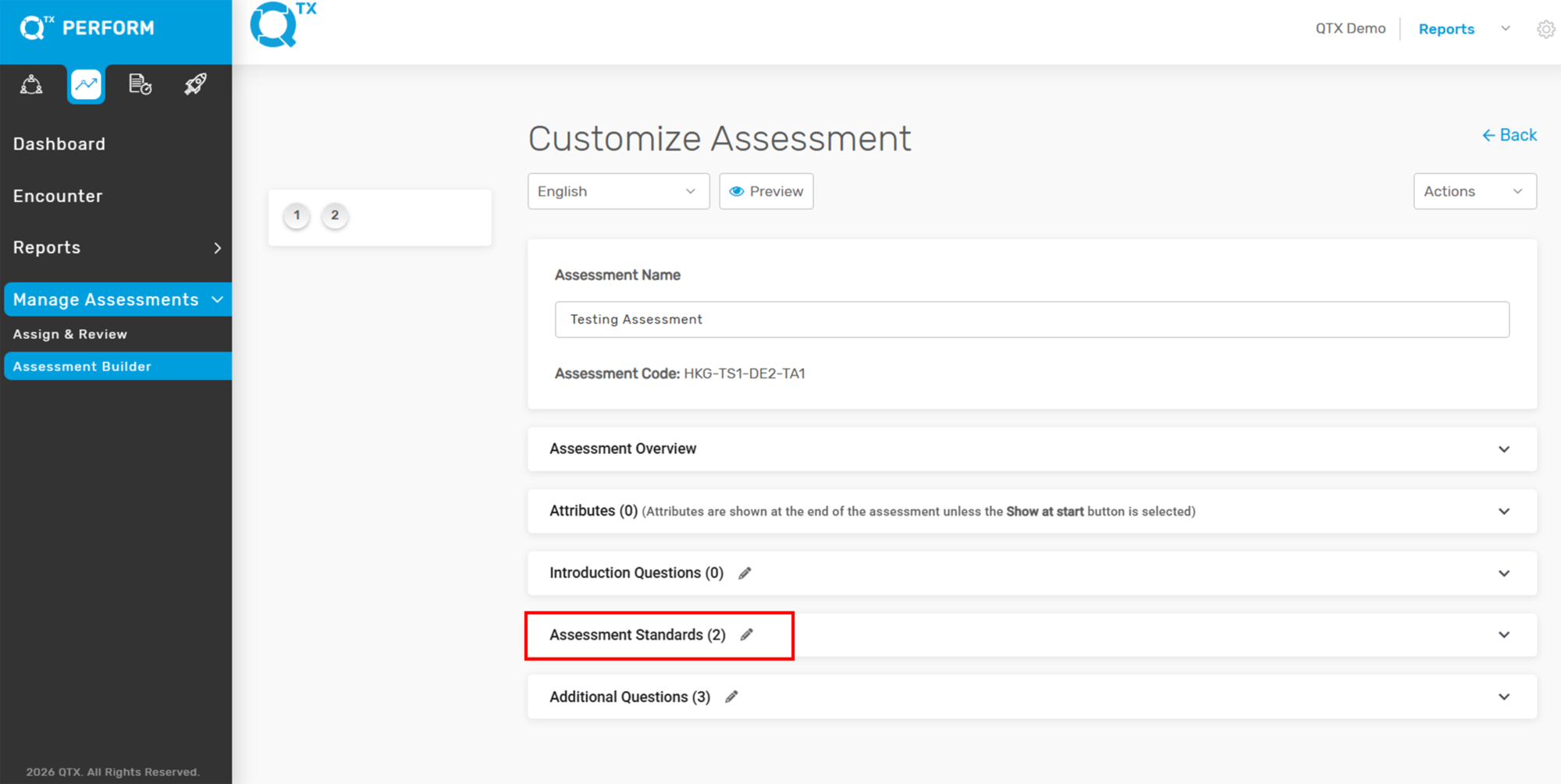
Qualify: How to View Summary of Questions Assessed

This displays a summary of the questions that have been achieved and not achieved by the department. The percentage score is presented in both pie chart and table formats.


1. On the Dashboard landing page, click the “QUALIFY” button to proceed.


2. Click on the “Reports” button, then select “Performance”.


3. Click the “Question Assessed” Tab. Then, use the selection list to filter and choose the specific information you want to view.


4. The system will display a summary of the assessed questions as a percentage, shown in a pie chart.


5. This table helps provide a clear overview of how each department performed in its assessments. By showing the percentage of Achieved, Not Achieved, and N/A responses, it allows users to quickly identify strengths and areas for improvement.

The N/A (Not Applicable) score is important because it indicates questions that were not relevant to the specific department or situation. These are excluded from the final performance calculation to ensure the score accurately reflects only the applicable criteria. This prevents departments from being unfairly scored on items outside their scope of responsibility.


If you need further assistance, please send an email to helpdesk@q-tx.com

Qualify: How to View the Overall Performance Report

The Performance Report enables management to provide positive feedback and identify areas for improvement. It also allows departments to review results collaboratively and develop action plans to enhance skills and performance.


1. On the Dashboard landing page, click the “QUALIFY” button to proceed.


2. Click on the “Reports” button, then select “Performance”.


3. The system will redirect you to the ‘Overall’ tab. From there, select the relevant information from the dropdown list to apply filters.


4. The Overall Performance score is displayed as a percentage and shown in a graph format. Hover your cursor over a bar in the graph to view the exact Overall score.


If you need further assistance, please send an email to helpdesk@q-tx.com

Qualify: How to View the Overall Score of Assessment Period in Encounter

Displaying the Overall Score as a percentage helps determine the department’s achievements during a specific assessment period. The inspector evaluates the department’s service performance based on standardized rating scales.


1. On the Dashboard landing page, click the “QUALIFY” button to proceed.


2. Click the ‘Encounter’ button, then select the relevant information and click the ‘Apply’ button to filter.


3. The Overall Score is displayed as a percentage based on the selected assessment period.


If you need further assistance, please send an email to helpdesk@q-tx.com

Qualify: How to View List of Available Locations as a Group User

Location refers to the specific property or hotel where the tailor-made mystery shopping assessment takes place. This is the physical site selected to evaluate how well the service delivery aligns with brand standards and expectations. Each location is assessed individually to ensure the accuracy and relevance of the findings, helping management understand performance at the property level and identify opportunities for improvement.


1. On the Dashboard landing page, click the “QUALIFY” button to proceed.


2. Click the settings icon in the top-right corner, then select ‘Manage Locations’.


3. The system will navigate to the ‘Location’ tab, where a list of Locations, Sections, and Departments will be displayed as shown below.


If you need further assistance, please send an email to helpdesk@q-tx.com
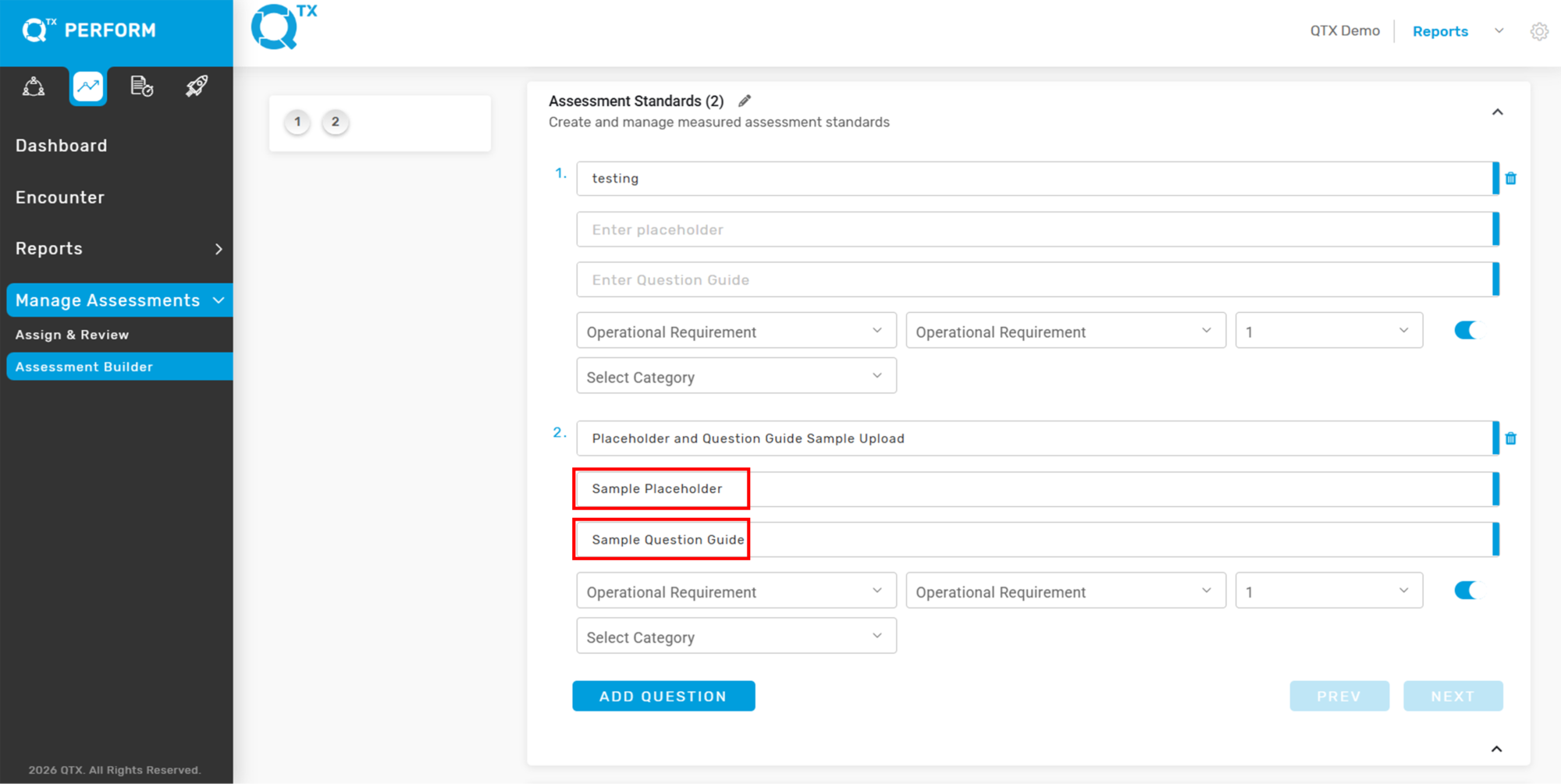
Qualify: How to Find the Competency/Subcompetency and Competency Code as a Group User

Each standard represents a specific category of the guest experience, referred to as a Competency or Subcompetency. These categories help organize the evaluation criteria into meaningful segments. By grouping standards under competencies, the assessment provides a structured view of performance, making it easier to identify strengths and areas for improvement within each aspect of the guest journey.


1. On the Dashboard landing page, click the “QUALIFY” button to proceed.


2. Click the settings icon in the top-right corner, then select ‘Manage Locations’.


3. Click the ‘Competency’ tab to view the list of Competencies along with their corresponding Subcompetencies and Codes.


4. You can change the language setting of the competency details, if another language is available. Additionally, you can upload data from an Excel file and view the total number of entries.


If you need further assistance, please send an email to helpdesk@q-tx.com
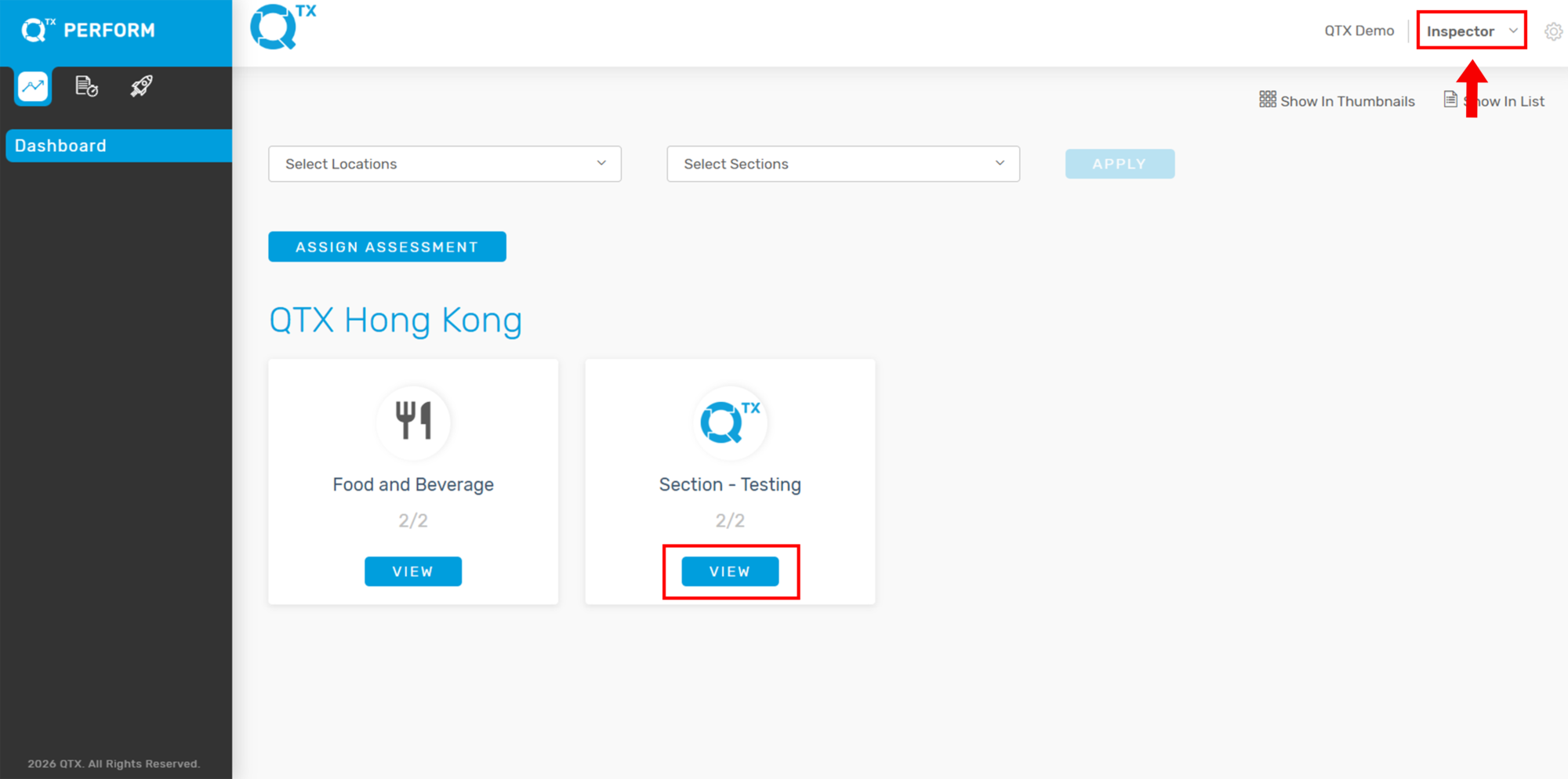
Connect: How to Choose to Show the Number of Decimal Points in Reports

This setting allows users to define the number of decimal points displayed in reports. Adjusting the decimal precision ensures numerical data is presented with the required accuracy, whether rounded for simplicity or shown in full detail for analytical purposes.


1. On the Dashboard landing page, click the “SETTINGS” button located in the upper-right corner.


2. Then, choose “Manage Profile” from the drop-down menu.


3. Here, you will see the account owner’s profile details along with the option to change the password.


4. At the bottom of the page, you can configure how numbers are displayed in the reports (e.g., number of decimal points) and also change the language.


If you need further assistance, please send an email to helpdesk@q-tx.com