
The Activity Log feature provides a detailed timeline of events related to each Encounter Report. It allows users to track progress, identify changes, and review the assessment lifecycle from start to completion.
🔍 Where to find It:
1. Navigate to the Encounter Report: Go to the “Encounter” tab on the left sidebar. Select a report (e.g., Check In (test)).
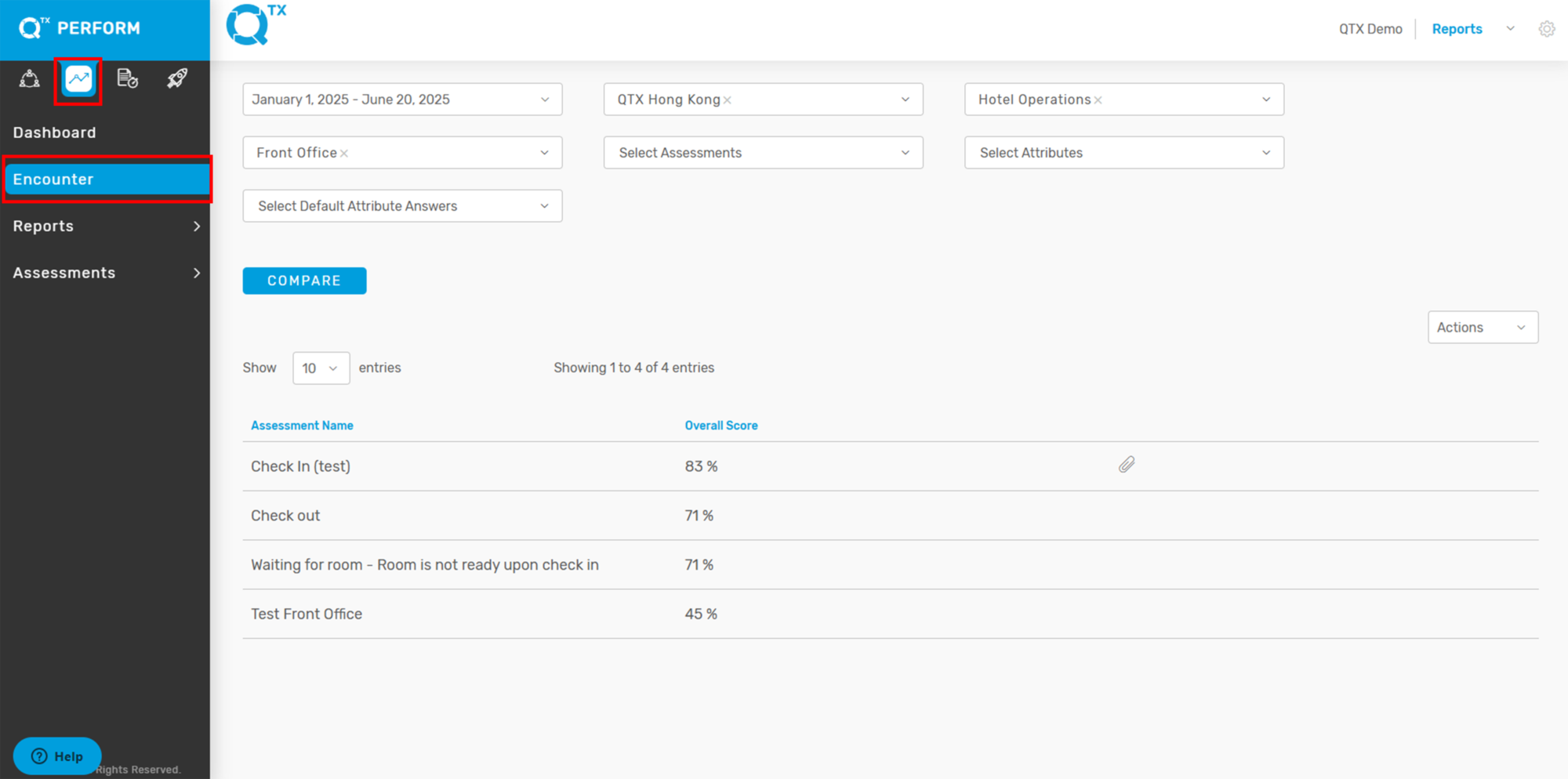
2. View Activity Count: In the Encounter summary page, locate the “Activity Log” column (see red arrow in the first image).

3. Open the Activity Log: The number shown (e.g., 3) indicates how many activity entries are available for that report.

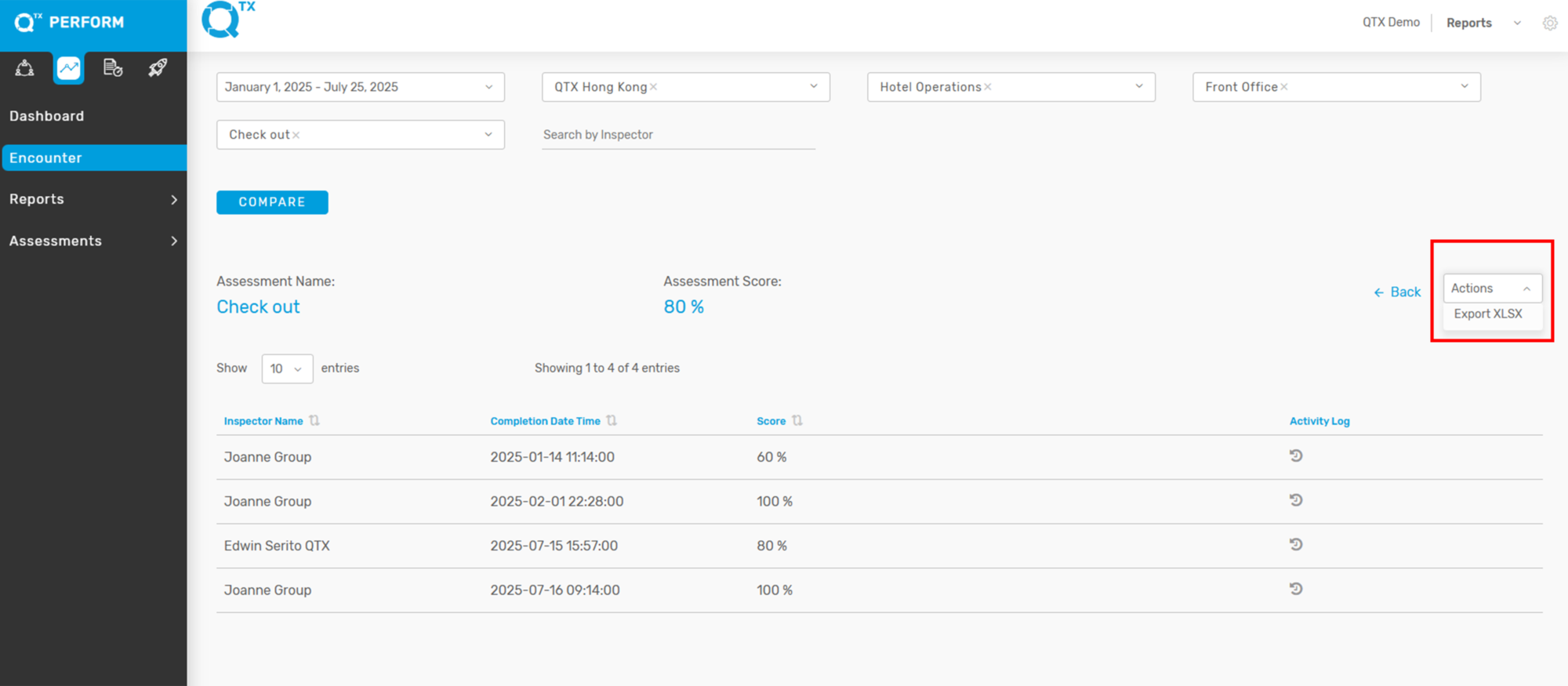
4. The user can also export the Excel file by clicking the Action dropdown on the right side and selecting ‘Export XLSX’.
5. The exported Excel file usually appears in the upper right corner of the screen. If the file does not appear, press the shortcut key “Ctrl + J” on your keyboard to view all downloaded files in your browser.
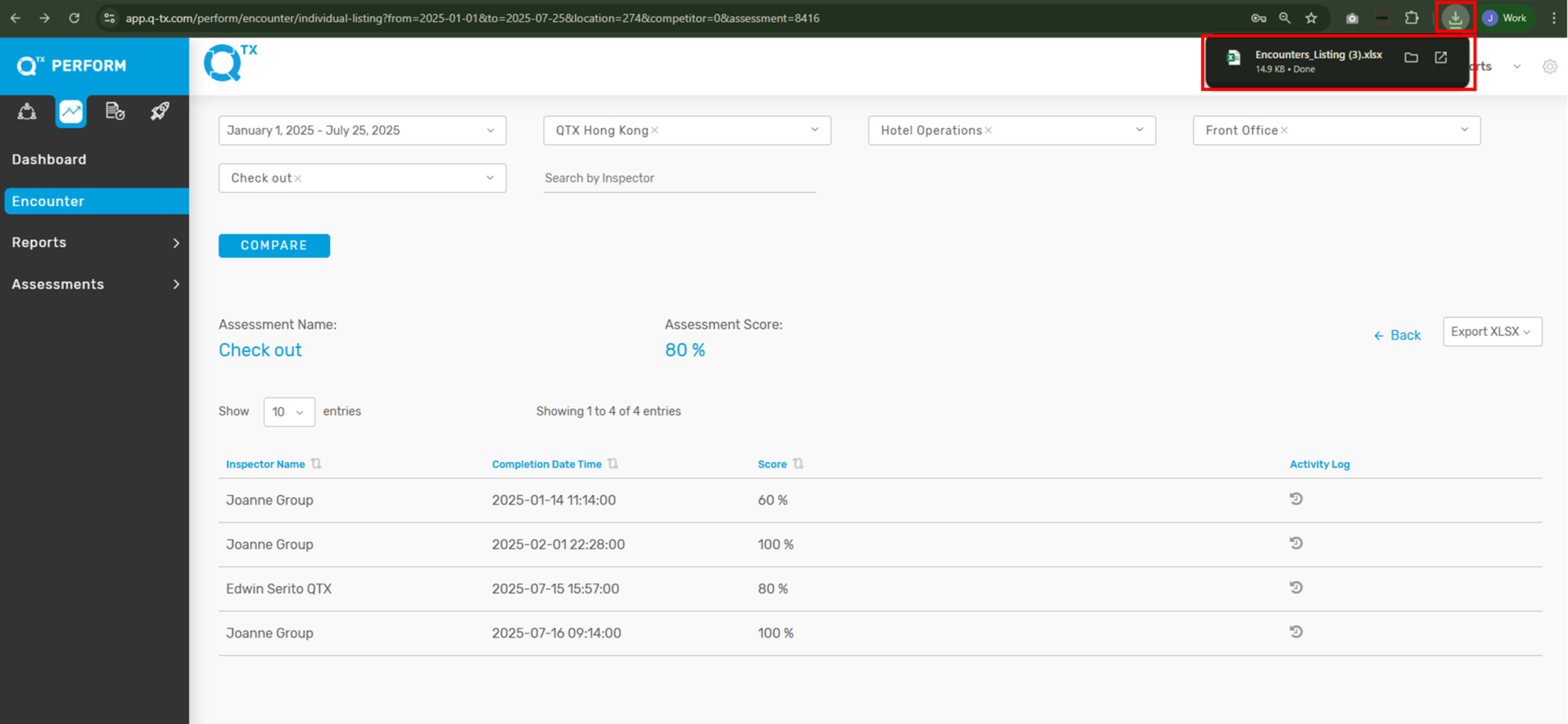
6. Here is an overview of your exported file from the Activity Log.

If you need further assistance, please send an email to helpdesk@q-tx.com