
These question types are designed to support flexible and structured data collection depending on the assessment need. They allow organizations to gather both quantitative and qualitative insights, improve evaluation accuracy, and ensure assessments are tailored to different response formats.
1. On the Perform Dashboard Landing Page, go to Manage Assessment, then click Assessment Builder.

2. In the Assessment Builder, select the assessment name you want to add an Introduction Questions.

3. From here, you will see the Introduction Questions and the Additional Questions.

4. Select the Introduction Questions and click Add Question

5. After entering the question, click the Question Type.

6. Multi-Response – Allows respondents to select multiple answers from a given list.
Use: Best for identifying all applicable choices or behaviors.
Enable Radio – Respondents can select only one answer from a list.
Use: Used when only one correct or preferred option is expected.
Enable Dropdown – Respondents choose one answer from a dropdown menu.
Use: Suitable for saving space and simplifying long option lists.
Respondents can select multiple answers from a dropdown or list.
Use: Useful when multiple applicable responses are needed in a compact format.

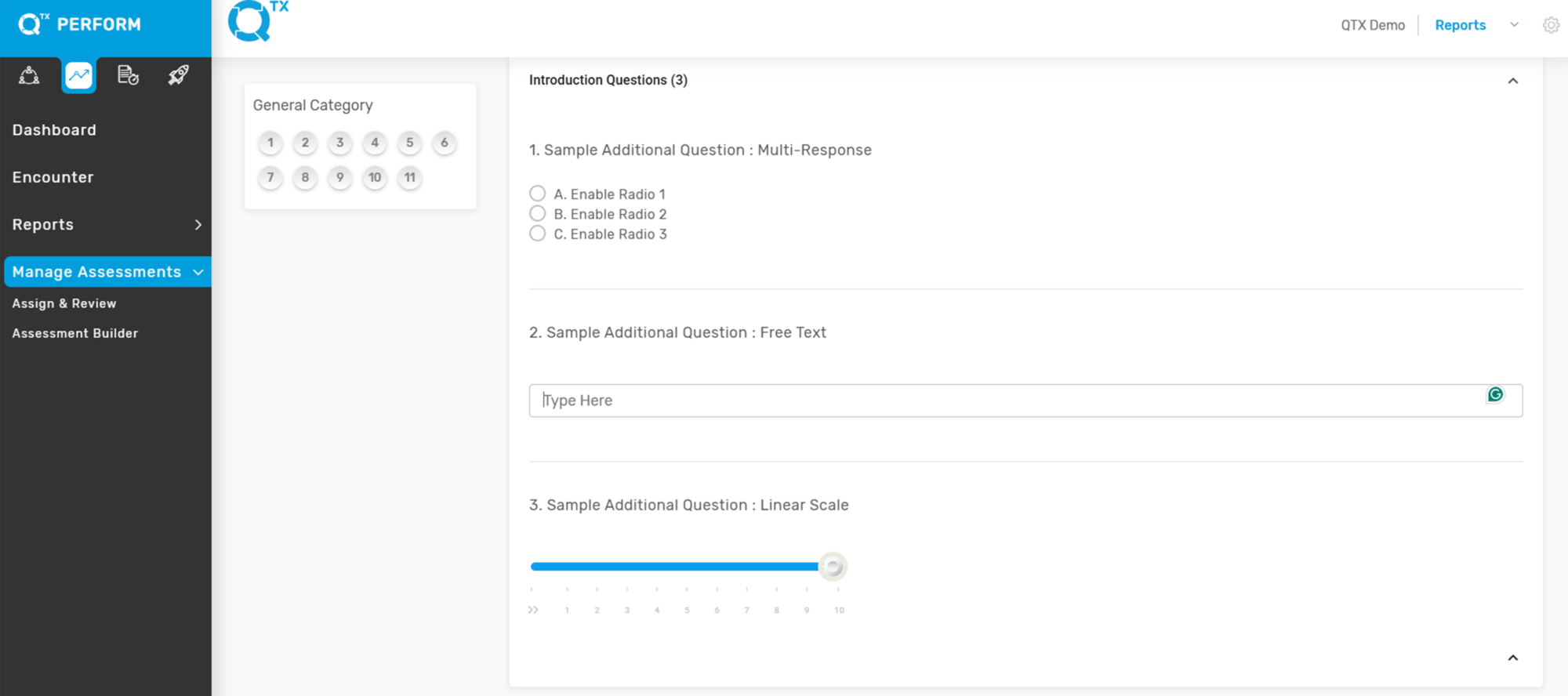
7. Free Text – Open-ended question allowing respondents to type any answer.

8. Linear Scale – Respondents rate on a scale (e.g., 1–5, 1–10) for quantitative assessment.

9. This is a preview of the image we have created.
If you need further assistance, please send an email to helpdesk@q-tx.com