
This guide explains how to upload assessments in bulk using the Excel template with Placeholder and Question Guide fields. It helps users efficiently create and manage assessment standards by ensuring all required information is properly aligned before uploading to QTX. By following this process, users can save time, reduce manual configuration, and ensure consistency across uploaded assessments.
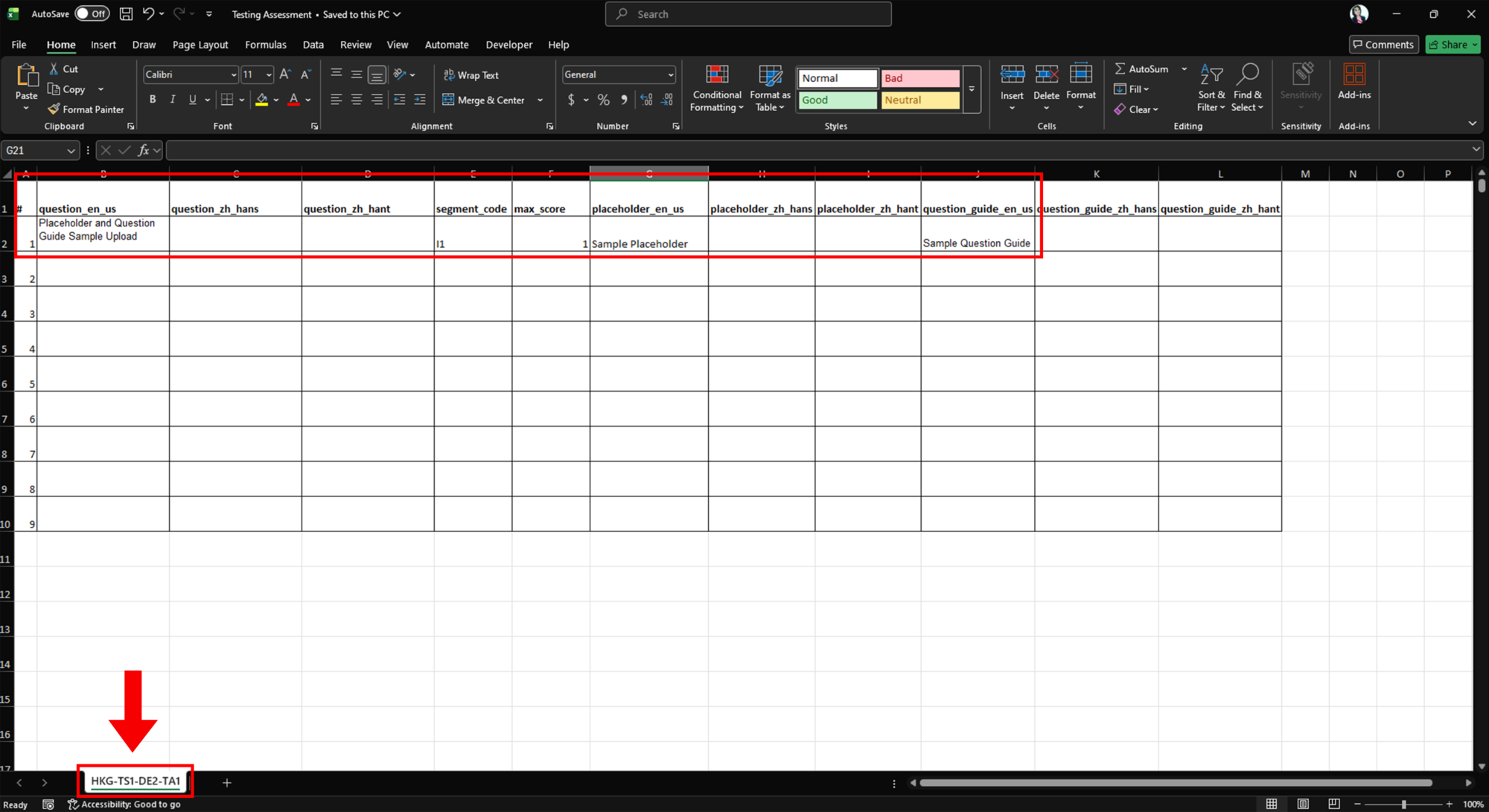
1. Prepare the Excel Template. Open the Excel template for uploading the checklist on your desktop. Make sure to complete the required fields correctly, such as:
– #
– question_en_us
– segment_code
– max_score
For the Placeholder text in English, enter the details under:
– placeholder_en_us
For the Question Guide, enter the details under:
– question_guide_en_us
Also, ensure that you input the correct Assessment Code to avoid upload errors. Once completed, save the template on your desktop.
Note:
Make sure that the sequence number of each standard is correct. Delete all unnecessary rows or cells before uploading the file.
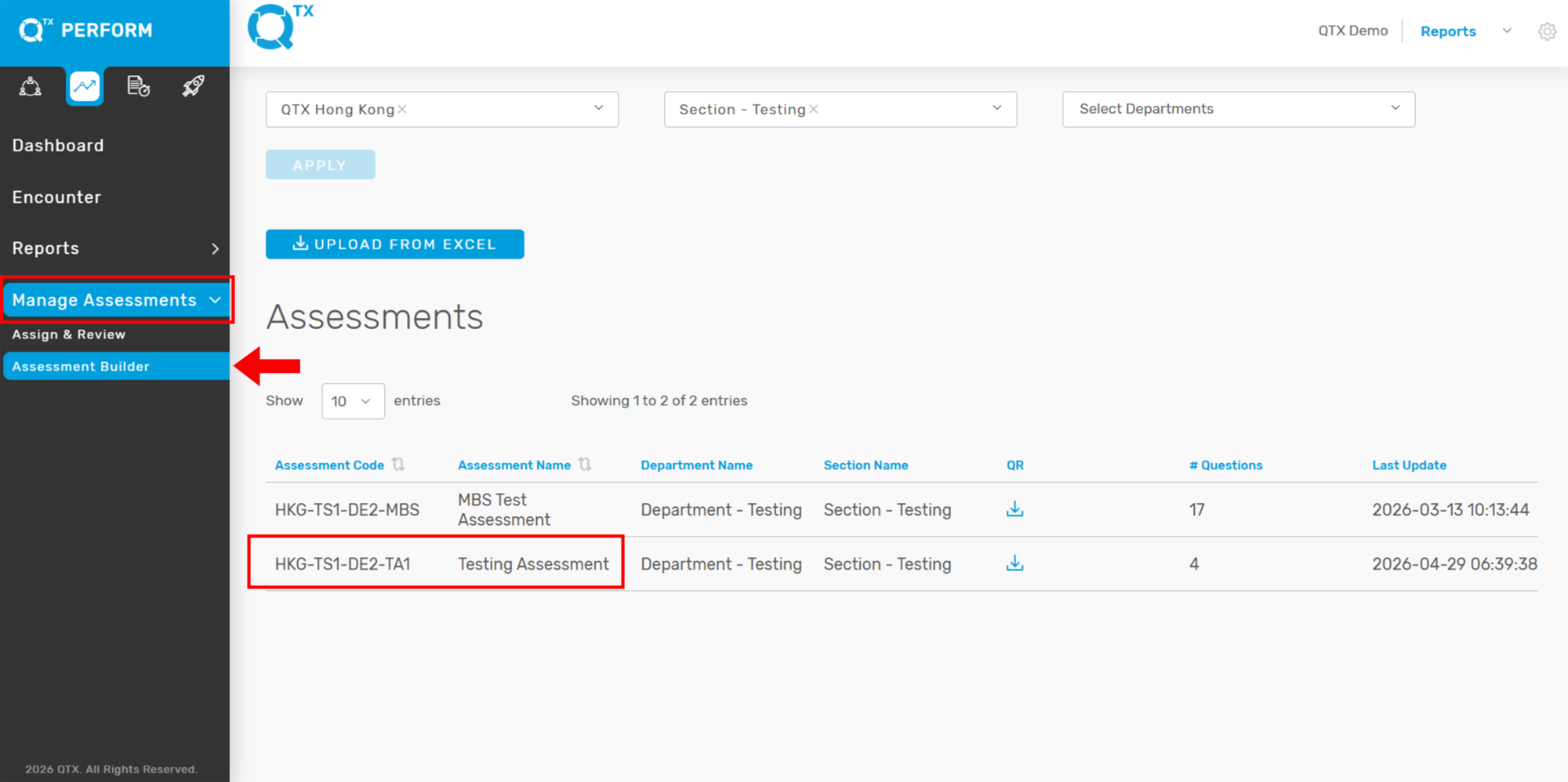
2. Open Assessment Builder in QTX. After completing the template, log in to your QTX account.
– Click Manage Assessments
– Go to Assessment Builder
Before uploading, make sure that the Assessment Code in your Excel template matches the existing assessment name/code in QTX.
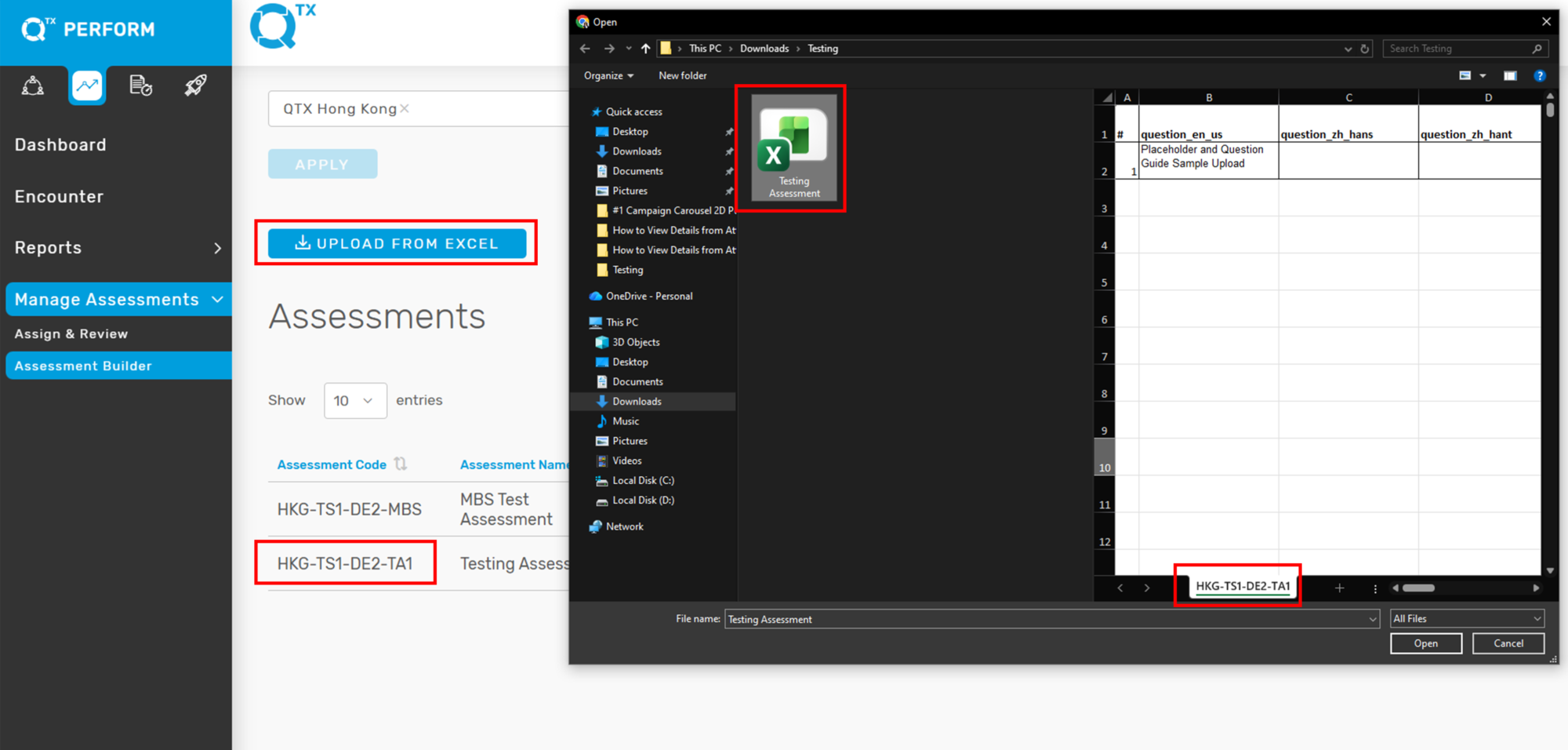
3. Upload the Excel File. Click the Upload from Excel button.
A folder window will appear on your screen. Select the completed Excel template from your desktop.
From here, check and validate if all information is properly aligned before uploading.
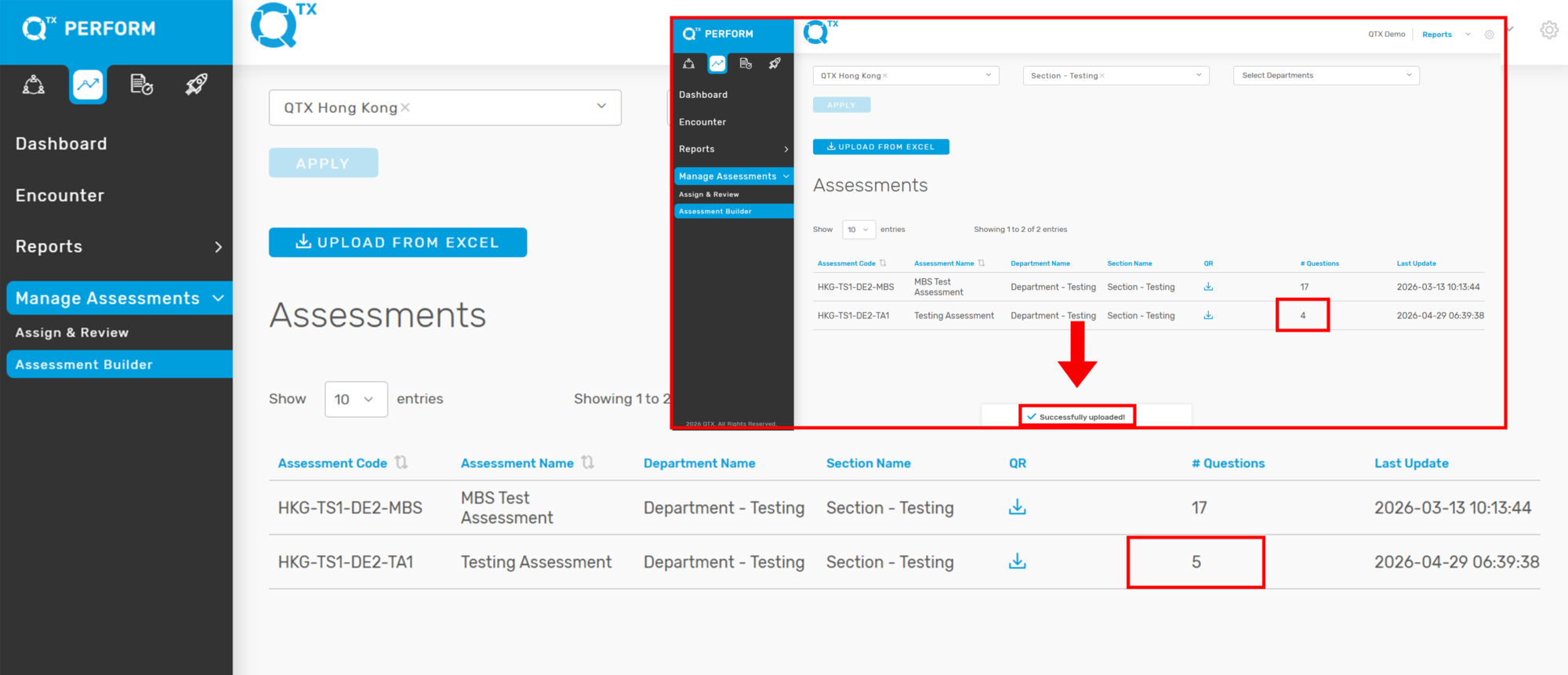
4. Verify the Upload. Once the upload is successful, a “Successfully Uploaded” notification will appear at the bottom of the screen.
You will also notice that the # Questions count will automatically update based on the number of standards uploaded to the assessment.
5. Review the Uploaded Assessment. Click the assessment name and go to the Assessment Standards section to verify that all uploaded information is correctly aligned.
Check the following:
– Sequence numbers
– Standards
– Scores and segments
– Placeholder text
– Question Guide
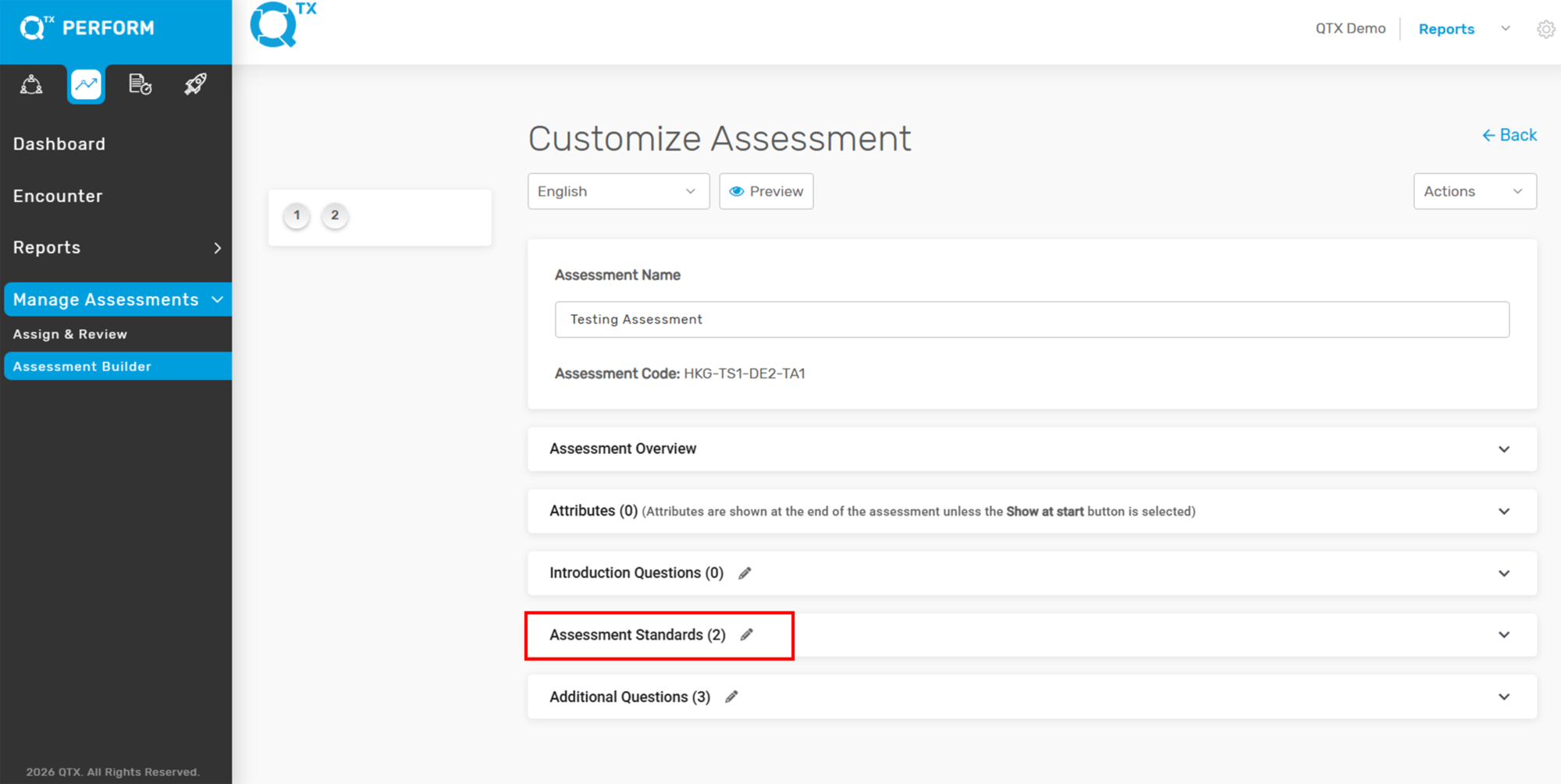
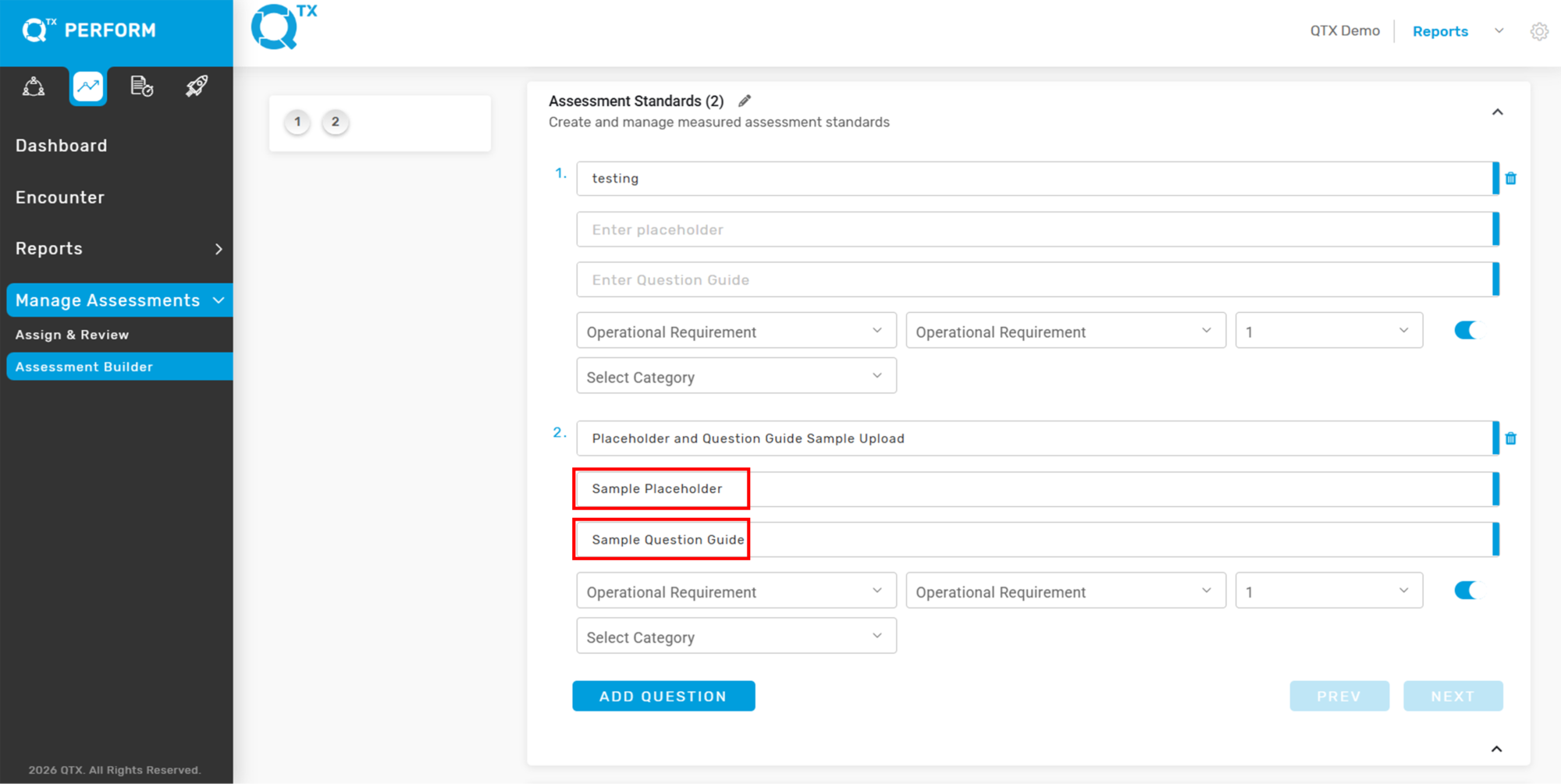
6. Confirm Placeholder and Question Guide Upload. As shown in the assessment, the Sample Placeholder and Sample Question Guide are automatically uploaded together with the checklist.
If you need further assistance, please send an email to helpdesk@q-tx.com