
Mystery Shoppers assess the department’s service performance based on standard criteria. Their feedback helps identify areas for improvement by providing insight into how customers perceive the company.
1. On the Dashboard landing page, click the “QUALIFY” button to proceed.

2. Click on the “Encounter” button located on the left-side menu. Once the page opens, fill in the required details in the Filters section to narrow down and view specific assessment results or encounter records.

3. The Overall Score will be displayed as a percentage based on the selected Assessment Period, providing a clear summary of performance during that specific timeframe.

4. Click on Assessment Period to display the available “Assessment Names” associated with that period, as shown in the example below.

5. Click on the Assessment Name to open and view the Encounter Report. The report will be displayed in its Default view, showing key details such as inspector comments, scores, and assessment criteria.
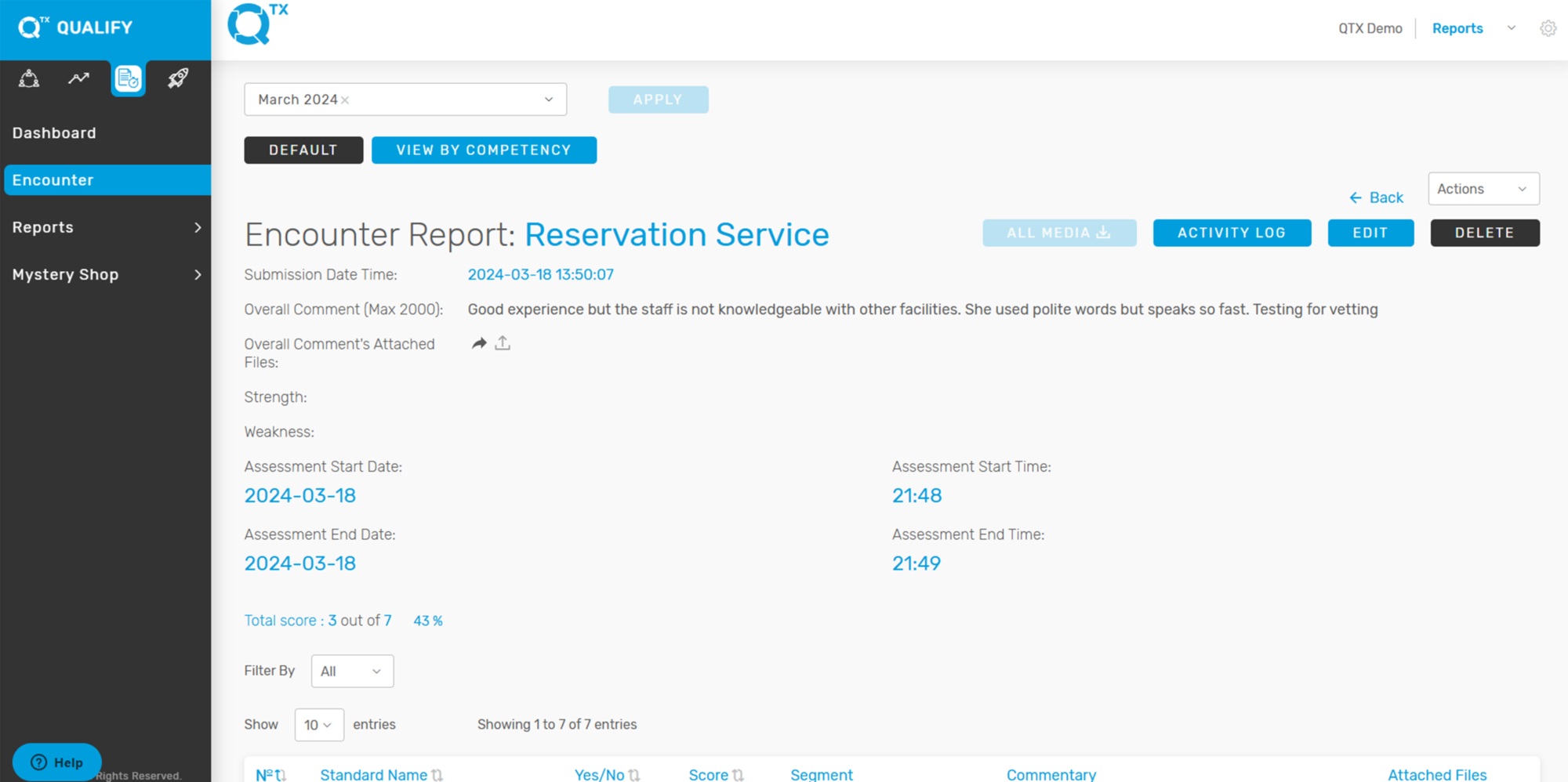
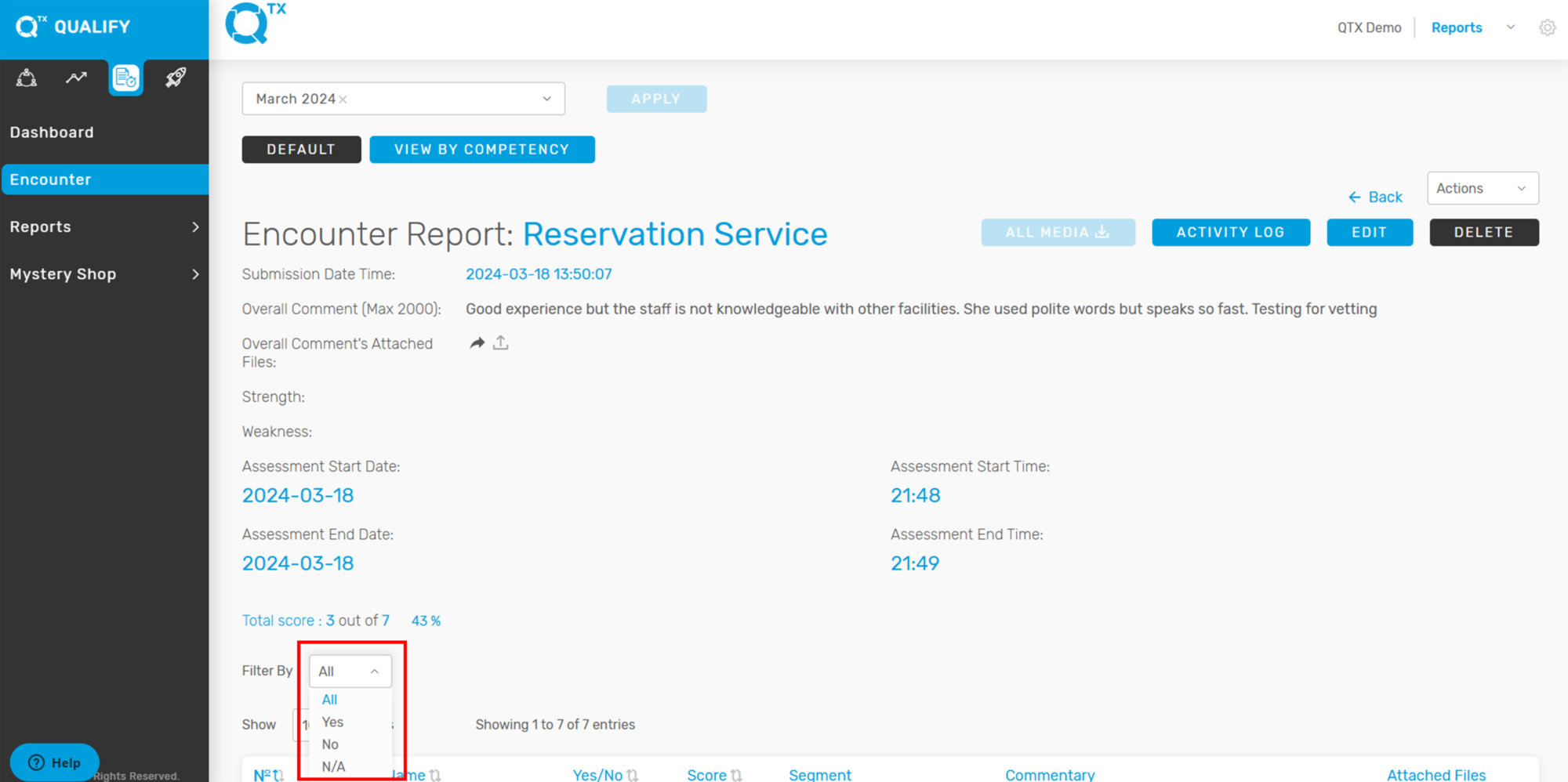
6. The user can view this filter in the Default view, which allows them to display all Yes, No, or N/A responses on a single encounter page.
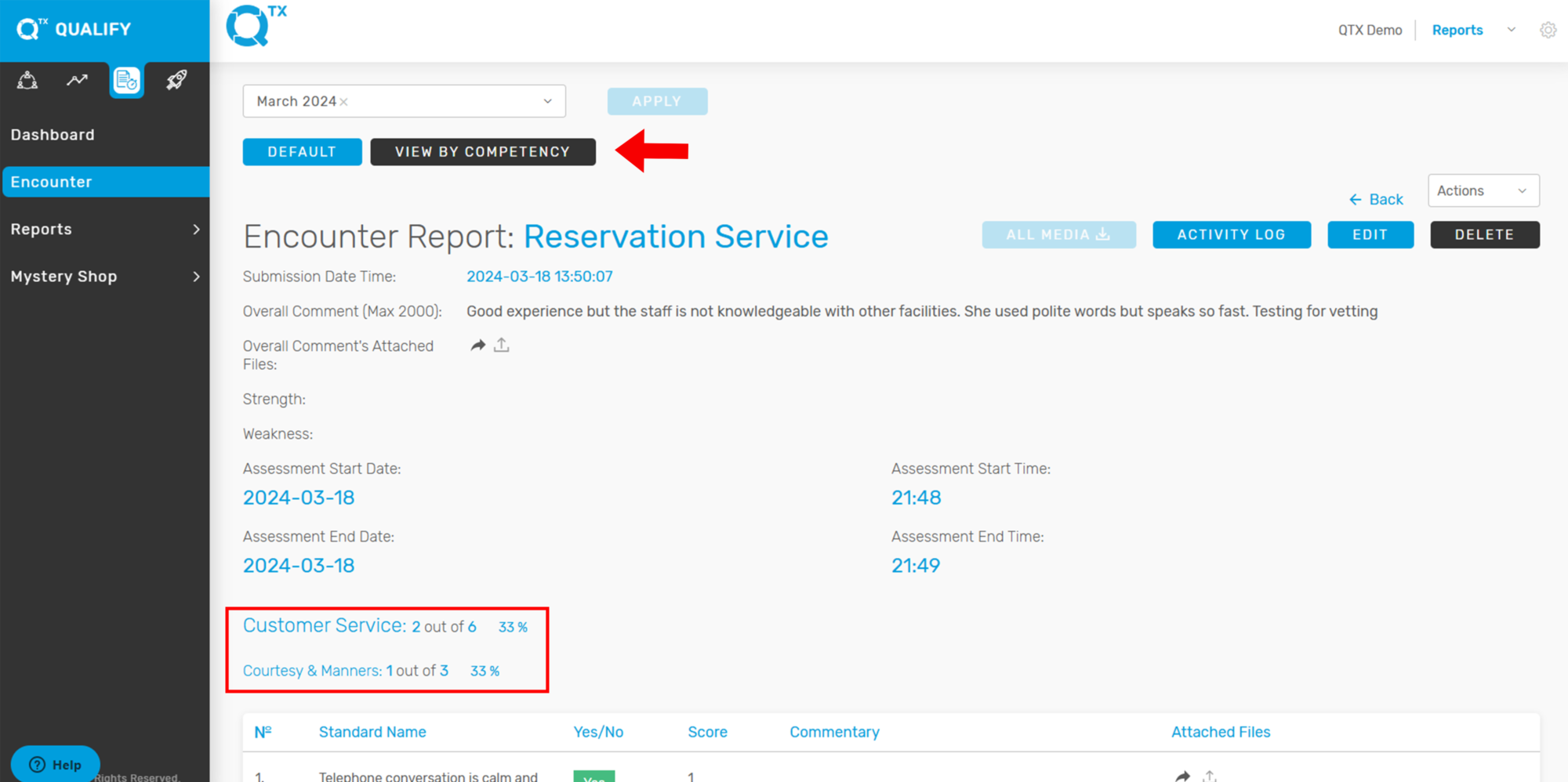
7. Users can view the Encounter Report organized by Competency for a more structured analysis. Simply click on “VIEW BY COMPETENCY”, and the report will automatically display the results grouped under each specific competency category.
If you need further assistance, please send an email to helpdesk@q-tx.com