
The Vetting Process is a structured review stage where completed assessments are evaluated, refined, and validated before finalization. This process ensures that all assessments meet quality standards and that any required corrections or clarifications are properly addressed. It also helps maintain consistency and accuracy across all submitted assessments.
The vetting process improves overall efficiency by enhancing data quality and reporting accuracy, reducing errors before finalization, and standardizing review workflows across teams. It also promotes transparency between reviewers and inspectors, while creating a clear audit trail of all communications and changes made during the review process.
By default, completed assessment statuses vary across platforms. In Qualify, completed assessments are automatically set to In-Review, meaning the vetting process begins immediately. In Perform and Launch, completed assessments remain in Completed status, and the reviewer must manually change the status to In-Review to initiate the vetting process.
1. Go to the Inspector’s Dashboard and locate the assessment in Vetting State.
The status will appear as In-Review, and a warning icon will be displayed on the upper-left corner of the assessment folder, indicating that the reviewer has requested further action. Click the In-Review and Next button to proceed.


2. On the Assessment Page, identify the standards marked with a warning icon, indicating items that need revision. Click the icon on the right side to view the reviewer’s comments or requested changes. Update your answers accordingly.

3. After completing the required updates, you may optionally add a response to the reviewer. Click Mark as Resolved.
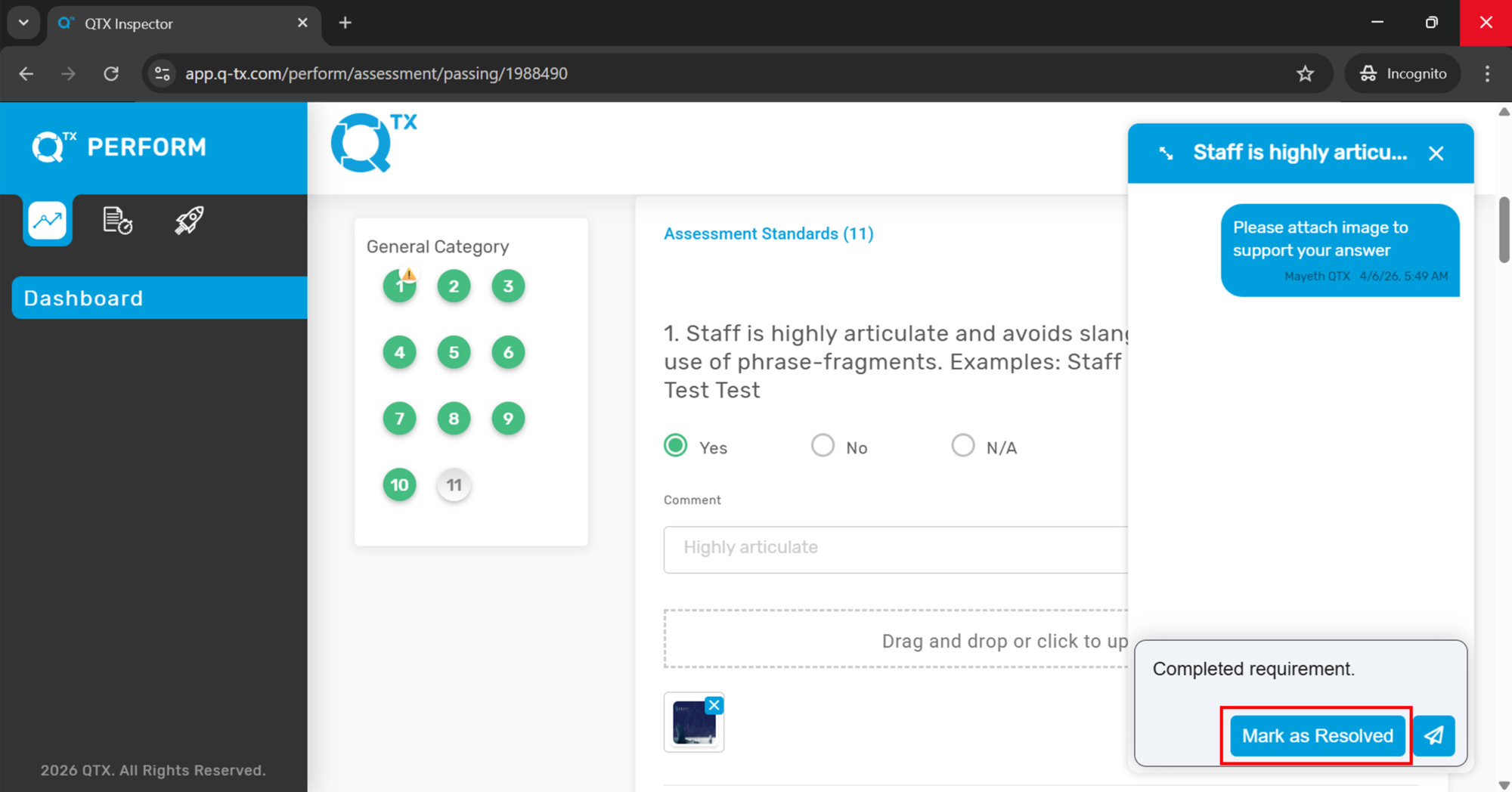
4. Once marked as resolved, you have the option to notify the reviewer.
Click Notify to send a message or email notification.

5. After resolution, the icons will change from a warning icon to a check mark, indicating that the standards and assessment have been successfully updated.


If you need further assistance, please send an email to helpdesk@q-tx.com