
Each standard reflects a category of inspector feedback/experience, known as a Competency and Subcompetency/Segment. This report presents the details of the Competency Report by location, section, and department. Classifying the information accordingly will make it easier for the user to understand overall performance.
1. On the Dashboard landing page, click the “QUALIFY” button to proceed.
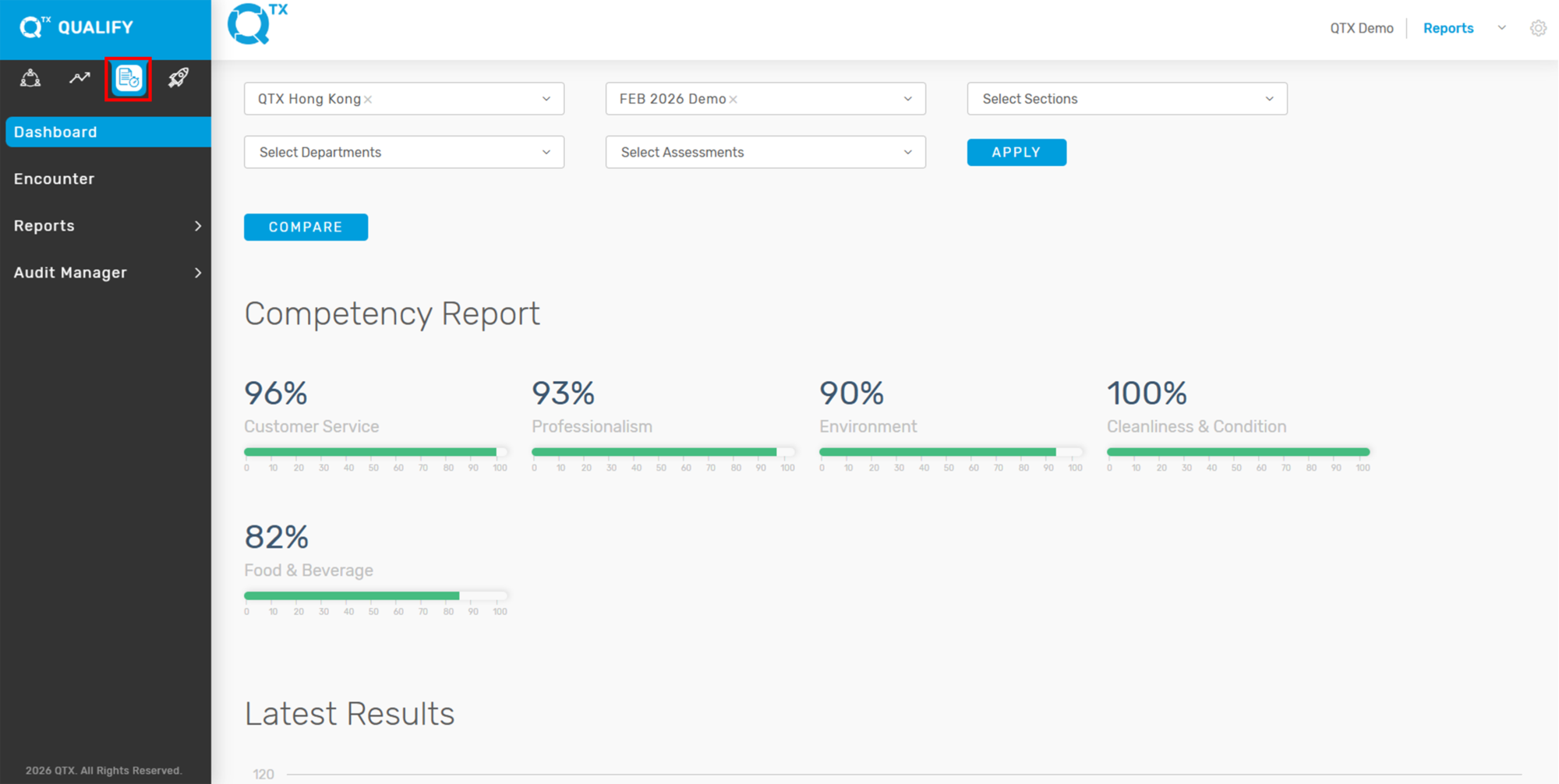
2. To access the Competency Report, start by clicking the “Reports” button located on the main navigation menu. From the dropdown options that appear, select “Competency” to view the detailed report related to inspector feedback and performance metrics.
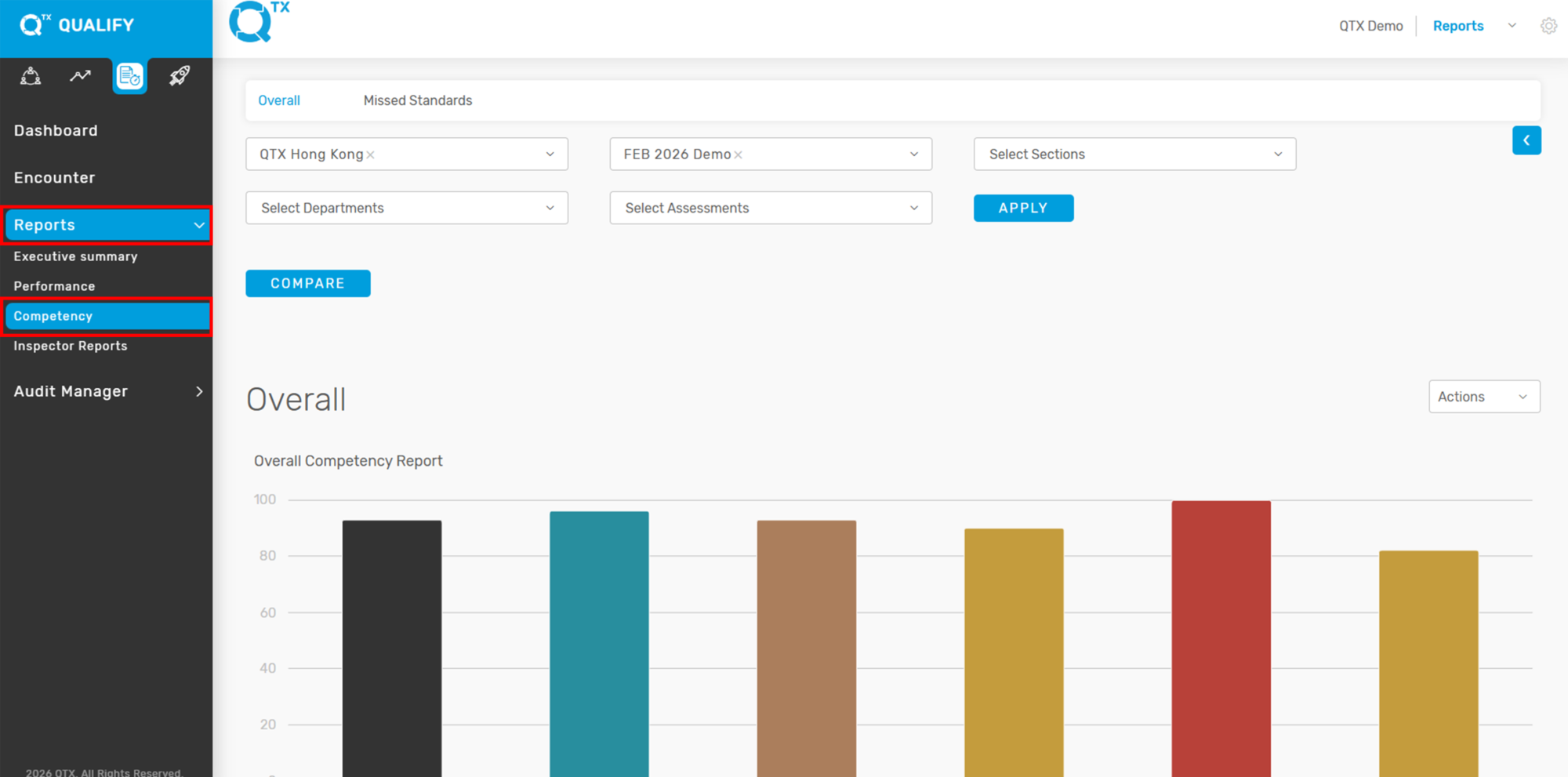
3. Ensure that you are on the “Overall” tab before proceeding. From there, use the selection list to filter and choose the relevant information you wish to view, and clickthe “Apply” button.

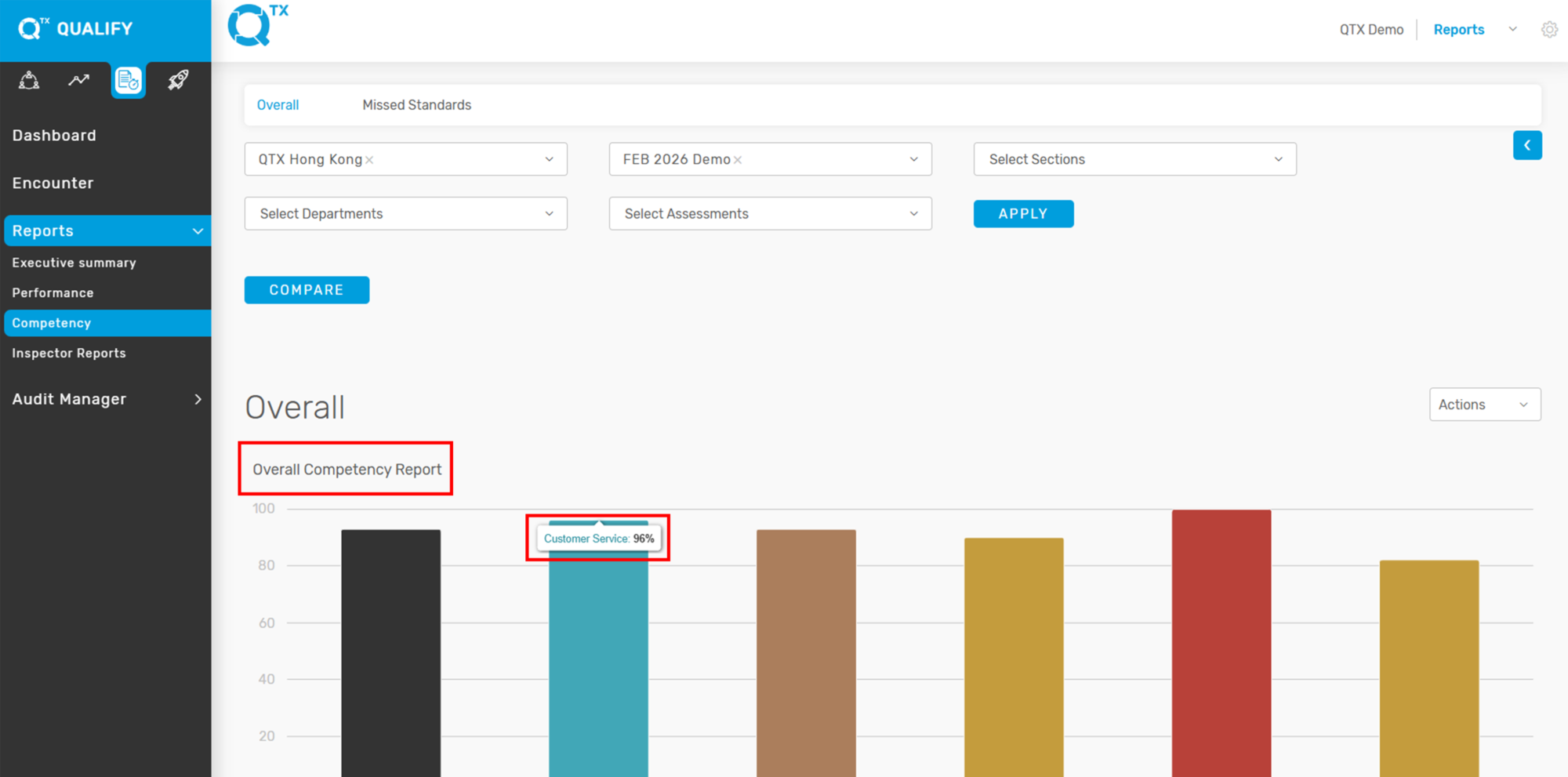
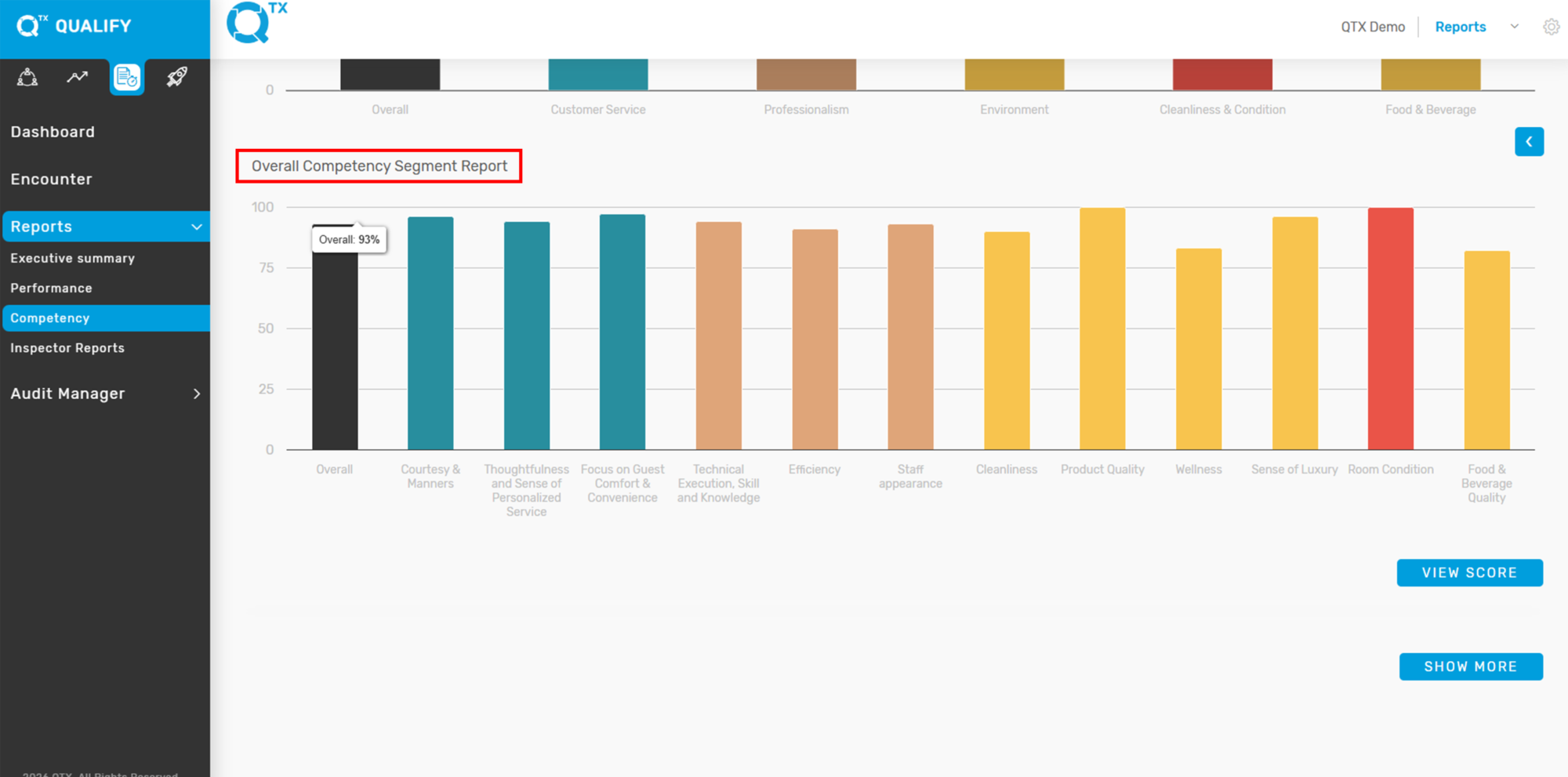
4. The Overall Competency Report will be displayed as a graph. To view the percentage score for each category, simply point your cursor at the specific graph bars.
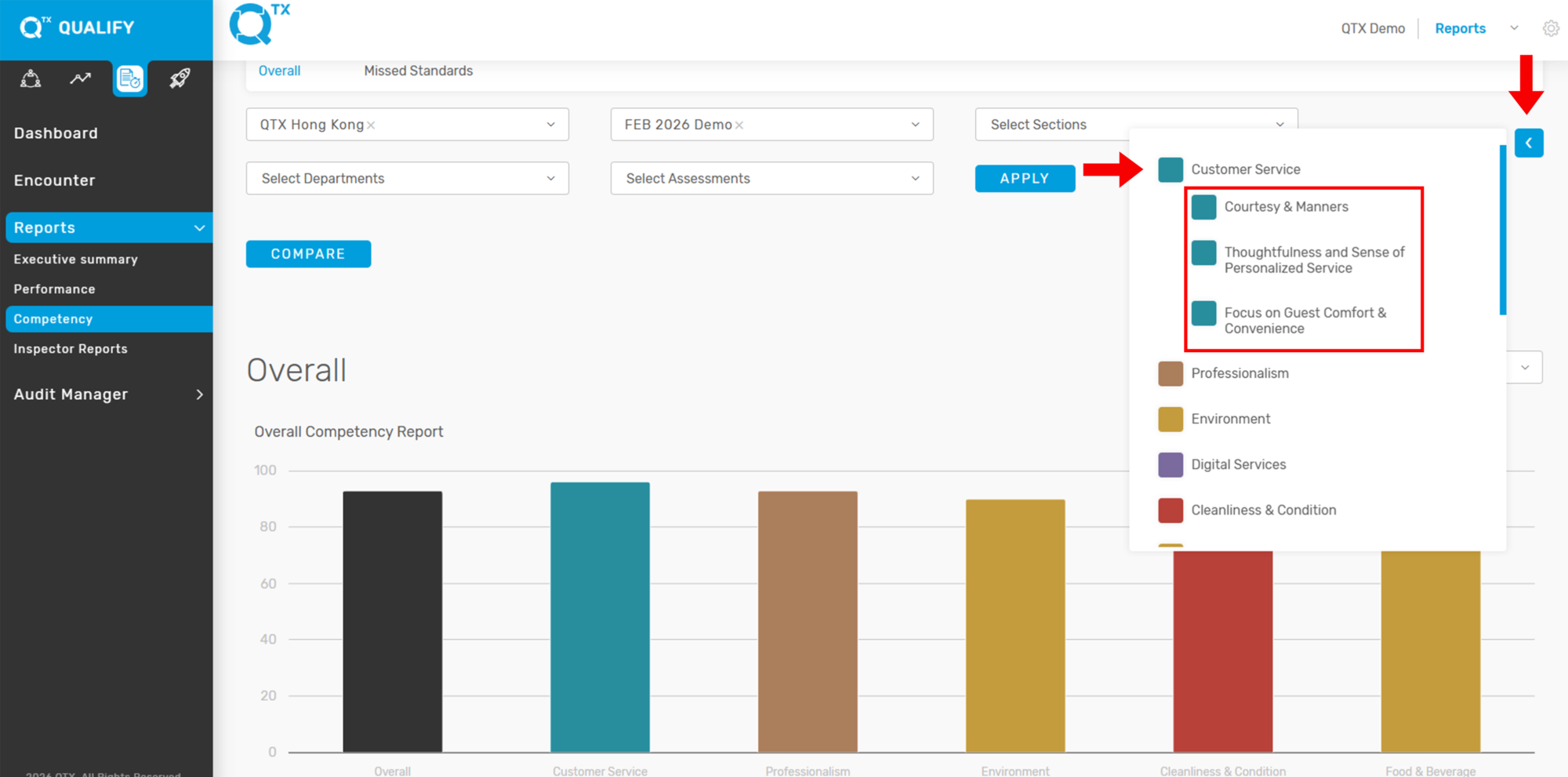
5. Click the “Arrow” button to show or hide the Competency list. Then, click on the colored box items within the list to view the corresponding Subcompetency or Segment name, if available.
6. Below is the Overall Competency Segment Report, which provides a breakdown of performance across various segments.
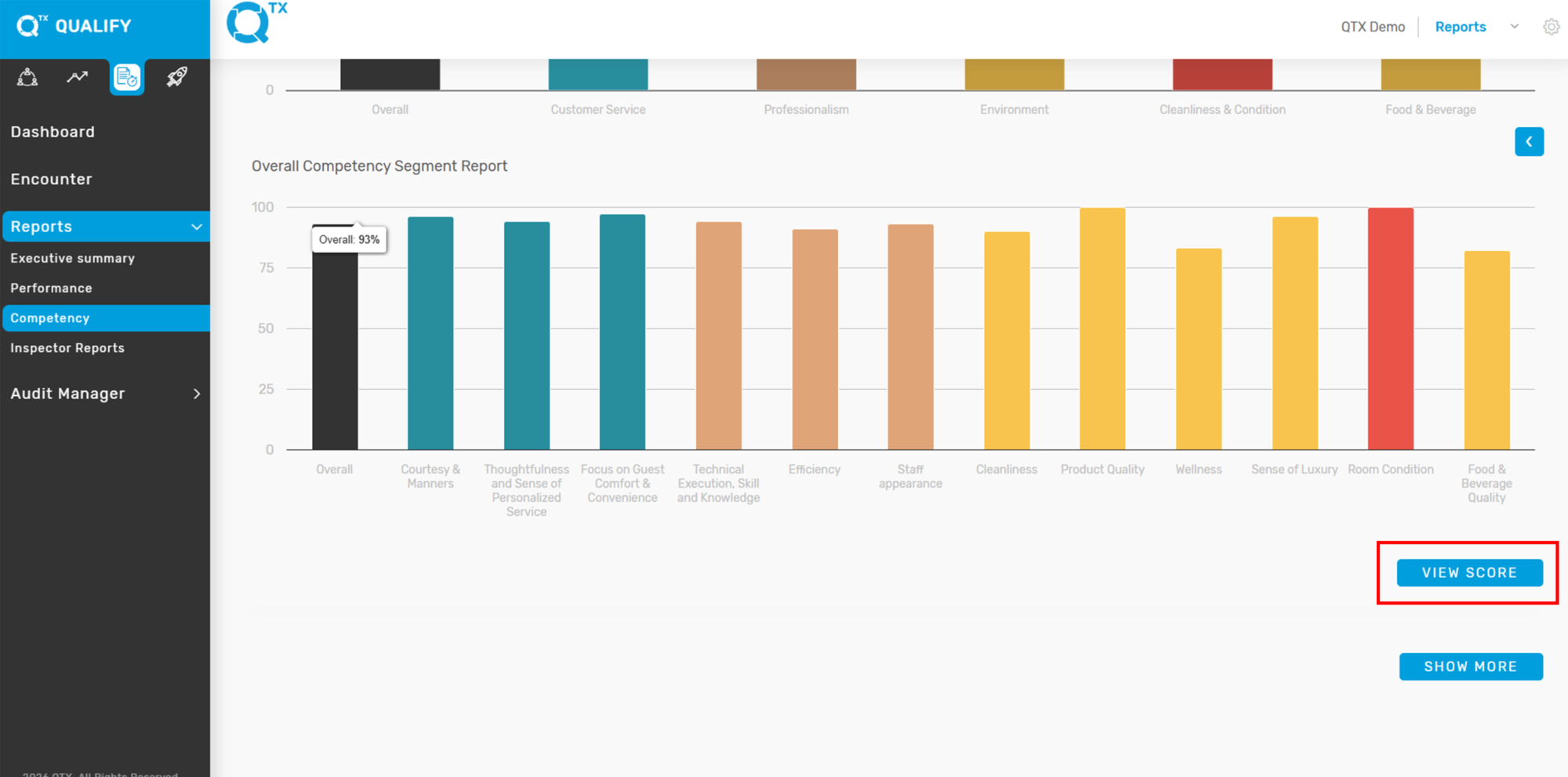
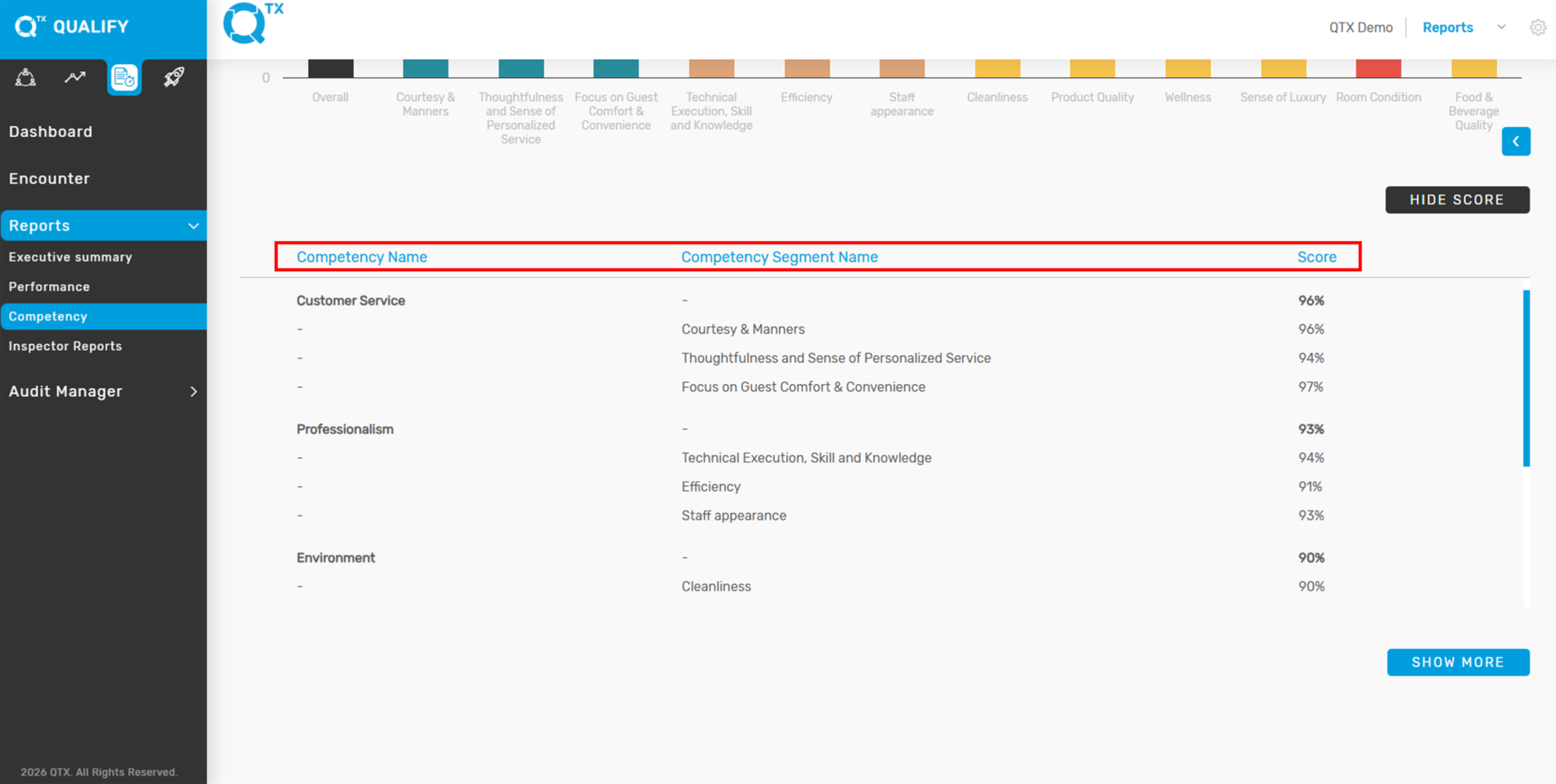
7. Click the “VIEW SCORE” button to display the scores categorized by Competency and Competency Segment Name.
8. From here, you can view the Competency Name, Competency Segment Name, and their corresponding scores.
If you need further assistance, please send an email to helpdesk@q-tx.com